
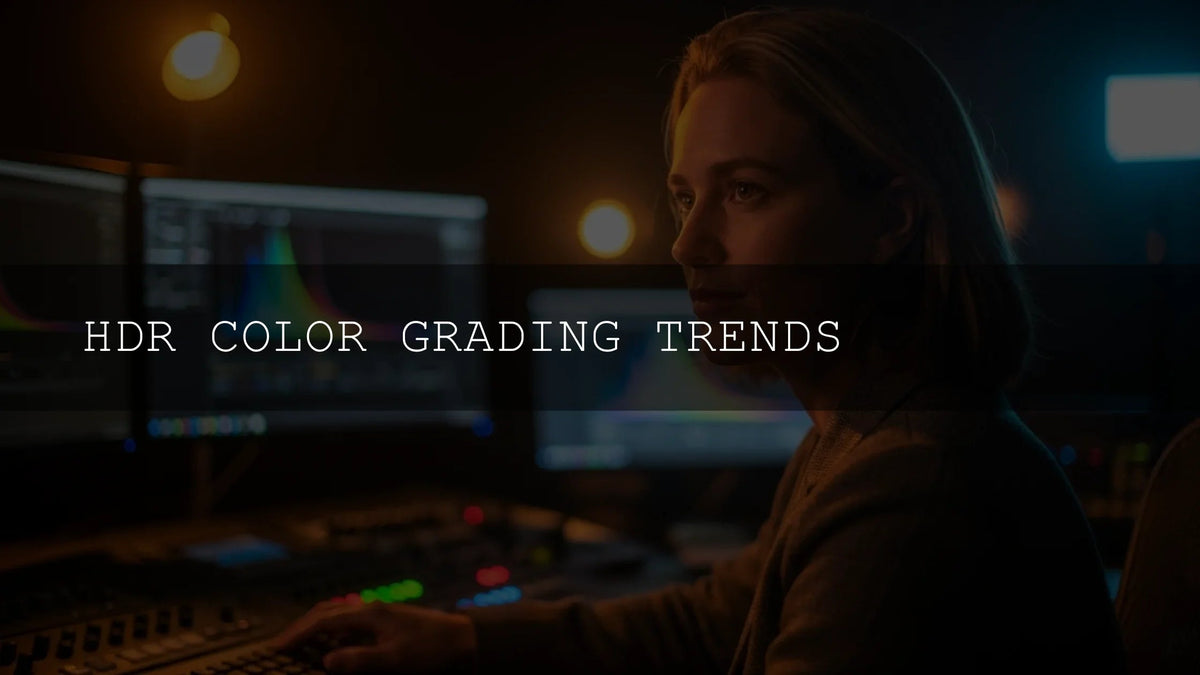
HDR Color Grading Trends: Hyper-Real, Cinematic, and Technically Bulletproof
If you’re looking for the definitive HDR color grading trends, you’re in the right place. This guide blends creative direction with practical workflows to help you deliver HDR that feels tactile, emotionally resonant, and consistent across devices. We’ll cover hyper-realism without the “plasticky” sheen, cinematic lushness that tells a story, a tasteful retro revival reimagined for HDR, and the non-negotiable workflow fundamentals you need to ship confidently. Along the way, you’ll find step-by-step tips, comparisons (presets vs manual editing), and quick wins you can apply today.
Want a fast way to get the look? Explore premium LUTs and presets designed for realistic skin, filmic contrast, and clean highlight roll-off—Creamy Minimalist Cinematic LUTs Pack For Video Editing pairs beautifully with modern HDR workflows, and you can browse more options in Lightroom Presets Collection. Try them on your next project—Buy 3, Get 9 FREE.
Hyper-Realism without the Crunch
Early HDR often pushed brightness and saturation to extremes. In 2026, hyper-realism is subtler: it prioritizes texture fidelity, authentic color volume, and specular discipline—so surfaces look tangible but never brittle.
- Preserve micro-contrast in shadows: Protect fine detail in near-black regions so leather, hair, and fabric feel touchable. Use luma-weighted tools and gentle local contrast rather than blunt global curves.
- Render color as volume, not just saturation: Work in wide gamut (e.g., Rec.2020) and let hues “breathe” within HDR’s headroom. Consider Adobe’s guidance on Lightroom Classic HDR output for practical guardrails.
- Control speculars with intent: Calibrate highlight range so glints read as energy, not clipping. In Premiere Pro, review tone-mapping behavior to keep HDR highlights consistent in SDR trims.
- Stage the air, not just the subject: Use luminance gradients and haze selectively to make light feel volumetric—fog, dust, or beam effects should add depth, not haze away detail.
For a fast baseline that respects all three, start with a restrained cinematic LUT and refine locally. Try 700+ Cinematic Video LUTs For Your Next Project for multi-genre looks; test on a few scenes, then lock a show LUT.
Cinematic Lushness: Color as Story
“Cinematic” in HDR isn’t about maxing out saturation—it’s about emotional gradients shaped by light and palette.
- Shadows as mood, not absence: Let HDR shadows carry texture and story beats. Keep blacks honest; reserve crushed blacks for rare, deliberate moments.
- Deliberate palettes: Build a cohesive scheme—warm ambers for intimacy, cool cyans for contemplation, jewel tones for intensity. Use Adobe Color harmony rules to explore complements, triads, or split-complements that match your narrative arc.
- Feathered tonal transitions: Use graduated masks and soft roll-offs to guide the eye. See Adobe’s HDR optimization in Lightroom for how HDR mode affects sliders and histograms.
- Bloom with restraint: Gentle bloom can feel expensive; overdo it and it feels mushy. Keep diffusion localized to highlights with careful thresholds.
Field note: On a recent wedding highlight I graded, I used a warm triad palette anchored by skin-friendly ambers. A subtle highlight-only bloom added glow to candles without washing faces. The look held up perfectly in the SDR trim thanks to controlled tone mapping.
Retro Revival, Reimagined for HDR
Vintage aesthetics are back—but HDR lets you carry the emotion of classic stocks without sacrificing dynamic range.
- Film stock character, modern fidelity: Emulate tonal curves and bias, then layer natural highlight roll-off and clean color separation to avoid muddy midtones.
- Artifacts as seasoning: Halation or grain should be textural—not a blanket. Scale grain with scene luminance so highlights don’t sparkle unnaturally.
- Era palettes, HDR-ready: Anchor a Kodachrome-inspired warmth or 90s desaturation, but keep specular shape and shadow detail contemporary.
Want a starting point? Apply a period LUT from Creamy Minimalist Cinematic LUTs Pack For Video Editing, then finesse with local hue rotations and density adjustments.
Presets vs Manual Editing (and When to Blend Both)
Presets/LUTs excel at speed and consistency across a timeline; manual editing excels at nuance for hero shots. The winning workflow is hybrid:
- Establish a scene-appropriate base with a clean, HDR-aware LUT or preset (700+ Cinematic Video LUTs For Your Next Project or 1000+ Master Lightroom Presets Bundle).
- Add local corrections—skin isolation, sky control, and texture protection—via masks and curves.
- Finalize with gentle global polish (contrast geometry, flare discipline, and SDR trim).
For Lightroom users, Adobe’s documentation on HDR Photo Merge and Camera Raw HDR output clarifies where HDR defaults impact your edits.
Hands-On: A Fast HDR Look in Lightroom
- Enable HDR processing (see Lightroom HDR mode and output).
- Set white balance to story intent (not “technically neutral”).
- Shape contrast with Point Curve and Whites/Highlights for clean speculars; avoid crushing blacks.
- Use Masking to protect skin and preserve micro-texture; split-tone highlights/shadows sparingly.
- Export HDR where supported; verify SDR appearance with a soft-proof or tone-mapped preview.
For palette planning before you grade, build theme-aware swatches with the Adobe Color palette generator.
Hands-On: A Fast HDR Look in Premiere Pro
- Confirm sequence color management and monitoring. Review Adobe’s notes on how color management works.
- Balance footage types (Log, HLG, PQ) with automatic or manual tone mapping.
- Apply a restrained show LUT; refine with Curves, HDR wheels, and selective secondaries.
- Tame speculars: compress top highlights slightly; avoid hard clipping.
- Deliver HDR master and SDR trim; check both on calibrated displays.
The Non-Negotiables: Workflow & Monitoring
- Accurate monitoring: Grade on a calibrated HDR-capable reference display. Keep ambient light stable and neutral.
- Know your standards: Understand PQ (SMPTE ST 2084) and HLG per ITU-R BT.2100 so your intent survives across devices and platforms.
- Color management discipline: Keep working color space, transforms, and export targets explicit—no accidental conversions.
- Delivery clarity: Decide up front which services, codecs, and metadata you’ll deliver; verify their HDR/SDR behaviors before the final grade.
Need installation help or file-type guidance? See How to Import and Apply LUTs.
Related Reading
- HDR vs SDR Grading: A Deep Dive into Workflow & Best Practices
- Cinematic Warmth: How Golden Tones Create Intimacy
- How to Harmonize Skin Tones: Mastering Natural Looks Across Cameras
- DaVinci Resolve vs Premiere Pro: A Deep Dive into Color Grading Prowess in 2026
- Film Emulation: Grain, Fade, and Soft Highlights — The Ultimate Guide to Analog Vibes
Practical Pro Tips You Can Apply Today
- Specular sanity check: Toggle between HDR and SDR preview frequently; if SDR looks dull or blocked, your HDR highlights likely need gentler roll-off.
- Texture triage: Zoom 100% on skin, hair, and fabric while adjusting clarity/texture; if pores sparkle, back off micro-contrast.
- Palette guardrails: Lock a 3–5 color set per sequence using Adobe Color harmony; forbid out-of-palette hues unless story beats require them.
- Noise ≠ film: If you add grain, modulate intensity by luminance so highlights stay clean and mids feel organic.
- Deliverables audit: Render short test masters for every distribution target and check on real devices before final export.
If you want a curated, HDR-friendly starting point for multiple genres, grab 700+ Cinematic Video LUTs For Your Next Project and the all-rounder 1000+ Master Lightroom Presets Bundle. You can also browse the full range in Lightroom Presets Collection—and remember, Buy 3, Get 9 FREE.
FAQ
What’s the biggest difference between HDR and SDR grading?
HDR offers more highlight headroom and wider color volume. Practically, it means cleaner speculars, richer hues without oversaturation, and more nuanced shadows—if your workflow and monitoring are set up correctly.
Should I use LUTs/presets for HDR or grade from scratch?
Both. Use a clean, HDR-aware LUT/preset for speed and consistency, then do local refinements on skin, skies, and texture. This hybrid approach is the 2026 sweet spot.
How do I keep HDR highlights from looking clipped on SDR?
Control top-end compression and review your SDR trim frequently. In Premiere Pro, understand how automatic tone mapping behaves with your footage.
Which color space should I work in for HDR?
Wide-gamut spaces like Rec.2020 are common, but the critical part is consistent transforms and standards compliance—see ITU-R BT.2100 for PQ/HLG details.
How do I build a cohesive color palette for a film?
Decide on story emotion first, then lock 3–5 colors using Adobe Color’s harmony rules. Keep everything else in supportive neutrals.
Written by Asanka — creator of AAAPresets (10,000+ customers).
![Hyper-Realistic Grading: Mastering Subtle Looks That Feel Utterly Organic ([MCM]) - AAA Presets](http://aaapresets.com/cdn/shop/articles/hyper-realistic-grading-mastering-subtle-looks-that-feel-utterly-organic-mcm-aaapresets_80a53721-34a2-4a0a-a305-69af1644e1d0.jpg?v=1788329261&width=2240)


Leave a comment
This site is protected by hCaptcha and the hCaptcha Privacy Policy and Terms of Service apply.