
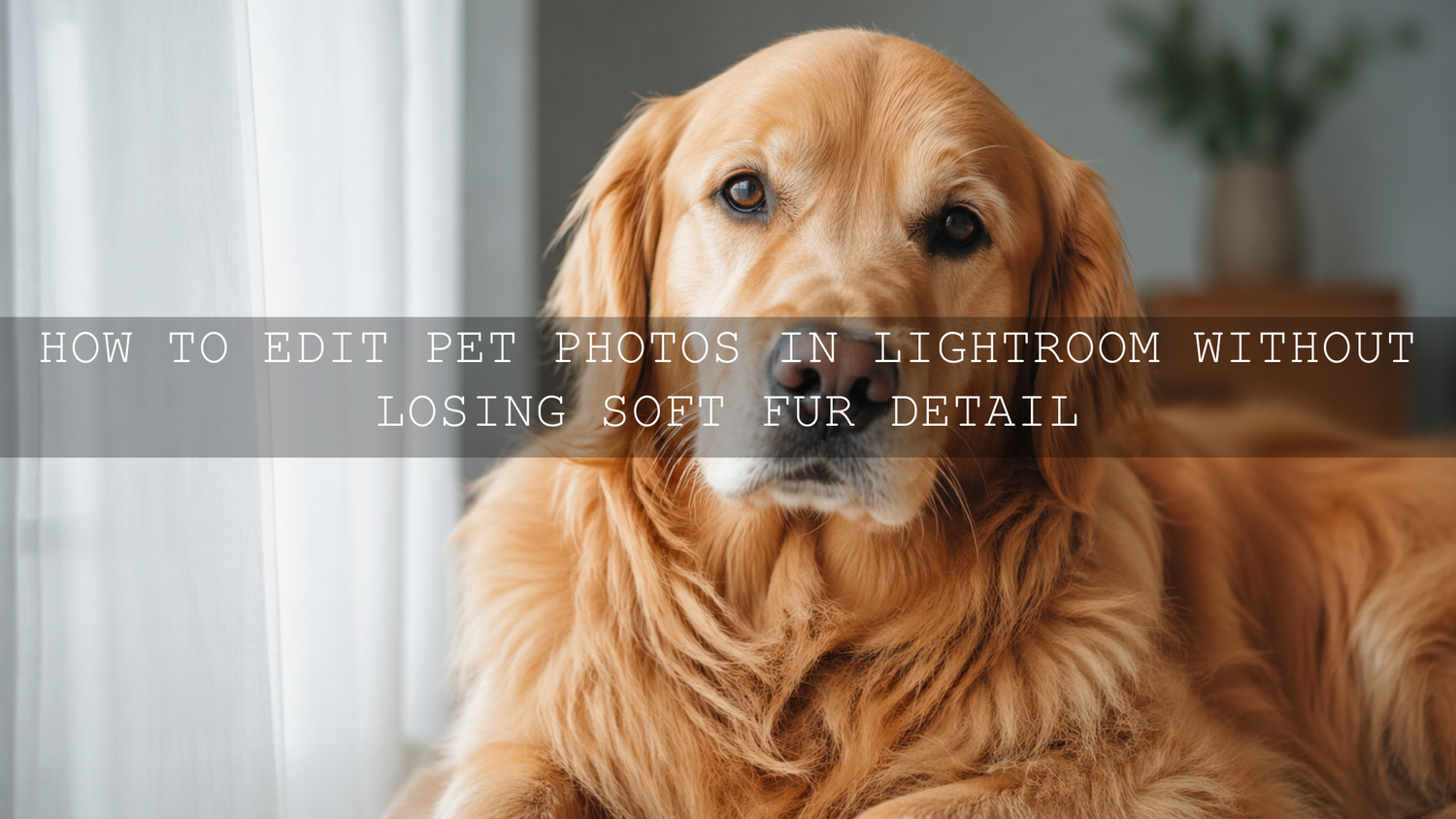
How to Edit Pet Photos in Lightroom Without Losing Soft Fur Detail
Pet photo editing in Lightroom is not only about making a dog, cat, horse, bird, rabbit, or reptile look brighter. The real goal is to protect personality, natural coat color, eye detail, and soft fur texture while giving the image a clean professional finish. In 2026, pet photography editing works best when you combine good light, careful white balance, gentle sharpening, and the right Pet Lovers Lightroom Presets as a strong starting point.
Here’s why this matters: pet photos can easily become too yellow indoors, too flat in shade, too harsh in bright sunlight, or too soft around the fur. A good edit should make the photo feel more alive without making your pet look fake. If you want a faster workflow, explore the Pet Lovers Lightroom Presets for natural pet portraits and browse the Lightroom Presets for Lightroom Mobile & Desktop collection to build a flexible editing base. Try these presets today — Buy 3, Get 9 FREE.
Start With Your Pet’s Personality Before You Edit
Before you move any slider, look at the feeling of the image. Is your pet playful, calm, royal, sleepy, curious, shy, or full of energy? A photo of a golden retriever running in a park should not be edited the same way as a quiet cat sleeping beside a window. The best pet photography editing style supports the personality already in the photo.
I tested this approach on a small indoor pet portrait set with mixed window light and warm room light. The biggest improvement did not come from heavy sharpening. It came from correcting white balance first, then using a gentle preset to keep the fur soft while making the eyes look clearer.
For a playful pet, you can usually use slightly brighter exposure, cleaner whites, and a little more vibrance. For a calm or emotional portrait, softer contrast, warmer shadows, and controlled highlights often feel better. If your pet has dark fur, avoid crushing the shadows. If your pet has white fur, protect the highlights first so the coat keeps real texture.
Light Is the Secret Behind Better Pet Photo Editing
Pet fur responds strongly to light. Soft window light can make fur look smooth and natural, while harsh midday sun can create strong contrast and blown-out highlights. Golden-hour light can look beautiful, but it can also push warm tones too far if you do not balance the edit carefully.
For warm outdoor portraits, the AI-Optimized Sunlight Petals Lightroom Presets can help create a glowing look with soft natural warmth. This style works especially well for pets photographed in gardens, parks, flower fields, cozy outdoor spaces, and warm lifestyle scenes.
In Lightroom, always check white balance before judging the preset. Adobe explains that white balance controls the color created by the light source, so indoor bulbs, cloudy skies, and sunset light can all shift the look of the photo. For a more technical starting point, Adobe’s guide to the Lightroom edit panel and white balance controls is useful for understanding Temperature, Tint, Highlights, Shadows, Texture, and other key adjustments.
How to Keep Fur Detail Sharp Without Making It Crunchy
Soft fur detail is one of the hardest parts of pet photo editing. If you add too much Clarity, Texture, Sharpening, or Contrast, the fur can look rough and unnatural. If you reduce everything too much, the photo can look blurry or flat. The best result usually sits in the middle: enough texture to see whiskers and coat detail, but not so much that the image feels over-edited.
The Pet Lovers Lightroom Presets are made for this type of workflow because they focus on clean contrast, natural color balance, soft highlight control, and fur-friendly detail. They are useful for dogs, cats, horses, and everyday pet portraits shot indoors, outdoors, in shade, or during golden hour.
Here is a simple rule I use when editing pet portraits: zoom in to the eyes and fur before deciding the edit is finished. A photo can look beautiful on a phone screen, but if the fur around the face looks too sharp, too waxy, or too noisy when zoomed in, the edit still needs adjustment.
Pro Tips for Natural Fur Texture
- Lower highlights before adding sharpening: bright fur loses detail quickly, especially on white dogs, cats, and horses.
- Use Texture gently: small increases can reveal fur strands, but large increases can make soft fur look harsh.
- Protect the eyes: eyes should look clear, but not overly bright or glassy.
- Reduce color casts: green grass, warm lamps, and colored walls can reflect into fur and shift the coat color.
- Edit the background separately when needed: a clean background helps the pet stand out without forcing heavy contrast on the subject.
Presets vs Manual Editing for Pet Photography
Presets and manual editing both have a place in a professional pet photo workflow. Presets help you create a consistent look faster, especially when editing a full set of photos from the same shoot. Manual editing gives you more control when the lighting is difficult, the coat color is unusual, or the background needs extra cleanup.
Adobe describes Lightroom presets as predefined settings that can apply adjustments such as exposure, contrast, saturation, and color grading. You can learn more from Adobe’s official guide to editing photos with presets in Lightroom.
Let’s break it down:
- Use presets when: you want a fast, consistent base look for multiple pet photos.
- Use manual editing when: the photo has mixed lighting, blown highlights, dark fur, or distracting background colors.
- Use both when: you want the fastest professional result. Apply a preset first, then fine-tune exposure, white balance, fur texture, and masking.
For example, if you edit 20 photos of a dog in the same garden, a preset can help all images feel connected. But if one photo has harsh sunlight on the face and another is in shade, manual adjustments are still important. The preset gives you the style; your fine-tuning makes it accurate.
A Step-by-Step Lightroom Workflow for Pet Photos
This workflow works for everyday pet owners, pet influencers, photographers, and creators who want clean, emotional pet portraits without spending hours editing every image.
1. Choose the photo with the strongest expression
Do not start with the sharpest photo only. Start with the photo that has the best personality. A slightly imperfect photo with a real expression can be more powerful than a technically perfect photo with no emotion.
2. Correct exposure and white balance first
Before applying a heavy style, adjust the basic exposure so the face is readable. Then correct white balance. If the image is too yellow, the fur can look dirty. If it is too blue, the pet can look cold and lifeless. Aim for natural coat color first.
3. Apply a pet-friendly preset
Use a preset that supports fur detail and natural colors. For pet portraits, start with Pet Lovers Lightroom Presets for dogs, cats, and everyday pet moments. For outdoor warm light, try AI-Optimized Sunlight Petals Lightroom Presets. For animal photos with a stronger outdoor or wildlife feel, the AI-Optimized Wild Animal Lightroom Presets can also work well when you want more natural environment depth.
4. Adjust highlights and shadows
White fur, shiny noses, bright collars, and reflective eyes can clip easily. Lower Highlights if the fur looks washed out. Lift Shadows gently if dark fur has lost detail. This helps the subject look soft but still defined.
5. Use masking for the face, eyes, and background
Masking helps you edit specific areas instead of changing the whole image. You can brighten the face slightly, add a touch of detail to the eyes, or soften a distracting background. Adobe’s official guide to masking for local adjustments in Lightroom explains how selective edits can be applied to different parts of a photo.
6. Refine fur texture carefully
Use Texture and Clarity in small amounts. If the pet has fluffy fur, keep the edit soft. If the pet has short fur, you can usually add a little more definition. Always zoom in before saving the final version.
7. Review the photo on phone and desktop
Many pet photos are shared on Instagram, TikTok, Pinterest, websites, and online stores. Check the final image on more than one screen when possible. A photo that looks perfect on desktop can look too dark or too warm on a phone.
Editing Different Types of Pets
Every pet has different editing needs. A black cat, white dog, brown horse, colorful bird, and patterned reptile all respond differently to exposure, contrast, and color grading.
Dogs
Dog portraits often benefit from warm tones, bright eyes, and clean backgrounds. Be careful with over-sharpening around the nose and mouth. For active outdoor dog photos, use a slightly brighter edit with enough contrast to separate the dog from grass, sand, or trees.
Cats
Cat photos usually look best with softer contrast and careful eye detail. Indoor cat portraits often have warm color casts from lamps or curtains, so white balance matters. If the cat has dark fur, lift shadows gently without making the coat look gray.
Horses
Horse photography needs strong detail in the coat and mane. Avoid making brown tones too orange. If the photo was taken in a field, reduce green color casts from grass if they affect the coat.
Birds and Small Animals
For birds, rabbits, and small pets, keep detail clean but natural. Feathers and fine fur can become noisy if you add too much sharpening. For more outdoor animal editing ideas, read how to edit wildlife photos with Lightroom presets.
How to Create a Cinematic Pet Photography Look
A cinematic pet photo does not need to look dark or dramatic. It simply needs mood, clean color direction, and emotional light. Warm sunlight, soft contrast, and controlled highlights can make a pet portrait feel like a story instead of a quick snapshot.
For pet videos, you can use LUTs to create a similar feeling across clips. The Cinematic Sunlight & Petals LUTs Pack is a good match for warm outdoor pet videos, lifestyle reels, and soft emotional footage. If you create pet content for Instagram Reels, TikTok, YouTube Shorts, or brand storytelling, a consistent LUT can help your videos feel more polished.
For photo sets taken in parks, gardens, forests, and natural backgrounds, you may also enjoy reading top Lightroom presets for landscape photography, because background color, green tones, and natural light affect how the pet stands out in the final image.
Common Pet Photo Editing Mistakes to Avoid
Even a beautiful pet photo can lose its charm if the edit goes too far. The safest approach is to enhance what is already there instead of forcing a style that does not match the photo.
- Too much saturation: this can make grass, collars, toys, and fur colors look unrealistic.
- Too much sharpening: this can make fur look rough instead of soft.
- Ignoring white balance: indoor light can make pets look too orange or too green.
- Blown white fur: once highlight detail is gone, the coat can look flat.
- Over-dark backgrounds: a moody background can look nice, but the pet’s face should still feel clear.
If you work with snowy pet portraits or bright white fur, the same exposure lessons from winter photography can help. Read Lightroom tricks for winter photography to understand how bright whites, highlights, and cool tones affect detail.
Best Settings to Check After Applying Pet Lightroom Presets
After applying a preset, do not stop immediately. Presets are the starting point, not the final edit. Check these settings before exporting your pet photo:
- Exposure: make sure the face is clear and not too dark.
- White Balance: keep fur color natural and believable.
- Highlights: protect white fur, shiny noses, and bright collars.
- Shadows: reveal detail in black or dark brown fur.
- Texture: add definition only where the fur needs it.
- Vibrance: improve color without making the photo look cartoonish.
- Masking: brighten the subject or soften the background when needed.
For seasonal color inspiration, especially if your pet photos include warm leaves, gardens, or golden-hour parks, explore Lightroom presets for autumn photos. Warm outdoor tones can work beautifully for pet portraits when they are balanced carefully.
Build a Consistent Pet Photography Style
If you post pet photos regularly, consistency matters. A consistent editing style makes your Instagram feed, pet blog, product page, or portfolio look more professional. This does not mean every photo must look identical. It means your colors, contrast, brightness, and mood should feel connected.
Start by choosing one main editing direction. Do you want bright and clean? Warm and cozy? Soft cinematic? Natural and realistic? Once you know the direction, use one preset pack as your main base and adjust each image depending on the light.
For a broad editing foundation, browse the Lightroom Presets for Lightroom Mobile & Desktop collection. For brighter outdoor and lifestyle looks, the Bright Summer Lightroom Presets collection can also support clean, vibrant pet photos in natural light.
To create polished pet photos faster, start with Pet Lovers Lightroom Presets for fur detail and natural color, then add warm outdoor style with AI-Optimized Sunlight Petals Lightroom Presets when the scene needs a soft glow. For video creators, pair your photo style with the Cinematic Sunlight & Petals LUTs Pack. Explore the related preset collections and build your pet editing workflow today — Buy 3, Get 9 FREE.
Related Reading
- How to edit wildlife photos with Lightroom presets
- Top Lightroom presets for landscape and nature photography
- How to protect bright white detail in winter photos
- Best Lightroom presets for warm autumn photo edits
- AAAPresets file license information
Image Alt Text Suggestions
- Pet photo editing in Lightroom with soft fur detail and natural coat color
- Pet Lovers Lightroom Presets before and after edit for dog and cat portraits
- Warm outdoor pet photography using AI-Optimized Sunlight Petals Lightroom Presets
- Soft cinematic pet portrait with natural eye detail and clean background
- Lightroom preset workflow for editing dog, cat, and horse photography
FAQs
What is the best way to edit pet photos in Lightroom?
Start with exposure and white balance, then apply a pet-friendly Lightroom preset, refine highlights and shadows, and use gentle Texture or Clarity to keep fur detail natural.
How do I make pet fur look soft but still sharp?
Use small adjustments. Lower harsh highlights, add Texture lightly, avoid extreme sharpening, and zoom in around the face, whiskers, and coat before finishing the edit.
Are Lightroom presets good for dog and cat photography?
Yes. Lightroom presets are helpful for dog and cat photography because they create a consistent base look quickly. The best results come when you fine-tune white balance, exposure, fur detail, and eye brightness after applying the preset.
Can I use pet Lightroom presets on mobile?
Yes. Presets that include DNG files can be used for Lightroom Mobile, while XMP files are commonly used for Lightroom desktop workflows. Always check the product format before editing.
Should pet photos look natural or cinematic?
Both can work. Natural edits are best for realistic portraits, product-style pet photography, and everyday memories. Cinematic edits are better for emotional outdoor portraits, storytelling reels, and warm lifestyle content.
Written by Asanka — creator of AAAPresets (10,000+ customers).


Leave a comment
This site is protected by hCaptcha and the hCaptcha Privacy Policy and Terms of Service apply.