
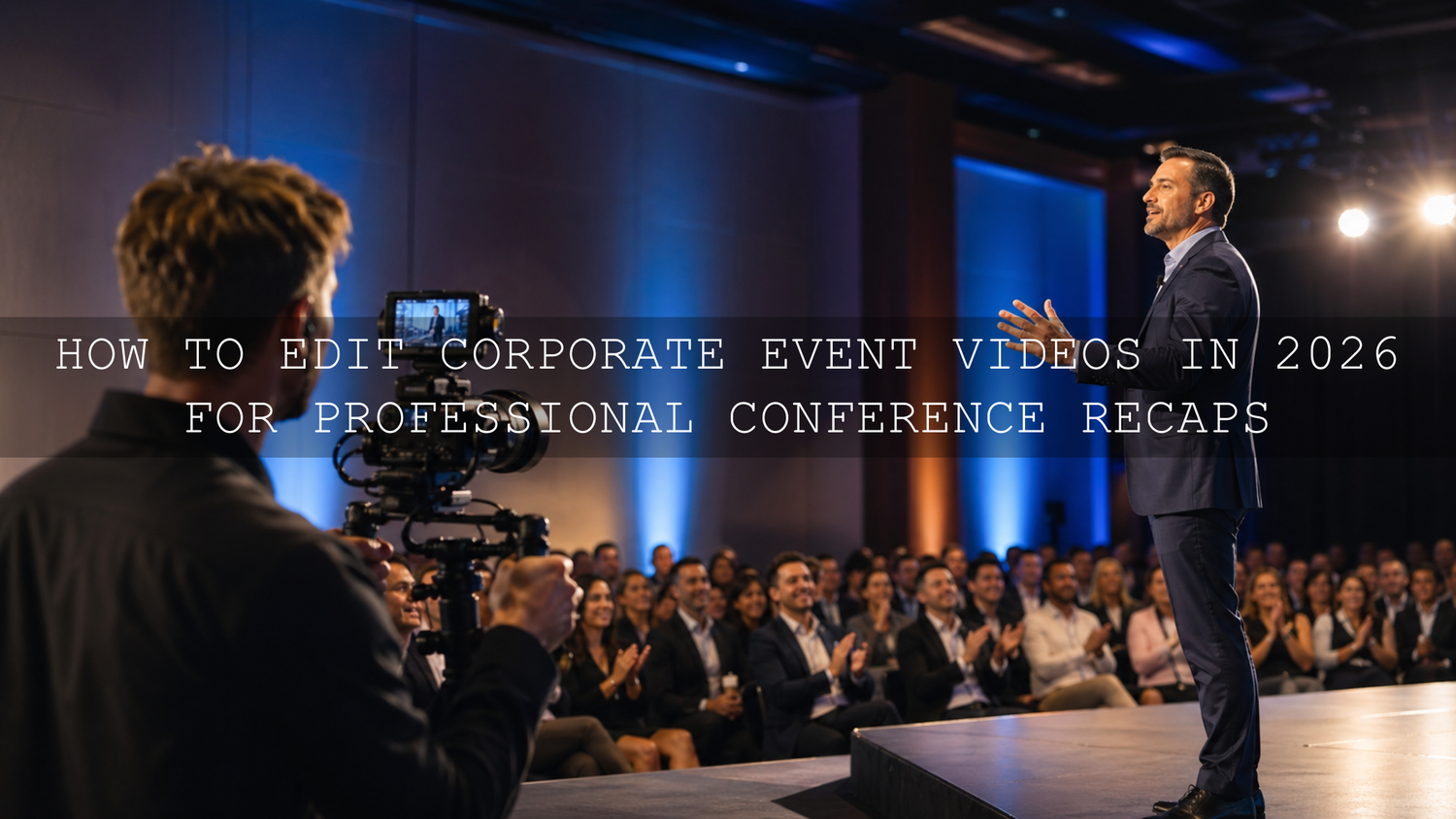
How to Edit Corporate Event Videos in 2026 for Professional Conference Recaps
Learning how to edit corporate event videos in 2026 is about more than trimming clips and adding music. A strong conference video edit should turn hours of keynote speeches, panel discussions, networking moments, audience reactions, sponsor booths, and behind-the-scenes clips into a clear story that feels polished, energetic, and useful. Whether you are creating an event highlight video, a full conference recap, short-form Reels, or promotional content for the next event, your editing workflow decides how professional the final result feels.
Here’s why this matters: raw event footage often looks busy, uneven, and overwhelming. You may have mixed indoor lighting, different camera angles, noisy audio, long speeches, crowded backgrounds, and too many good moments to choose from. The goal is not to show everything. The goal is to shape the best moments into a video that helps viewers understand the energy, message, and value of the event.
For faster social clips, start with the Cinematic Dynamic Energy Fast Cut Effect for Premiere Pro and browse the Premiere Pro transitions for Reels, Shorts, and TikToks collection for more fast-paced editing assets. Try these tools today — Buy 3, Get 9 FREE.
Start With a Clear Event Video Goal
Before opening Premiere Pro or any editing software, decide what the video needs to do. A corporate event video can have different goals, and each goal needs a different pace, structure, and visual style.
- Event highlight video: Short, energetic, emotional, and ideal for social media or a landing page.
- Conference recap video: Balanced, informative, and focused on the event story from start to finish.
- Speaker promo video: Built around powerful sound bites, audience reactions, and clear lower thirds.
- Internal training video: Slower, clearer, and more focused on information than entertainment.
- Future event promotion: Designed to show value, atmosphere, networking, and professional credibility.
I have tested this approach on event-style edits where the raw footage looked flat at first, but the final result became much stronger after organizing the story around three things: the people, the message, and the atmosphere. When you know the goal early, every cut becomes easier.
Organize Your Corporate Event Footage Before Editing
Good event video editing starts before the first cut. Conferences usually produce a large amount of footage, so organization saves time and prevents mistakes later.
Create a Simple Folder Structure
Do not keep every file in one folder. Separate your media by event day, camera, session type, and content purpose. A clean structure can look like this:
- Day 1 keynote footage
- Day 2 panels and workshops
- Speaker interviews
- Audience reactions
- Networking and sponsor booths
- B-roll and venue shots
- Audio recordings
- Logos, slides, titles, and brand assets
This simple step helps you find the best clips faster. It also makes it easier to create different versions of the same event video, such as a 60-second recap, a 15-second Reel, and a full YouTube version.
Use Markers for Strong Moments
As you review the footage, mark the most useful parts: big audience reactions, strong speaker quotes, applause, emotional moments, clean handshakes, sponsor displays, wide venue shots, and short clips with strong movement. These markers become your editing map.
For deeper workflow ideas, read how AI editing tools can improve Premiere Pro workflows and the best transitions for Premiere Pro edits.
Build a Strong Event Video Story
A professional event recap should feel like a story, not a random collection of clips. A simple structure works best:
- Opening hook: Start with the most energetic or emotional moment.
- Context: Show the venue, event name, audience, and speakers.
- Main value: Highlight key ideas, sessions, reactions, and networking.
- Atmosphere: Add B-roll, applause, smiles, handshakes, booths, and movement.
- Closing moment: End with a memorable quote, crowd shot, or future-focused message.
Let’s break it down. If the first five seconds feel slow, many viewers will leave before they understand the value of the event. Start with movement: a speaker on stage, a crowd clapping, a fast venue montage, or a strong quote. Then use the middle of the video to explain the event clearly.
Use Fast Cuts for Reels, Shorts, and TikToks
Short-form event content needs speed. Instagram Reels, YouTube Shorts, and TikTok are not the best places for long slow introductions. For these platforms, your edit should feel clean, sharp, and instantly understandable.
The Cinematic Dynamic Energy Fast Cut Effect for Premiere Pro is useful for turning event footage into a dynamic vertical montage. It works well for speaker entrances, venue walkthroughs, audience reactions, sponsor highlights, networking clips, and quick recap videos. Because it is designed for 9:16 vertical content, it fits Reels, Shorts, and TikToks without needing to rebuild the layout from scratch.
Pro tip: do not make every cut fast. Use fast cuts for energy, then add one or two slower shots so the viewer can breathe. This contrast makes the video feel more professional.
Color Grade Event Footage for a Clean Corporate Look
Corporate event footage often comes from different cameras and lighting conditions. One clip may be warm, another may be green, and another may look too flat. Color correction and color grading help everything feel consistent.
Start with correction first: fix exposure, white balance, contrast, and skin tones. After that, apply a creative look. Adobe’s official guide to Premiere Pro color management and Lumetri Color is helpful for understanding how color space and LUT behavior can affect your final grade.
Presets vs Manual Editing
Manual editing gives you full control, especially when different cameras and lighting setups are involved. Presets and LUTs give you speed and consistency, especially when you need to edit many clips under a deadline. The best workflow is usually a hybrid: correct the footage manually first, then apply a LUT or preset as a creative starting point, and finally fine-tune the look for skin tones and brand style.
For clean, natural-looking still images from the event, the Clean & Classic Cinematic Lightroom Presets can help create a polished photo set for blog posts, social media carousels, and event galleries. For video color workflows, explore how to combine LUTs and manual grading for professional video and how to grade LOG footage in Premiere Pro.
Handle Stage Lighting, Music, and Evening Event Clips
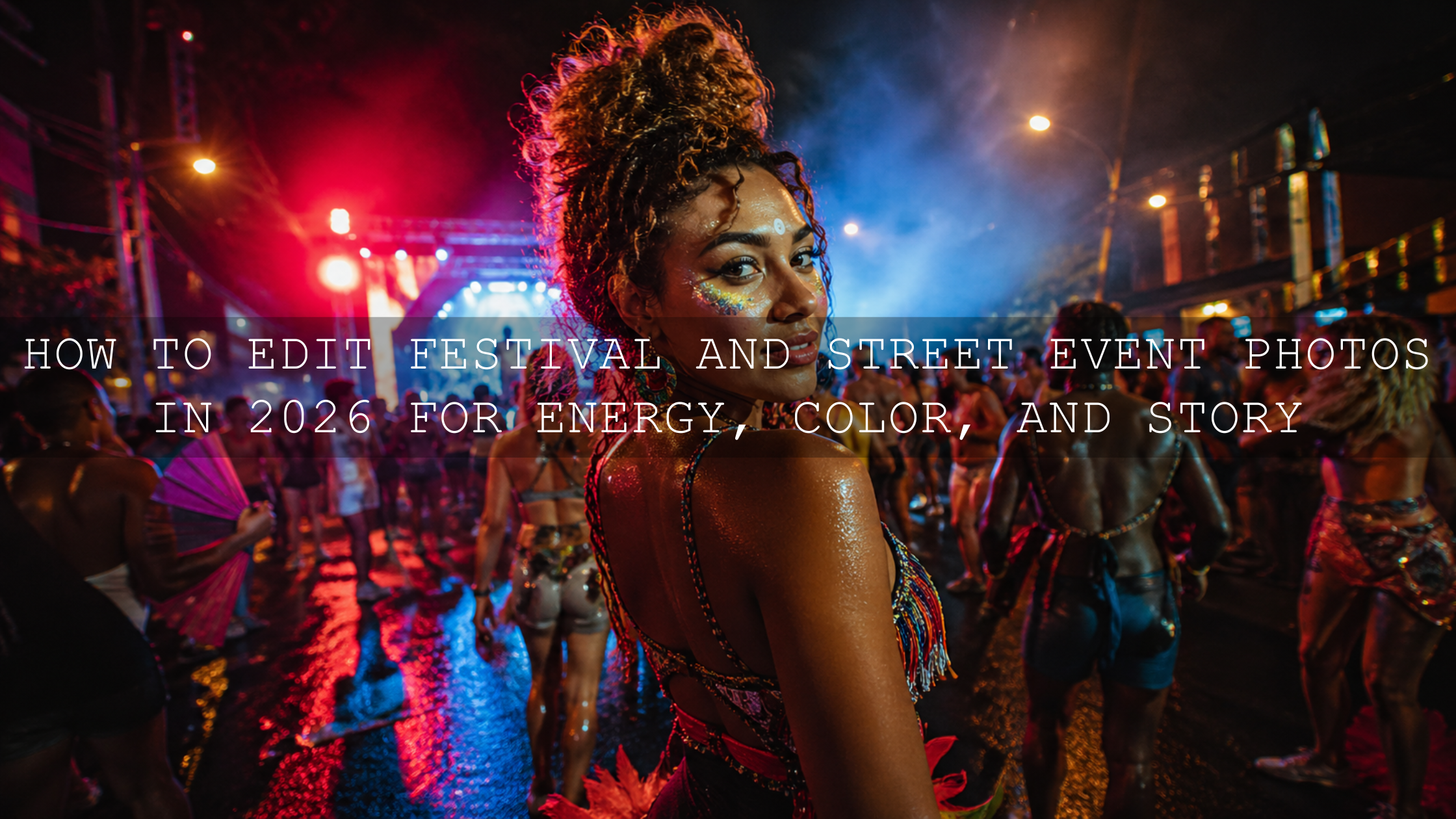
Many conferences include evening receptions, award ceremonies, live music, product launches, or networking parties. These scenes often have colored lights, deep shadows, and fast movement. If you grade them like normal corporate footage, they can look dull or messy.
The Concert Music Festival LUTs Pack is a better fit for high-energy event footage with colorful lights, stage scenes, entertainment clips, and aftermovie-style edits. Use it carefully: apply the LUT, reduce intensity if needed, protect skin tones, and avoid crushing the shadows too much.
For more options, browse the cinematic LUTs for Premiere Pro, DaVinci Resolve, Final Cut Pro, and more. You can also read Premiere Pro color grading plugin tips if you want a deeper grading workflow.
Add Titles, Captions, and Lower Thirds With Purpose
Titles and captions are important in corporate event videos because they help viewers understand who is speaking, what session they are watching, and why the moment matters. Use lower thirds for speaker names, job titles, company names, panel topics, and key statistics.
Adobe’s official guide to creating titles in Premiere Pro explains how to add and customize text inside a sequence. For accessibility and social viewing, Adobe’s guide to creating captions from transcripts in Premiere Pro is especially useful because many viewers watch videos without sound.
Text and Graphic Tips for Corporate Event Videos
- Keep text readable: Use clear fonts, strong contrast, and enough size for mobile screens.
- Stay on brand: Match the company colors, logo style, and tone of the event.
- Use fewer words: Short titles feel more premium than crowded text blocks.
- Animate gently: Clean fades and subtle movement usually look better than heavy effects.
For story-driven vertical content, the Newspaper History Slideshow in Premiere Pro for Reels, Shorts, and TikTok can help present event timelines, speaker backgrounds, brand milestones, or “how it started” recaps in a creative format.
Polish the Audio Before Exporting
Audio can make or break an event video. Viewers may forgive a slightly imperfect shot, but poor audio makes a video feel unprofessional immediately. Clean your dialogue, balance music, reduce background noise where possible, and make sure speaker clips are easy to understand.
Use music to support the feeling of the event, not overpower it. A corporate innovation summit may need a modern, inspiring track. A luxury brand event may need something slower and more elegant. A startup conference may need upbeat music with a faster rhythm.
Pro tip: when using speaker sound bites, lower the background music before the person starts talking. This makes the message feel clearer and more premium.
Export the Right Versions for Each Platform
Do not export only one version of your event video. A smart event editing workflow usually creates several versions from the same project:
- 16:9 YouTube or website version: Best for full recaps, speaker highlights, and landing pages.
- 9:16 vertical version: Best for Reels, TikTok, and YouTube Shorts.
- 1:1 square version: Useful for some social feeds and paid ads.
- 15-second teaser: Best for quick promotion and retargeting ads.
- 60-second recap: Strong for LinkedIn, Instagram, Facebook, and email campaigns.
Before final export, watch the full video on a phone and desktop. Check titles, captions, music volume, skin tones, spelling, logo placement, and pacing. This final review often catches small problems that are easy to miss inside the editing timeline.
Related Reading
- Top video transitions for engaging Reels and TikToks
- How to combine LUTs and manual grading for professional video
- Premiere Pro color grading plugins and workflow tips
- AI editing tools in Premiere Pro and beyond
Final Thoughts on Editing Corporate Event Videos in 2026
The best corporate event videos feel clear, polished, and alive. They show the important speakers, the best audience reactions, the atmosphere of the venue, and the message behind the event. When you organize your footage, build a story, use clean transitions, grade your footage carefully, and export for each platform, your conference recap becomes much more valuable than a simple recording.
To speed up your next event edit, use the Cinematic Dynamic Energy Fast Cut Effect for Premiere Pro for energetic vertical recaps, the Concert Music Festival LUTs Pack for colorful stage and evening footage, and the Newspaper History Slideshow in Premiere Pro for timeline-based storytelling. You can also explore the Adobe Premiere Pro transition effects collection to build more professional event edits faster. Buy 3, Get 9 FREE.
FAQ
How do I edit corporate event videos faster?
Organize footage by session, speaker, camera, and B-roll before editing. Then mark strong sound bites and use templates, transitions, and LUTs to speed up the creative process without losing quality.
What is the best structure for a conference recap video?
Start with a strong hook, show the venue and event context, highlight key speakers and audience moments, add B-roll for atmosphere, and end with a memorable quote or future-focused closing shot.
Should I use LUTs for event video editing?
Yes, LUTs can help create a consistent visual style, especially when you have many clips from different lighting conditions. Correct exposure and white balance first, then apply the LUT and fine-tune the result.
What format should I export event videos in?
Export 16:9 versions for YouTube and websites, 9:16 versions for Reels, Shorts, and TikTok, and shorter teaser versions for ads, email, and social media promotion.
Are captions important for corporate event videos?
Yes. Captions make speaker clips easier to follow, improve accessibility, and help viewers understand the video when they watch without sound on mobile or social platforms.
Written by Asanka — creator of AAAPresets (10,000+ customers).

Leave a comment
This site is protected by hCaptcha and the hCaptcha Privacy Policy and Terms of Service apply.