
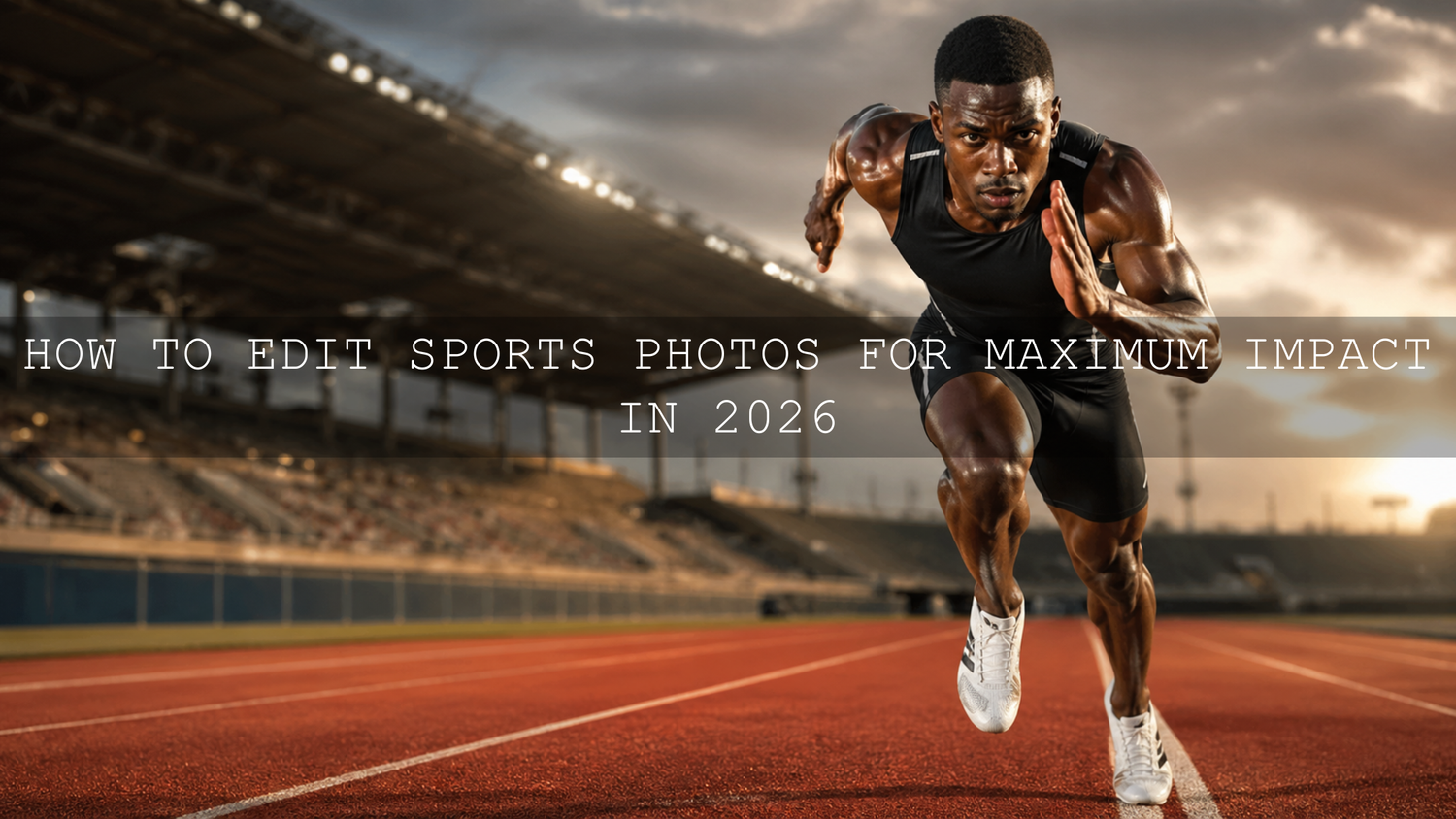
How to Edit Sports Photos for Maximum Impact in 2026
Learning how to edit sports photos for maximum impact is one of the most important skills for photographers, teams, fitness creators, and social media managers in 2026. A strong sports image should feel fast, sharp, emotional, and alive. The edit should help viewers feel the power of the sprint, the tension before a goal, the sweat in a gym session, or the energy of a match day.
Here’s why this matters: sports photography is not only about freezing action. It is about guiding attention. The right Lightroom sports presets, careful sharpening, clean color correction, and controlled contrast can turn a flat raw file into a professional image that feels ready for portfolios, team graphics, ads, reels, and highlight posts.
For a faster editing base, start with AI-Optimized Gym Cinematic Lightroom Presets for dramatic fitness and training images, then browse the Lightroom Presets for Lightroom Mobile and Desktop collection for more flexible sports photo editing styles. Try these presets today, Buy 3, Get 9 FREE.
Start With the Story Before You Touch the Sliders
Before you edit sports photos, take a few seconds to understand the story inside the frame. Is the image about speed, strength, pressure, victory, teamwork, or quiet focus? A soccer player sliding into a tackle needs a different edit from a bodybuilder training under gym lights. A runner crossing the finish line may need bright energy, while a boxing portrait may look stronger with deep shadows and gritty contrast.
This first decision controls everything that comes next. If the story is speed, your edit should emphasize direction, movement, and sharp subject detail. If the story is strength, your edit should bring out muscle definition, controlled shadows, and texture. If the story is emotion, focus on the athlete’s face, eyes, posture, and the background mood.
I have tested gym-style presets on training photos where the original file looked flat because of dull indoor lighting. A stronger contrast base, slightly cooler shadows, and controlled highlights instantly made the athlete look more powerful without making the skin or equipment look fake.
Fix Exposure First for Clean Sports Photo Editing
Exposure is the foundation of sports photo editing. If the image is too dark, the athlete’s face, uniform, and equipment can lose detail. If it is too bright, white jerseys, sweat highlights, indoor lights, and stadium reflections can become distracting.
Start with simple global adjustments:
- Exposure: Raise or lower the full image until the subject feels visible and balanced.
- Highlights: Pull down bright stadium lights, white jerseys, reflective floors, or harsh sun.
- Shadows: Lift carefully if the athlete’s face or body is too dark.
- Whites: Add a little brightness only if the image feels dull.
- Blacks: Deepen slightly to create power and separation.
Adobe’s Lightroom editing guide explains how controls such as Texture, Clarity, Sharpening, and Noise Reduction affect image detail and finish, which is useful when editing fast-action sports photos with mixed light and high ISO files: Adobe’s guide to editing photos in Lightroom.
Control Motion Without Killing the Energy
In sports photography, motion blur can be a problem or a creative advantage. If the athlete’s face, eyes, or main body shape is blurry by accident, the image may feel weak. But if the athlete is sharp while the background or limbs show a little movement, the photo can feel faster and more emotional.
When editing action photography, avoid trying to over-sharpen a badly blurred image. Instead, make the strongest part of the frame clear. Use contrast, crop, clarity, and selective sharpening to pull attention toward the athlete, ball, finish line, or contact point.
For gym and fitness photos, AI-Optimized Gym Cinematic Lightroom Presets help create stronger shadows, richer midtones, and a cinematic sports look. This works especially well for weight training, boxing, bodybuilding, CrossFit-style images, and dramatic indoor fitness portraits.
For soccer, football, and field sports, AI-Optimized Soccer Sports Lightroom Presets are a strong match because they are built around green fields, outdoor contrast, uniforms, and fast match-day action. They help make the pitch cleaner, jerseys more defined, and player details easier to see.
Sharpen the Right Details, Not the Whole Photo
Sharpness is one of the biggest differences between an average sports photo and a professional one. Viewers should notice the athlete’s expression, the ball, the shoes, the sweat, the uniform texture, or the moment of impact. But too much sharpening can create halos, crunchy skin, noisy backgrounds, and an unnatural finish.
Use this sports sharpening workflow:
- Zoom to 100% before sharpening. This helps you judge real detail instead of guessing from a small preview.
- Sharpen the subject first. Eyes, face, hands, ball, shoes, and jersey detail matter more than empty background space.
- Use masking. Keep sharpening away from smooth walls, skies, dark gym corners, and noisy shadows.
- Add texture carefully. Texture can improve fabric, grass, equipment, and muscle detail, but too much can make skin look harsh.
- Reduce noise after sharpening. High ISO indoor sports photos often need noise control.
Adobe’s Camera Raw sharpening guide recommends judging sharpening at close zoom and using controls like Amount, Radius, Detail, and Masking carefully: Adobe’s guide to sharpening and noise reduction in Camera Raw.
For fitness portraits and gym detail, Gym Fitness Lightroom Presets are useful when you want stronger muscle definition, sharper workout clothing texture, and deeper tonal contrast without starting every edit from zero.
Color Correction for Stadiums, Gyms, and Outdoor Fields
Sports photos often have difficult color problems. Indoor gyms can look yellow or green. Stadium lights can create mixed color casts. Outdoor fields can make skin tones look too green. Artificial turf can become oversaturated. Night matches can look too blue or too orange depending on the lights.
Start with white balance before applying heavy color grading. A clean white balance helps skin tones, jerseys, grass, and equipment look realistic. Then build the creative mood after the image is technically balanced.
Use these quick sports color checks:
- Skin tones: Make sure athletes do not look too orange, yellow, red, or green.
- Grass and turf: Keep greens rich but not neon.
- White uniforms: They should look clean, not blue or yellow.
- Team colors: Keep jerseys accurate, especially for team branding and social media graphics.
- Background colors: Reduce distracting tones that pull attention away from the athlete.
When choosing a sports color style, Adobe Color can help you understand harmony, contrast, and color relationships before you push a look too far: Adobe Color harmony rules and color wheel.
Build Punch With Contrast, Not Overediting
Maximum impact does not mean maximum sliders. A strong sports photo should feel bold, but still believable. The best results usually come from controlled contrast, clean shadows, balanced highlights, and subject separation.
For gritty gym images, use deeper blacks, stronger midtone contrast, and slightly reduced distractions in the background. For field sports, protect bright highlights while adding clarity to the athlete and ball. For indoor courts, reduce yellow or green casts before increasing saturation.
A useful trick is to ask: does the edit make the action clearer? If the answer is yes, keep going. If the edit only makes the image louder but not better, pull back.
Presets vs Manual Editing for Sports Photos
Both presets and manual editing can create professional sports photos, but they serve different roles.
Manual Editing
Manual editing gives you full control over every image. It is best when the lighting is unusual, the image has mixed color casts, or the photo needs careful retouching. The downside is time. Editing an entire team shoot, match gallery, or fitness content batch manually can become slow.
Lightroom Sports Presets
Lightroom sports presets give you a faster starting point. They can apply a consistent color base, contrast curve, detail style, and mood across many images. This is especially useful for teams, sports creators, fitness brands, and photographers who need to publish quickly.
The best workflow is not presets instead of manual editing. It is presets plus manual refinement. Apply a preset first, then adjust exposure, white balance, highlights, shadows, crop, and sharpening for each image.
For more editing workflow ideas, read how to stack Lightroom presets for unique results and why AI-powered presets are changing photo editing workflows.
Step-by-Step Sports Photo Editing Workflow
Use this simple workflow when you want to edit sports photos for maximum impact without making them look fake.
- Crop for action. Remove empty space and place the athlete where the movement feels strongest.
- Correct white balance. Fix yellow gym lights, blue shadows, or green field reflections.
- Balance exposure. Protect bright uniforms and stadium lights while keeping faces visible.
- Add contrast. Deepen blacks and shape midtones for more power.
- Apply a sports preset. Use a preset that matches the scene, such as gym, soccer, fitness, or cinematic action.
- Refine color. Keep skin tones natural and avoid neon grass or oversaturated jerseys.
- Sharpen selectively. Focus on the athlete, face, ball, and key detail areas.
- Reduce noise. Clean up high ISO shadows, especially in indoor gyms and night stadiums.
- Export for platform. Prepare separate versions for website, Instagram, TikTok, YouTube, or team graphics.
For mobile creators, Lightroom Mobile vs Desktop workflow tips can help you decide whether to edit quickly on your phone or finish more detailed sports photos on desktop.
Editing Sports Videos With LUTs
Many sports creators now need both photos and videos. Match highlights, workout reels, training clips, TikTok edits, YouTube Shorts, and Instagram Reels all need strong color grading. This is where sports LUTs become useful.
For fitness videos, Cinematic Gym and Fitness LUTs Pack can help create a bold, professional training look with deeper contrast and richer color. For soccer and football videos, Soccer Sports LUTs Pack can help bring more life to the pitch, jerseys, and match-day atmosphere.
For video creators, also explore the best LUTs for iPhone, Android, TikTok, and Reels in 2026 and export settings for Instagram Reels, TikTok, and YouTube Shorts.
Common Sports Editing Mistakes to Avoid
Sports edits fail when they look too heavy, too noisy, or too artificial. A powerful edit should still respect the real moment.
- Do not oversharpen skin. It can make athletes look rough and unnatural.
- Do not make grass neon green. Rich color is good, but unrealistic turf distracts from the action.
- Do not crush every shadow. Deep shadows add drama, but lost detail can make the image look cheap.
- Do not ignore white balance. Color casts are especially obvious in gyms and night matches.
- Do not use the same crop for every platform. A website banner, Instagram post, and reel cover need different framing.
When you want a more dramatic sports look, keep it intentional. A boxing image can handle darker contrast. A youth soccer photo may need cleaner colors and softer contrast. A gym brand shoot can look cinematic, but a school team portrait should still feel natural and clear.
Pro Tips for More Professional Sports Photos
- Edit the face first. Viewers connect with emotion before they notice the background.
- Use contrast to separate the athlete. A slightly darker background can make the subject pop.
- Protect jersey colors. Team colors matter for branding, sponsors, and social posts.
- Keep a consistent preset base. This helps a full gallery look connected instead of random.
- Export both sharp and web-friendly. Over-compressed sports images can lose detail quickly online.
If your sports content leans cinematic, you may also like dark and dramatic color grading for cinematic storytelling.
Related Reading
- How to stack Lightroom presets for unique and powerful edits
- Why AI-powered presets are changing photo editing workflows
- Best LUTs for iPhone, Android, TikTok, and Reels in 2026
- Best export settings for Reels, TikTok, and YouTube Shorts
Final Thoughts on Editing Sports Photos for Maximum Impact
The best sports edits are bold, clean, emotional, and believable. Start with the story, fix exposure and white balance, use contrast with purpose, sharpen only where it matters, and choose presets that match the sport, lighting, and final platform.
For powerful fitness and training photos, try AI-Optimized Gym Cinematic Lightroom Presets. For football and match-day images, use AI-Optimized Soccer Sports Lightroom Presets. You can also explore the AI-Optimized Lightroom Presets for Mobile and Desktop collection to build a faster, more consistent sports editing workflow. Try these presets today, Buy 3, Get 9 FREE.
FAQs About Sports Photo Editing
What is the best way to edit sports photos in Lightroom?
Start with exposure and white balance, then add contrast, refine color, sharpen the athlete and key details, reduce noise, and crop for action. A sports Lightroom preset can speed up the process, but each image still needs small manual adjustments.
How do I make sports photos look sharper?
Zoom to 100%, sharpen the subject carefully, use masking to avoid sharpening noisy backgrounds, and focus on the athlete’s face, ball, uniform, and equipment. Avoid pushing sharpening too far because it can create halos and rough texture.
Are Lightroom presets good for sports photography?
Yes. Lightroom presets are useful for sports photography because they give you a consistent starting point for color, contrast, and detail. The best workflow is to apply a preset first, then adjust exposure, white balance, shadows, highlights, and sharpening for the exact image.
How do I fix yellow gym sports photos?
Lower the white balance temperature, adjust tint if the image looks green, reduce harsh yellow tones, and protect natural skin color. After the color cast is corrected, add contrast and detail for a cleaner gym sports edit.
Can I use LUTs for sports videos?
Yes. LUTs are useful for sports videos because they help create a consistent color grade across match highlights, fitness reels, and training clips. After applying a LUT, adjust exposure, contrast, and saturation so the footage still looks natural.
Written by Asanka — creator of AAAPresets (10,000+ customers).


Leave a comment
This site is protected by hCaptcha and the hCaptcha Privacy Policy and Terms of Service apply.