
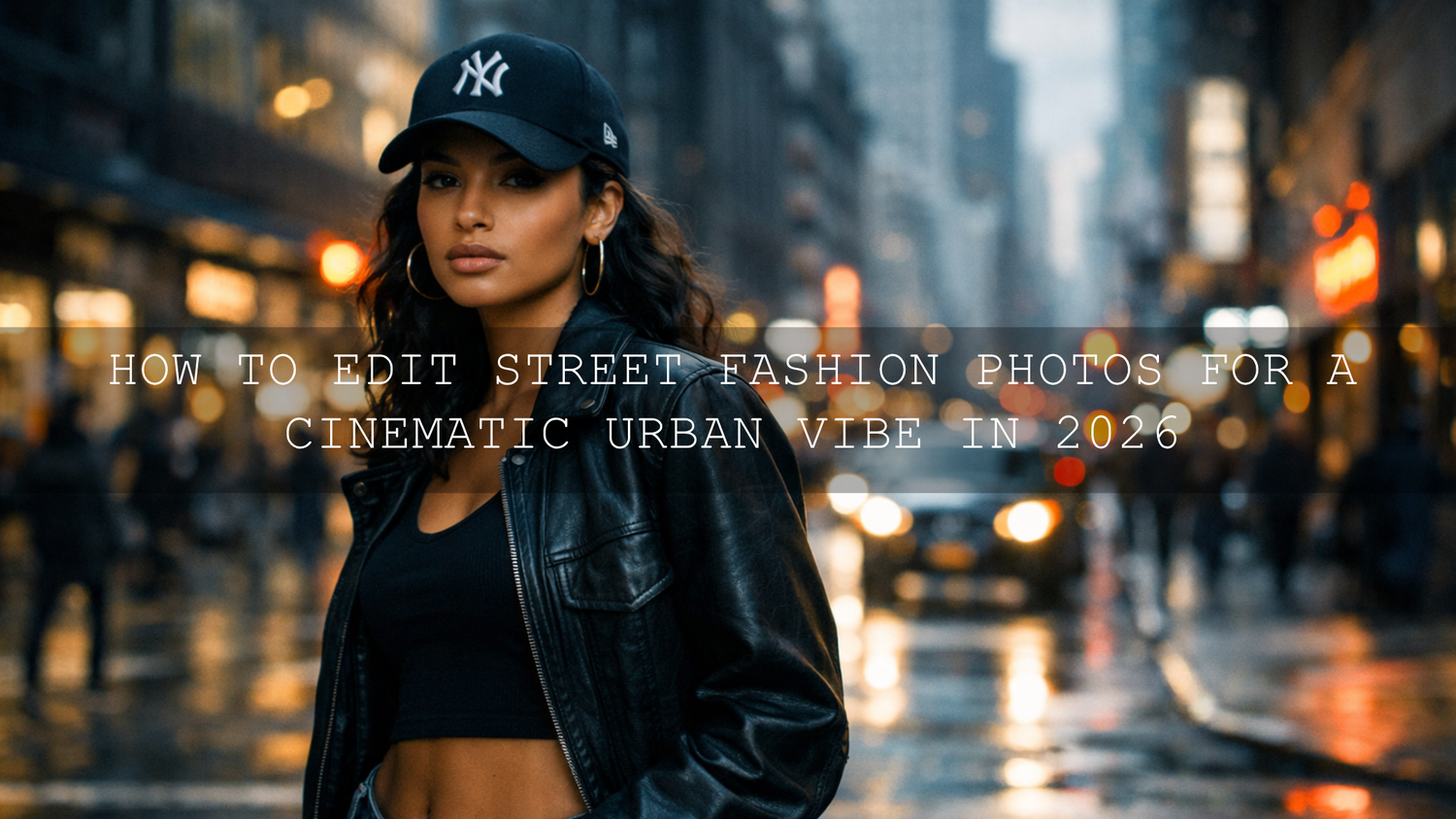
How to Edit Street Fashion Photos for a Cinematic Urban Vibe in 2026
Street fashion photo editing works best when you treat the frame like a scene, not just a quick upload. The goal is not to make every image louder. The goal is to create a cinematic urban vibe with cleaner light, stronger depth, believable skin, and colors that feel intentional. For urban fashion photography, that usually means controlled contrast, a thoughtful palette, and edits that support the outfit, the location, and the mood instead of fighting them.
I usually approach street fashion edits the same way I approach a good campaign sequence: build one strong base look, protect skin tones, then use small local adjustments to guide the eye. If you want a fast starting point, try the Cinematic Street Photography Lightroom Presets or browse the Street Photography Lightroom Presets collection. That gives you a consistent visual direction while still leaving room for manual refinement, and you can build your toolkit with Buy 3, Get 9 FREE.
What Makes a Street Fashion Edit Feel Cinematic?
A cinematic edit usually has three things working together: mood, separation, and restraint. The photo should feel styled, but not overprocessed. The model should feel connected to the city, but still stand out clearly. And the color palette should feel deliberate, not random.
- Mood: deeper shadows, richer midtones, and highlights that feel shaped rather than blown out.
- Separation: the subject needs visual priority over signs, cars, walls, and other street clutter.
- Palette: a limited color direction usually looks better than maxed-out saturation in every channel.
- Texture: concrete, metal, glass, rain, denim, leather, and fabric detail should still feel present after the edit.
Here’s why this matters: street fashion is already visually busy. If your edit pushes everything equally, the eye has nowhere to land. A better cinematic result comes from deciding what should lead, what should support, and what should fall back.
Presets vs Manual Editing
This is where many creators either waste time or get disappointed. Presets are excellent for speed and consistency, but a preset alone is rarely the final answer. Manual editing is what makes the image feel custom.
- Presets are best for: setting mood quickly, building consistency across a full shoot, and getting to a usable starting point in seconds.
- Manual editing is best for: fixing white balance, correcting exposure for one frame, protecting skin, calming problem colors, and adjusting local light.
- The best workflow: apply the preset first, then make 4 to 6 intentional tweaks instead of starting from zero.
I’ve tested this workflow on low-light street portraits, reflective storefront scenes, and daytime fashion shots with hard city shadows. The pattern is always the same: the preset gives the tone, but the final polish comes from small decisions around skin, contrast, and background control.
Start With the File, Not the Effect
Before you touch the creative look, fix the basics. A cinematic finish gets easier when the original file already has decent exposure and a clean white balance. If the file starts too warm, too magenta, or too flat, the final grade will fight you the whole way.
What to check first
- Exposure: keep detail in the face, especially if the outfit is dark.
- White balance: urban light is often mixed, so check skin before you trust the whole frame.
- Highlights: watch windows, chrome, signs, and pavement reflections.
- Background distractions: bright objects behind the head or shoulders can ruin an otherwise great composition.
If you want more preset starting points before you commit to a final style, compare different looks in The Best Street Photography Lightroom Presets and this cinematic street photography guide.
A Step-by-Step Workflow for a Cinematic Urban Vibe
1. Build a clean base grade
Start with exposure, contrast, highlights, shadows, whites, and blacks. Do not chase drama too early. I prefer getting the image balanced first, then adding mood after I know the face and outfit still read clearly. Adobe’s Lightroom documentation is useful here because it shows how tone controls and the Tone Curve work together when you are shaping contrast more carefully. Adobe’s guide to tone and color in Lightroom Classic and Adobe’s Develop module overview are both worth bookmarking. :contentReference[oaicite:0]{index=0}
A good base for street fashion usually means slightly deeper blacks, protected highlights, and midtones that still keep fabric detail alive. If the frame is already dramatic, do less. Cinematic does not always mean darker.
2. Use masking to separate the subject from the city
This is one of the biggest upgrades you can make. Busy sidewalks, signs, windows, and architectural lines often compete with the outfit. A subtle mask on the subject can lift exposure or texture just enough, while a background mask can pull down distraction without making the edit obvious. Adobe’s Lightroom masking tools support selections such as subject, background, people, sky, and objects, which makes this kind of refinement much faster than it used to be. See Adobe’s guide to masking in Lightroom or Adobe’s Lightroom Classic masking guide. :contentReference[oaicite:1]{index=1}
One trick I use often is this: brighten the subject only a little, then reduce background clarity or saturation slightly. That creates focus without the fake cutout look people often get when they push masks too far.
3. Shape your color palette with intention
Street fashion edits usually look stronger when you commit to one direction. You might lean cool and metallic for a modern downtown frame, warm and amber for golden hour editorial shots, or muted with selective pops for a gritty luxury feel. What usually fails is trying to make every color vivid at the same time.
Adobe Color is a helpful reference when you want to think in terms of analogous or complementary color harmony before you lock in your grade. I also like using Camera Raw or Lightroom color tools to trim only the channels that matter rather than pushing global saturation. Adobe Color’s color wheel is a good place to test palette ideas, and Adobe’s Camera Raw color and tonal adjustment guide is useful if you finish your stills in Photoshop. :contentReference[oaicite:2]{index=2}
For example, if the outfit is black, silver, or denim, cool neutrals often work beautifully. If the outfit has tan, leather, cream, or warm makeup, pushing the whole frame too cyan can kill the fashion story. Let the clothing help decide the grade.
4. Keep skin believable
This is where many cinematic edits fall apart. Skin should still feel human even when the scene is moody. If faces go too orange, too magenta, or too gray, the entire photo starts to feel cheap. I usually fix skin before I worry about the pavement, buildings, or sky.
- Lower orange saturation slightly before you lower luminance too aggressively.
- Use local masking on the face if mixed light is creating uneven color.
- Do not overcool the whole image if the model’s skin already needs warmth.
- Watch lips, hands, and cheeks, not just the forehead.
If you edit on mobile, this Lightroom Mobile guide to AI-optimized presets is useful for getting a faster starting point without losing control.
5. Add texture and atmosphere carefully
Urban fashion works well with a bit of grit, but detail should still feel premium. Grain, clarity, dehaze, and texture can all help, yet they can also damage skin fast. I normally add texture to clothing and architecture more than to faces. If the shot already has rain, fog, or neon reflection, let that natural atmosphere do the heavy lifting instead of forcing extra effects.
A simple before-and-after example: a flat midday frame might only need less saturation, a stronger black point, and one soft radial lift on the subject. A rainy night frame might need the opposite: recovered highlights, cleaner skin, and richer color separation in the reflections. Different files need different restraint.
6. Sync the full set, then refine only the hero shots
Once you have one image working, sync that look across the full set. Then review each frame and only do extra local work on the strongest images. This keeps the series cohesive and saves a huge amount of time. It also helps your storefront, lookbook, or campaign page feel more professional because the edits belong together.
If you need install help before batching a set, use this Lightroom preset installation guide. And if you want more inspiration for urban looks, Top 5 Street Lightroom Presets for Captivating Cityscapes is a good follow-up read.
Recommended Looks for Different Street Fashion Scenes
- Clean daytime editorial: balanced whites, soft contrast, slightly muted background colors, crisp fabric detail.
- Blue-hour city mood: cooler shadows, controlled skin warmth, stronger subject separation, reflective surfaces kept clean.
- Night flash aesthetic: darker blacks, punchier specular highlights, selective color pops, more attitude in the grade.
- Rainy urban look: deeper blues, protected highlights in reflections, restrained saturation, texture preserved in streets and jackets.
For a direct street-focused starting point, I’d begin with the Cinematic Street Photography Lightroom Presets. For bolder late-night frames, the AI-Optimized Midnight Flash Street Lightroom Presets are a strong direction. If you want a wider browse for similar looks, continue through the AI-Optimized Lightroom Presets collection.
If Your Street Fashion Shoot Also Includes Reels or Campaign Teasers
In 2026, many fashion shoots are delivered as both stills and short-form motion. If you are cutting teaser videos from the same urban session, it helps when your photos and clips share a similar cinematic language. That is where companion video tools can help keep the campaign feeling unified. For grading motion, the 120+ Cinematic Blockbuster Movie Look LUTs Pack can help create a stronger film-inspired mood, and the Acid Red Cinematic Flash Transitions for Premiere Pro can add punch to fast social edits.
Related Reading
- How to create a cinematic look in street photography
- Best street photography preset ideas for mood and consistency
- Street preset inspiration for cityscape-heavy edits
- Using AI-optimized presets in Lightroom Mobile
- How to install Lightroom presets quickly
If you want a faster workflow for street fashion photo editing, start with a strong preset, refine the frame with masks, and keep your color palette disciplined. That is usually the difference between a random urban snapshot and a cinematic fashion image people stop to look at. For a quick entry point, try the Cinematic Street Photography Lightroom Presets or explore more looks in the Street Photography Lightroom Presets collection. If you prefer a darker nightlife direction, the AI-Optimized Midnight Flash Street Lightroom Presets are a smart next step, and if you ever need help choosing the right pack, you can always reach out through the contact page.
FAQ
What is the best preset style for street fashion photos?
The best preset depends on the location, light, and outfit, but cinematic street looks usually work best when they deepen mood without crushing detail or ruining skin tones.
Are presets enough on their own?
Usually no. Presets are excellent starting points, but the best results come from adding a few manual adjustments for exposure, white balance, masking, and skin correction.
How do I make street fashion photos look cinematic without overediting?
Limit the palette, protect highlights, use masking for separation, and avoid pushing every slider. A cinematic edit feels controlled, not heavy-handed.
Can I do this in Lightroom Mobile?
Yes. You can build a strong cinematic urban vibe in Lightroom Mobile, especially if you start with a solid preset and then refine light and color carefully.
What is the difference between a preset and a LUT?
A preset is typically used for photo editing in Lightroom or Camera Raw, while a LUT is more common in video color grading. They can complement each other when one shoot produces both stills and motion.
Written by Asanka - creator of AAAPresets (10,000+ customers).

Leave a comment
This site is protected by hCaptcha and the hCaptcha Privacy Policy and Terms of Service apply.