
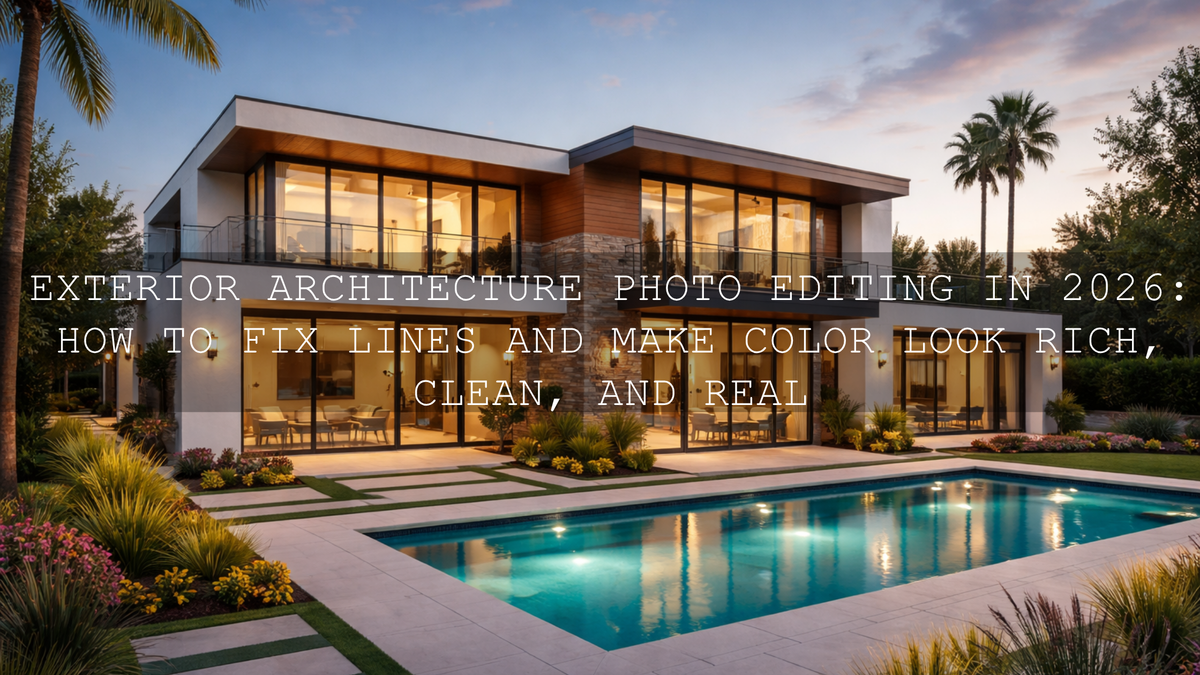
Exterior Architecture Photo Editing in 2026: How to Fix Lines and Make Color Look Rich, Clean, and Real
Exterior architecture photo editing is one of those skills that instantly separates an average image from a professional one. In real estate photography editing, two things matter most right away: accurate perspective correction and believable color grading. If the walls look like they are falling backward or the siding turns oddly blue, the photo loses trust fast. The good news is that with the right Lightroom workflow, a few careful manual adjustments, and smart use of Lightroom presets, you can create exterior images that feel polished without looking fake.
If you want a faster starting point for property edits, try the AI-Optimized Interior Design & Real Estate Lightroom Presets and browse the AI-Optimized Lightroom Presets collection. They are especially useful when you need consistency across multiple listing photos, and the brand offer still makes building a full toolkit easier: Buy 3, Get 9 FREE.
Here is why this matters. In architecture and property photography, viewers notice shape before they notice style. A clean frame with straight verticals makes a building feel solid, premium, and well presented. Once the geometry looks right, color becomes much easier to trust. That is why I nearly always fix line problems before I touch the creative side of the edit.
I tested this exact order on a bright exterior shoot where the walls looked slightly tilted and the sky felt washed out. The moment I corrected the verticals first, every later choice such as white balance, contrast, and local masking became easier and more natural. On another property set, I found that a small Vibrance lift and targeted sky masking looked far better than a heavy Saturation push.
Why Straight Lines Matter More Than Most Photographers Realize
Buildings are full of visual cues: pillars, windows, roof edges, door frames, fences, and horizon lines. When those cues lean too far, the image starts to feel rushed or distorted. In real estate, that can quietly lower perceived value. In architecture work, it can weaken the designer's original intent. Even in social media content, crooked verticals can make a polished exterior feel less premium.
Adobe's perspective tools are especially useful here. Their Guided Upright and Geometry workflows are built specifically to help photographers correct distorted vertical and horizontal lines in Lightroom and Camera Raw, while masking tools help refine only the parts of the frame that need extra work. For deeper reference, see Adobe's guide to Guided Upright perspective correction, Adobe's Geometry tool walkthrough for Lightroom, and Adobe's masking guide for Lightroom Classic.
And when you are deciding how far to push color, Adobe Color's harmony tools are useful for keeping the palette balanced, especially when you are trying to enhance brick, greenery, sky, and painted surfaces in the same frame.
What Usually Causes Exterior Photos to Look Wrong
Most weak exterior edits come from a small group of issues:
- Camera tilt: You point upward to fit the whole building in frame, and the vertical lines start converging.
- Wide-angle distortion: The lens exaggerates edges and stretches corners.
- Mixed light: Shade, sky reflection, warm sunlight, and interior window glow can all appear in one shot.
- Over-editing: Too much saturation, too much clarity, or an overly strong preset makes the image look artificial.
- Uneven dynamic range: Bright sky and dark facade force you to recover highlights and shadows carefully.
Once you recognize those patterns, the edit becomes much more controlled. You stop reacting randomly and start following a reliable sequence.
A Practical Step-by-Step Workflow for Exterior Architecture Photo Editing
- Start with lens corrections. Enable profile corrections and remove chromatic aberration first. This gives perspective tools a cleaner base.
- Fix the crop and horizon. Before you do any serious color work, make sure the frame itself feels balanced.
- Use Upright or Geometry tools. Auto can work well for simple buildings, but Guided adjustments usually give the best results when you have obvious walls, pillars, or edges to reference.
- Check edge stretch. After correction, look at doors, windows, and trees near the edge of frame. If they feel unnatural, reduce the correction slightly.
- Balance exposure. Recover highlights in the sky, open shadows in the facade, and keep whites bright without clipping.
- Correct white balance. Exterior edits often look more premium when neutral walls stay neutral and greenery does not shift too yellow.
- Refine color gently. Increase Vibrance before Saturation in most cases. Use HSL if one color family is dominating the scene.
- Apply local masks. Sky, windows, landscaping, and entrance areas often need separate treatment.
- Add finishing detail. Moderate sharpening and selective texture can help materials like brick, stone, or wood look crisp.
- Compare before and after. Make sure the building still feels believable. A strong edit should improve the property, not reinvent it.
Presets vs Manual Editing for Real Estate and Architecture
This is the comparison many photographers need, especially in 2026 when fast delivery matters more than ever.
- Presets win on speed and consistency. They are ideal when you are editing many images from one property, one time of day, or one overall style.
- Manual editing wins on precision. It is better for difficult scenes with reflective glass, strange shadows, or strong color casts.
- The best workflow is hybrid. Start with a preset for direction, then manually refine geometry, white balance, highlights, shadows, and masks.
That hybrid approach is exactly why the AI-Optimized Interior Design & Real Estate Lightroom Presets are so useful. They give you a cleaner starting point for brightness, tone, and overall polish, but you still keep full control over building lines and local corrections. If you want a wider editing library for different property styles, the 1000+ Master Lightroom Presets Bundle is a strong next step, and the Lightroom Presets for Lightroom Mobile & Desktop collection is a good place to browse by style.
How to Make Exterior Colors Pop Without Making Them Look Fake
The goal is not loud color. The goal is credible color. Buyers, designers, and property marketers all want the place to look appealing, but still true to life. That means keeping a close eye on the relationship between sky blue, foliage green, stone or concrete neutrals, and the warmth of the building itself.
Here is a good rule: make the scene feel brighter and cleaner before you make it more dramatic. Many exterior photos improve just by fixing white balance, lifting midtones slightly, and reducing highlight harshness. After that, small color moves go a long way.
- Use Vibrance first for a safer global lift.
- Use Saturation sparingly, if at all.
- Reduce overly cyan skies before adding more blue.
- Control greens so lawns and trees do not steal attention from the building.
- Warm sunlit stone and wood slightly, but keep white walls neutral.
For video walkthroughs, the Real Estate LUTs Pack is a practical way to keep footage bright, clean, and consistent across clips. If you also want to understand the visual thinking behind property color work, the article Real Estate & Architecture: How Color Grading Shapes Perception is worth reading alongside your editing workflow.
Pro Tips That Make Exterior Property Photos Look More Expensive
- Correct geometry before heavy color grading. A clean structure makes every later edit feel more premium.
- Do not over-open shadows. Exterior images need shape. Flattened shadows can make buildings look lifeless.
- Use masks for the sky instead of global changes. This protects the building from unwanted color shifts.
- Watch window reflections. They often pick up blue sky or green foliage and can make a facade feel inconsistent.
- Be careful with Clarity and Texture. They help brick and stone, but too much makes siding and plaster look brittle.
- Keep verticals believable, not robotic. Slight natural perspective is fine. Overcorrection can look just as wrong as undercorrection.
One of the most common mistakes I see is photographers trying to rescue a weak composition through heavy editing. Editing can improve a lot, but it cannot fully replace a balanced frame, good timing, and careful camera position. That is why it helps to review a few related guides such as Presets for Real Estate Photography: Bright, Clean & Professional and Mastering Urban Lines for stronger city and building compositions.
When Lightroom Mobile, Lightroom Desktop, and Camera Raw Each Make Sense
If you are editing on the go, Lightroom Mobile can handle a surprising amount of exterior architecture work, especially for quick corrections, masking, and preset-based consistency. Lightroom Desktop gives you more comfortable precision for batch work and detailed geometry. Camera Raw is especially helpful if your exterior workflow already runs through Photoshop.
If you need installation help or want to move faster between devices, keep this quick guide to installing Lightroom presets bookmarked. And if you ever get stuck on usage questions, the AAAPresets FAQ page is a useful support reference.
Related Reading for Better Property and Architecture Edits
- Presets for Real Estate Photography: Bright, Clean & Professional
- Real Estate & Architecture: How Color Grading Shapes Perception
- How to Install Lightroom Presets in a Quick and Easy Way
- Mastering Urban Lines: Add Graphic Impact to City Photography
Putting It All Together for a Faster, Stronger Editing Workflow
The best exterior architecture photo editing does not scream for attention. It quietly makes the building feel well designed, well lit, and worth looking at. Straight lines build trust. Clean color builds mood. Smart local adjustments keep the eye moving where you want it to go.
If you want a workflow that starts fast and still leaves room for expert refinement, begin with the AI-Optimized Interior Design & Real Estate Lightroom Presets, add the Real Estate LUTs Pack for property video work, and explore more looks inside the AI-Optimized Lightroom Presets collection. If you want broader coverage for many photography styles, the 1000+ Master Lightroom Presets Bundle gives you far more room to build a consistent editing system, and Buy 3, Get 9 FREE still makes expanding your toolkit much easier.
How do I fix leaning building lines in Lightroom?
Use the Geometry or Upright tools first, then refine with Guided corrections if Auto does not fully straighten the verticals. Apply lens profile corrections before perspective adjustments for the best result.
Should I edit color before or after perspective correction?
Correct perspective first. Once the building looks structurally right, exposure, white balance, and color decisions become much easier and more accurate.
Are presets enough for exterior architecture photos?
Presets are a strong starting point for speed and consistency, but the best results usually come from a hybrid workflow where you fine-tune geometry, masking, and white balance manually.
What is better for exteriors: Vibrance or Saturation?
In most cases, Vibrance is safer because it lifts weaker colors more gently. Saturation can push sky, grass, and painted surfaces too far very quickly.
Can I use the same editing approach for real estate photos and architecture portfolio shots?
Yes, but real estate images usually prioritize clarity, brightness, and broad appeal, while portfolio work may allow a more stylized mood. The base geometry workflow stays very similar.
Written by Asanka — creator of AAAPresets (10,000+ customers).

Leave a comment
This site is protected by hCaptcha and the hCaptcha Privacy Policy and Terms of Service apply.