
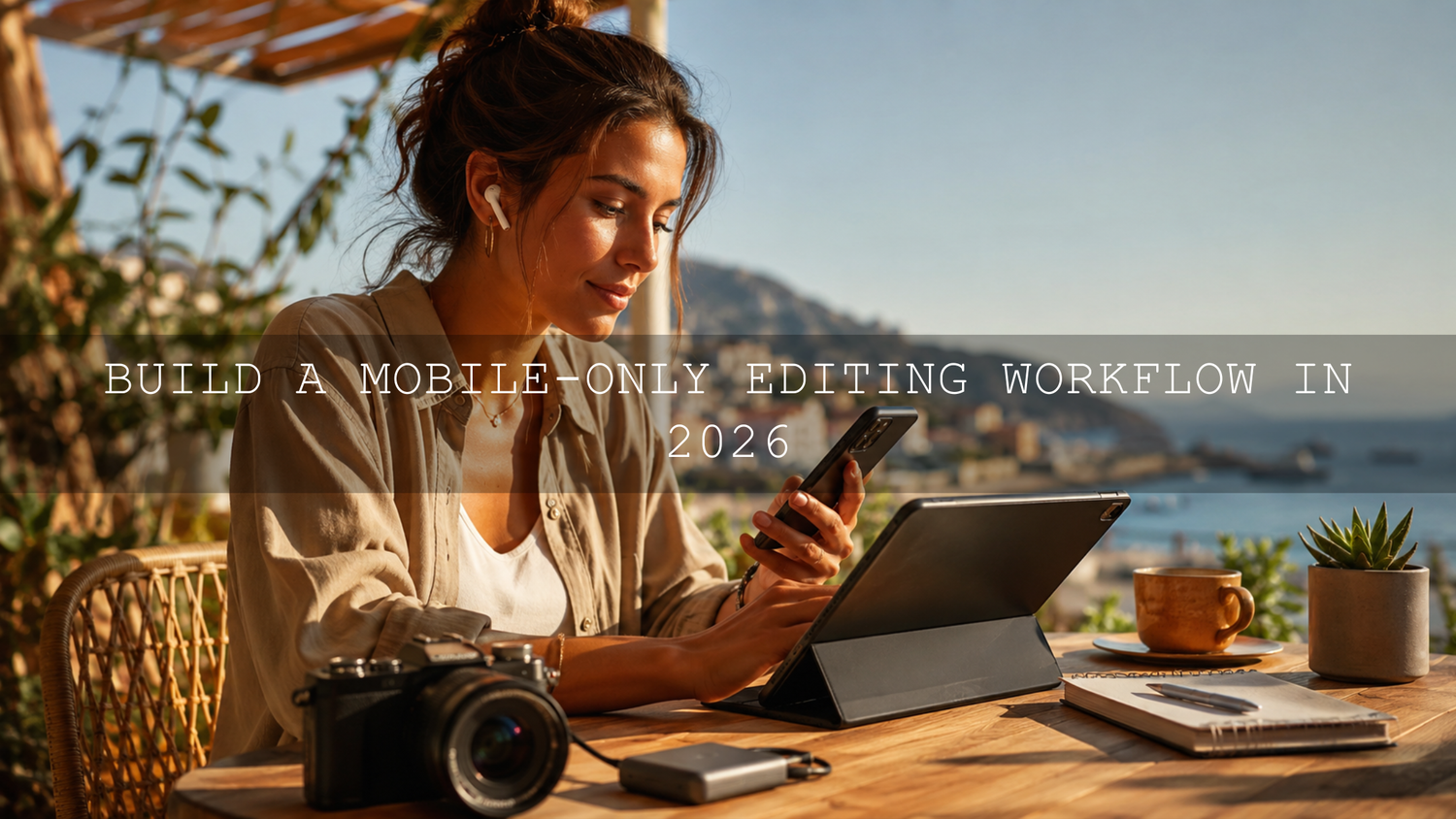
Build a Mobile-Only Editing Workflow in 2026
A mobile-only editing workflow in 2026 can help creators edit photos, videos, reels, travel content, product shots, and social media visuals without depending on a desktop computer. With modern phones, tablets, Lightroom Mobile presets, mobile video editing apps, cloud storage, and fast export tools, you can now capture, edit, review, and publish polished content from almost anywhere.
Here’s why this matters: creators are moving faster than ever. A travel photographer may need to edit a sunset before leaving the location. A small business owner may need clean product photos the same day. A social media manager may need reels, thumbnails, and edited images before a campaign goes live. A strong mobile editing workflow gives you speed without sacrificing consistency.
For a faster starting point, try the Cinematics Look Lightroom Presets Pack for dramatic mobile photo edits, or browse the Lightroom Mobile Presets collection for DNG and XMP presets designed for phone and tablet editing. Try these presets today — Buy 3, Get 9 FREE when you add 12 presets to your cart.
Why Mobile Editing Is No Longer a Backup Plan
A few years ago, mobile editing felt like a quick fix. You might crop a photo, brighten it slightly, add a filter, and finish the serious work later on a desktop. In 2026, that mindset is outdated. Phones and tablets now have powerful processors, bright displays, strong cameras, RAW support, fast storage options, and apps that can handle professional photo and video workflows.
The biggest advantage is freedom. You can shoot, edit, export, and publish from the same device. That makes a mobile editing workflow especially useful for travel creators, influencers, wedding shooters, event photographers, real estate creators, drone pilots, food photographers, fitness brands, and anyone who needs fast turnaround.
I have tested mobile preset workflows on travel, lifestyle, and product photos where the original image looked flat straight from the phone. A good preset gave the edit a strong direction in seconds, then a few manual adjustments made the final photo feel polished instead of over-filtered.
The Core Mobile Editing Toolkit
The best mobile-only editing workflow is not about downloading every popular app. It is about choosing a small set of tools that work well together. A clean toolkit saves time, reduces confusion, and makes your results more consistent.
Photo Editing Apps
For most creators, Adobe Lightroom Mobile is the main photo editing app because it supports presets, masking, color controls, healing tools, export options, and cloud syncing. Adobe explains that Lightroom presets are groups of saved editing settings that can apply exposure, color, contrast, and tone adjustments quickly, which makes them useful for maintaining a consistent style across multiple photos. You can learn more from Adobe’s guide to applying presets in Lightroom on mobile.
Lightroom Mobile is especially strong for DNG presets, RAW files, portraits, travel photos, food images, product photography, wedding previews, and social media content. If your work depends on consistent color, it should be one of your main apps.
Video Editing Apps
For video, your choice depends on your content style. Short-form creators often need speed, captions, music, and vertical export. Filmmakers and videographers may need LUT support, multi-track timelines, waveform tools, audio control, and higher-quality export settings. Adobe also offers a mobile Premiere app for iPhone that focuses on shooting, editing, and sharing videos from a mobile device, including 4K exports in the free version. You can review the details on Adobe Premiere on iPhone for mobile video editing.
If you edit mobile videos with LUTs, keep your process simple: correct exposure first, apply a LUT for the creative look, then fine-tune contrast, saturation, skin tones, and highlights. A LUT should guide the color grade, not hide mistakes in the footage.
Storage, Backup, and Organization
Mobile editing becomes stressful when your files are scattered. Use a clear folder system before you start editing. For example:
- 01 Raw Photos for original images and DNG files.
- 02 Video Clips for camera footage, drone clips, and phone videos.
- 03 Presets and LUTs for your editing tools.
- 04 Exports for finished files.
- 05 Archive for completed projects.
For bigger projects, use a portable SSD or reliable cloud storage. Keep at least one backup before deleting files from your phone. This protects client work, social campaigns, travel content, and paid shoots from accidental loss.
Mobile Editing Workflow Step by Step
Let’s break it down into a simple workflow you can repeat for almost any project.
1. Capture With the Final Platform in Mind
Before you shoot, decide where the content will be used. Instagram Reels, TikTok, and YouTube Shorts usually need vertical video. Blog banners, YouTube thumbnails, Shopify product images, and website visuals often need horizontal or square compositions. Shooting with the final crop in mind saves editing time later.
For photos, shoot in RAW or high-quality JPEG when possible. RAW gives you more control over highlights, shadows, white balance, and color. For phone editing with DNG presets, DNG files can be especially useful because they preserve flexible image data and preset compatibility.
2. Import and Sort Before Editing
Do not edit every file. First, remove blurry shots, duplicate angles, bad expressions, and weak compositions. Then choose the strongest images or clips. This one step can cut your editing time in half.
For Lightroom Mobile, organize photos into albums by project, client, date, or platform. Adobe notes that Lightroom on mobile supports many photo and video formats for importing, editing, and exporting, which makes file planning important when you work across phone, tablet, and cloud storage. For format details, review Adobe’s Lightroom mobile supported file formats guide.
3. Apply a Preset or LUT as a Starting Point
Presets and LUTs work best when they are used as a starting point, not a final button. For photos, apply a Lightroom Mobile preset first, then adjust exposure, highlights, shadows, white balance, and skin tones. For video, correct the footage first, then apply the LUT and refine the grade.
If you want one flexible preset library for many styles, the 1000+ Master Lightroom Presets Bundle is a strong option because it includes a wide range of DNG and XMP presets for mobile and desktop workflows. For cinematic travel, lifestyle, and creator content, the Travel Cinematic Lightroom Presets can help create a polished look quickly.
4. Make Manual Adjustments After the Preset
This is where the edit becomes yours. After applying a preset, check the photo carefully:
- Exposure: Make sure the subject is bright enough without blowing out highlights.
- White balance: Fix color casts so skin, products, and skies look natural.
- Contrast: Add depth, but avoid crushing shadows too heavily.
- Highlights: Recover bright skies, white clothing, reflective products, and windows.
- Shadows: Lift dark areas only enough to reveal useful detail.
- Color mix: Adjust individual colors when greens, oranges, blues, or reds look too strong.
My favorite mobile editing rule is simple: apply the look quickly, then slow down for the details. A preset can create the mood, but the final 10% of manual control is what makes the photo feel professional.
5. Use Masking for Local Adjustments
Masking is one of the biggest reasons mobile editing can now feel professional. Instead of brightening the whole photo, you can adjust the subject, sky, background, face, clothing, or product area separately. Adobe explains that Lightroom on mobile stores masks as separate adjustment layers, so you can refine local edits without damaging the original image. Learn more from Adobe’s guide to masking tools in Lightroom on mobile.
Here are a few practical masking examples:
- Brighten a face while keeping the background moody.
- Darken a bright sky without making the subject too dark.
- Add sharpness only to a product or main subject.
- Reduce saturation in the background so the subject stands out.
- Warm up skin tones while keeping shadows neutral.
Presets vs Manual Editing
Presets and manual editing are not enemies. The best mobile editing workflow uses both.
When Presets Are Better
- When you need a consistent Instagram feed.
- When editing many photos from the same shoot.
- When you want a cinematic, bright, moody, vintage, or clean look quickly.
- When you are a beginner and need a strong starting point.
- When creating content under time pressure.
When Manual Editing Is Better
- When lighting is unusual or mixed.
- When skin tones need careful correction.
- When a product color must stay accurate.
- When the preset looks too strong on one specific photo.
- When you are preparing final images for clients or websites.
The smart approach is to apply a preset first, then manually refine the image. For more help with adapting presets to different conditions, read how to adjust Lightroom Mobile presets for different lighting.
A Simple Mobile Photo Editing Example
Imagine you take a phone photo at sunset. The sky is beautiful, but the subject is too dark, the shadows are muddy, and the colors feel flat. A good mobile editing workflow would look like this:
- Import the photo into Lightroom Mobile.
- Apply a cinematic or travel preset.
- Lower highlights to recover the sky.
- Lift shadows slightly to reveal the subject.
- Warm the white balance if the image feels too blue.
- Use a subject mask to brighten the person or main object.
- Add a small amount of sharpening and noise reduction.
- Export for Instagram, Pinterest, your blog, or your Shopify store.
This kind of before-and-after edit is where Lightroom Mobile presets are powerful. They give the photo a mood quickly, but the manual adjustments keep it natural.
A Simple Mobile Video Editing Example
Now imagine you are editing a short travel reel on your phone. You have five clips: a street scene, a café shot, a walking clip, a sunset, and a final landscape shot. A clean workflow would be:
- Choose the best clips and delete the weak ones.
- Arrange clips in the order of the story.
- Trim every clip tightly so the pacing feels smooth.
- Correct exposure and white balance before applying a LUT.
- Add a cinematic LUT for consistent color.
- Balance music and natural sound.
- Add simple captions only if needed for the platform.
- Export one vertical version and one backup master file.
If you create drone, travel, or cinematic video content, the 120+ Cinematic Blockbuster Movie Look LUTs Pack can help build a dramatic color direction, while the Cinematic LUTs collection gives you more options for Premiere Pro, Final Cut Pro, DaVinci Resolve, mobile-friendly LUT workflows, and other editing platforms.
Pro Tips for a Faster Mobile Editing Workflow
Create a Repeatable Editing Order
Do your edits in the same order every time: crop, exposure, white balance, preset, contrast, color, masking, detail, export. A repeatable order keeps you from jumping randomly between tools and wasting time.
Keep Your Favorite Presets Organized
Do not keep hundreds of presets in one messy folder. Create groups by use case: travel, portraits, weddings, food, products, dark moody, bright airy, vintage, black and white, and reels. This helps you choose faster when editing under pressure.
Build Platform-Specific Export Habits
A Shopify product photo, Instagram reel cover, Pinterest pin, blog hero image, and client preview do not always need the same export. Save export settings that match each platform. Adobe’s Lightroom mobile export guide explains how format and quality settings affect how images display across different uses, which is helpful when preparing content for websites and social media. Read Adobe’s guide to exporting photos in Lightroom on mobile.
Do Not Over-Edit Skin or Product Colors
Over-editing is one of the easiest mobile mistakes. Skin can become too orange, shadows can turn muddy, greens can look neon, and products can lose color accuracy. Use presets for style, then check the real subject carefully.
Review on More Than One Screen
Before publishing important work, view the export on another phone, tablet, or computer. This helps you catch issues with brightness, contrast, cropping, and color. Mobile screens can vary, so a second check is worth the extra minute.
Common Mistakes to Avoid
- Editing every file: Select only the strongest shots before editing.
- Using presets at full strength every time: Adjust the edit to match the lighting.
- Ignoring white balance: Bad color temperature can ruin an otherwise good edit.
- Exporting only one version: Save a master file and platform-ready versions.
- Forgetting backups: Always keep original files and final exports in more than one place.
- Overusing sharpening: Too much sharpness can make phone photos look harsh and fake.
Recommended Mobile Editing Routine for Beginners
If you are new to mobile editing, start with a simple 20-minute routine. Import 10 photos, choose the best 3, apply one preset, adjust exposure and white balance, add one mask if needed, then export. Repeat this with different lighting conditions: sunny, cloudy, indoor, sunset, and low light.
Over time, you will understand which presets work best for your style and which manual adjustments you make most often. That is how you build speed. For more workflow ideas, read how to build your first Lightroom editing routine with presets.
Related Reading
- Master your mobile editing workflow with fast preset use
- AI-optimized presets in Lightroom Mobile
- The future of Lightroom Mobile presets in 2026
- How mobile presets helped transform an Instagram account
Your Mobile Studio Is Already in Your Pocket
A mobile-only editing workflow is not about replacing every professional desktop tool. It is about building a faster, lighter, more flexible system for real-world content creation. Your phone or tablet can now handle photo editing, mobile video editing, presets, LUTs, masking, cloud backup, and platform-ready exports in one portable setup.
Start simple: choose your main editing app, organize your files, use quality presets or LUTs, refine each edit manually, and export for the right platform. Once that process becomes repeatable, your mobile device becomes more than a camera. It becomes your portable creative studio.
Ready to speed up your mobile editing workflow? Start with the Cinematics Look Lightroom Presets Pack for dramatic photo edits, explore the 1000+ Master Lightroom Presets Bundle for a bigger preset library, or browse the Lightroom Presets for Mobile and Desktop collection. Try these presets today — Buy 3, Get 9 FREE.
FAQ
Can I build a professional mobile-only editing workflow in 2026?
Yes. With Lightroom Mobile, mobile video editing apps, presets, LUTs, cloud storage, and portable accessories, you can create a professional workflow for photos, reels, short videos, product images, travel content, and social media visuals.
Are Lightroom Mobile presets better than manual editing?
Lightroom Mobile presets are faster, but manual editing gives you more control. The best workflow is to apply a preset first, then fine-tune exposure, white balance, contrast, color, masking, and detail for each photo.
What is the best format for mobile presets?
DNG presets are commonly used for Lightroom Mobile, while XMP presets are often used for Lightroom desktop and Adobe Camera Raw workflows. Many AAAPresets packs include both DNG and XMP formats for flexible mobile and desktop editing.
Can I use LUTs in a mobile video editing workflow?
Yes. Many mobile and tablet video editors support LUTs, especially for cinematic color grading. For the best result, correct exposure and white balance first, apply the LUT, then adjust contrast, saturation, and skin tones.
How do I make mobile edits look consistent?
Use the same preset family, keep white balance controlled, edit in a repeatable order, avoid over-saturation, and export with platform-specific settings. Consistency comes from using presets wisely and making small manual corrections.
Written by Asanka — creator of AAAPresets (10,000+ customers).

Leave a comment
This site is protected by hCaptcha and the hCaptcha Privacy Policy and Terms of Service apply.