
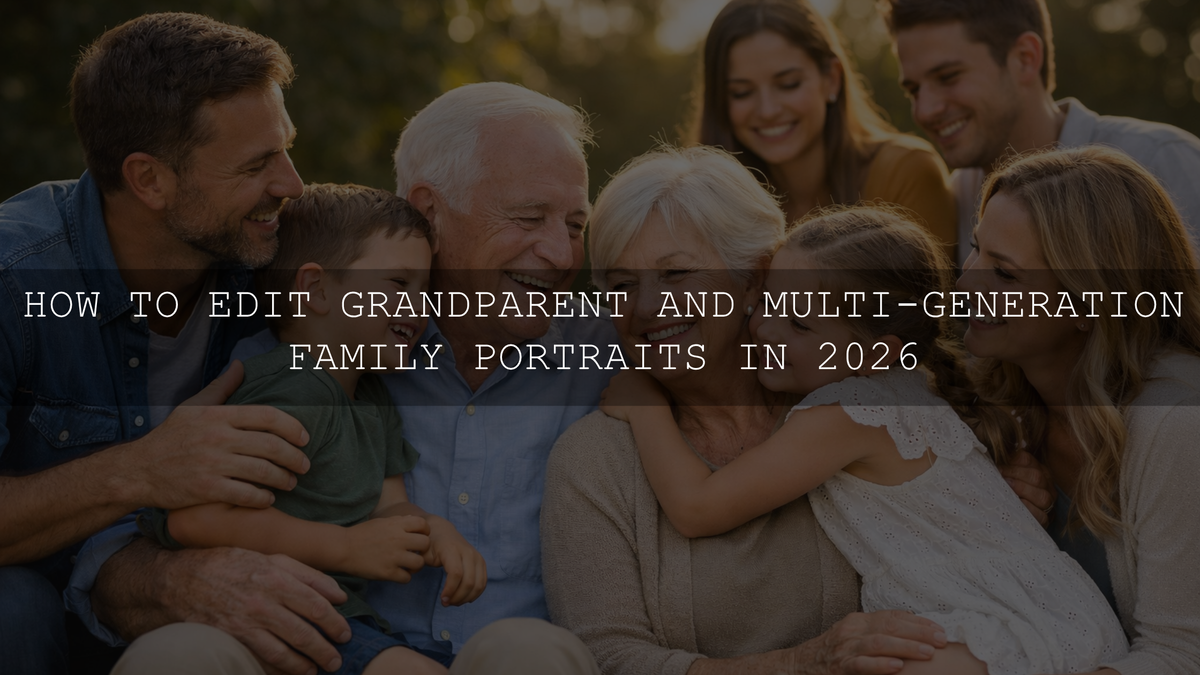
How to Edit Grandparent and Multi-Generation Family Portraits in 2026
Multi-generation family portrait editing in 2026 is less about chasing a trendy look and more about preserving warmth, skin tone accuracy, and emotional connection across every age in the frame. Grandparent family portraits often include mixed light, different skin tones, busy backgrounds, and expressions that shift from calm to playful in seconds. The goal is simple: make the gallery feel unified, natural, and timeless without over-editing the people who matter most.
I have tested this kind of family photo editing workflow on portraits where grandparents were seated in open shade, kids were moving in and out of sunlight, and the final image still needed to feel soft, flattering, and believable. When the base edit is clean, these portraits stop looking like “corrected files” and start feeling like family history.
If you want a faster starting point for portraits like these, try the AI-Optimized Skin Tone Safe Pro Portrait Lightroom Presets and browse the Portrait Photography Lightroom Presets collection. For photographers who want a broader toolkit for different family sessions, the AI-Optimized Lightroom Presets for Mobile and Desktop collection is a strong place to start, and you can keep it simple with the brand offer: Buy 3, Get 9 FREE.
Why Multi-Generation Family Portraits Need a Different Editing Approach
A great single-person portrait can survive a dramatic edit. A multi-generation portrait usually cannot. The more people you place in one frame, the more important balance becomes. Grandparents often need gentle contrast and realistic skin texture. Parents usually want flattering but accurate color. Children need brightness and life without oversaturation. If one face looks too warm, another too cool, and the background too busy, the portrait immediately feels less premium.
That is why consistency matters so much in family portrait editing. Every image in the set should feel related, even if the session moved from indoors to outdoors or from full group photos to smaller pairings. If you want a deeper workflow for making entire galleries feel connected, this guide on creating a consistent family photography style across different sessions is worth reading.
The Most Common Problems in Grandparent and Family Portrait Editing
- Uneven light across faces: one side of the group may be in bright sun while another is in soft shade.
- Mixed color temperature: window light, indoor bulbs, and reflected outdoor colors can all shift skin tones differently.
- Distracting backgrounds: clutter, bright objects, or random people can pull attention away from the family.
- Flat or muddy skin: heavy presets or too much global contrast can make skin look lifeless.
- Inconsistent mood across the gallery: one photo feels warm and airy, the next feels cool and harsh.
Here’s why this matters: in family portraits, the viewer’s eye jumps from face to face. Small editing mistakes become much more obvious because people naturally compare one person’s skin tone, exposure, and clarity against another’s.
A Clean Editing Workflow for Family Portraits
The best edits usually come from a simple order of operations. Do not start by over-fixing faces. Start by building a clean base.
1. Correct exposure before style
First, get the overall image into a believable exposure range. Bring back blown highlights in white shirts, dresses, or skies. Lift heavy shadows just enough to reveal expression and detail. Adobe’s Lightroom Classic guide to white balance, tone, and HSL adjustments is useful here when you need a refresher on highlights, shadows, tone curve, and targeted color control.
Pro tip: avoid the temptation to brighten the whole frame too much just because one face is dark. In group portraits, that usually makes bright areas look weak and washed out.
2. Fix white balance before touching skin color
If skin looks strange, the problem is often white balance first, not saturation first. Warm indoor bulbs can push orange into cheeks. Window shade can cool skin too much. Grass and nearby walls can create subtle color contamination. Use Temp and Tint to neutralize the whole file, then refine only where needed.
For photographers working through tricky indoor portraits, this article on mastering presets in mixed indoor and window light helps explain why clean color comes before creative styling.
3. Apply a preset that matches the scene
This is where family photography presets can save serious time. Instead of rebuilding every image from zero, apply a preset that already aligns with the session’s lighting and mood.
- Indoor family sessions: the AI-Optimized Soft Window Light Lightroom Presets work well for home sessions, living room portraits, and window-lit family images that need softness without looking hazy.
- Outdoor family portraits: the AI-Optimized Traditional Outdoor Portrait Lightroom Presets are a strong match when you want warm, balanced color in parks, gardens, fields, or golden-hour family sessions.
- Skin-tone-sensitive portraits: the AI-Optimized Skin Tone Safe Pro Portrait Lightroom Presets are especially useful when the priority is natural skin across multiple people in one frame.
- Nostalgic family storytelling: the AI-Optimized Vintage Portrait Lightroom Presets can add warmth and a soft film-inspired mood without making the portrait feel overly stylized.
My rule is simple: choose the preset based on light first, mood second. That one decision usually makes the rest of the edit easier.
4. Use masks for faces, not heavy global fixes
Once the preset is applied, local adjustments matter more than aggressive global sliders. Adobe’s guide to masking in Lightroom is especially helpful for family sessions because people masks, subject masks, and background masks let you correct faces without damaging the whole image.
Let’s break it down:
- Select the people or subject mask.
- Gently lift exposure if faces are a little too dark.
- Reduce highlights on foreheads or cheeks only if they feel harsh.
- Refine warmth and tint slightly if one face is drifting off color.
- Use a background mask to lower distraction instead of over-sharpening the family.
This step is where family portraits go from “good” to “finished.” It is also the easiest place to overdo things, so keep the moves small.
5. Control color with intention
When clothing, grass, sky, or wall color starts competing with faces, the HSL panel becomes your friend. Reduce distracting reds, yellows, or greens instead of increasing overall contrast. For family galleries, controlled color usually feels more timeless than loud color.
If you need help building harmonious palettes for a session, Adobe Color harmony tools can be useful for understanding how warm neutrals, muted greens, creams, and soft blues work together in portraits.
Presets vs Manual Editing for Family Portraits
Presets win on speed and consistency. When you have 40, 80, or 200 family portraits to deliver, a strong preset gives you a repeatable baseline. This matters even more when you are editing group shots, smaller combinations, candid moments, and detail frames from the same session.
Manual editing wins on precision. If one grandparent is in shadow, one child is catching a hot patch of sun, and the background is too bright, no preset should be your final step. Manual masking, white balance correction, and selective HSL are what keep the image believable.
The best workflow is preset first, manual second. That combination gives you both speed and quality.
How to Keep Grandparents Looking Natural
Older faces often look best with gentle clarity, moderate contrast, and accurate skin color. Over-smoothing removes dignity and texture. Too much sharpening can make every line look harsh. The goal is respect, not plastic perfection.
- Lift shadows softly instead of flattening the full face.
- Protect highlight detail on foreheads, cheeks, and glasses.
- Keep texture natural. Do not erase real features.
- Reduce redness carefully, not aggressively.
- Let expression carry the portrait more than “beauty” editing.
For a more detailed skin-and-texture workflow, this article on realistic Lightroom portrait retouching is a strong follow-up read.
How to Edit Children in the Same Frame Without Making the Whole Photo Too Bright
Children often photograph with brighter skin, faster movement, and stronger expression shifts. Editors sometimes compensate by over-brightening the whole image. That usually hurts the older family members in the same frame.
Instead:
- Use local masks on faces rather than raising the entire exposure.
- Keep whites clean, but do not push them until clothing loses texture.
- Add life through midtone brightness, not excessive saturation.
- Preserve the natural energy of the scene rather than forcing every child into the same color treatment.
Indoor vs Outdoor Multi-Generation Portrait Editing
Indoor family portraits
Indoor sessions often feel more intimate, but they also create the hardest color problems. Window light may be beautiful on one side while practical lamps add warmth on the other. A soft base from the AI-Optimized Soft Window Light Lightroom Presets can help you move faster without losing that home-session atmosphere.
Outdoor family portraits
Outdoor portraits usually need more highlight control and better separation between people and background. A preset built for natural light, like the AI-Optimized Traditional Outdoor Portrait Lightroom Presets, helps keep outdoor family portraits warm and clean without making grass, sky, or skin feel over-processed.
When a Nostalgic Look Works Best
Some family sessions deserve a slightly more emotional finish. Maybe the wardrobe is classic, the posing is formal, or the session was built around grandparents meeting new grandchildren. In those cases, a subtle vintage treatment can work beautifully.
The key word is subtle. The AI-Optimized Vintage Portrait Lightroom Presets make more sense when you want warmth, softness, and a memory-like finish, not when you need a crisp modern look for every frame in the gallery.
If you like soft portrait mood but want something cleaner and lighter, this guide to soft dreamy portraits with presets gives a useful contrast.
Quick Pro Tips That Improve Family Portrait Galleries Fast
- Sync carefully: sync the preset and the broad settings first, but recheck faces one frame at a time.
- Watch necks and hands: skin tone consistency is not just about faces.
- Lower background contrast before adding subject contrast: this usually improves separation more naturally.
- Do not over-warm everything: warmth can feel inviting, but too much turns families orange fast.
- Edit the hero image first: get one frame perfect, then match the rest of the gallery back to that anchor.
I also recommend comparing group portraits side by side before export. A single image may look great alone, but galleries reveal inconsistency quickly.
Related Reading
- How to create a consistent family photography style across different sessions
- How to fix mixed indoor and window light with presets
- How to retouch portraits naturally in Lightroom
- How to create soft dreamy portraits without over-editing
Bring the Whole Gallery Together
Grandparent and multi-generation family portraits deserve edits that feel respectful, polished, and emotionally honest. The best family photo editing does not hide age, flatten expression, or force every image into the same heavy style. It keeps skin natural, color balanced, and light believable while letting the relationships carry the frame.
If you want a faster workflow, start with the AI-Optimized Skin Tone Safe Pro Portrait Lightroom Presets for balanced skin, add the AI-Optimized Traditional Outdoor Portrait Lightroom Presets for natural outdoor sessions, and browse the Lightroom Presets for Lightroom Mobile & Desktop collection to build a more flexible family-editing toolkit. If you want to test multiple looks across different sessions, Buy 3, Get 9 FREE is an easy way to build that set without overcomplicating your workflow.
FAQ
What is the best preset style for multi-generation family portraits?
The best preset style is the one that matches the lighting first and the mood second. For most family sessions, natural skin-safe portrait presets or soft natural-light presets are the safest starting point.
How do I keep grandparents looking natural in edited portraits?
Use gentle contrast, realistic skin tone correction, and very light local adjustments. Avoid over-smoothing, over-sharpening, and strong color shifts that remove texture and character.
Should I use one preset for the whole family gallery?
You can use one main preset as a base, but each photo still needs small adjustments. A consistent starting point is helpful, but local refinements are what make the gallery feel polished.
How do I fix mixed lighting in indoor family portraits?
Correct white balance globally first, then use masks for faces and background. Small Temp, Tint, and exposure refinements usually work better than heavy saturation or contrast changes.
Are presets better than manual editing for family photography?
Presets are better for speed and consistency, while manual editing is better for precision. The strongest workflow combines both: preset first, then targeted manual refinements.
Written by Asanka — creator of AAAPresets (10,000+ customers).



Leave a comment
This site is protected by hCaptcha and the hCaptcha Privacy Policy and Terms of Service apply.