
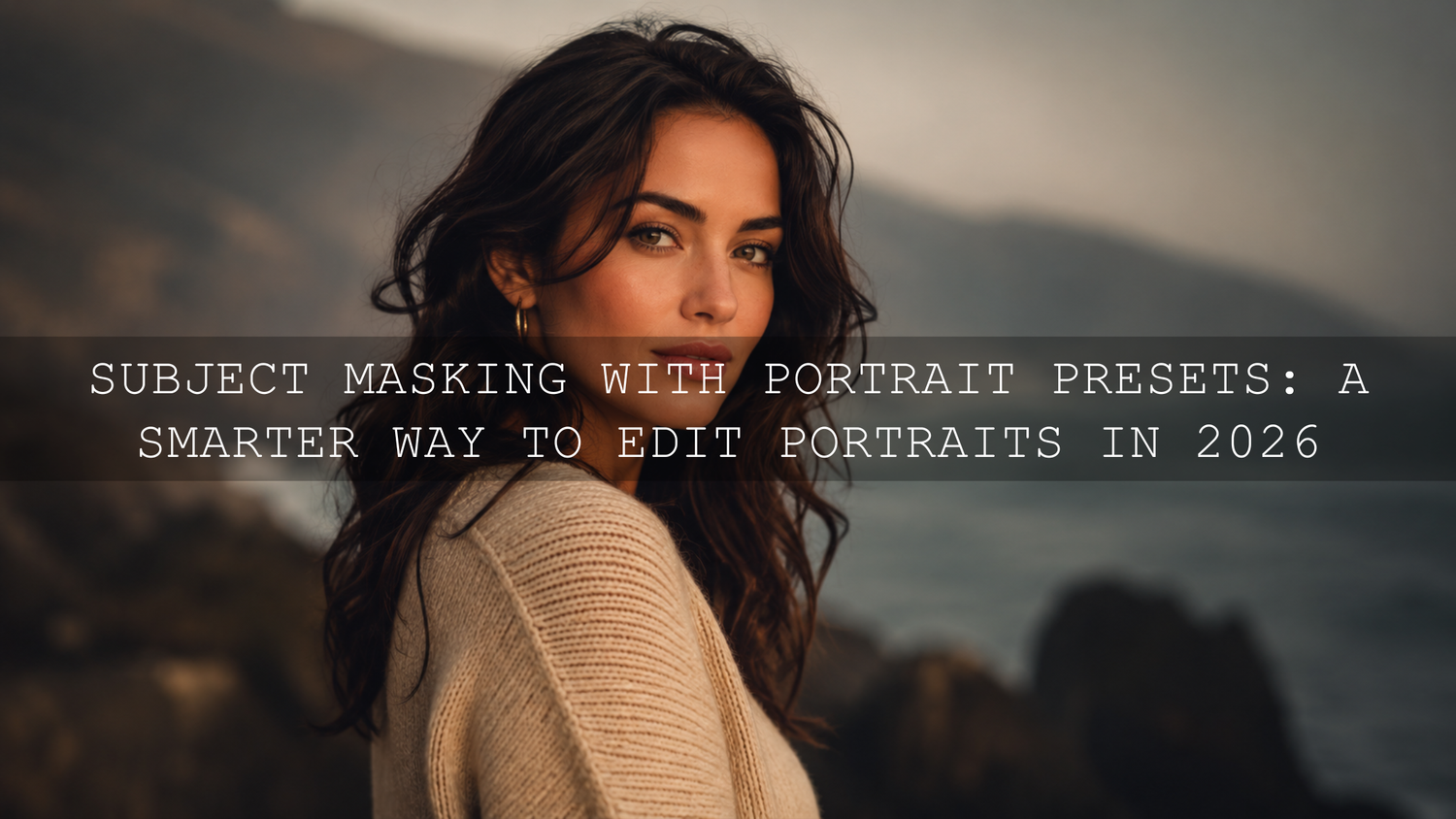
Subject Masking with Portrait Presets: A Smarter Way to Edit Portraits in 2026
Subject masking with portrait presets is one of the fastest ways to create clean, professional portrait edits without changing the whole photo too much. Instead of applying one preset across the entire image, you can use AI subject masking, Lightroom portrait presets, and local adjustments to control the subject, background, skin tones, clothing, and mood separately.
Here’s why this matters: portraits are all about attention. The viewer should notice the face, eyes, expression, and emotion first. If the background is too bright, the skin tone looks unnatural, or the preset affects everything equally, the image can feel unfinished. Subject masking helps you guide the viewer’s eye with more control.
If you want a strong starting point before refining your portraits with masks, try the 1000+ Master Lightroom Presets Bundle and browse the Portrait Photography Lightroom Presets collection. Apply a portrait preset first, then use subject masking to fine-tune the face, background, and overall mood naturally. Try these presets today — Buy 3, Get 9 FREE.
What Is Subject Masking in Portrait Editing?
Subject masking is a selective editing technique that lets you isolate the main subject in a photo and adjust only that area. In portrait editing, this usually means selecting a person, face, hair, clothing, or full body so you can improve the subject without affecting the background.
In Lightroom, tools like Select Subject and Select People can automatically detect the main subject and create a mask. Adobe’s official guide to masking in Lightroom explains how Lightroom can automatically select the subject, sky, background, people, and objects, then let you refine the mask with Add or Subtract tools.
In simple words, a mask tells your editing software, “Only edit this part.” That means you can brighten the face, soften harsh contrast, reduce background distractions, or make skin tones more natural without damaging the full photo.
Why Subject Masking Works So Well with Portrait Presets
Portrait presets are powerful because they give your image a complete look quickly. A good preset can improve contrast, color balance, warmth, shadows, highlights, and mood in one click. But every portrait is different. One photo may have perfect skin exposure and a bright background. Another may have a dark face and strong sunlight behind the subject.
This is where subject masking with portrait presets becomes so useful. You can apply a preset for the overall style, then use masks to correct the areas that need extra attention.
- Face too dark? Use a People or Subject mask to gently lift exposure and shadows.
- Background too busy? Invert the subject mask and reduce clarity, saturation, or brightness in the background.
- Skin tone too warm? Use a face or skin mask and reduce warmth slightly.
- Eyes need more attention? Use a small mask to brighten the eyes without over-sharpening the skin.
- Clothing color distracting? Mask the clothing and reduce saturation or shift the color slightly.
I tested this workflow on outdoor portrait edits where the preset looked beautiful on the background but made the skin slightly too warm. By masking only the subject and reducing warmth a little, the image kept the cinematic mood while the face looked natural again.
Presets vs Manual Editing: Which Is Better for Portraits?
Presets and manual editing are not enemies. The best workflow usually uses both.
Presets are best for speed, consistency, and creative direction. They help you build a strong look quickly, especially when editing a full portrait session, wedding gallery, fashion shoot, or social media set.
Manual editing is best for precision. It helps you fix the exact problems in each photo, such as uneven lighting, strong shadows under the eyes, color casts, or background distractions.
The smartest approach is simple: use portrait presets for the base style, then use subject masking for precision. For example, you can apply Lightroom Presets for Cinematic & Portrait Photography to create the overall look, then use a Select Subject mask to brighten the subject and an inverted background mask to soften distractions.
For more help with preset consistency, read why Lightroom presets look different on every photo and how to fix it. It explains why lighting, camera profiles, white balance, and masking can change the final result.
How to Use Subject Masking with Portrait Presets Step by Step
Step 1: Start with a Clean Base Edit
Before applying a mask, check the photo as a whole. Look at exposure, white balance, contrast, and the mood you want to create. Do not rush straight into masking. A strong base edit makes the mask work better.
Start by applying a portrait preset that matches the image. For example, use a warm cinematic preset for golden hour portraits, a clean bright preset for family photos, or a moody preset for editorial-style portraits.
Pro tip: If the preset feels too strong, lower the intensity if your software supports it, or manually reduce contrast, clarity, saturation, and highlights until the image feels more natural. You can also read how to tame overly powerful presets for subtle edits.
Step 2: Create a Subject Mask
Open the Masking panel and choose Select Subject or Select People. Lightroom will analyze the photo and create a mask around the main subject. In Lightroom Classic, Adobe’s Lightroom Classic Masking tool guide shows how Select Subject, Select People, Select Background, and other masking options work inside the Develop module.
After the mask is created, zoom in and check the edges around hair, hands, shoulders, clothing, and any detailed areas. AI masking is fast, but it still needs your eye. Use Add or Subtract to clean up missed areas.
Step 3: Improve the Subject First
Once the subject mask is ready, make small adjustments. The goal is not to make the edit obvious. The goal is to make the subject feel naturally stronger.
- Increase exposure slightly if the face is underexposed.
- Lift shadows carefully to reveal detail without making the image flat.
- Reduce highlights if the forehead, nose, or cheeks look too bright.
- Lower clarity or texture slightly if the skin looks too harsh.
- Add a little warmth only if the skin feels too cool or lifeless.
Here’s why this matters: the face is usually the emotional center of a portrait. Small changes to face brightness, skin tone, and eye clarity can improve the image more than heavy global editing.
Step 4: Use People Masks for More Detailed Portrait Control
If your editing software supports People masks, use them for more detailed control. People masking can help you target face skin, body skin, hair, lips, teeth, eyes, eyebrows, and clothing separately.
This is especially useful when editing beauty, fashion, wedding, graduation, newborn, or studio portraits. For example, you may want to brighten the face, keep the hair rich and detailed, reduce shine on the skin, and slightly desaturate clothing that pulls attention away from the expression.
If you edit portraits with medium to deep skin tones, start with a preset designed for natural tone protection, such as AI-Optimized Dark Skin Cinematic Lightroom Presets. Then use a skin mask to protect the natural undertone instead of forcing the same warmth or brightness across every face.
For a deeper workflow, read how to make Lightroom presets work on every skin tone.
Step 5: Invert the Mask to Edit the Background
After improving the subject, duplicate or invert the subject mask so you can edit the background separately. This is one of the best ways to create subject separation.
For a cinematic portrait look, try these background adjustments:
- Reduce exposure slightly to make the subject stand out.
- Lower clarity or texture for a softer background feel.
- Reduce saturation if the background colors are distracting.
- Shift temperature slightly cooler or warmer to match the mood.
- Add a soft vignette only if it feels natural.
Be careful not to make the background look fake. A good background edit should support the subject, not scream for attention.
Step 6: Check the Whole Image Again
After masking, zoom out. This step is important because a portrait can look good at 100% zoom but feel strange as a full image. Ask yourself:
- Does the subject look natural?
- Does the background support the mood?
- Are the skin tones believable?
- Is the preset still visible without overpowering the image?
- Does the viewer’s eye go to the face first?
If the answer is yes, your edit is probably close. If not, reduce the strength of your masks. Most portrait edits look better when the masking is slightly underdone rather than overdone.
Real Portrait Editing Examples
Outdoor Golden Hour Portrait
For a golden hour portrait, apply a warm portrait preset first. Then use a Subject mask to keep the skin natural and bright. If the preset makes the entire image too orange, reduce warmth only on the subject while keeping the background golden. This keeps the sunset mood without damaging the face.
A product like AI-Optimized Luxury Golden Tones Lightroom Presets works well for portraits, fashion, weddings, and lifestyle images where you want warm highlights and a premium look.
Wedding Portrait with a Bright Dress
Wedding portraits often have a tricky balance: you need soft skin tones, clean whites, and emotional color. Apply a wedding preset first, then mask the subject. Reduce highlights on the dress, lift shadows on the face, and keep the background slightly softer.
For wedding galleries, the Wedding Lightroom Presets bundle can help create a consistent style across the full set. Masking then lets you correct each image without losing that consistent look.
Moody Editorial Portrait
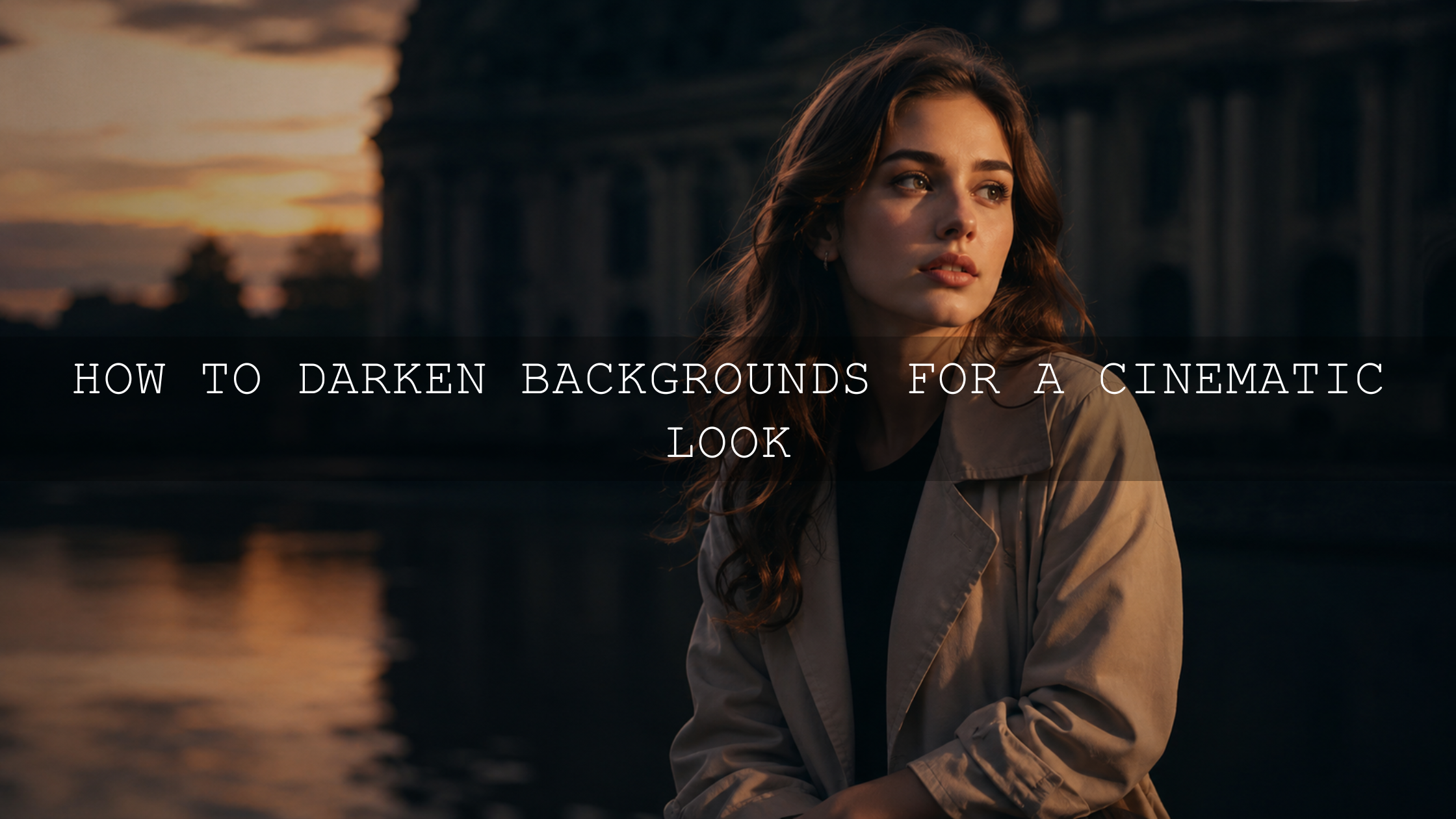
For a moody portrait, apply a cinematic or brown-toned preset. Then use a subject mask to protect face brightness. Invert the mask and darken the background slightly. This creates a dramatic look while keeping the subject readable.
If your preset makes the portrait too dark, read how to recover shadow detail when presets make photos too dark.
Expert Tips for Better AI Subject Masking
- Start with a sharp image: AI masking works better when the subject is in focus and clearly separated from the background.
- Use masks gently: Big exposure changes can create halos around hair and shoulders. Small changes look more professional.
- Protect skin tones: When using cinematic presets, check orange and red tones carefully. Skin should look alive, not overly orange or gray.
- Do not over-soften skin: Reducing texture too much can make portraits look plastic. Use subtle skin refinement instead.
- Name your masks: If you use several masks, rename them as Face, Background, Hair, Clothes, or Eyes so your workflow stays organized.
- Use Photoshop for complex selections: If Lightroom struggles with difficult hair or detailed edges, Adobe’s Photoshop Select Subject quick action can help isolate the subject for more advanced retouching.
Best Types of Portraits for Subject Masking and Presets
Subject masking with portrait presets works for almost every portrait style, but it is especially useful for images where the subject and background need different treatment.
- Wedding portraits: Keep skin soft, protect dress highlights, and maintain romantic color.
- Fashion portraits: Separate the model from the background and control clothing color.
- Outdoor portraits: Balance bright skies, green backgrounds, and natural skin tones.
- Street portraits: Reduce busy background distractions while keeping the subject sharp.
- Family portraits: Create consistency across multiple people and lighting conditions.
- Social media portraits: Make the face stand out clearly on small mobile screens.
For a complete editing routine, read how to build your first Lightroom editing routine with AAAPresets. It pairs well with this masking workflow because it helps you move from import to preset, mask, refine, and export with more confidence.
Common Mistakes to Avoid
Applying a Preset Too Strongly to the Entire Image
A preset should create direction, not destroy detail. If the preset makes the background, skin, and shadows all too heavy, reduce the strength and use masks to guide the edit.
Brightening the Face Too Much
A bright face is good, but an over-bright face can look unnatural. Lift exposure slowly and watch the forehead, nose, cheeks, and teeth.
Ignoring the Background
A strong subject edit can still fail if the background is too colorful or distracting. Use an inverted mask to reduce attention in the background.
Over-Smoothing Skin
Real skin has texture. Keep it natural. Reduce harshness only enough to flatter the portrait, not erase the person.
Not Checking Before and After
Always compare the original and edited version. A good edit should improve the portrait while still feeling believable.
Related Reading
- Why Lightroom presets look different on every photo
- How to make Lightroom presets work on every skin tone
- How to make strong presets look more subtle
- Build a simple Lightroom editing routine
Final Workflow: The Simple Formula
- Import your portrait and check the lighting.
- Apply a portrait preset for the main style.
- Create a Subject or People mask.
- Adjust the face, skin, eyes, hair, and clothing carefully.
- Invert the mask and refine the background.
- Check the full image and reduce anything that feels too strong.
- Export a clean final version for web, print, or social media.
This workflow gives you the best of both worlds: the speed of presets and the precision of masking. It is especially useful if you edit many portraits and want a professional look without spending too much time on every image.
To build a faster portrait editing workflow, start with the 1000+ Master Lightroom Presets Bundle, explore cinematic portrait presets, and browse the Lightroom Presets for Lightroom Mobile & Desktop collection. Apply the look, refine with subject masking, and create polished portraits with less guesswork.
FAQ
What is subject masking with portrait presets?
Subject masking with portrait presets means applying a preset for the overall look, then using a mask to adjust only the subject, face, skin, clothing, or background. It gives you faster edits with more control.
Should I apply the preset before or after masking?
For most portraits, apply the preset first, then use masking to refine the subject and background. This helps you see how the preset affects the full image before making local corrections.
Can subject masking fix skin tones?
Yes, subject masking can help improve skin tones by targeting the face or skin separately. You can adjust warmth, tint, exposure, highlights, and saturation without changing the entire photo.
Is Lightroom good for AI subject masking?
Yes. Lightroom and Lightroom Classic include masking tools such as Select Subject, Select People, Select Background, and Select Objects, making them useful for portrait edits, background control, and local adjustments.
Do portrait presets work on mobile Lightroom?
Yes, many Lightroom presets work on Lightroom Mobile and Desktop, depending on the preset format. After applying the preset, you can still use masking tools to refine the portrait where supported.
Written by Asanka — creator of AAAPresets (10,000+ customers).

Leave a comment
This site is protected by hCaptcha and the hCaptcha Privacy Policy and Terms of Service apply.