
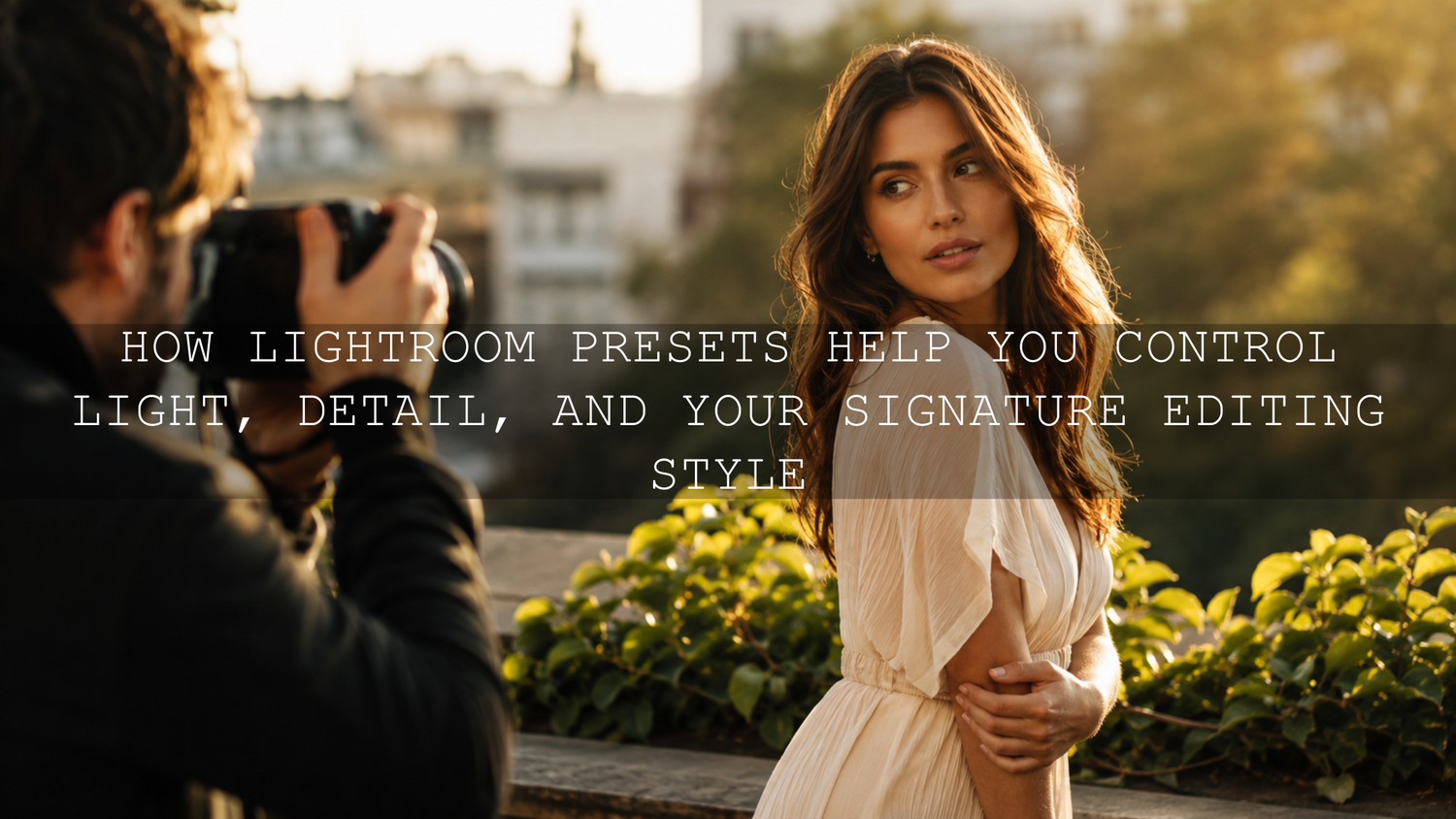
How Lightroom Presets Help You Control Light, Detail, and Your Signature Editing Style
Lightroom presets are one of the fastest ways to create a consistent photo editing workflow, but the best results do not come from one-click editing alone. In 2026, photographers need presets that handle light, detail, color, texture, sharpness, and mood in a natural way. The real secret is learning how to use Lightroom presets as a strong starting point, then fine-tuning each photo so it still feels personal, clean, and professional.
Here’s why this matters: two photos can use the same preset and still look different because the original light, exposure, camera profile, white balance, ISO, and subject colors are different. That is why a smart preset workflow should always focus on two key areas first: light and detail.
If you want a ready-made starting point for portraits, landscapes, weddings, travel, street photos, and lifestyle edits, explore the 1000+ Master Lightroom Presets Bundle and browse the full Lightroom Presets for Lightroom Mobile & Desktop collection. Try these presets today — Buy 3, Get 9 FREE when you add 12 eligible items to your cart.
Why Light and Detail Matter More Than the Preset Name
A preset name can sound beautiful: cinematic, moody, bright, vintage, golden, airy, or film-inspired. But behind every good Lightroom preset, there is a balance of light and detail. Light creates the mood. Detail creates the realism.
Light decides whether your photo feels soft, bold, dramatic, warm, clean, nostalgic, or cinematic. Detail decides whether the photo feels sharp, textured, natural, smooth, or over-edited. When these two parts work together, the image feels polished without looking fake.
I have tested presets on outdoor portraits, wedding-style edits, street photos, and product-style images, and the biggest difference is rarely the color alone. The strongest results usually happen when the exposure is controlled, highlights are protected, shadows are shaped, and detail is added carefully instead of aggressively.
For example, a golden-hour portrait may only need soft contrast, warmer highlights, gentle skin texture, and slightly lifted shadows. A rainy street photo may need deeper blacks, stronger midtone contrast, sharper reflections, and controlled highlights from street lights. Same software, different light story.
What a Light-Based Lightroom Preset Actually Does
A light-based preset controls the overall feeling of the image before you start working on smaller details. This is your foundation. If the foundation is wrong, every color and texture adjustment after it will feel harder to fix.
Exposure
Exposure controls the overall brightness of the photo. A good Lightroom editing workflow usually starts by getting exposure close before judging the preset. If the original image is too dark, the preset may look heavy. If the original image is too bright, highlights may clip or skin may lose softness.
Contrast
Contrast controls the difference between bright and dark areas. Higher contrast can make a photo feel cinematic and powerful, while lower contrast can feel soft, airy, and gentle. The important thing is to match contrast to the subject. A wedding portrait usually needs a different contrast level than a gritty urban night shot.
Highlights and Shadows
Highlights protect bright areas like skies, white dresses, windows, or reflective surfaces. Shadows control darker parts like hair, jackets, trees, streets, and indoor corners. If you often struggle with dark results, read why presets make photos too dark and how to recover detail.
Whites and Blacks
Whites and blacks set the brightest and darkest points of the image. This gives your photo structure. For clean lifestyle edits, keep whites bright but not harsh. For moody film edits, deepen blacks carefully without crushing all shadow detail.
Clarity and Dehaze
Clarity adds midtone contrast, which can make edges and textures feel stronger. Dehaze can cut through haze or add depth, especially in landscapes and urban photos. Use both carefully. Too much clarity can create rough skin, harsh edges, and an over-processed look.
What a Detail-Based Lightroom Preset Actually Does
Detail adjustments bring your image to life, but they should support the photo instead of overpowering it. This is where many beginners go too far. More sharpness is not always better. More texture is not always more professional.
Texture
Texture is useful for flowers, fabric, wood, buildings, hair, food, and landscape details. For portraits, use it gently. Too much texture can make skin look rough, especially in close-up photos.
Sharpening
Sharpening makes edges look clearer. The best practice is to zoom in before adjusting it. If you sharpen the full image too strongly, skies, skin, and smooth backgrounds can become noisy. Adobe’s official guide to applying and creating Lightroom Classic presets is useful when you want to understand which settings should be saved into a preset and which settings should stay manual.
Noise Reduction
Noise reduction is important for high-ISO images, night photography, indoor photos, and concert or event shots. The goal is not to remove every grain. The goal is to reduce distracting noise while keeping real detail in eyes, hair, fabric, buildings, and product surfaces.
Masking for Local Detail
Masking is where your edits become more professional. Instead of changing the whole photo, you can brighten a face, soften a background, recover a sky, or sharpen only the subject. Adobe’s official Lightroom Classic masking guide explains how masks help you make targeted, non-destructive adjustments.
Presets vs Manual Editing: Which One Is Better?
The honest answer is that both are useful. Presets and manual editing are not enemies. They work best together.
- Lightroom presets: Best for speed, consistency, batch editing, social media content, wedding galleries, travel sets, product photos, and keeping a recognizable style.
- Manual editing: Best for difficult lighting, hero images, advanced retouching, skin correction, color repair, and photos where every small detail matters.
- Hybrid workflow: Best for most photographers. Apply the preset first, then manually adjust exposure, white balance, highlights, shadows, skin, and detail.
Let’s break it down with a real example. If you apply a cinematic preset to a street photo shot at night, the preset may instantly add mood. But if the face becomes too dark, you still need a mask to lift the subject. If the street lights become too strong, you may need to reduce highlights. The preset gives the style; manual edits make it fit the photo.
This is also why presets can look different across images. For a deeper guide, read why Lightroom presets look different on every photo and how to fix it.
A Step-by-Step Lightroom Preset Workflow for Better Results
Use this simple workflow when you want your edits to look clean, consistent, and professional.
- Start with the best file possible. RAW files give you more editing flexibility than JPEGs, especially for highlight recovery, shadow detail, and white balance correction.
- Fix exposure before judging the preset. If the photo is too dark or too bright, make a basic exposure correction first.
- Set white balance. Correct temperature and tint before heavy color grading. This is especially important for skin tones.
- Apply your Lightroom preset. Choose a preset that matches the subject and light: soft, moody, cinematic, bright, vintage, golden, or natural.
- Adjust preset strength or individual sliders. Reduce contrast, saturation, clarity, or shadows if the look becomes too strong.
- Use masks for problem areas. Brighten faces, recover skies, soften harsh backgrounds, or sharpen only the subject.
- Check detail at 100% zoom. Look for over-sharpening, skin texture issues, noise, halos, and color banding.
- Export for the platform. Use a clean export setting for Instagram, websites, Pinterest, client galleries, or print.
For mobile creators, this same process works beautifully in Lightroom Mobile. The sliders may feel simpler, but the editing logic is the same: correct the base, apply the look, then fine-tune. You can also read how to adapt Lightroom Mobile presets to different lighting.
How to Build Your Own Signature Lightroom Preset Style
A signature editing style does not mean every photo must look identical. It means your work has a recognizable feeling. Maybe your style is warm and soft. Maybe it is dark and cinematic. Maybe it is clean, natural, and true-to-life.
Start with one image that represents your ideal style. Edit it slowly. Do not rush. Pay attention to the order of your changes.
- Choose the mood first: bright, moody, cinematic, warm, vintage, clean, soft, or bold.
- Shape the light: adjust exposure, contrast, highlights, shadows, whites, and blacks.
- Refine color: use white balance, color mixer, and color grading carefully.
- Control detail: add texture, clarity, sharpening, and noise reduction only where needed.
- Save only useful settings: avoid saving crop, spot removal, or overly specific masks unless the preset is made for a very specific use.
For color direction, Adobe’s Adobe Color harmony tool can help you explore complementary, analogous, monochromatic, and triadic color relationships. This is useful when you want a preset pack to feel visually consistent instead of randomly colored.
Best Lightroom Preset Examples by Photography Style
Different photography styles need different light and detail choices. Here are practical examples you can apply today.
Portrait Photography
For portraits, protect skin first. Avoid too much clarity and texture on the face. Use masks to brighten the subject, soften strong shadows, and keep eye detail clean. If you edit many different people, read how to make Lightroom presets work on different skin tones.
Landscape Photography
For landscapes, focus on dynamic range. Recover skies, lift shadows carefully, and use texture to bring out mountains, grass, rocks, trees, and clouds. Avoid pushing saturation too far because greens and blues can quickly look artificial.
Street Photography
Street photos often need stronger contrast, deeper shadows, and sharper textures. A little grain or matte black can help create a film-inspired mood. For more ideas, see the best street photography Lightroom presets guide.
Garden, Outdoor, and Golden Light Photos
For outdoor lifestyle and garden edits, keep greens clean, highlights soft, and skin tones natural. The AI-Optimized Bloom Garden Lightroom Presets are a good match for flowers, parks, soft daylight, spring photos, and fresh outdoor portraits. For warmer sunlight and richer highlights, the AI-Optimized Cinematic Golden Garden Lightroom Presets can help create a glowing garden-inspired look.
Pro Tips for Cleaner Light and Detail in Lightroom
- Lower highlights before increasing whites. This helps protect skies, dresses, windows, and reflective areas.
- Lift shadows slowly. Too much shadow recovery can reveal noise and make the image look flat.
- Use clarity for objects, not always for skin. Clarity is great for buildings, streets, landscapes, and products, but it can make portraits harsh.
- Sharpen after noise reduction. If you sharpen first, you may accidentally sharpen noise too.
- Use masks instead of global fixes. If only the face is dark, brighten the face — not the whole photo.
- Check before and after often. Your eyes adapt quickly, so compare your edit with the original to avoid over-editing.
If you work with indoor and window light, mixed lighting can create warm and cool color problems in the same photo. This is where selective edits become important. Read how to master presets in tricky mixed indoor and window lighting for a more focused workflow.
Related Reading
- Why presets make photos too dark and how to recover detail
- Why Lightroom presets look different on every photo
- Mastering Lightroom Mobile presets in any lighting
- How to make presets work on every skin tone
- Best street photography Lightroom presets
Build a Faster Editing Workflow Without Losing Your Personal Style
The best Lightroom presets should save time without removing your creative control. Think of them as a professional base, not a final answer. Apply the preset, study the light, protect the detail, and make small corrections until the photo feels complete.
For a flexible preset library that works across portraits, travel, weddings, landscapes, lifestyle, outdoor photos, and social media edits, start with the 1000+ Master Lightroom Presets Bundle. You can also browse AI-Optimized Lightroom Presets and the full Lightroom presets collection to find looks that match your editing style. Buy 3, Get 9 FREE is a simple way to build your editing toolkit faster.
FAQ
Are Lightroom presets good for beginners?
Yes. Lightroom presets are great for beginners because they give you a strong starting point. The best workflow is to apply a preset, then adjust exposure, white balance, highlights, shadows, and detail for each photo.
Why do Lightroom presets look different on every photo?
Presets apply saved settings to photos with different lighting, white balance, camera profiles, colors, and exposure levels. This is normal. You can fix it by correcting the base image first and making small manual adjustments after applying the preset.
Should I edit light or detail first in Lightroom?
Edit light first. Fix exposure, contrast, highlights, shadows, whites, blacks, and white balance before making strong detail changes. Once the light is balanced, sharpening, texture, clarity, and noise reduction become easier to judge.
Can I use Lightroom presets on mobile and desktop?
Yes. Many Lightroom presets include DNG files for Lightroom Mobile and XMP files for Lightroom Desktop, Lightroom Classic, and Adobe Camera Raw. Always check the product details before downloading.
Do professional photographers use presets?
Yes, many photographers use presets to speed up editing and keep galleries consistent. Professionals usually do not stop at one click; they apply a preset, then fine-tune each image for light, skin tone, color, and detail.
Written by Asanka — creator of AAAPresets (10,000+ customers).

Leave a comment
This site is protected by hCaptcha and the hCaptcha Privacy Policy and Terms of Service apply.