
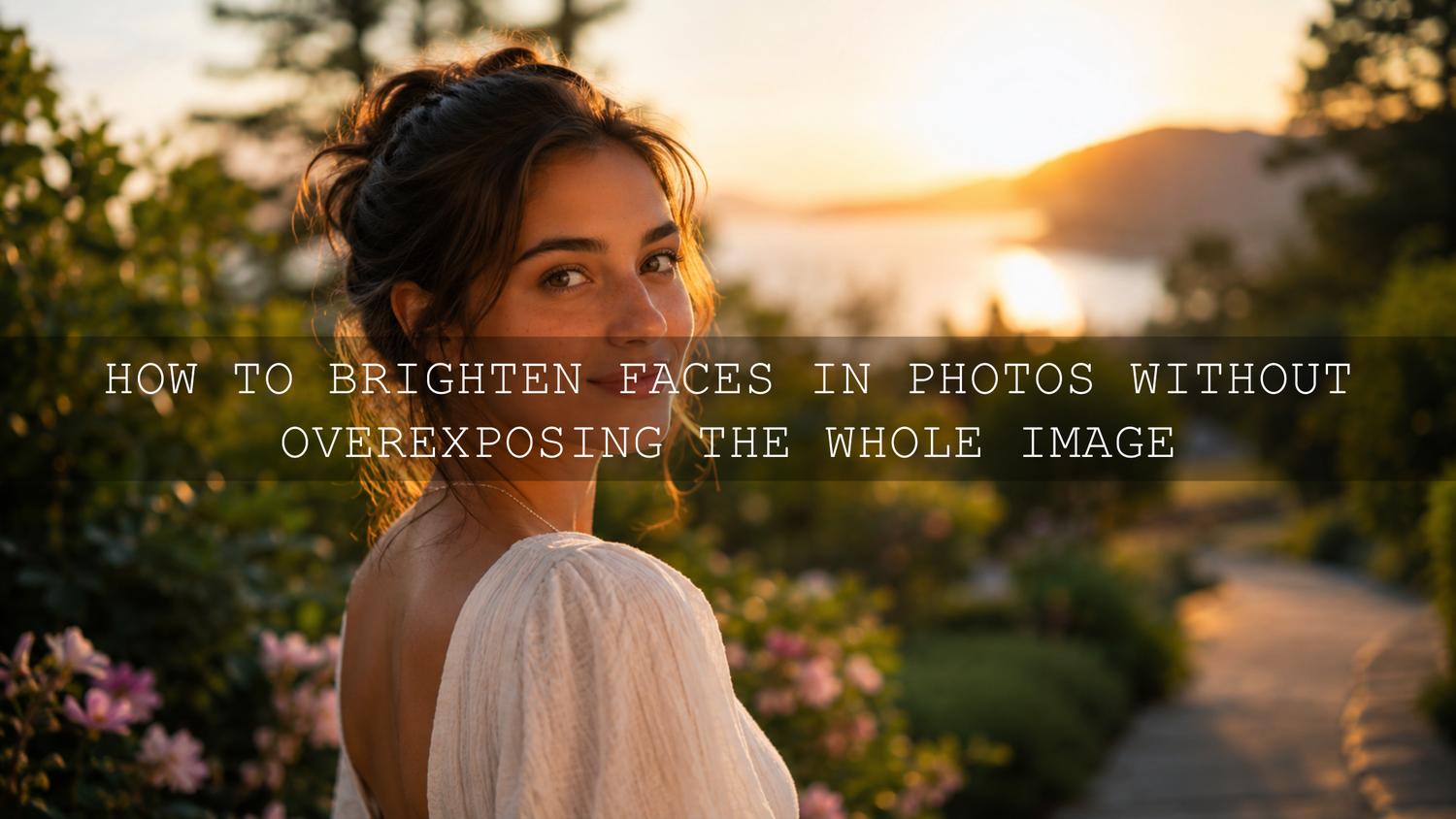
How to Brighten Faces in Photos Without Overexposing the Whole Image
Learning how to brighten faces in photos is one of the most useful editing skills for portraits, family photos, weddings, travel shots, and everyday memories. A photo can have a beautiful background, perfect composition, and emotional expression, but if the face is too dark, the image feels unfinished. The good news is that you do not need to brighten the entire photo. With selective brightening, Lightroom masking, and a few careful tone adjustments, you can lift underexposed faces while keeping the background natural.
Here’s why this matters: faces are usually the emotional center of a photo. When the eyes, smile, and skin tones are hidden in shadow, the viewer loses connection with the subject. The goal is not to make the face look fake or glowing. The goal is to restore the light that should have been there in the first place.
If you want a faster starting point before refining faces manually, try the 1000+ Master Lightroom Presets Bundle and browse the Lightroom Presets for Lightroom Mobile & Desktop collection. Apply a preset first for the overall look, then use masks to brighten the face naturally. Try these presets today — Buy 3, Get 9 FREE.
Why Faces Look Too Dark in Photos
Before fixing a dark face, it helps to understand why it happened. Most underexposed faces are not caused by a bad camera or bad editing. They usually happen because the camera is trying to balance a difficult lighting situation.
- Backlighting: A bright window, sunset, beach, or sky behind the subject can make the camera expose for the background and leave the face dark.
- Harsh overhead light: Midday sun or strong ceiling lights can create shadows under the eyes, nose, and chin.
- Low light: Indoor events, restaurants, evening portraits, and cloudy scenes often need extra shadow recovery.
- Dark surroundings: Trees, black walls, dark clothing, or shaded streets can absorb light around the subject.
- Auto exposure choices: The camera may prioritize the brightest part of the frame instead of the person’s face.
- Vignetting or lens falloff: If the subject is near the edge of the frame, the face can look darker than the center of the image.
I tested this workflow on a backlit wedding portrait where the couple stood in front of a bright garden. A global exposure increase made the background look washed out, but a soft face mask with lifted shadows kept the garden mood while bringing attention back to their expressions.
The Best Way to Brighten Faces in Lightroom
The best way to brighten faces in Lightroom is to use a mask instead of a full-image exposure adjustment. A full exposure increase affects everything: sky, background, clothing, highlights, and skin. A mask lets you brighten only the face or subject area.
Adobe’s official guide to masking in Lightroom Classic explains how Lightroom masks allow local adjustments to selected areas. For mobile editors, Adobe also provides a useful guide to Lightroom mobile masking tools, including AI-powered subject selection and selective masks.
For most portraits, start with one of these mask types:
- People mask: Best for portraits when Lightroom can detect the person automatically.
- Brush mask: Best when you need full control over the exact face area.
- Radial gradient: Best for softly lifting the face and upper body without making the edit obvious.
- Luminance range: Best when you want to target only darker tones in the face without affecting brighter skin highlights.
Step-by-Step Face Brightening Workflow
Let’s break it down into a simple workflow you can use in Lightroom Mobile, Lightroom Desktop, Lightroom Classic, or Adobe Camera Raw.
1. Start With a Balanced Base Edit
Before masking the face, correct the overall image lightly. Do not push exposure too far yet. Your base edit should make the photo look generally balanced while keeping the mood of the original scene.
- Adjust white balance so the photo does not look too blue, yellow, green, or magenta.
- Lift global exposure only if the whole photo is too dark.
- Reduce highlights if the background is too bright.
- Lift shadows slightly if the whole image needs more detail.
- Apply your preset or creative style after the basic correction, or before masking if you already know the look you want.
For a flexible base, the AI Optimized Portrait Lightroom Presets are useful for portrait edits because they help create a polished starting look while still leaving room for manual face adjustments.
2. Create a Mask Around the Face
Now isolate the face. If Lightroom detects the person, use a People or Subject mask. If the face is small, partly hidden, or mixed with shadows, use the Brush tool manually.
Keep the mask soft. Hard mask edges are one of the biggest reasons face brightening looks fake. A soft edge blends your adjustment into the cheeks, hairline, jaw, and neck naturally.
- Use a soft brush with high feathering.
- Paint over the face, neck, and visible ears if they are also in shadow.
- Avoid painting too much over the background unless you want to brighten the whole subject area.
- Use the overlay view to check that the mask covers the correct area.
3. Lift Shadows Before Exposure
When brightening underexposed faces, the Shadows slider is usually safer than the Exposure slider. Shadows bring back detail in darker areas without making the brightest parts of the face too hot.
Adobe’s guide to adjusting light in Lightroom on mobile explains how light controls can help correct exposure and recover detail in highlights and shadows. In face brightening, this is especially important because skin can quickly become flat or overexposed if the exposure slider is pushed too far.
- Shadows: Increase first to reveal detail under the eyes, nose, and chin.
- Exposure: Add only a small amount if the whole face still needs light.
- Highlights: Reduce slightly if the forehead, nose, or cheeks become too bright.
- Whites: Use carefully, because it can make skin shine too much.
- Blacks: Lower slightly if the face becomes too flat after brightening.
4. Protect Natural Skin Tones
Brightening faces is not only about light. It is also about color. When you lift shadows, hidden color casts can become more visible. A face may suddenly look too orange, too red, too green, or too gray.
Here is a simple skin tone correction method:
- If the skin looks too blue or gray, warm it slightly with Temperature.
- If the skin looks too green, move Tint slightly toward magenta.
- If the skin looks too red, reduce red or orange saturation carefully.
- If the face looks dull, increase orange luminance slightly instead of adding too much exposure.
- If the skin looks too yellow, lower yellow saturation or shift warmth back gently.
For a deeper guide on keeping edits realistic across different complexions, read how to make Lightroom presets work on every skin tone.
5. Add Back Definition Carefully
After brightening a face, the edit can sometimes look too soft or flat. This happens because lifting shadows reduces contrast in the facial features. Add definition gently, not aggressively.
- Contrast: Add a small amount inside the mask to restore shape.
- Texture: Use lightly if the face needs natural detail, but avoid making skin rough.
- Clarity: Use very little on portraits because too much clarity can make skin look harsh.
- Sharpness: Focus on eyes and important details, not the entire skin area.
My rule is simple: if the viewer notices the edit before noticing the expression, the adjustment is too strong.
Presets vs Manual Editing: Which Is Better for Brightening Faces?
Presets and manual editing are not enemies. They work best together.
- Presets are faster: They create a consistent color style, contrast profile, and mood in one click.
- Manual editing is more precise: It lets you adjust faces, eyes, skin, and background separately.
- Presets help with style: They give your photos a signature look across a full gallery.
- Masks help with realism: They make the preset fit the actual light in each photo.
The best workflow is simple: apply a preset, check the face, create a mask, brighten shadows, correct skin color, and then fine-tune the overall image. For more troubleshooting help, read why Lightroom presets look different on every photo and how to recover detail when presets make photos too dark.
Real Editing Examples
Backlit Wedding Portrait
A couple is standing in front of a bright window. The background looks beautiful, but their faces are dark. Do not increase global exposure heavily because the window will blow out. Instead, create a People mask, lift Shadows, add a small Exposure increase, reduce Highlights slightly, and warm the skin just a little.
Street Portrait in Shade
A subject is standing near a dark building, and the face looks muted. Use a radial gradient over the face and chest. Increase Shadows, add a small Contrast boost, and reduce Saturation slightly if the skin becomes too warm. This keeps the urban mood while making the person stand out.
Family Photo at Sunset
The sunset is perfect, but the people are underexposed. Use a Subject mask or Brush mask over each face. Lift Shadows more than Exposure, then reduce Highlights on the background if needed. A warm preset can help, but the face mask is what makes the final image feel professional.
Pro Tips for Natural Face Brightening
- Edit at 100% zoom: This helps you see skin texture, noise, and mask edges clearly.
- Use small adjustments: Several subtle changes look better than one strong slider push.
- Check before and after often: Your eyes adjust quickly, so compare regularly.
- Watch for halos: Bright edges around the face or hairline mean the mask is too strong or not feathered enough.
- Do not remove all shadows: Shadows give the face shape and depth.
- Match the scene: A face in a moody evening photo should be visible, not lit like studio flash.
- Protect the eyes: Brightening the face should make the eyes clearer, but avoid making the whites of the eyes look unnatural.
Common Mistakes to Avoid
Many beginners brighten faces too much because they are trying to fix the problem quickly. A natural edit should feel invisible. Avoid these common mistakes:
- Increasing global exposure until the background loses detail.
- Using too much clarity on skin.
- Making the face brighter than the light source in the scene.
- Ignoring color casts after lifting shadows.
- Creating a mask with hard edges around the face.
- Over-whitening eyes or teeth.
- Removing all contrast from the skin.
If your gallery has mixed lighting from indoor lamps and windows, you may also find this guide useful: how to edit Lightroom presets in tricky mixed lighting.
A Simple Repeatable Workflow for 2026
Here is a clean workflow you can use for almost any photo with a dark face:
- Correct the overall exposure and white balance lightly.
- Apply your Lightroom preset for the main style.
- Create a soft mask over the face or subject.
- Increase Shadows first.
- Add a small Exposure lift only if needed.
- Reduce Highlights if skin becomes shiny.
- Correct Temperature and Tint for natural skin.
- Add small Contrast or Texture only if the face looks flat.
- Zoom in and check skin texture.
- Compare before and after, then reduce the mask strength if the edit feels too obvious.
This is also a strong habit to build into your full editing routine. For a complete workflow, read how to build your first Lightroom editing routine with AAAPresets.
Best AAAPresets Tools for Face Brightening Workflows
For portraits, weddings, travel, lifestyle, family photos, and social media content, presets help you build the look faster. Then Lightroom masking helps you personalize the light on each face.
- 1000+ Master Lightroom Presets Bundle — best for photographers who want many styles for portraits, weddings, travel, street photos, and lifestyle edits.
- AI Optimized Portrait Lightroom Presets — best for clean portrait edits with a polished base look.
- AI-Optimized Lightroom Presets for Mobile and Desktop — best for creators who want modern presets that work across different lighting conditions.
- Lightroom Presets for Lightroom Mobile & Desktop — best for browsing all preset styles in one place.
When you are ready to edit faster, start with the 1000+ Master Lightroom Presets Bundle or choose a portrait-ready look from the AI-Optimized Lightroom Presets collection. Use the preset for style, then brighten faces with masks for a natural professional finish. Add 12 eligible presets to your cart and enjoy Buy 3, Get 9 FREE.
Related Reading
- Why presets make photos too dark and how to recover detail
- Why Lightroom presets look different on every photo
- How to make presets work on every skin tone
- How to edit presets in mixed indoor and window lighting
- Build your first Lightroom editing routine
FAQ
How do I brighten only the face in Lightroom?
Create a mask over the face using People masking, Brush, or Radial Gradient. Then increase Shadows first, add a small amount of Exposure if needed, and reduce Highlights if the skin becomes too bright.
Should I use Exposure or Shadows to brighten faces?
Use Shadows first because it lifts darker facial details without overexposing brighter skin areas. Use Exposure only in small amounts when the entire face still needs more light.
How do I keep skin tones natural after brightening?
Check Temperature, Tint, and HSL controls after lifting shadows. If the face becomes too orange, red, green, or gray, make small color corrections inside the same mask instead of changing the whole image.
Can presets fix dark faces automatically?
Presets can improve the overall look, but every photo has different light. For the most natural result, apply a preset first and then use a face mask to fine-tune brightness and skin tone.
Why does my face brightening edit look fake?
The mask may be too strong, too sharp around the edges, or too bright compared to the scene. Lower the adjustment amount, increase feathering, and keep some natural shadows for depth.
Written by Asanka — creator of AAAPresets (10,000+ customers).

Leave a comment
This site is protected by hCaptcha and the hCaptcha Privacy Policy and Terms of Service apply.