
Before Applying Lightroom Presets: The 2026 Editing Workflow That Makes Presets Look Better
Before applying Lightroom presets, the smartest thing you can do is prepare your photo with a clean, balanced base edit. Lightroom presets can speed up your editing workflow, create consistent color, and help your photos feel more professional, but they work best when exposure, white balance, composition, and detail are already under control. A preset is not a rescue button for every image. It is a creative starting point that performs better when the photo is ready for it.
I have tested presets on portraits, street photos, wedding edits, travel images, and product-style shots for AAAPresets, and one thing is always clear: the same preset can look beautiful on a balanced image and completely wrong on a poorly prepared one. That does not mean the preset is bad. Most of the time, the starting photo simply needs a few small corrections first.
For a faster workflow, start with a flexible preset pack like the 1000+ Master Lightroom Presets Bundle and browse more styles in the Lightroom Presets for Mobile and Desktop collection. Try these presets today — Buy 3, Get 9 FREE — but always give each image a quick base correction first so the final edit looks clean, natural, and polished.
Why Presets Look Different on Every Photo
Lightroom presets apply saved editing adjustments to your image, including changes to exposure, contrast, color, saturation, tone curves, sharpening, and more. Adobe describes presets as pre-defined settings that apply specific adjustments to photos, which is exactly why the original image matters so much. A preset is reacting to the data already inside your file, not creating a perfect edit from nothing. You can learn more from Adobe’s guide to editing photos with presets in Lightroom.
Here’s why this matters. A dark indoor photo, a bright beach portrait, a cloudy street scene, and a golden-hour wedding image all have different exposure levels, white balance, contrast, and color casts. If you apply the same preset to all four photos without preparing them, each result will feel different. One may look cinematic, one may look too orange, one may lose shadow detail, and one may feel flat.
That is why the best Lightroom preset workflow is not “apply and export.” A better workflow is:
- Check exposure and tonal detail.
- Fix white balance and tint.
- Crop, straighten, and remove distractions.
- Control noise and sharpening.
- Choose a preset that matches the image style.
- Fine-tune the final edit.
If you want to understand common preset problems more deeply, read why Lightroom presets look different on every photo and why editing presets can feel hit-or-miss.
1. Fix Exposure Before Applying Lightroom Presets
Exposure is the foundation of every strong preset edit. If the image is too dark, a moody preset may crush the shadows and hide important detail. If the image is too bright, a bright or warm preset may push the highlights too far and make skin, skies, or white clothing look washed out.
Before applying any Lightroom preset, look at the image without thinking about style. Ask yourself one simple question: does the photo already have a healthy brightness level? If not, adjust it first.
Use the Histogram as Your First Check
The histogram shows how brightness is distributed across the image. If everything is pushed hard to the left, the image is likely underexposed. If everything is pushed hard to the right, the image may be overexposed. You do not need a technically perfect histogram for every creative photo, but you should avoid serious clipping where important shadow or highlight detail is gone.
Adjust Exposure, Highlights, and Shadows
Start with the Exposure slider. Bring the photo close to a natural brightness level before adding a style. Then use Highlights to recover bright areas like skies, windows, white dresses, or reflective surfaces. Use Shadows to recover dark areas like hair, jackets, trees, interiors, and night scenes.
For example, if you are editing a wedding photo where the bride’s dress is too bright and the groom’s suit is too dark, do not apply a cinematic preset immediately. First, reduce Highlights slightly and lift Shadows enough to reveal detail. Then apply your preset. The result will look much more controlled.
Adobe’s Lightroom editing tools include light controls such as Exposure, Contrast, Highlights, Shadows, Whites, and Blacks, making them the best place to start before creative color styling. You can review the basics in Adobe’s guide to editing photos in Lightroom desktop.
Pro Tip: Do Not Make the Base Edit Too Dramatic
Your goal is not to finish the photo before the preset. Your goal is to create a clean starting point. Keep the base exposure natural, then let the preset add style, contrast, mood, and color.
2. Correct White Balance for Better Preset Color
White balance controls the overall temperature and tint of your image. If your photo is already too yellow, orange, blue, green, or magenta, the preset may exaggerate that color problem. This is one of the biggest reasons skin tones look strange after applying presets.
Let’s break it down. A warm preset applied to an already warm indoor photo can make skin look too orange. A cool cinematic preset applied to a blue shadow scene can make the photo feel lifeless. A vintage preset applied to a green-tinted image can make the final edit look muddy.
Use the White Balance Selector When Possible
If your photo has a neutral gray, white, or black area, use the White Balance Selector to set a cleaner starting point. Adobe explains that Lightroom’s white balance controls let you use the eyedropper tool or manually adjust Temperature and Tint to correct unwanted color casts. You can learn more from Adobe’s guide to adjusting photo lighting and color.
Fine-Tune Temperature and Tint Manually
If there is no neutral object in the frame, use your eyes. For portraits, check the skin. For food, check whether whites and natural ingredients look believable. For street photography, check walls, roads, clouds, and shadows. Move Temperature slightly warmer or cooler, then adjust Tint if the image leans too green or too magenta.
I tested a warm film preset on a cloudy street portrait recently. The preset itself looked great, but the original file had a slight green tint from surrounding trees. After correcting Tint before applying the preset, the skin looked more natural and the cinematic color stayed clean.
Pro Tip: White Balance First, Creative Color Second
Do not confuse correction with color grading. Correction makes the photo believable. Color grading adds mood. Presets should add mood on top of a believable base, not fight against a color cast.
3. Improve Composition Before Adding Preset Style
A beautiful color grade cannot fix a weak composition. Before applying Lightroom presets, take a few seconds to crop, straighten, and remove distractions. This makes the preset feel more intentional because the viewer’s attention goes to the subject instead of messy edges or tilted lines.
Crop for a Stronger Story
Look at the frame and decide what the photo is really about. If the subject is too small, crop closer. If there is too much empty space, tighten the frame. If the image feels flat, try placing the subject slightly off-center. A simple crop can make a preset look more professional because the edit now supports a stronger visual story.
Straighten Horizons and Architecture
Tilted horizons are easy to miss, especially in travel, landscape, street, and wedding photos. Before applying a preset, straighten the image so the foundation feels clean. A cinematic preset on a crooked image still looks unfinished.
Remove Small Distractions
Check the corners and background. Remove small distractions like dust spots, litter, signs, wires, or bright objects that pull attention away from the subject. Adobe’s Lightroom mobile tools include Remove options for unnecessary spots, power lines, people, objects, and other distractions, which can help create a cleaner frame before styling. See Adobe’s Lightroom mobile editing guide for more detail.
For creators editing on mobile, the Lightroom Mobile Presets collection is useful because you can edit quickly on the go, but composition still matters. Presets add polish; they do not replace good framing.
4. Control Noise, Sharpening, and Detail
Noise and sharpening can make or break a preset edit. If a photo was shot in low light or at high ISO, it may already have visible grain, color speckles, or softness. Some presets add contrast, clarity, texture, or sharpening, which can make noise more obvious if you do not prepare the image first.
Reduce Noise Gently
Use Luminance Noise Reduction to soften grain and Color Noise Reduction to reduce colored speckles. Do not push noise reduction too far because it can make skin, fabric, leaves, and fine details look plastic. The goal is a cleaner base, not a fake-looking image.
Sharpen with Masking
Sharpening should support important edges and details, not roughen smooth areas like skies, skin, or blurred backgrounds. Adobe explains that Lightroom’s Detail panel includes sharpening, noise reduction, and masking controls to help refine detail while managing noise. You can read more in Adobe’s guide to adjusting details in Lightroom.
Pro Tip: Zoom In Before Judging Detail
Always check noise and sharpening at a closer view before exporting. A photo may look fine at screen size but too rough when zoomed in. This is especially important for portraits, wildlife, night photos, and high-contrast street edits.
5. Match the Preset to the Photo
One of the biggest mistakes photographers make is forcing the wrong preset onto the wrong image. A preset designed for warm golden-hour portraits may not work well on blue night city photos. A dark moody preset may not suit a bright newborn photo. A vintage film preset may look beautiful on street photography but too heavy on clean product images.
Before applying a preset, think about the photo’s natural mood. Is it soft, bright, dramatic, nostalgic, warm, clean, colorful, muted, or cinematic? Then choose a preset that supports that feeling.
Examples of Better Preset Matching
- Street photography: Try a cinematic or film-style preset that adds contrast, depth, and urban mood, such as AI-Optimized Street Cinematic Lightroom Presets.
- Vintage portraits and lifestyle shots: Use warm faded tones, soft contrast, and gentle highlights, such as AI-Optimized Warm Dust Vintage Lightroom Presets.
- Camera-style color looks: If you like film-inspired camera color, try Fujifilm Pro Lightroom Presets Pack.
- Mixed galleries: Use broad preset bundles when you need many styles for travel, portraits, weddings, landscapes, and social content.
For more advanced preset use, read how to stack Lightroom presets for unique results. If you edit in different lighting conditions, this guide on adapting Lightroom Mobile presets to any lighting is also useful.
Presets vs Manual Editing: Which Should You Use?
Presets and manual editing are not enemies. They work best together. Manual editing gives you control over technical corrections. Presets give you speed, consistency, and creative direction.
- Manual editing is best for: exposure correction, white balance, skin tone fixes, crop, distraction removal, and final detail control.
- Presets are best for: consistent color style, mood, contrast, tone curves, social media workflow, brand look, and faster batch editing.
- The best workflow: correct the photo first, apply the preset second, then fine-tune the final look.
Think of manual editing as preparing the canvas and presets as applying the style. When both work together, your photos look more intentional and less over-processed.
A Simple Pre-Preset Checklist
Use this quick checklist before applying Lightroom presets to any important image:
- Is the photo too dark or too bright?
- Are the highlights clipped?
- Are the shadows hiding important detail?
- Does the white balance look natural?
- Is the skin tone believable?
- Is the crop strong and clean?
- Is the horizon straight?
- Are there distractions in the background?
- Is there visible noise?
- Does the chosen preset match the photo’s mood?
This checklist only takes a short time, but it can completely change the final result. If your presets often make photos too dark, you may also find this guide helpful: why presets make photos too dark and how to recover detail.
Final Workflow: Apply, Adjust, and Save Your Look
After the base edit is ready, apply your chosen preset. Then make small final adjustments. Do not be afraid to reduce contrast, lower saturation, adjust white balance, soften highlights, or lift shadows after the preset is applied. Presets are designed to be customizable, and your best edit will usually come from small refinements.
If you are editing a full gallery, apply the preset to one strong image first. Fine-tune it until it feels right. Then sync or copy the edit across similar photos and adjust each image where needed. This helps your gallery look consistent without making every photo look identical.
For creators who want more style options, the 1000+ Master Lightroom Presets Bundle gives you a wide range of looks for portraits, travel, street, landscape, weddings, lifestyle, and social media edits. You can also browse the Lightroom Presets for Mobile and Desktop collection to find styles that match your editing goals. Try a clean base edit first, then apply your favorite preset — Buy 3, Get 9 FREE — and fine-tune the image until it feels natural, polished, and true to the moment.
Related Reading
- Why Lightroom presets act up after updates and how to fix them
- Why Lightroom presets look different on every photo
- Why editing presets are hit-or-miss
- How to stack Lightroom presets for creative edits
- Lightroom preset installation and FAQ help
FAQs
Should I edit before or after applying Lightroom presets?
Do a simple base edit before applying Lightroom presets. Correct exposure, white balance, crop, and major distractions first. After applying the preset, make small final adjustments to match the photo’s lighting, skin tones, and overall mood.
Why do Lightroom presets look bad on some photos?
Presets usually look bad when the starting image has exposure problems, incorrect white balance, heavy noise, harsh lighting, or a mismatch between the preset style and the photo. Fixing the base image first usually makes the preset look much more natural.
Can presets replace manual editing?
Presets can speed up your workflow and create consistent style, but they should not fully replace manual editing. The best results come from combining manual correction with preset styling, then fine-tuning the final image.
What is the most important adjustment before applying a preset?
Exposure is usually the most important first adjustment. If the image is too dark or too bright, the preset may crush shadows, blow highlights, or make contrast look unnatural. A balanced exposure gives the preset a stronger foundation.
Do I need different presets for different photography styles?
Yes, it helps. Portraits, weddings, street photos, landscapes, food, wildlife, and travel images often need different color and contrast styles. Choose presets that match the lighting, mood, and subject of the photo for better results.
Written by Asanka — creator of AAAPresets (10,000+ customers).
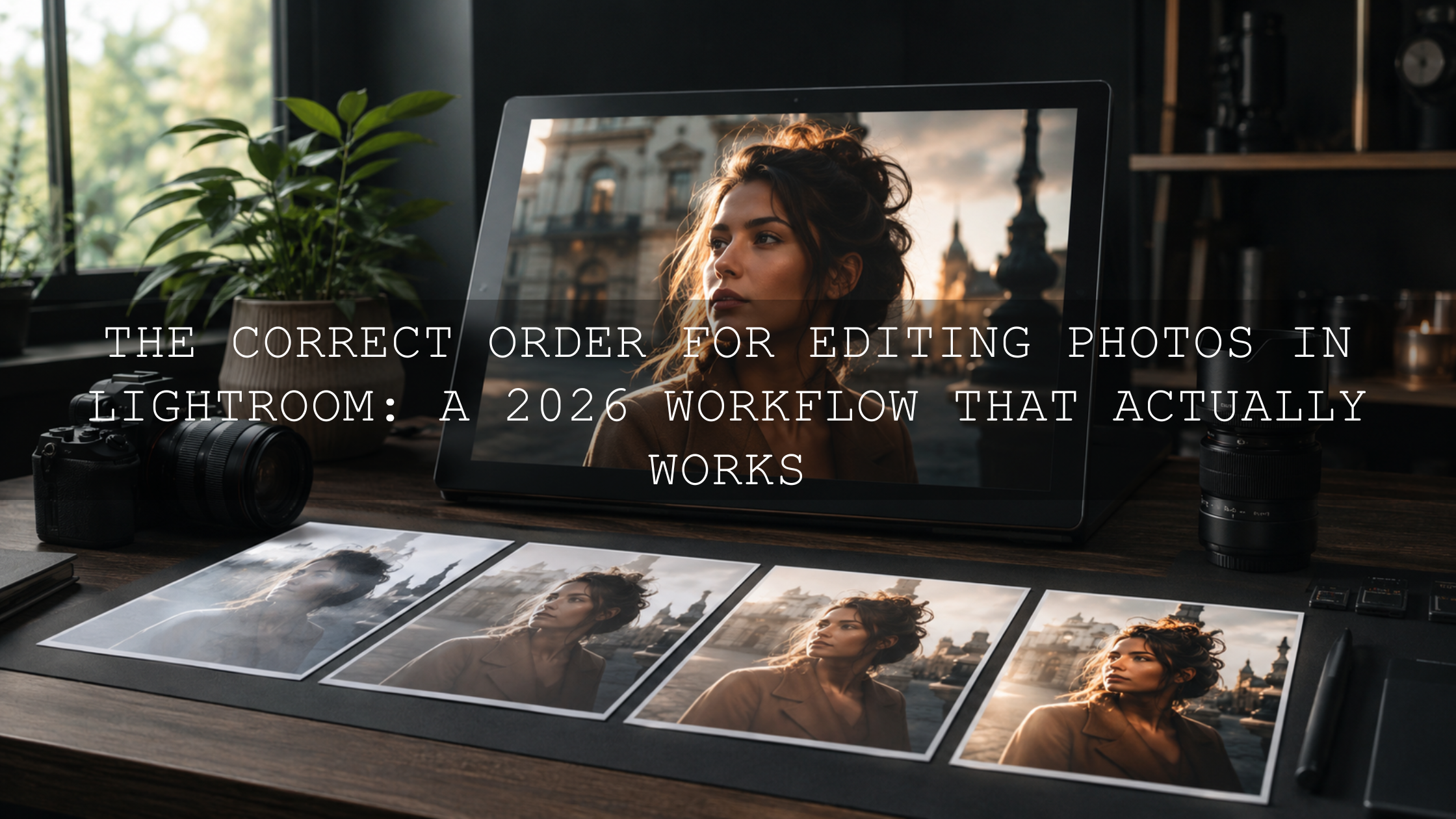


Leave a comment
This site is protected by hCaptcha and the hCaptcha Privacy Policy and Terms of Service apply.