
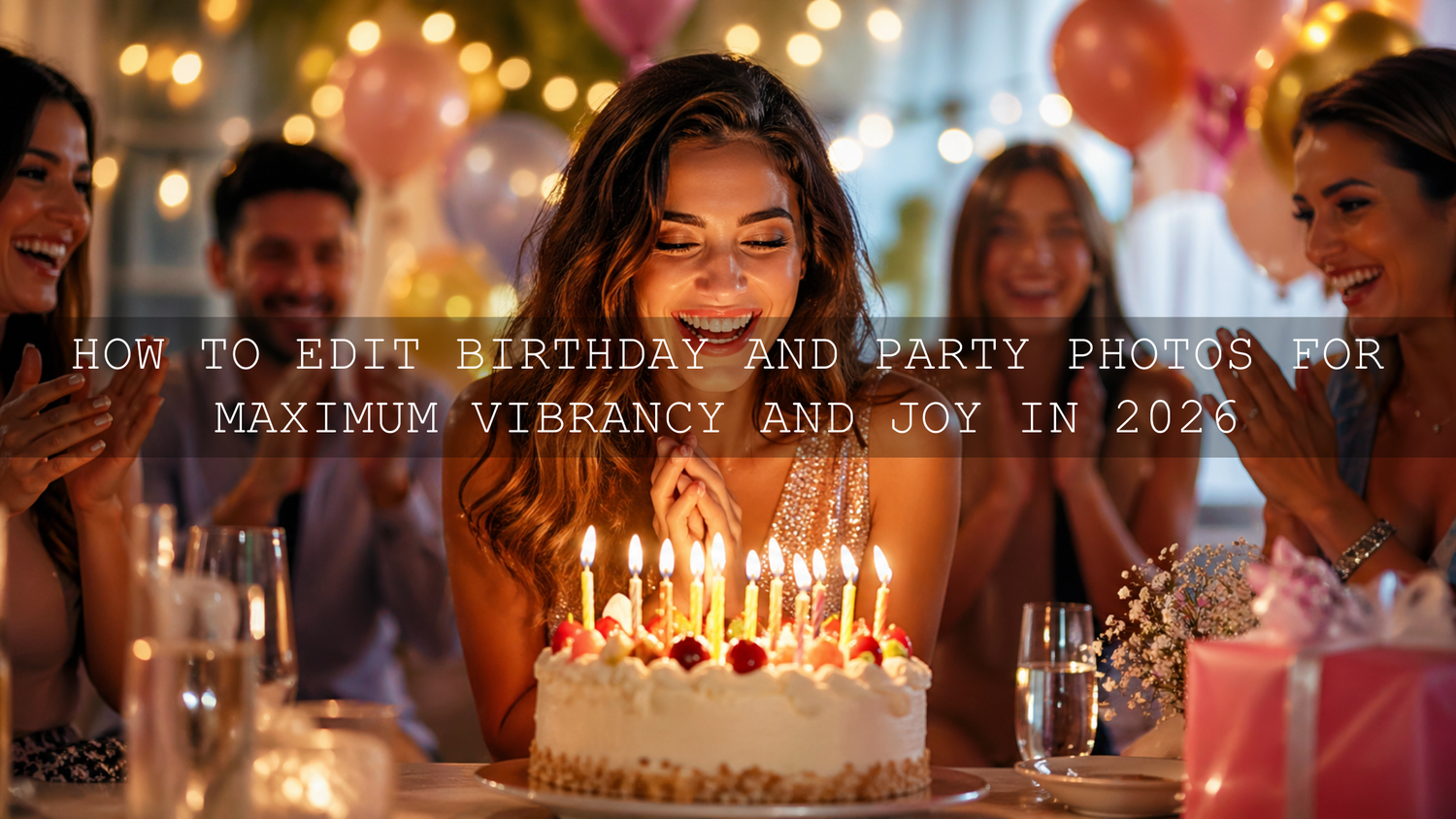
How to Edit Birthday and Party Photos for Maximum Vibrancy and Joy in 2026
Learning how to edit birthday and party photos in 2026 is all about bringing back the joy, color, warmth, and energy you felt in the moment. Party photos often come with mixed lighting, moving people, bright decorations, colorful outfits, food tables, candles, balloons, indoor shadows, and sometimes harsh flash. A good edit should make the photo feel alive without making skin tones look orange, red, or artificial.
Here’s why this matters: birthdays, family gatherings, engagement parties, anniversary celebrations, holiday events, and kids’ parties are emotional memories. The best editing style does not simply make the colors stronger. It protects the faces, keeps the atmosphere natural, and adds a clean, vibrant finish that feels joyful.
For a faster starting point, try the AI-Optimized Sunlit Meadow Vibrant Lightroom Presets Pack for warm celebration edits, then browse the Lightroom Presets for Lightroom Mobile and Desktop collection for more birthday, lifestyle, family, and event editing styles. Try these presets today — Buy 3, Get 9 FREE.
Start With the Real Vibe of the Celebration
Before touching exposure, color, or presets, look at the mood of the event. A kid’s birthday party should usually feel bright, playful, and colorful. A dinner celebration may look better with warm shadows and softer highlights. An outdoor garden party may need fresh greens, glowing skin tones, and airy light. A night party may need controlled contrast, cleaner noise, and rich cinematic color.
This first decision helps you avoid over-editing. If the original party felt warm and cozy, do not force a cold blue look. If the event had bold neon lights, do not remove all the color. Editing birthday and party photos should enhance the emotion that was already there.
When I test celebration-style presets, I always check three things first: skin tones, white decorations, and background color. If faces look good, white balloons stay clean, and the background still feels festive, the edit is usually moving in the right direction.
Fix Exposure Before You Push Color
Many party photos look dull because the exposure is slightly wrong. Indoor rooms, candles, LED lights, and fast movement can easily create dark faces, blown-out decorations, or noisy shadows. Before increasing saturation or applying a strong preset, balance the light first.
In Lightroom, start with basic adjustments like exposure, contrast, highlights, shadows, whites, and blacks. Adobe explains these core editing controls in its official Lightroom photo editing guide, and they are especially important for party images because the lighting is rarely perfect.
- Lift exposure carefully: Increase brightness only until faces feel clear. Too much exposure can destroy cake candles, white dresses, balloons, and shiny decorations.
- Recover highlights: Pull highlights down when flash, candles, or white table setups look too bright.
- Open shadows: Raise shadows slightly to reveal people in the background without making the photo flat.
- Add contrast gently: A small contrast boost can make the image feel sharper and more professional.
Pro tip: If the photo was taken indoors, avoid making the whole image too bright. A little depth in the shadows helps the celebration feel real and cinematic.
Use Lightroom Presets as a Starting Point, Not a Final Button
Lightroom presets are perfect for birthday and party photo editing because they help you build a consistent look across many images. Instead of editing every photo from zero, you can apply one style, then fine-tune exposure, white balance, and skin tones for each shot. Adobe describes presets as saved editing settings that can include exposure, contrast, saturation, color grading, and more in its official guide to Lightroom presets.
The key is control. A preset should make the photo better in one click, but the best result usually comes after small adjustments. For example, a birthday cake photo may need extra warmth and brightness, while a dancing photo from the same party may need less saturation and more shadow control.
The AI-Optimized Sunlit Meadow Vibrant Lightroom Presets Pack works well for warm, cheerful party photos because it adds a sunny glow, cleaner color, and a bright lifestyle feel. It is especially useful for outdoor birthdays, family garden parties, picnic celebrations, and indoor shots where you want a soft golden mood.
Presets vs Manual Editing for Party Photos
Both presets and manual editing can create beautiful celebration photos, but they solve different problems.
- Presets are best for speed and consistency: Use them when you have 50, 100, or 300 party photos and want the whole gallery to feel connected.
- Manual editing is best for problem photos: Use it when one image has strange skin tones, mixed lighting, strong flash, or a difficult background.
- The strongest workflow uses both: Apply a preset first, then adjust exposure, white balance, highlights, and color mix manually.
For example, if you apply a vibrant preset to ten birthday photos, nine may look great immediately. One image may still have green skin because it was taken near LED lighting. That is where manual color correction matters. If presets look different across your photos, read why Lightroom presets look different on every photo and how to fix it.
Protect Skin Tones While Making Colors Pop
Birthday and party photos usually include colorful balloons, flowers, outfits, lights, food, and decorations. It is tempting to push saturation high, but that can quickly make faces look too red, orange, or pink. The goal is vibrant color with believable people.
Use Vibrance before Saturation when possible. Vibrance is usually more forgiving because it boosts weaker colors while being gentler on already strong tones. Then use HSL or Color Mix to control individual colors. If red balloons look too strong, reduce red saturation slightly. If yellow indoor light makes skin too warm, adjust orange and yellow carefully.
For bold celebration edits, the AI-Optimized Vibrant Cinematic Lightroom Presets can help add energy, contrast, and punch while still keeping the image polished.
I tested this type of vibrant edit on lifestyle-style event photos, and the best results came from lowering saturation slightly after applying the preset. That small adjustment kept the colors exciting but made skin tones look more natural.
Correct Indoor Lighting Without Losing the Party Mood
Indoor party photos can be difficult because the light often comes from several sources at once: ceiling bulbs, window light, candles, phone screens, colored LEDs, and flash. This can create yellow skin, green shadows, or muddy backgrounds.
Start with white balance. If the photo looks too yellow, lower the temperature slightly. If it looks too green, move tint toward magenta. Make small changes because party photos should still feel warm and inviting. Removing all warmth can make the image look lifeless.
If your indoor edits often look bad after applying presets, this guide on why presets look bad indoors and how to fix indoor lighting is a helpful next read.
- For yellow rooms: Lower temperature a little and reduce yellow saturation if needed.
- For green LED light: Add a small amount of magenta tint and reduce green saturation.
- For harsh flash: Pull highlights down, soften contrast, and warm the image slightly.
- For dark corners: Lift shadows, but keep blacks deep enough to preserve depth.
Use Masking to Make Faces Brighter and Backgrounds Cleaner
Sometimes the entire party photo does not need editing. Only the face, cake, outfit, or main subject needs attention. This is where masking becomes powerful. Adobe’s official guide to masking in Lightroom explains how tools like Select Subject, Select Background, and local adjustments can help you edit specific parts of a photo.
For birthday and party photos, try this simple masking workflow:
- Select the main subject: Brighten the face slightly and add a little warmth if needed.
- Darken the background gently: This helps the viewer focus on the person, cake, or emotional moment.
- Reduce saturation in distracting areas: If a background light or decoration is too strong, tone it down locally.
- Add clarity carefully: Use it on details like cake texture, decorations, or outfits, but avoid too much clarity on faces.
This technique works beautifully for candle-blowing moments, gift-opening reactions, group portraits, and dance-floor candids.
Create Warm Golden Party Edits Without Turning Everything Orange
A warm golden party edit can make birthday photos feel emotional, nostalgic, and premium. But there is a fine line between golden and overly orange. The trick is to warm the highlights and midtones while keeping skin clean.
If a preset or edit becomes too orange, reduce orange saturation slightly, lower yellow saturation, and adjust white balance back toward neutral. You can also use Color Grading to add a soft warm tone to highlights while keeping shadows slightly cooler. For color inspiration and harmony, Adobe Color’s color wheel and harmony tool is useful for understanding how warm tones, complementary colors, and balanced palettes work together.
For more detailed help, read how to rescue photos ruined by overly orange or yellow presets.
Editing Autumn Birthday and Outdoor Party Photos
Autumn birthday parties, garden celebrations, and outdoor family events are perfect for rich warm tones. Leaves, brown tables, warm outfits, and golden light can create a beautiful seasonal look. The challenge is keeping the edit colorful without making reds and oranges too heavy.
The Autumn Fall Vibrant Lightroom Presets are a strong choice for seasonal celebrations because they enhance orange, red, brown, and gold tones while keeping outdoor portraits bright and clean. They work especially well for fall birthdays, picnic parties, pumpkin-themed shoots, and family gatherings in parks.
For a more film-inspired bright look, the Bright Vibrant FUJIFILM LR Presets can help create punchy color, fresh contrast, and clean lifestyle tones.
Step-by-Step Lightroom Workflow for Birthday and Party Photos
Let’s break it down into a practical editing workflow you can use for almost any celebration gallery.
- Choose the best photos first: Remove blurry, duplicated, or awkward shots before editing. This saves time and makes the final gallery stronger.
- Apply your base preset: Pick a warm, vibrant, cinematic, or seasonal preset depending on the party mood.
- Adjust exposure: Make faces readable without blowing out candles, white outfits, balloons, or table details.
- Correct white balance: Fix yellow, green, or blue color casts before doing heavy color work.
- Control highlights and shadows: Recover detail in bright areas and lift dark parts only where needed.
- Fine-tune color mix: Reduce overpowering reds, oranges, yellows, greens, or blues if they affect skin tones.
- Use masking: Brighten faces, soften backgrounds, or reduce distracting lights locally.
- Add final polish: Apply sharpening, noise reduction, and a small crop if needed.
- Sync carefully: Copy settings across similar photos, then check each image individually.
If you feel your presets are sometimes hit or miss, this guide on why editing presets are hit or miss will help you understand how lighting, exposure, camera settings, and color temperature affect the final look.
Pro Tips for Shooting Party Photos With Editing in Mind
Editing becomes much easier when the original photos are captured well. You do not need a huge setup, but a few small shooting habits can make your birthday and party images much easier to edit later.
- Shoot RAW when possible: RAW files give you more room to recover highlights, open shadows, and fix white balance.
- Look for soft light: Window light, shaded outdoor areas, and bounced flash usually create better skin tones.
- Avoid direct flash on faces: Bounce flash from a ceiling or wall when possible for a softer look.
- Capture real reactions: Laughing, hugging, dancing, blowing candles, and opening gifts often create the most meaningful photos.
- Watch the background: Move slightly to avoid clutter, harsh lights, or distracting objects behind the subject.
A strong party gallery is a mix of wide atmosphere shots, close-up details, emotional candids, and clean portraits. Edit them with the same color direction so the full story feels connected.
Common Party Photo Editing Mistakes to Avoid
- Too much saturation: Bright colors are great, but oversaturation can ruin skin tones.
- Over-brightening indoor photos: Lifting everything too much removes depth and makes the image look flat.
- Ignoring white balance: A preset cannot fully fix a photo if the temperature and tint are far off.
- Using one edit for every image: Group portraits, cake photos, dance shots, and food details may need different adjustments.
- Sharpening faces too much: Too much clarity or sharpening can make skin look harsh.
Related Reading
- Why presets look bad indoors and simple fixes for indoor lighting
- Why Lightroom presets look different on every photo
- How to fix overly orange or yellow preset edits
- Why editing presets are hit or miss
Final Thoughts on Editing Birthday and Party Photos
Editing birthday and party photos in 2026 is not about making every image look fake, glossy, or overly perfect. It is about bringing back the fun, warmth, color, movement, and emotion of the celebration. Start with clean exposure, correct white balance, choose a preset that matches the mood, and then fine-tune the details so the final photo still feels real.
For warm, bright, joyful celebration edits, start with the AI-Optimized Sunlit Meadow Vibrant Lightroom Presets Pack. For stronger color and high-energy party shots, try the AI-Optimized Vibrant Cinematic Lightroom Presets. You can also explore more styles in the Lightroom Presets collection and build a consistent editing workflow for birthdays, family events, lifestyle shoots, and social media content. Try these presets today — Buy 3, Get 9 FREE.
FAQ
What is the best way to edit birthday and party photos?
The best way is to correct exposure and white balance first, apply a suitable Lightroom preset, then fine-tune skin tones, highlights, shadows, and saturation. This keeps the photo vibrant but natural.
Should party photos be warm or cool?
Most birthday and party photos look better with a slightly warm tone because it feels joyful and inviting. However, night parties, neon events, and modern celebrations can also work well with cooler cinematic tones.
Why do my indoor party photos look yellow?
Indoor party photos often look yellow because of warm ceiling lights, candles, or mixed lighting. Lower the temperature slightly, adjust tint if needed, and reduce yellow saturation carefully.
Are Lightroom presets good for party photography?
Yes. Lightroom presets are helpful for party photography because they create a consistent style across many images. For the best result, use them as a starting point and adjust each photo based on lighting and skin tones.
How can I make party photos look vibrant without over-editing?
Use vibrance instead of heavy saturation, protect skin tones, control highlights, and adjust individual colors with HSL or Color Mix. A good vibrant edit should feel colorful, clean, and believable.
Written by Asanka — creator of AAAPresets (10,000+ customers).

Leave a comment
This site is protected by hCaptcha and the hCaptcha Privacy Policy and Terms of Service apply.