
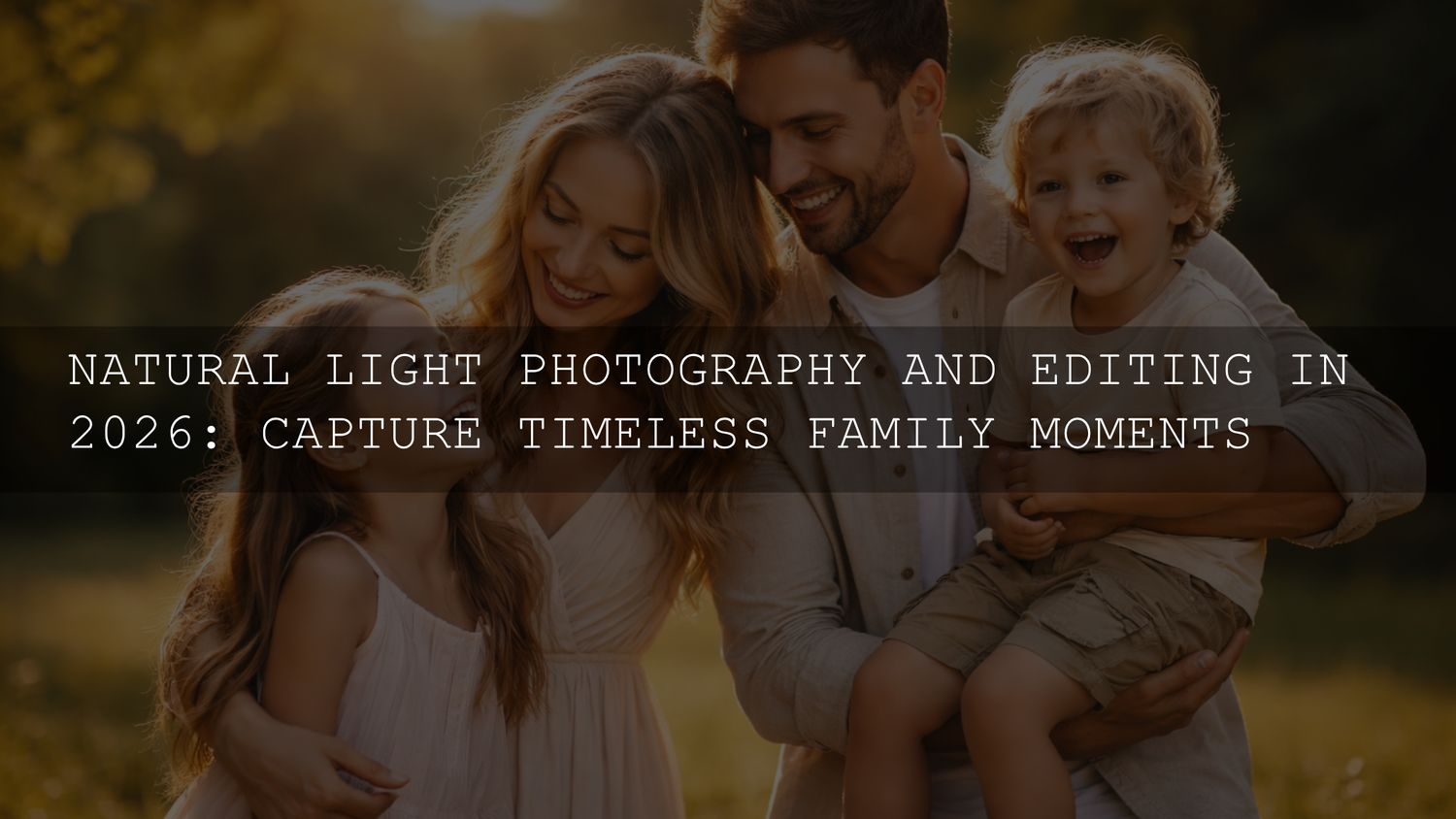
Natural Light Photography and Editing in 2026: Capture Timeless Family Moments
Natural light photography is one of the most powerful ways to create authentic, emotional family photos. Whether you are shooting in a park, at the beach, or at home, understanding how to use and edit natural light can completely transform your results. In 2026, with tools like Lightroom presets and advanced masking features, achieving clean skin tones, balanced exposure, and cinematic color is easier than ever.
If you want a fast, professional starting point, explore the 1000+ Master Lightroom Presets Bundle or browse the Lightroom Presets collection. These are designed to handle real lighting situations like harsh sun, mixed indoor light, and backlighting. You can build your full editing kit with the offer Buy 3, Get 9 FREE.
Understanding Natural Light in Photography
Natural light is soft, dynamic, and incredibly flattering when used correctly. Unlike artificial lighting, it changes throughout the day, creating different moods and tones. The key is not just capturing it well, but editing it properly.
In my own shoots, I noticed that even a perfect golden hour photo can look flat if highlights and shadows are not balanced correctly. Small adjustments can turn a simple photo into a professional result.
To understand how Lightroom processes light and color, Adobe’s official guide to editing photos in Lightroom explains how exposure, contrast, and tone sliders affect your image.
Common Natural Light Issues
- Overexposed highlights in bright conditions
- Deep shadows hiding important details
- Color casts from surroundings like grass or walls
- Flat images lacking depth
Editing Natural Light Photos in Parks
Parks are ideal for family photography, especially during golden hour. The warm light creates soft skin tones and natural highlights.
Key Editing Tips for Park Photos
- Reduce harsh contrast: Lower highlights and lift shadows for balanced exposure.
- Fix green color cast: Adjust white balance and reduce green saturation slightly.
- Enhance depth: Add a subtle vignette and increase clarity carefully.
- Backlit shots: Use local adjustments to brighten faces without blowing out the background.
For deeper control, Adobe’s guide to masking in Lightroom shows how to selectively edit faces and backgrounds.
You can also improve your workflow with guides like mastering presets for any light and shadow recovery techniques.
Editing Beach Photos with Natural Light
Beach photography is bright, reflective, and challenging. Sand and water reflect light, often causing overexposure.
How to Fix Beach Photos
- Recover highlights: Bring back detail in sky and water.
- Balance tones: Use graduated filters for sky vs foreground.
- Correct colors: Adjust temperature and tint for natural skin tones.
- Boost vibrance: Enhance blues and warm tones carefully.
If your presets look too cold or overly blue, this guide helps: fix blue tones in Lightroom presets.
Indoor Natural Light Editing at Home
Indoor photos rely heavily on window light. This creates soft, directional lighting but often introduces mixed color temperatures.
Best Indoor Editing Techniques
- Lift shadows gently: Avoid making the image flat
- Correct white balance: Remove yellow or blue casts
- Enhance texture: Slight clarity for depth
- Warm tones: Add subtle warmth for a cozy feel
For mixed lighting scenarios, check mixed lighting preset adjustments.
Presets vs Manual Editing
Both presets and manual editing have their place. The best results come from combining them.
Presets
- Fast and consistent
- Great starting point
- Ideal for batch editing
Manual Editing
- More control over details
- Better for complex lighting
- Fine-tunes the final look
I tested this approach on a family beach shoot, starting with a preset and then adjusting highlights and skin tones manually. The result was significantly more natural compared to using presets alone.
Essential Lightroom Editing Tools
- White Balance: Fix color accuracy
- Exposure: Control brightness
- Highlights & Shadows: Recover details
- Contrast & Clarity: Add depth
- Vibrance: Enhance colors naturally
- Sharpening: Focus on key details
- Noise Reduction: Clean low-light images
For color theory and harmony, you can explore Adobe Color harmony tools to understand how tones work together.
Pro Tips for Better Natural Light Edits
- Always prioritize natural skin tones over dramatic effects
- Do not overuse clarity or sharpening
- Edit with a consistent style for albums
- Use local adjustments instead of global changes when possible
- Zoom in to check details, but also zoom out to see the full image balance
Related Reading
- Balancing temperature and tint after presets
- Master exposure and contrast in Lightroom
- Low light and night photography presets guide
Ready to transform your family photos into professional-quality edits? Try the 150+ Wedding Lightroom Presets Bundle or explore more in the Lightroom Presets collection. Build your editing toolkit and create consistent, cinematic results across every shoot.
Frequently Asked Questions
What is the best time for natural light photography?
The golden hour shortly after sunrise or before sunset provides the softest and most flattering light.
How do I fix harsh shadows in photos?
Use the shadows slider and local adjustments to lift dark areas without affecting the entire image.
Why do my photos look too blue or too warm?
This is caused by incorrect white balance. Adjust temperature and tint to correct skin tones.
Are Lightroom presets enough for editing?
Presets are a great starting point, but manual adjustments are needed for perfect results.
How can I keep skin tones natural?
Avoid over-editing, correct white balance first, and reduce extreme saturation or color shifts.
Written by Asanka — creator of AAAPresets (10,000+ customers).



Leave a comment
This site is protected by hCaptcha and the hCaptcha Privacy Policy and Terms of Service apply.