
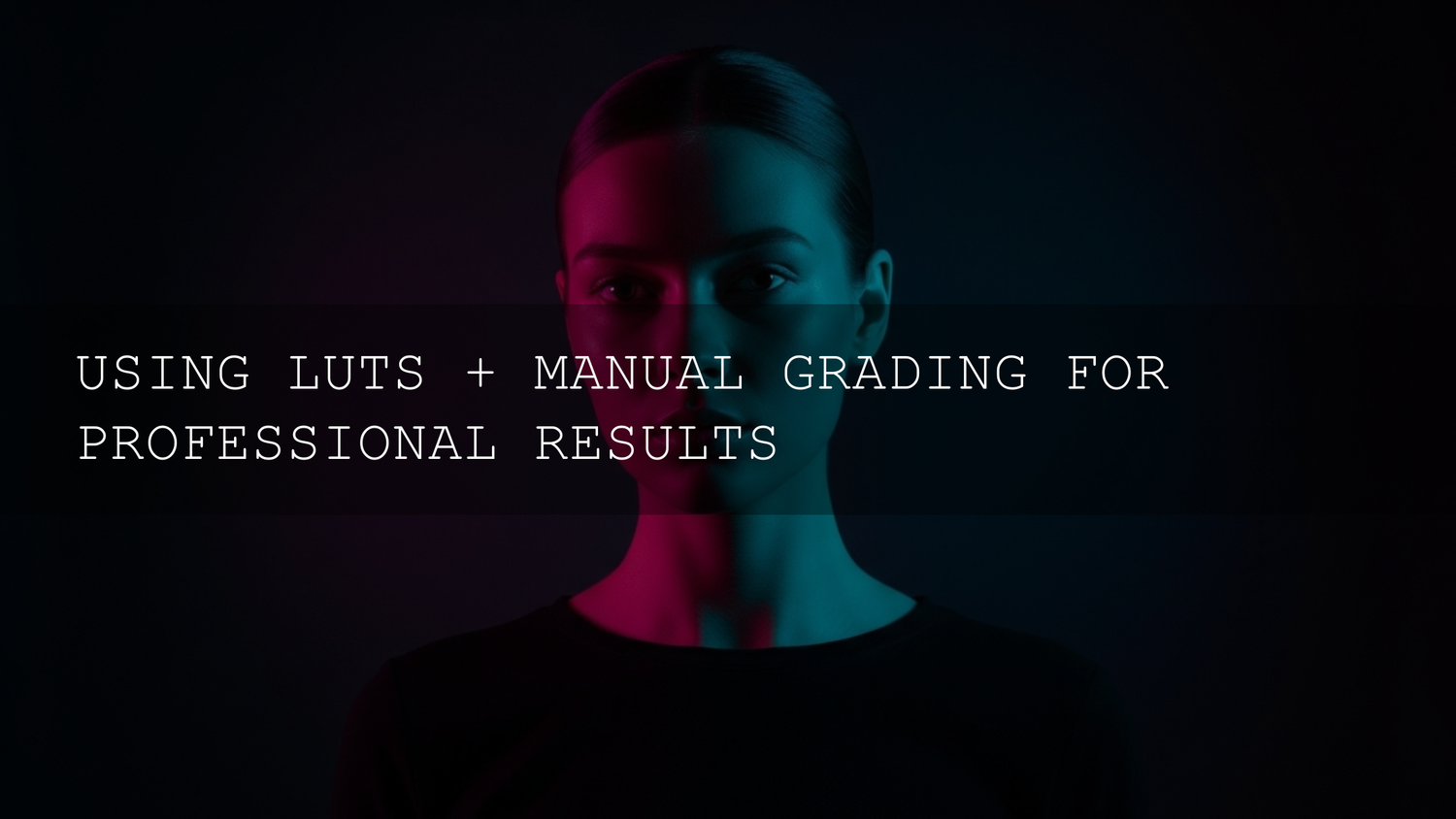
Hybrid Color Grading with LUTs and Manual Adjustments
If you’ve ever watched a cinematic YouTube film, a moody commercial, or a polished client project and thought, “How do they get their color to look that good?”, you’re really asking about LUTs and manual color grading. The most reliable way to get professional, repeatable results is a hybrid color grading workflow: using LUTs as smart starting points, then refining every frame with careful manual adjustments in tools like DaVinci Resolve, Adobe Premiere Pro, or Final Cut Pro.
This hybrid approach gives you the best of both worlds. LUTs provide speed and consistency; manual grading gives you control, nuance, and a unique style that doesn’t look like everyone else’s preset. When I tested this workflow on a wedding highlight, a moody street sequence, and a bright commercial spot, I could reuse the same LUTs while still dialing in skin tones, contrast, and color harmony shot by shot.
If you want to skip guesswork and start from a strong base grade, you can pair this workflow with cinematic LUT packs designed for hybrid color grading and then browse the LUTs collection for video editors that fits your camera and editing style. That way you can build a complete toolkit while taking advantage of AAAPresets’ Buy 3, Get 9 FREE offer.
What a LUT Really Is (and Why It’s Not Just a Filter)
A LUT, or Look-Up Table, is a mathematical transform that tells your software how to remap input color and luminance values to new output values. It’s more like a highly detailed color translator than a simple Instagram filter. In a hybrid color grading workflow, LUTs typically play three roles:
- Technical conversion: Converting flat Log footage (like S-Log3, C-Log, V-Log) into a standard viewing space such as Rec.709 so it looks “normal” instead of washed out.
- Creative styling: Emulating film stocks, specific cameras, or cinematic genres—think teal-and-orange action looks, warm nostalgic grades, or gritty low-key drama.
- Time-saving starting points: Giving you a ready-made “base look” so you can focus your manual edits on polishing, not building everything from scratch.
In apps like Premiere Pro, LUTs are applied through the Lumetri Color panel, either as an Input LUT for technical conversions or as a creative look layered later in the stack. Adobe’s official guide to looks and LUTs in Premiere Pro is a great reference if you want to see exactly where LUTs live in the Lumetri workflow.
What LUTs can’t do is “read your mind.” They don’t know how your scene was lit, whether your exposure was off, or what mood you’re going for. That’s why LUTs alone are never enough for professional work—manual grading has to finish the job.
Presets and LUTs vs Manual Color Grading
It helps to think of LUTs and presets vs manual color grading as two sides of the same coin:
- LUTs & presets give you repeatability and speed. You can drop them onto multiple clips and get a consistent base look in seconds.
- Manual grading gives you precision and storytelling power. You decide how bright faces should be, how deep the shadows feel, and how colors guide the viewer’s eye.
Used in isolation, each approach has limits. LUT-only workflows often look generic or fall apart when lighting changes. Manual-only workflows can be slow and inconsistent across long timelines. The hybrid workflow fixes that: LUTs establish the vibe; manual grading makes the image truly yours.
Step-by-Step Hybrid Color Grading Workflow
Let’s walk through a practical, repeatable hybrid color grading workflow you can use in DaVinci Resolve, Premiere Pro, or any NLE with a decent color panel.
-
Organize and prep your footage
- Group clips by scene, camera, and lighting conditions.
- Label clips with frame rate, resolution, and color space (e.g., S-Log3, C-Log, Rec.709) so you don’t mix them up.
- In multi-cam shoots, sync audio and build multicam sequences before grading to avoid redoing work later.
-
Apply a technical (Log to Rec.709) LUT if needed
If you shot in Log, your first goal is to get your footage into a standard viewing color space.
- In Premiere Pro, use the Input LUT field in the Basic Correction section of Lumetri for your camera-specific Log conversion.
- In DaVinci Resolve, apply the Log-to-Rec.709 LUT on a dedicated node early in your node tree.
This step lines up with Adobe’s own recommendations for adding look-up tables in Premiere Pro.
-
Set a neutral base before creative LUTs
Before you stack on style, you want a technically balanced image:
- Adjust exposure so faces sit at a natural brightness; use scopes (waveform, parade) rather than just your monitor.
- Fix white balance so whites and grays look neutral; correct any obvious green or magenta casts.
- Make basic contrast and saturation tweaks to bring the image to life without pushing it into a look yet.
If you want a structured walkthrough of balancing shots, Adobe’s color grading overview for Premiere Pro explains how Lumetri’s tools fit together.
-
Apply a creative LUT to set the mood
Now you can layer in a creative LUT that matches your story:
- Moody night streets: a LUT with cooler shadows and lifted blacks.
- Romantic weddings: a LUT with softer contrast, warm highlights, and gentle roll-off in the skin tones.
- Commercials and social ads: a clean, vibrant LUT with tight contrast and punchy midtones.
In your stack or node tree, this creative LUT should come after the technical conversion. Start at 100% intensity, then dial the LUT’s opacity down until the look feels natural.
-
Shape the image with primary adjustments (post-LUT)
This is where LUTs and manual color grading merge:
- Exposure & contrast: Revisit overall brightness and contrast now that the LUT is active. Small tweaks here have a big impact.
- White balance & tint: Correct any color shifts the LUT introduced, especially in skin tones and neutrals.
- Global saturation & vibrance: Tone down oversaturated colors or bring up a flat image without pushing it into cartoon territory.
-
Dial in secondary corrections and local adjustments
Once the big picture feels right, focus on details:
- Curves: Use RGB curves to subtly lift shadows, control highlights, or add a gentle S-curve for contrast.
- HSL secondary: Target specific hues—like cooling down a too-warm sky or desaturating distracting greens in the background.
- Masks / power windows: Brighten faces, darken bright backgrounds, or guide the viewer’s eye with subtle vignettes.
- Noise reduction & sharpening: Apply noise reduction before sharpening so you don’t sharpen grain, and always check how it looks on motion.
The same local thinking that Lightroom uses with its masking tools—like selectively adjusting subjects and backgrounds—is useful in video too; Adobe’s tutorials on masking for local adjustments in Lightroom are a good mental model for this style of selective editing.
-
Match shots and build sequence-level consistency
Even with LUTs, shots rarely match perfectly out of the box, especially if lighting changed or you used multiple cameras.
- Pick a “hero” shot that represents the ideal look for the scene.
- Match other clips to that hero using scopes, especially the RGB parade and vectorscope for skin tones.
- Use adjustment layers or shared nodes to keep changes consistent across multiple clips.
Here, good color management and a calibrated monitor are essential. If you’re curious why this matters so much, the International Color Consortium’s FAQ on color management systems explains how profiles keep color consistent across devices.
-
Refine, compare, and deliver
Toggle grades on and off, compare different LUT + grade combinations, and always watch your work on multiple screens if possible (monitor, laptop, phone). When you’re happy, lock your grade and move on to finishing—sound design, graphics, and delivery exports.
Pro Tips for Cinematic Hybrid Color Grading
- Shoot with grading in mind: Protect highlights, expose consistently, and nail white balance in camera. No LUT can rescue badly clipped or wildly inconsistent footage.
- Grade in passes, not all at once: Technical → base balance → creative LUT → primary tweaks → secondary/local corrections → final polish. Don’t try to do everything in a single correction layer or node.
- Use subtlety as your superpower: The fanciest grades often look “invisible.” If your viewer notices the grade before the story, you’ve probably gone too far.
- Save reusable node trees and presets: When you find a hybrid setup that works, save it. You can adapt it quickly instead of starting from zero on every project.
- Study great grades: Pause movies, series, and high-end ads. Look at how skin sits in the frame, how shadows feel, and how color supports the story. Try to recreate those looks with your own LUT + manual pipeline.
Adobe’s broader guides to working with multiple Lumetri Color effects are also useful if you’re building complex hybrid grades with stacked layers.
Common Mistakes When Combining LUTs and Manual Grading
- “Set it and forget it” LUT usage: Dropping a LUT on and calling it a day leads to crushed blacks, blown highlights, and weird skin. Always follow with manual corrections.
- Using the wrong LUT for the wrong footage: A LUT designed for S-Log3 won’t behave correctly on Rec.709 footage, and vice versa.
- Stacking too many LUTs: One technical LUT and one creative LUT is usually enough. More than that often creates banding and unpredictable color shifts.
- Ignoring scopes: Relying only on your monitor risks clipping channels and creating inconsistent brightness. Waveform, parade, and vectorscope should be open while you grade.
- Over-sharpening and over-smoothing: Aggressive sharpening and noise reduction can make skin look plastic and edges haloed. Adjust in small increments and always watch footage in motion, not just still frames.
Why Hybrid Color Grading Still Wins in an AI-Driven
AI color tools are getting better every year. Some can automatically balance exposure, normalize white balance, or even suggest looks. These tools are excellent for starting points, but they’re still not replacements for your taste and storytelling sense.
The sweet spot is using AI and LUTs together: let them handle repetitive normalization tasks, then use your hybrid manual workflow to make the grade emotionally resonant. When I compared an AI-only grade to a LUT + manual grade on a short narrative piece, the AI result was clean but flat; the hybrid grade felt more intentional, with better skin tone separation and a much stronger sense of mood.
If you want to go deeper into how professional-grade tools are structured, Adobe’s color management and Lumetri enhancements overview gives a good picture of how modern NLEs are built with serious color in mind.
Related Reading
- How to build romantic cinematic looks with LUTs for wedding videos
- Color grading your reels and TikToks in DaVinci Resolve
- Using vintage film LUTs to make modern footage feel timeless
- Soft pastel LUTs for dreamy cinematic edits
Bring It All Together with the Right Tools
The more you work with LUTs and manual color grading, the more natural this hybrid workflow will feel. Instead of guessing, you’ll know exactly when to reach for a LUT, when to adjust curves, and when to isolate a subject with a mask for subtle local tweaks. Over time, this is how you build a recognizable personal style that clients and viewers can instantly spot.
When you’re ready to deepen your toolkit, it helps to have reliable assets that respond well to manual tweaking. Start with a versatile bundle like the 1000+ master presets and LUTs bundle for fast base looks, then experiment with more focused packs such as Hollywood cinematic LUTs tailored for filmmakers. Pair them with the Lightroom presets collection so your stills, thumbnails, and social posts match the color story of your videos while you enjoy AAAPresets’ Buy 3, Get 9 FREE deal.
FAQ: Hybrid LUTs and Manual Color Grading
Do I always need a LUT if I’m grading manually?
No. If you’re shooting in a standard picture profile and prefer full control, you can grade entirely by hand. LUTs become especially useful when working with Log footage, matching cameras, or when you want a repeatable base look across many projects.
What’s the difference between a technical LUT and a creative LUT?
A technical LUT converts footage from one color space to another—for example, S-Log3 to Rec.709. A creative LUT adds a stylized look on top (contrast curves, color casts, film emulation). In a hybrid color grading workflow, you usually apply a technical LUT first, then a creative LUT, then manual tweaks.
Should I apply my LUT on the clip, on an adjustment layer, or on a node?
Use whatever keeps your project organized. Many editors prefer LUTs on adjustment layers or separate nodes so they can reuse them across multiple clips and toggle them on and off easily without touching the underlying manual corrections.
How do I keep skin tones looking natural when using strong LUTs?
Start by reducing LUT intensity if it’s too aggressive, then use secondary color tools to isolate skin tones. Adjust hue, saturation, and luminance until faces look natural again. You can also use masks or power windows to protect faces from heavy global changes.
How important is a calibrated monitor for hybrid color grading?
Very important. A hybrid workflow relies on fine decisions about contrast and color balance. If your monitor is off, your grades may look great in your studio but terrible on other screens. A properly calibrated display plus good color management settings makes your grades far more consistent.
Written by Asanka — creator of AAAPresets (10,000+ customers).



Leave a comment
This site is protected by hCaptcha and the hCaptcha Privacy Policy and Terms of Service apply.