
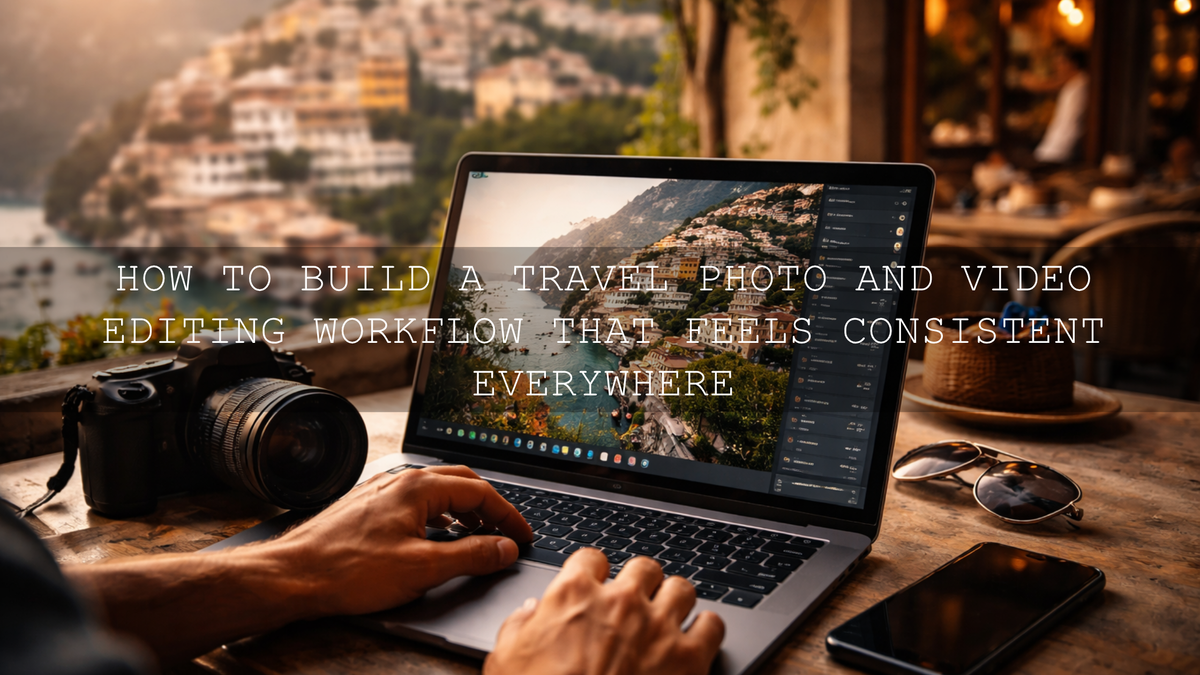
How to Build a Fast Travel Preset Workflow for a Quick Trip Turnaround
A fast travel preset workflow matters when you come home with hundreds of frames and still want your travel photo editing workflow to feel consistent, polished, and ready to share. The best approach is not applying random looks to every image. It is building a repeatable system around cinematic travel Lightroom presets, quick culling, small manual refinements, and batch export habits that help your blog, Instagram, and Pinterest content stay visually connected. When your Lightroom presets for travel photos support the same visual direction from start to finish, your trip starts looking like one story instead of a folder full of unrelated edits.
I have tested this kind of workflow on mixed travel shoots where the same day included sunrise landscapes, midday street portraits, and soft fog after rain. The biggest time loss was never Lightroom itself. It was indecision. The moment I limited myself to a small set of looks and a clean sequence, editing became faster and the final gallery looked stronger.
If you want a quicker starting point, begin with the AI-Optimized Cinematic Travel Street Lightroom Presets for city scenes and people, pair them with the AI-Optimized Lightroom Presets for Mobile and Desktop collection for a wider toolkit, and build your own quick turnaround system around those looks. It is an easy way to keep edits moving without giving up style, and it fits naturally with Buy 3, Get 9 FREE.
Start With One Visual Narrative, Not Ten
Before presets, start with intention. Ask yourself what the trip actually felt like. Was it bright and open, quiet and moody, warm and nostalgic, or bold and urban? Your travel gallery gets easier to edit when you decide that emotional direction before you touch a single slider.
Here’s why this matters: most slow editing workflows are not slow because Lightroom is difficult. They are slow because the editor is changing taste from photo to photo. One image becomes warm and filmic, the next cool and crisp, the next dark and dramatic. That can work for a portfolio, but it usually weakens a travel set that is supposed to feel cohesive.
A good rule is to lock four creative decisions early:
- One overall color direction: warm, cool, muted, rich, or moody
- One contrast style: soft, balanced, or dramatic
- One skin tone rule: natural first, stylized second
- One finishing habit: subtle grain, lifted blacks, cleaner whites, or richer shadows
If you want more inspiration for shaping a consistent travel look, browse this guide to editing travel photos for a cinematic feel and these city travel photography editing tips. They are helpful references when you are deciding how broad or narrow your style should be.
Build a Small Travel Preset Kit You Will Actually Use
The fastest preset workflow is usually a smaller one. You do not need hundreds of looks open in the panel. You need a tight set that matches the kinds of scenes you shoot most often on a trip.
For wide landscapes and scenic storytelling
The AI-Optimized Cinematic Travel Landscape Wanderlust Lightroom Presets make sense when the trip is defined by mountains, coastlines, roads, viewpoints, and big environmental frames. They are a strong fit when you want sky separation, richer earth tones, and a more cinematic sense of depth without spending too long shaping every panel manually.
For street life, cafés, markets, and urban movement
The AI-Optimized Cinematic Travel Street Lightroom Presets work well when your travel story is built around people, architecture, alleyways, signage, transport, and daily atmosphere. These are especially useful when you want a more refined city look that still keeps skin tones believable.
For fog, mist, rain, and quiet atmosphere
The AI-Optimized Fogbound Cinematic Travel Lightroom Presets are ideal when the weather becomes part of the story. They help keep softness and mood while still giving the frame direction. That matters in foggy forests, mountain passes, rainy roads, and low-contrast city mornings.
For old towns, heritage spaces, and timeless detail
The AI-Optimized Historic Travel Look Lightroom Presets fit travel galleries built around stone, texture, age, culture, and quieter documentary storytelling. They work well when you want warmth and depth without making historic surfaces feel too artificial or over-processed.
If you want an extra accent look for sunsets, red architecture, desert scenes, or punchier cinematic frames, a mood-driven option like the AI-Optimized Moody Red Cinematic Travel Lightroom Presets can still have a place in your kit. Just do not let an accent preset become your default for every image.
Presets vs Manual Editing for Travel Photos
Let’s break it down clearly. Presets are not the enemy of originality, and manual editing is not automatically more professional. The real advantage comes from knowing what each one should do.
- Presets are best for: speed, consistency, quick direction, matching a series, and building a recognizable travel style
- Manual editing is best for: fixing exposure problems, mixed lighting, unusual color casts, local subject refinement, and saving an image that needs special treatment
The strongest workflow is hybrid. Start with a preset that gets the mood right, then spend your manual effort only where it counts. That usually means white balance, exposure balance, local masking, and sometimes small HSL corrections.
I have found this approach much faster than editing every frame from zero. It also helps keep the album visually unified, which matters more for travel storytelling than perfecting one image while the rest of the set feels disconnected.
The Step-by-Step Travel Editing Workflow That Saves Time
1. Import and cull before you touch the Presets panel
Do not start editing during import. First remove the obvious misses: duplicates, blink shots, missed focus, and weak compositions. Then identify three groups:
- Hero shots for your blog or portfolio
- Supporting images for galleries, carousels, and storytelling
- Everything else that can wait
This single step protects your time. Editing fewer, better images always beats half-editing an oversized folder.
2. Apply one preset family by scene type
Once your selects are ready, apply the preset that matches the scene, not just the trend. Landscape frames should not automatically get the same treatment as café portraits or foggy streets. This is where a compact system wins:
- Landscape scenes: Wanderlust
- Street and documentary frames: Travel Street
- Foggy or soft atmospheric frames: Fogbound
- Historic or cultural detail: Historic Travel Look
This gives you consistency without forcing every frame to look identical.
3. Correct white balance before chasing color style
A preset can set direction, but white balance still decides whether the image feels believable. Travel photos often mix sunlight, shade, neon, tungsten, and reflected color from buildings or clothing. If the white balance is wrong, even a beautiful preset will feel off.
Fix temperature and tint first. Then judge the preset again. Many photos that seem “wrong” after one click are actually just suffering from a color cast.
4. Use local adjustments only where they matter
This is where a fast workflow stays professional. Instead of globally over-editing the whole frame, adjust only the parts that need it: brighten a face, calm a bright sky, guide the eye down a street, or add shape to distant mountains. Adobe’s guide to masking in Lightroom is useful here because masking lets you refine the image without breaking the preset’s overall mood.
A few smart local moves usually matter more than ten global slider changes.
5. Sync edits across similar images
If you shot a series in the same light, do not repeat the work manually. Edit one frame well, then sync the useful adjustments across the rest. Adobe’s copy and paste edit settings workflow is one of the easiest ways to speed up a travel gallery, especially for sequences from one location, hotel, viewpoint, street corner, or train ride.
My own rule is simple: if the light, angle, and mood are basically the same, sync first and fine-tune after. That saves far more time than rebuilding the same edit over and over.
6. Keep mobile and desktop aligned
If part of your workflow continues on your phone while traveling, your preset system should still feel connected. Adobe’s preset sync guide for Lightroom mobile is worth reviewing if you want the same preset direction available across devices. This is especially helpful when you begin a quick edit on mobile, then finish hero shots on desktop later.
7. Export for the platform you are publishing to
Your blog feature image, Pinterest pin crop, and Instagram post do not need identical exports. Once the edit is complete, create export versions for the way the image will actually be used. That keeps the workflow fast at the front end and practical at the finish line.
Pro Tips for a Faster Quick Trip Turnaround
- Edit your hero images first. These usually define the mood for the whole set.
- Do not audition too many presets. If the first two strong options are not right, the issue is often white balance or exposure, not the preset itself.
- Save variations for recurring situations. One street preset with a softer highlight version can save time on repeat trips.
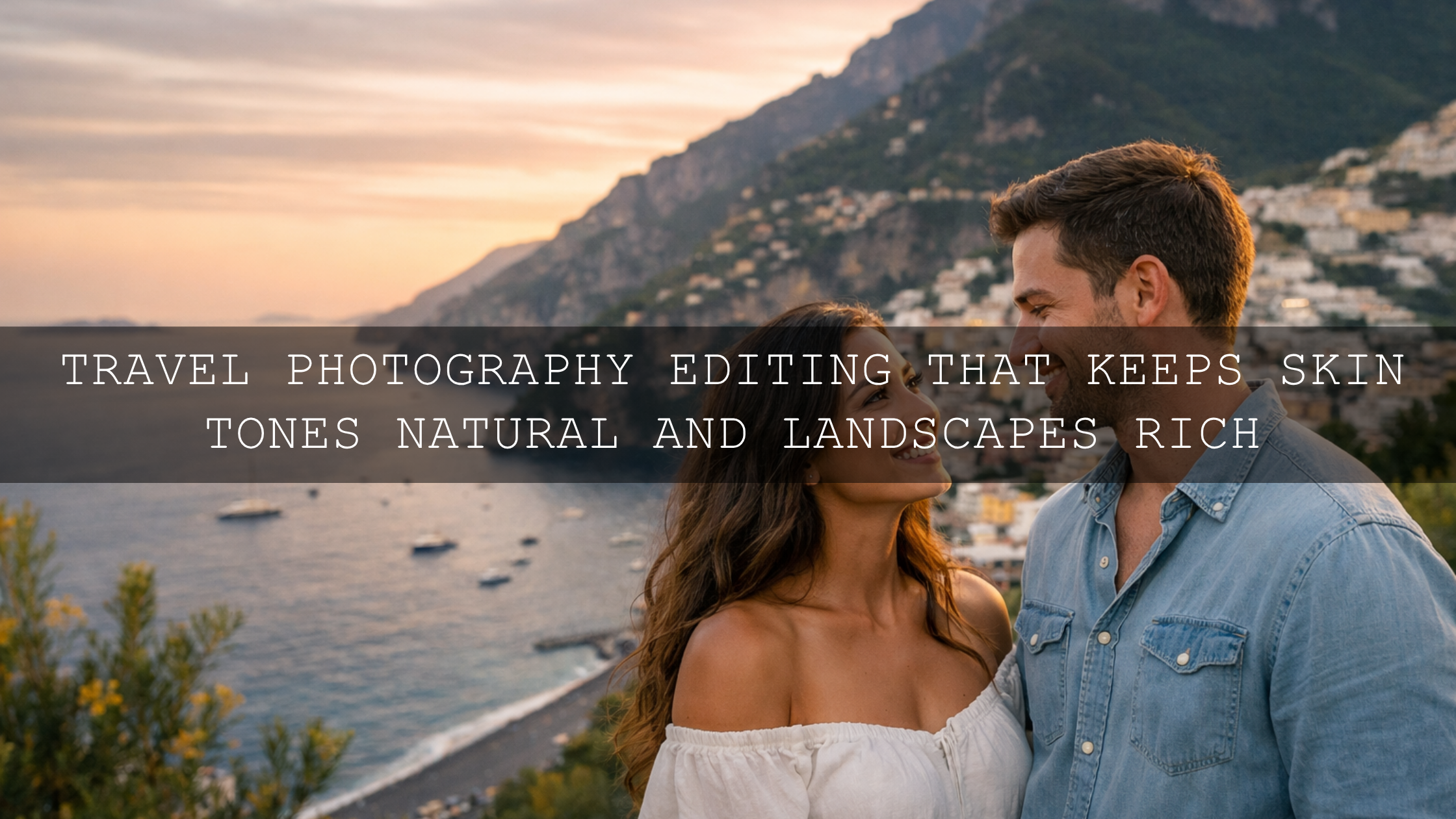
- Protect skin tones. Travel photography often mixes people and place, so natural faces should stay more important than dramatic color effects.
- Batch in stages. Cull, preset, refine, sync, then export. Mixing those steps together usually slows everything down.
Related Reading
- Top 10 Lightroom Presets for Travel Photography
- Best Lightroom Presets for Coastal and Beach Travel
- How to Edit Fog and Mist for Cinematic Travel Atmosphere
- City Travel Photography and Editing Tips for Content Creators
- How to Edit Travel Photos for a Cinematic Feel
If you want a travel workflow that feels fast without looking rushed, start with the Cinematic Travel Landscape Wanderlust preset pack for scenic storytelling, add the Cinematic Travel Street preset pack for daily moments and people, and browse the Lightroom Presets for Lightroom Mobile and Desktop collection to round out your travel kit. It is a practical way to build a cleaner editing system around the images you actually shoot, and you can still take advantage of Buy 3, Get 9 FREE while building that toolkit.
FAQ
What is the fastest way to edit travel photos in Lightroom?
The fastest method is to cull first, apply one preset family by scene type, make only small white balance and exposure corrections, then sync edits across similar frames.
Should I use one preset for an entire trip?
Usually no. A better approach is one preset family for landscapes, one for street scenes, and one for atmospheric or historic images so the gallery stays consistent without becoming repetitive.
Are presets enough without manual editing?
Presets handle the overall look quickly, but most strong travel edits still need a few manual refinements such as white balance, masking, or highlight control.
How do I keep travel edits consistent across mobile and desktop?
Use the same preset system on both devices, keep your color direction fixed, and sync or import presets properly so the edit style stays aligned wherever you work.
Which travel preset type is best for foggy locations?
A fog-friendly cinematic preset works best because it preserves softness and atmosphere while adding enough contrast and depth to keep the image from feeling flat.
Written by Asanka — creator of AAAPresets (10,000+ customers).

Leave a comment
This site is protected by hCaptcha and the hCaptcha Privacy Policy and Terms of Service apply.