
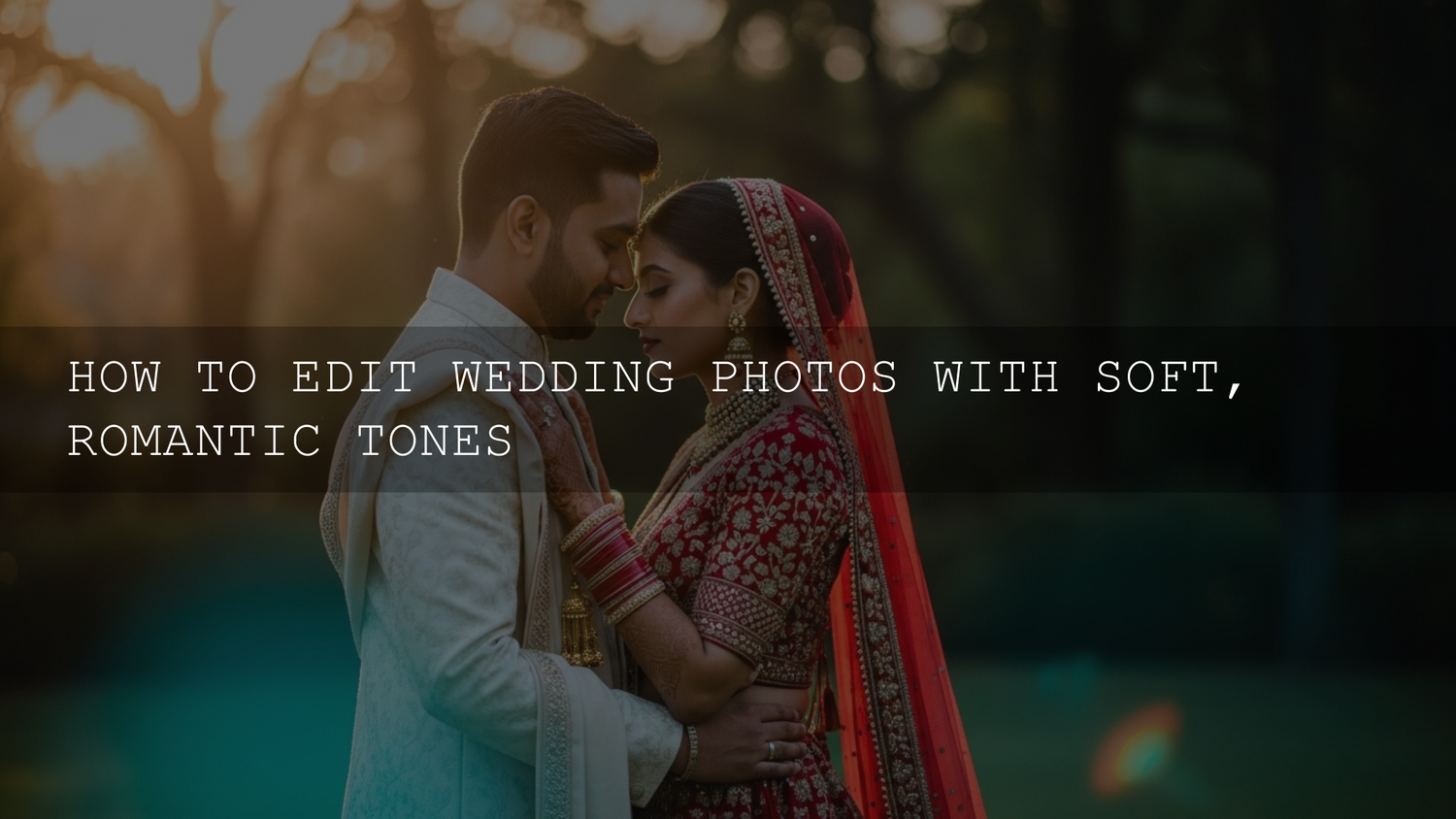
Soft Romantic Wedding Photo Editing in Lightroom for 2026
Soft romantic wedding photo editing is still one of the most requested looks in 2026 because it makes real moments feel timeless without looking over-processed. If you’re trying to build a clean workflow for wedding Lightroom presets, natural wedding photo skin tones, and a bright, dreamy finish, this guide will help you get there step by step. The goal is simple: protect the emotion, keep detail in the dress and skin, and create a consistent gallery that feels warm, intimate, and premium.
If you want a fast starting point before you fine-tune, try the AI-Optimized Golden Hour Film Glow Lightroom Presets and browse the Portrait Photography Lightroom Presets collection. If you’re building a full wedding workflow, you can use our presets across different scenes and Buy 3, Get 9 FREE when you add 12 items to your cart.
Why the Soft Romantic Look Still Works
Here’s why this matters: wedding photos are not just “pretty images.” They become family history. A soft romantic edit helps the viewer feel the day, not just see it. It supports emotional storytelling by keeping transitions gentle, skin flattering, and highlights luminous instead of harsh.
- It feels intimate: lower contrast and cleaner color transitions make images feel calm and emotional.
- It flatters skin: soft highlights and controlled reds keep faces natural and healthy.
- It protects details: careful highlight control helps preserve dresses, veils, lace, and floral texture.
- It ages well: timeless edits usually outlast trendy color grading.
- It improves gallery cohesion: ceremonies, portraits, and reception images can still feel like one story.
Start in Camera So Editing Feels Easy Later
Even the best preset cannot fully rescue bad light. The soft romantic aesthetic starts before Lightroom opens.
1) Prioritize soft light first
Look for golden hour, open shade, window light, or overcast conditions. If the sun is harsh, move your couple into shade and expose for the dress. You’ll get a cleaner file and a much easier edit.
2) Shoot RAW every time
RAW gives you room to recover highlights, lift shadows, and correct white balance without destroying image quality. That flexibility is essential for wedding work where lighting changes every few minutes.
3) Expose to protect highlights
Wedding dresses, veils, and bright skies clip fast. I usually protect highlights first, then recover shadow detail in post. This keeps the gallery looking polished instead of “blown out.”
4) Use aperture intentionally
Wide apertures (like f/1.8 to f/2.8) create beautiful separation, but don’t force everything wide open. For group shots and moving moments, slightly stopping down can save focus and still keep a soft look.
5) Get white balance close
You can fix it later, but getting close in camera saves time. Mixed light (window + tungsten + DJ lights) is where many wedding edits go wrong, so aim for a neutral baseline.
A Practical Lightroom Workflow for Soft Romantic Wedding Edits
Let’s break it down into a workflow you can repeat across an entire gallery. This is where speed and consistency matter most.
Step 1: Build a clean base before touching style
Start with exposure, white balance, highlights, shadows, and lens corrections. Do not jump into dramatic color changes yet. A messy base creates messy skin tones.
- Adjust exposure until faces feel naturally bright.
- Pull highlights down to recover dress and sky detail.
- Lift shadows carefully so black suits don’t look crushed.
- Set whites and blacks gently; avoid extreme contrast.
I tested this workflow on a backlit outdoor ceremony set where the bride’s dress was close to clipping. Recovering highlights first, then lifting midtones, gave me a cleaner romantic look than trying to “soften” a blown frame later.
Step 2: Reduce contrast for softness, not flatness
This is where many editors overdo it. You want gentle contrast, not gray, lifeless photos. Lower global contrast slightly, then rebuild shape with selective masks.
A quick rule: if the image looks dreamy but the faces lose dimension, you went too far. Add a little depth back with selective exposure or a subtle tone curve adjustment.
Step 3: Use HSL to control emotional color
HSL (Color Mixer) is the fastest way to make wedding images feel romantic without nuking skin tones.
- Reds / Oranges: lower saturation slightly if skin is too red, especially after flash.
- Oranges luminance: raise a little to brighten skin softly.
- Yellows: reduce or shift slightly warmer if greenery reflections make highlights look greenish.
- Greens: desaturate and soften to stop backgrounds from stealing attention.
- Blues: reduce saturation in skies or suits if they overpower the frame.
If you struggle with skin consistency across different wedding lighting scenarios, the AI-Optimized Soft Window Light Lightroom Presets can be a strong starting point for bridal prep, indoor portraits, and window-lit detail shots. You can also browse the broader AI-Optimized Lightroom Presets collection for matching looks across different scenes.
Step 4: Shape the tone curve for a romantic finish
The tone curve is where the look becomes premium.
- Lift the black point slightly for a soft matte base.
- Keep the curve gentle; avoid heavy S-curves if you want softness.
- Lower highlight intensity a touch to reduce harshness in white fabrics.
- Use small moves only—wedding files can break fast if pushed too hard.
For color control ideas, I recommend reviewing Adobe Color’s color harmony tools and testing palettes against your brand or client mood board before batch editing.
Step 5: Add local masks for polish
This is the step that separates “good preset use” from professional finishing. Presets set the mood; masks fix the photo.
Use Lightroom masks to:
- Brighten faces slightly without overexposing dresses
- Reduce bright distractions in the background
- Warm the couple while keeping the background neutral
- Soften skin shine selectively (not globally)
- Add a subtle glow to windows or backlight areas
If you want to refresh masking fundamentals, Adobe’s official resources are genuinely useful: Adobe’s guide to masking in Lightroom Classic and Adobe’s official masking guide for Camera Raw.
Step 6: Clarity, texture, and dehaze (use with restraint)
For a soft romantic look, less is usually more:
- Lower Texture slightly for gentler skin rendering
- Lower Clarity a little to soften harsh transitions
- Use negative Dehaze very lightly for atmosphere
Pro tip: instead of reducing clarity globally, mask the background and lower clarity there. Keep eyes, lashes, rings, and bouquet details crisp.
Step 7: Skin tone check before syncing edits
Zoom in and inspect skin at 100%. Wedding edits fall apart when skin goes orange, magenta, or green under mixed lighting. I always do a final skin check before syncing settings to the next image group.
If you edit a lot of portraits and couples, the AI-Optimized Film Portrait Cinematic Lightroom Presets Pack can help you build a more polished base while still leaving room for custom adjustments.
Presets vs Manual Editing for Wedding Photography
A lot of photographers ask this, so here’s the honest answer: it’s not either/or. The best wedding workflow uses both.
Presets (best for speed and consistency)
- Great starting point for large galleries
- Helps maintain a consistent style
- Saves time on repetitive adjustments
- Ideal for matching ceremony, portrait, and reception sets quickly
Manual editing (best for precision)
- Fixes mixed lighting and difficult exposures
- Protects skin tones in tough scenes
- Lets you refine emotion and focus shot by shot
- Essential for hero images and album selects
The sweet spot is: apply a preset, correct exposure/white balance, then finish with masks. If you want a broader toolkit for testing different looks across weddings, portraits, and seasonal shoots, the 1000+ Master Lightroom Presets Bundle is a practical option for experimentation and batch workflows.
How to Keep an Entire Wedding Gallery Cohesive
One beautiful photo is nice. A cohesive wedding gallery is what clients remember.
- Group by lighting condition: bridal prep window light, outdoor ceremony, sunset portraits, indoor reception.
- Edit one anchor image per set: perfect the look, then sync.
- Batch, then review: don’t trust the first sync—skin tones shift across angles.
- Watch whites: dress, shirt, tablecloths, and decor should feel consistent from image to image.
- Use virtual copies for hero shots: preserve consistency while giving standout images extra polish.
When I pushed a romantic preset across a mixed indoor/outdoor wedding gallery, the biggest improvement came from splitting the gallery into lighting groups first. That one habit cut correction time and made the final delivery feel much more consistent.
Common Mistakes That Kill the Romantic Look
- Over-warming everything: skin turns orange and dresses look yellow.
- Too much negative clarity: faces become muddy or “plastic.”
- Blown highlights: dreamy is not the same as detail loss.
- Heavy matte blacks on every shot: looks trendy, but can flatten emotional depth.
- Ignoring background color casts: green bounce from grass can ruin otherwise great portraits.
If you’re troubleshooting consistency or preset behavior, these reads can help: Bright & Airy Presets for lifestyle and wedding photography, Lightroom presets vs Photoshop actions, and matching presets with camera brands.
A Simple Wedding Editing Workflow You Can Reuse Today
If you want a no-drama system, use this checklist on your next wedding set:
- Pick one anchor image in the same lighting.
- Correct white balance and exposure first.
- Apply your soft romantic preset base.
- Refine HSL for skin and greens.
- Use tone curve for softness and highlight control.
- Add masks to faces, dress, and distractions.
- Sync to similar images.
- Review skin tones and whites before export.
If you’re ready to build this into a repeatable client workflow, explore the Cinematic Film Lightroom Presets collection for stylized portrait tones and keep the AAA Presets FAQ page handy for quick setup and support questions.
Related Reading
- The Ultimate Lightroom Presets Bundle: Why Every Photographer Needs One
- Moody Presets: How to Create Dark Cinematic Photos (helpful for contrast control when you want a moodier wedding set)
- How to Install Lightroom Presets in a Quick and Easy Way
When you want that soft, romantic glow without losing realism, start with good light, use presets as a launchpad, and finish with masking. For wedding work, the fastest editors are usually the ones with the cleanest system—not the ones dragging every slider on every image. If you want a ready-to-tweak starting point, try the Golden Hour Film Glow Lightroom Presets for warm outdoor portraits and pair them with the Soft Window Light Lightroom Presets for bridal prep and indoor details. You can also browse all options in the AI-Optimized Lightroom Presets collection and use the Buy 3, Get 9 FREE offer to build a full wedding-ready toolkit.
FAQs
Can I get a soft romantic wedding look without making photos look blurry?
Yes. The key is reducing contrast and texture selectively, not globally. Keep important details like eyes, rings, and lace sharp while softening skin and background transitions with masks.
What’s the best preset type for wedding photography: bright and airy or film-style?
Both can work. Bright and airy presets are great for clean daytime weddings, while film-style presets often add richer mood and softer contrast. Use the lighting and the couple’s style as your guide.
Why do my wedding skin tones turn orange after applying presets?
Usually it’s a white balance or HSL issue, especially in mixed light. Correct white balance first, then reduce orange/red saturation and fine-tune orange luminance to keep skin natural.
Should I edit every wedding photo manually instead of using presets?
No. Presets save time and keep the gallery consistent, but they work best as a starting point. The professional finish comes from manual adjustments and local masking on key images.
How do I keep indoor and outdoor wedding photos looking consistent?
Edit in lighting groups and create one anchor image for each group before syncing settings. Then do a quick pass to unify skin tones, whites, and contrast across the full gallery.
Written by Asanka — creator of AAAPresets (10,000+ customers).

Leave a comment
This site is protected by hCaptcha and the hCaptcha Privacy Policy and Terms of Service apply.