
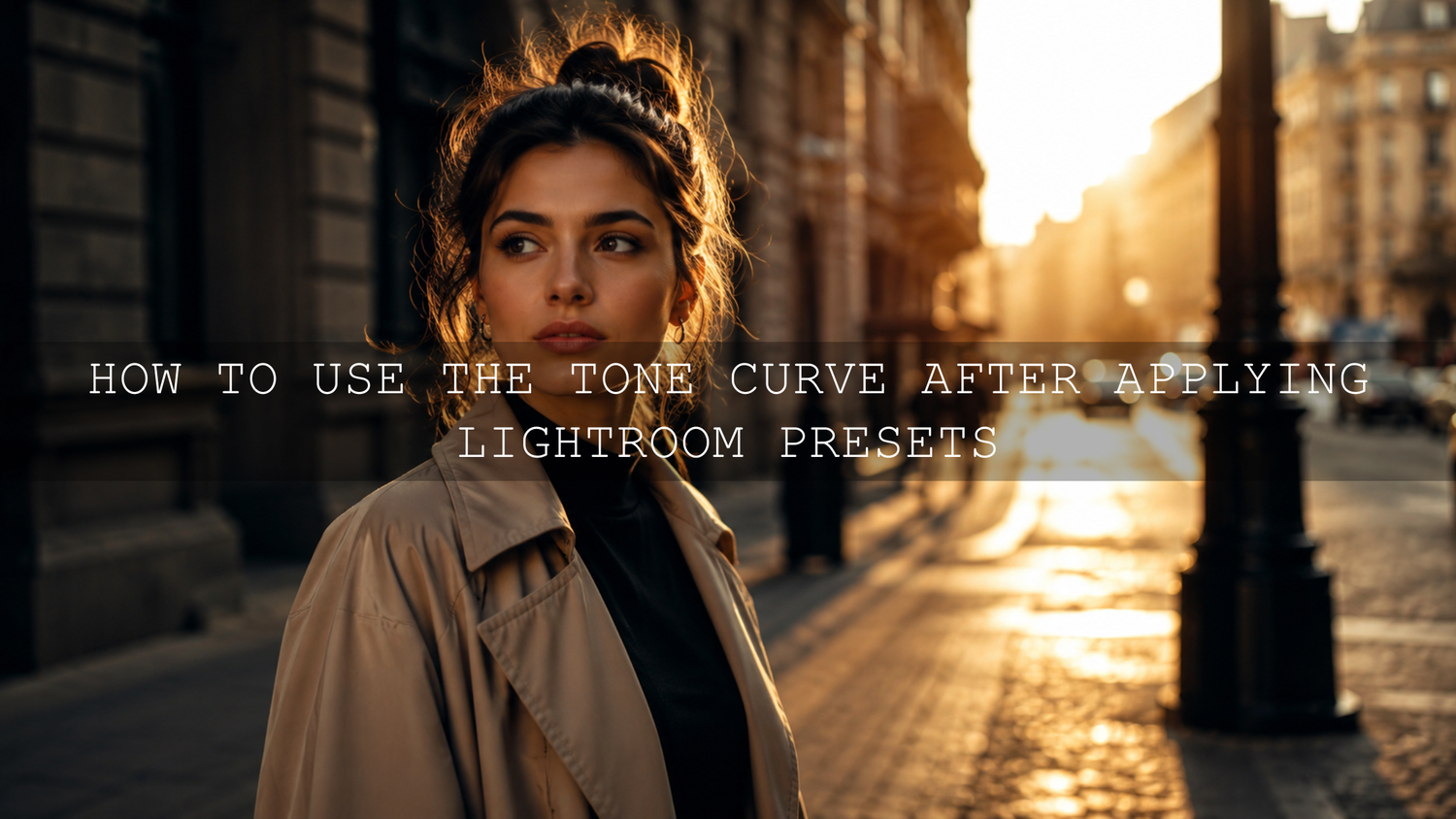
How to Use the Tone Curve After Applying Lightroom Presets
Learning how to use the tone curve after applying Lightroom presets is one of the easiest ways to turn a good preset edit into a polished, professional photo. Presets give you speed, consistency, and a strong creative starting point, but the tone curve gives you control over shadows, midtones, highlights, contrast, and mood. Here’s why this matters: every photo starts with different light, exposure, color, and camera behavior, so even the best Lightroom preset usually needs a final curve adjustment to feel custom.
When I test presets for AAAPresets, I rarely judge a look from one perfect sample photo. I test it on portraits, landscapes, wedding scenes, street shots, indoor light, golden hour, and low-light images. The same preset can look soft and cinematic on one photo but too dark, too flat, or too contrast-heavy on another. The tone curve is the tool that helps you keep the style while fixing the photo.
For a faster starting point, explore the 1000+ Master Lightroom Presets Bundle and browse creative looks in the Lightroom Presets for Mobile and Desktop collection. Try these presets today — Buy 3, Get 9 FREE — then use the tone curve workflow below to fine-tune each edit with your own style.
Why the Tone Curve Matters After Presets
A preset is not magic. It is a saved combination of editing settings such as exposure, contrast, color grading, saturation, sharpening, and sometimes tone curve adjustments. Adobe explains Lightroom presets as predefined settings that apply specific adjustments to photos, which is why they are powerful as a starting point but still need personal fine-tuning for each image. You can learn more from Adobe’s guide to editing photos with presets in Lightroom.
The tone curve matters because it lets you shape the brightness relationship between the dark and bright areas of your image. Instead of only using basic sliders, you can control how deep the shadows feel, how soft the highlights look, how much midtone contrast appears, and whether the final image feels cinematic, clean, moody, vintage, or bright.
Here’s a simple example. Imagine you apply a cinematic preset to a street portrait. The colors look beautiful, but the face feels slightly dark and the background looks too heavy. You do not need to remove the preset. Instead, you can lift the midtones, soften the shadows, and protect the highlights with the tone curve. The edit keeps the preset style, but the photo becomes more balanced and intentional.
What the Tone Curve Actually Controls
The tone curve is a visual control panel for brightness and contrast. The left side controls shadows and blacks. The middle controls midtones. The right side controls highlights and whites. Moving a point upward makes that tonal area brighter. Moving a point downward makes that tonal area darker.
Adobe’s Lightroom documentation explains that the horizontal axis represents original tone values, while the vertical axis represents changed tone values. In simple words, the curve shows Lightroom how to remap the tones in your photo. You can read Adobe’s explanation in Adobe’s Lightroom tone curve overview.
- Shadows: The darker areas of the image, such as hair, dark clothing, trees, interiors, and background depth.
- Midtones: The most important everyday tonal zone, often including skin, walls, streets, landscapes, and subject detail.
- Highlights: The brighter areas, such as skies, reflections, white clothing, windows, and bright skin highlights.
- Black point: The deepest part of the image. This controls whether blacks feel rich, faded, or crushed.
- White point: The brightest part of the image. This controls whether highlights feel clean, soft, or clipped.
Presets vs Manual Editing: Which Is Better?
Presets and manual editing are not enemies. The best workflow uses both. A preset gives you a fast creative direction. Manual editing gives you accuracy. The tone curve sits right in the middle because it lets you keep the preset’s mood while adjusting the photo for real-world lighting.
Presets are best for speed and consistency
Presets are helpful when you want a consistent style across a gallery, Instagram feed, wedding album, travel set, or product shoot. They save time because you do not have to rebuild the same color mood from zero on every photo. For creators who edit many images, a preset can turn a long editing session into a faster, more organized workflow.
Manual tone curve editing is best for precision
Manual editing becomes important when the preset is close but not perfect. Maybe the shadows are too dark, the highlights are washed out, or the contrast looks too harsh on skin. This is where the tone curve helps you make the preset fit the actual photo instead of forcing the photo to fit the preset.
For a deeper look at why presets can behave differently from one image to another, read why Lightroom presets look different on every photo.
Step-by-Step Tone Curve Workflow After Applying a Preset
Let’s break it down into a simple workflow you can use after applying almost any Lightroom preset. This works for portraits, street photos, landscapes, wedding images, travel photos, product shots, and cinematic lifestyle edits.
Step 1: Apply the preset first, then pause
Apply your chosen preset and give your eyes a moment to judge the image. Do not immediately start moving every slider. Ask yourself what the image actually needs. Is it too dark? Too flat? Too contrasty? Are the highlights too bright? Do the shadows feel blocked? This quick check prevents over-editing.
If you want a cinematic starting point, the AI-Optimized Aesthetic Cinematic Movie Look Lightroom Presets are a strong option for movie-style contrast and polished color. After applying the preset, use the curve to match the look to your exact image.
Step 2: Check the histogram before changing the curve
The histogram helps you see whether your image is losing detail in deep shadows or bright highlights. Adobe notes that clipping at either end of the histogram can cause a loss of image detail, which is why checking it before curve adjustments is important. Learn more from Adobe’s guide to image tone, color, and histogram clipping.
If the histogram is pushed hard to the left, your photo may be too dark or shadow-heavy. If it is pushed hard to the right, highlights may be too bright. If it is bunched in the middle, the photo may feel flat and low contrast.
Step 3: Adjust the midtones first
Midtones are usually the safest place to start because they affect the perceived brightness of the image without immediately destroying shadow or highlight detail. Click near the center of the curve and gently move it upward to brighten the image or downward to darken it.
For portraits, this helps bring light back into the face. For street photography, it can make the subject stand out from the background. For landscapes, it can add clarity to trees, mountains, buildings, and natural texture without making the sky too bright.
Step 4: Add a gentle S-curve for contrast
A soft S-curve is one of the most useful tone curve adjustments after applying Lightroom presets. Lower the shadow area slightly and lift the highlight area slightly. This adds depth, separation, and visual punch.
- For a cinematic look: Use a subtle S-curve with controlled highlights and deeper lower midtones.
- For a soft film look: Lift the black point slightly and keep the highlight curve smooth.
- For clean commercial edits: Keep blacks rich, highlights bright, and midtones natural.
- For moody edits: Lower the lower-midtones carefully without crushing important subject detail.
The mistake is making the S-curve too strong. A heavy curve can crush black clothing, remove hair detail, make skin look harsh, or blow out skies. For more help with this problem, read why presets make photos too dark and how to recover detail.
Step 5: Lift crushed shadows carefully
If the preset makes the shadows too heavy, lift the lower-left part of the curve slightly. This can reveal detail in hair, dark clothing, forest areas, indoor corners, and background texture. The key word is slightly. If you lift shadows too much, blacks can turn gray and the photo may lose depth.
A good rule is to lift shadows only until the detail returns, not until every dark area becomes bright. Shadows are part of the mood. You want controlled depth, not a washed-out image.
Step 6: Pull back harsh highlights
If skies, windows, white dresses, skin highlights, or reflections look too bright after applying a preset, lower the highlight area of the curve. This helps recover softness and prevents the image from feeling digitally harsh.
For wedding photos, this is especially useful on white dresses and bright outdoor ceremonies. For travel photos, it helps skies look natural. For product photography, it protects bright packaging, glass, metal, and reflective surfaces.
Step 7: Use RGB curves only when needed
The main curve controls brightness and contrast. The red, green, and blue curves control color balance in different tonal areas. This is powerful, but it should be used with care.
- Red curve: Lift to add red warmth or lower to add cyan.
- Green curve: Lift to add green or lower to add magenta.
- Blue curve: Lift to add blue or lower to add yellow warmth.
For example, if a warm preset makes highlights feel too yellow, a tiny lift in the blue highlight curve can cool them down. If shadows feel too green, a tiny adjustment in the green channel can clean them up. Small RGB curve moves are usually enough.
Real Editing Examples: Before and After Tone Curve Fixes
Portrait preset looks too harsh
Before the tone curve adjustment, the preset may create strong contrast, dark eye areas, and shiny highlights on the face. After the adjustment, you can lift the midtones slightly, soften the highlight point, and reduce the lower-mid contrast. The portrait keeps its cinematic style but looks more flattering.
For beauty, portrait, and lifestyle images, the AI-Optimized Soft Cinematic Contrast Beauty Lightroom Presets are useful when you want a smoother base edit that still has shape and depth.
Landscape preset looks flat
Before the tone curve adjustment, the landscape may have nice color but not enough separation between the sky, trees, and foreground. After adding a gentle S-curve, the photo gains depth. The clouds feel brighter, the trees feel richer, and the foreground has more presence.
Street photo looks too dark
Before the curve adjustment, a moody street preset may make buildings and shadows too heavy. After lifting the lower shadows and slightly brightening midtones, the subject becomes clearer while the urban mood remains intact.
For more troubleshooting ideas, read how to fix flat presets with depth and pop.
Common Tone Curve Mistakes to Avoid
- Using a curve that is too strong: A dramatic curve may look exciting for a few seconds, but it can destroy skin texture, shadow detail, and highlight softness.
- Lifting blacks too much: A faded film look can be beautiful, but too much lift makes the photo look gray and weak.
- Crushing shadows for mood: Deep shadows can look cinematic, but crushed shadows remove information and make edits feel heavy.
- Ignoring the subject: Always judge the curve based on the main subject, not only the overall background mood.
- Overusing RGB curves: Color curves are powerful, but big changes can create strange skin tones and unnatural color casts.
Pro Tips for Better Tone Curve Edits
- Toggle before and after: Turn the adjustment on and off to make sure the edit is actually improving the photo.
- Zoom out often: A curve may look good at 100% zoom but feel too heavy when viewing the full image.
- Protect skin tones first: In portraits and weddings, skin should look natural before you push the overall mood.
- Use small movements: The tone curve is sensitive. Tiny moves often create better results than dramatic changes.
- Match the curve to the story: A luxury portrait, a rainy street photo, and a bright travel image should not all use the same curve shape.
If your preset looks too intense overall, you may also like this guide to taming overly powerful presets.
How to Build a Signature Style With the Tone Curve
Once you understand the tone curve, you can start building a signature editing style. This is where presets become more personal. Instead of applying the same preset and leaving it untouched, you create a repeatable finishing method.
For a cinematic signature style, try deeper lower midtones, controlled highlights, and a slight warm highlight curve. For a soft editorial style, lift blacks slightly, keep contrast moderate, and protect skin highlights. For a clean commercial style, keep the curve simple, avoid strong color shifts, and make sure whites stay crisp without clipping.
You can also use color harmony as a guide when building your style. Adobe Color is helpful for exploring relationships such as complementary, analogous, triadic, and monochromatic color schemes. Use Adobe Color’s color wheel and harmony rules when planning consistent color moods for photography, branding, social media, or blog visuals.
Related Reading
- How to make Lightroom presets work better on every skin tone
- How to revive old presets for newer camera files
- How to make one preset work across different camera brands
Best Presets to Pair With Tone Curve Editing
If you want one flexible starting point, choose the 1000+ Master Lightroom Presets Bundle. It gives you a wide range of looks for portraits, travel, landscapes, weddings, street photography, lifestyle, and content creation. Then use the tone curve as your final polish for each photo.
If you prefer modern, smarter preset options, browse the AI-Optimized Lightroom Presets for Mobile and Desktop collection. These looks are especially helpful when you want a strong creative base but still want room to refine contrast, skin, shadows, and highlights manually.
For installation and setup help, visit the AAAPresets FAQ and preset help page.
Final Thoughts on Using the Tone Curve After Presets
Presets give you the look. The tone curve gives you the finish. That is the real secret. A preset can create beautiful color and style, but the tone curve helps you adapt that style to the actual lighting, subject, and mood of your image.
Start simple. Apply the preset, check the histogram, adjust the midtones, add a gentle S-curve, protect highlights, lift shadows only when needed, and use RGB curves with care. With practice, you will stop guessing and start making confident, intentional edits.
To build a faster editing workflow with more creative options, start with the 1000+ Master Lightroom Presets Bundle, explore cinematic looks like the AI-Optimized Aesthetic Cinematic Movie Look Lightroom Presets, and browse the full Lightroom Presets for Mobile and Desktop collection. Try these presets today — Buy 3, Get 9 FREE — and use the tone curve to make every edit feel custom.
FAQ
What is the best tone curve adjustment after applying Lightroom presets?
The best starting point is usually a gentle S-curve. Slightly lower the shadow area and slightly lift the highlight area to add contrast, then adjust midtones based on the subject. Keep the movement subtle so the photo does not become too harsh.
Why do my presets make photos too dark?
Presets can make photos too dark when they add contrast, lower exposure, deepen shadows, or use a strong tone curve. Lift the midtones or lower shadows slightly with the curve, then check the histogram to make sure important detail is not clipped.
Should I use the tone curve or basic sliders first?
Use basic sliders first for broad exposure, white balance, highlights, and shadows. Then use the tone curve for finer contrast, mood, and tonal shaping. This keeps your workflow cleaner and easier to control.
Can the tone curve fix skin tones after presets?
The tone curve can help soften harsh contrast on skin, but color problems may also need white balance, HSL, or masking adjustments. For skin, avoid strong curves that crush shadows or make highlights too bright.
Is the RGB curve good for cinematic color grading?
Yes, RGB curves can create cinematic color shifts in shadows, midtones, and highlights. Use very small changes because strong RGB curve moves can quickly make skin, skies, and shadows look unnatural.
Written by Asanka — creator of AAAPresets (10,000+ customers).


Leave a comment
This site is protected by hCaptcha and the hCaptcha Privacy Policy and Terms of Service apply.