
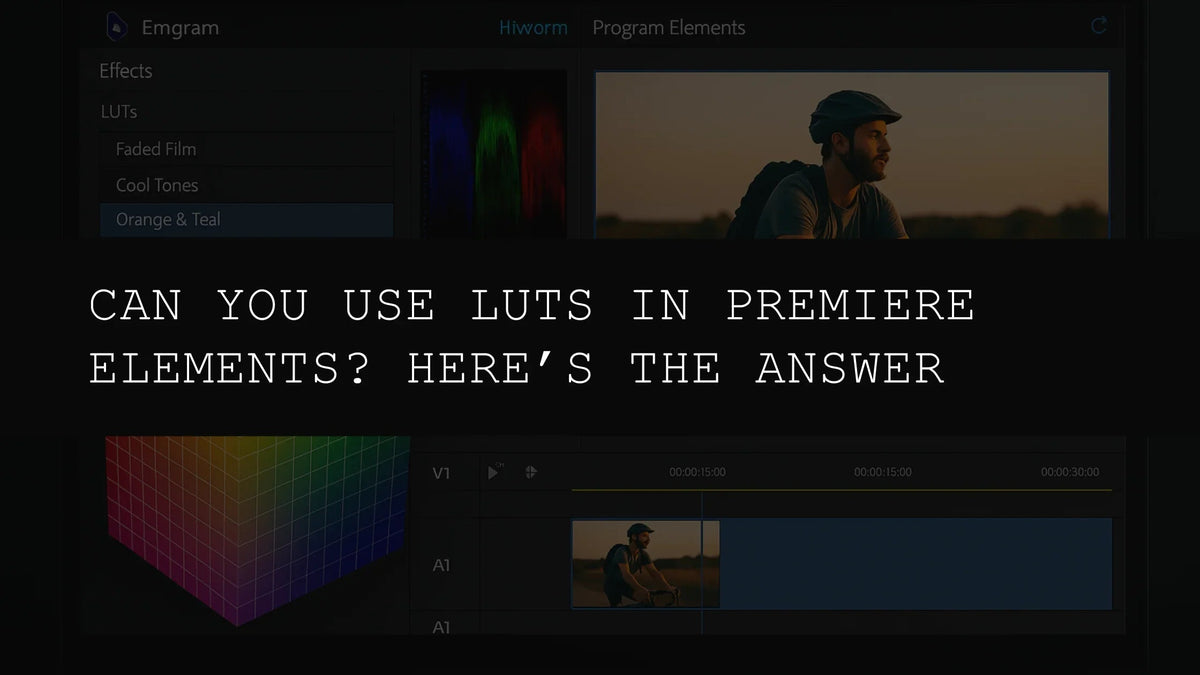
Can You Use LUTs in Premiere Elements? Here’s the Answer
In the ever-evolving landscape of video editing, Look Up Tables (LUTs) have solidified their position as indispensable tools for color grading and enhancing the visual impact of video footage. Their capacity to deliver swift and consistent color transformations is nothing short of revolutionary, significantly reducing editing time and effort. But for users of Adobe Premiere Elements, the question remains: does this user-friendly editing software support LUTs? The short answer is: no, not directly. However, don't despair! This article explores this limitation in detail and provides practical, effective workarounds to bring the power of LUTs to your Premiere Elements projects.
Understanding LUTs: A Comprehensive Overview
Before we delve into the specifics of using LUTs with Premiere Elements (or rather, the workarounds), let's solidify our understanding of what LUTs are and why they've become so vital in video editing. LUTs, or Look Up Tables, are essentially pre-defined color grading presets. Imagine them as sophisticated color translators, meticulously mapping one set of colors to another. This seemingly simple mechanism unlocks a world of creative possibilities, allowing editors to quickly apply specific "looks" to their footage.
These "looks" can range from emulating the aesthetic of classic film stocks to achieving vibrant, saturated styles, or applying subtle, desaturated vintage effects. The beauty lies in their versatility and the potential to experiment with various moods and styles to perfectly match the vision of your video project. The benefits extend far beyond mere convenience, as we'll see below.
The Undeniable Advantages of Utilizing LUTs
The popularity of LUTs in video editing is not without reason. They offer a compelling combination of efficiency, consistency, and creative freedom that significantly enhances the workflow of editors at all skill levels. Let's unpack these advantages:
- Unparalleled Efficiency and Speed: Applying a LUT is exponentially faster than painstakingly adjusting individual color parameters manually. This time-saving feature is particularly invaluable for editors facing tight deadlines or working on large-scale projects. It allows for a more efficient allocation of time, focusing more on the creative aspects of the video project rather than getting bogged down in tedious color corrections.
- Guaranteed Consistency: LUTs ensure a consistent visual style across your entire project. This is crucial for maintaining a cohesive visual narrative, preventing jarring discrepancies between shots that can detract from the overall impact of your work. Maintaining consistency is a hallmark of professional-looking video editing.
- Unrestricted Creative Exploration: The extensive library of readily available LUTs, combined with the capacity to create custom LUTs tailored to specific needs and artistic visions, unlocks limitless creative exploration. This opens doors for experimentation with different looks and styles, leading to unique and striking results that truly differentiate your video projects.
- Accessibility for All Skill Levels: LUTs democratize access to professional-grade color grading. Even editors without extensive experience in color correction can achieve high-quality results with relative ease. This makes sophisticated color grading achievable for everyone, regardless of their skill level.
- Workflow Streamlining and Optimization: Integrating LUTs into your workflow can streamline the entire post-production process, allowing for quicker project turnaround times. This efficiency is particularly crucial for projects with tight deadlines or high-volume workloads, maximizing productivity and enhancing overall workflow management.
Why Premiere Elements Doesn't (Yet) Support LUTs Directly
Adobe Premiere Elements, celebrated for its user-friendly interface and simplified editing workflow, deliberately omits advanced features like direct LUT support. This decision is rooted in its target audience: casual video editors who prioritize simplicity and intuitive usability above highly specialized professional-grade tools. The software's design philosophy emphasizes a straightforward workflow, making sophisticated color grading a less central focus.
Effective Workarounds: Bringing LUTs to Premiere Elements
While Premiere Elements lacks native LUT functionality, resourceful editors can still harness the power of LUTs using several clever strategies. These methods often involve pre-processing footage or using external applications to achieve the desired results. Here are some proven and effective workarounds:
- Pre-LUT Application: The Most Reliable Method: Before importing your footage into Premiere Elements, apply your chosen LUT using a dedicated color grading application such as DaVinci Resolve (the free version is a powerful option), Adobe Photoshop, or even specialized mobile applications designed for color grading. Once the LUT is applied and the color grading is finalized to your satisfaction, import the processed clips into Premiere Elements for final editing and assembly. This method delivers the most accurate and consistent results, ensuring the integrity of your LUT’s color transformations.
- Mastering Adjustment Layers: A Manual Approach: Premiere Elements provides adjustment layers, offering a degree of color correction capability. Although not as precise or efficient as directly applying LUTs, you can carefully adjust the color parameters within these layers to emulate the effect of a specific LUT. This is a more time-consuming method, requiring detailed manual adjustments, but it's a viable option for smaller projects or when only minor color refinements are required.
- Leveraging Custom Presets: Efficiency for Repetitive Tasks: For tasks involving repeated color adjustments, creating custom presets within Premiere Elements can save significant time and effort. Although not a perfect LUT substitute, this strategy streamlines the workflow by saving frequently used color adjustments as easily accessible presets. This is especially useful when consistent color grading is needed throughout a single project, reducing the need for repetitive manual adjustments.
- Exploring Third-Party Plugins (Use with Caution): It's important to note that while not officially supported, some third-party plugins claim to extend LUT functionality to Premiere Elements. Exercise extreme caution when considering third-party plugins; ensure they come from reputable sources to avoid software conflicts or potential security risks. Always research thoroughly before installation to protect your system's integrity.
Choosing the Right Workaround for Your Needs
Selecting the most suitable workaround for integrating LUTs into your Premiere Elements workflow depends on your technical expertise, project requirements, and the volume of clips needing color adjustments. For smaller projects with minimal color grading requirements, using adjustment layers might suffice. However, for complex projects with many clips demanding accurate and consistent color grading, pre-processing your footage in a dedicated color grading application remains the most reliable and effective approach, guaranteeing the integrity and fidelity of your LUT’s color transformations.
Conclusion: Achieving Professional Color Grading in Premiere Elements
While Premiere Elements lacks direct LUT support, this doesn't limit your ability to leverage the transformative power of LUTs. By creatively employing the described workarounds, you can successfully integrate LUTs into your Premiere Elements workflow and achieve professional-looking color grading. Select the method that best matches your editing style, technical capabilities, and project demands. Remember, in 2026, advanced color grading shouldn’t be a barrier to entry for Premiere Elements users.

Leave a comment
This site is protected by hCaptcha and the hCaptcha Privacy Policy and Terms of Service apply.