
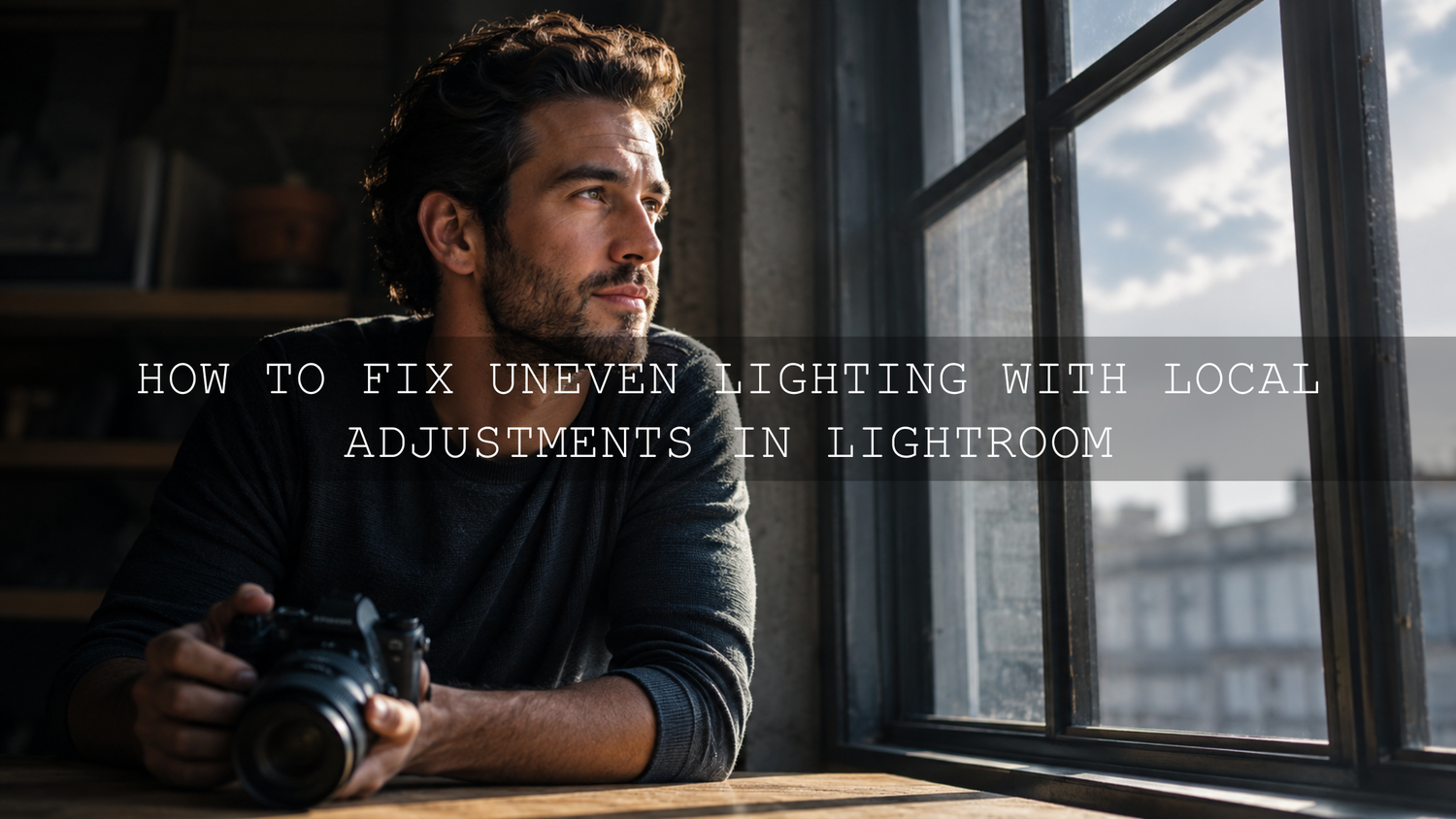
How to Fix Uneven Lighting with Local Adjustments in Lightroom
Fixing uneven lighting with local adjustments is one of the most important editing skills for photographers, videographers, creators, and online business owners in 2026. A photo can have a beautiful subject, strong composition, and great colors, but if the face is too dark, the sky is too bright, or the product shadow looks heavy, the final image can feel unfinished.
Here’s why this matters: global editing changes the whole image at once, but local adjustments let you correct only the areas that need help. Instead of brightening the entire photo and ruining the highlights, you can lift the subject. Instead of lowering exposure everywhere, you can control only the bright window, sky, reflection, or spotlight.
If you want a faster starting point, apply a clean preset first, then use masks, brushes, radial gradients, and linear gradients to fine-tune the light. The 1000+ Master Lightroom Presets Bundle works well as a base edit, and you can browse the Lightroom Presets for Mobile & Desktop collection for more styles. Try these presets today — Buy 3, Get 9 FREE.
What Are Local Adjustments?
Local adjustments are edits applied to a selected part of an image instead of the whole photo. In Lightroom, Camera Raw, Photoshop, and many modern editing apps, local adjustments are usually created with masks. A mask tells the software where the edit should appear and where it should stay hidden.
For example, you can create a mask over a person’s face and increase exposure slightly without changing the background. You can select the sky and reduce highlights without making the foreground darker. You can use a radial mask around a product to add soft light and create a cleaner commercial look.
Adobe explains that masking tools help you make precise color and luminance adjustments to specific areas of a photo, which is exactly why they are so useful for uneven lighting. You can learn more from Adobe’s guide to masking for local adjustments in Camera Raw and Adobe’s local adjustment controls for Lightroom masks.
Why Uneven Lighting Happens
Uneven lighting is not always a beginner mistake. It happens in real shoots all the time, even when the photographer understands exposure. Cameras have limits, light changes quickly, and many real-world scenes contain bright and dark areas at the same time.
- Backlit subjects: A person stands in front of a bright window, sunset, or sky, making the background bright and the subject too dark.
- Harsh midday sun: Strong sunlight creates deep shadows under the eyes, nose, chin, trees, buildings, or products.
- Mixed indoor lighting: Window light, ceiling lights, lamps, and colored walls can create uneven brightness and color casts.
- Bright skies and dark foregrounds: Landscapes often have a sky that is much brighter than the land.
- Product reflections: Jewelry, glass, cosmetics, and glossy packaging can show distracting highlights while the edges stay dark.
- Limited camera dynamic range: Some scenes contain more highlight and shadow information than the camera can capture cleanly in one exposure.
I see this often when testing presets on outdoor portraits and product photos. A preset can create a beautiful color mood, but if the original image has a dark face or a blown-out window, the preset alone cannot solve everything. The best result usually comes from a hybrid workflow: preset first, local adjustments second.
Global Editing vs Local Adjustments
Global edits are useful for building the overall look. Local adjustments are useful for solving specific problems. Both are important, but they should not be used for the same job.
- Global exposure: Best for correcting the overall brightness of the photo.
- Global contrast: Best for shaping the full image mood.
- Global white balance: Best for correcting the overall color temperature.
- Local exposure: Best for brightening only a face, product, foreground, or shadow area.
- Local highlights: Best for reducing only a bright sky, window, reflection, or shiny skin.
- Local color: Best for fixing skin tone, shadow color casts, or background distractions.
For example, if a wedding portrait has a bright background and a slightly dark couple, raising global exposure may destroy the sky and dress details. A better workflow is to keep global exposure balanced, then use a soft subject mask to lift the couple gently. For wedding-style edits, you can also explore the AI-Optimized Indian Wedding Lightroom Presets as a creative base before refining the lighting manually.
Presets vs Manual Editing: Which Is Better for Uneven Lighting?
Presets and manual editing are not enemies. They solve different parts of the workflow.
- Presets are best for speed: They help you create a consistent color style quickly across many images.
- Manual editing is best for precision: It helps you fix specific lighting problems that are different from image to image.
- The best workflow uses both: Apply a preset for the overall style, then use local adjustments to polish the face, sky, product, shadows, and highlights.
Here’s a simple example. On a travel street photo, a cinematic preset may make the colors richer and the shadows moodier. That can look amazing, but the subject’s face may become slightly too dark. Instead of removing the preset, create a small mask over the face, lift exposure a little, reduce contrast slightly, and keep the cinematic background mood. For this type of edit, the AI-Optimized Cinematic Travel Street Lightroom Presets can give you the style, while local adjustments give you control.
Best Local Adjustment Tools for Fixing Uneven Lighting
Brush Mask
A brush mask is ideal when you need freehand control. Use it to paint over a face, clothing, product edge, shadow area, or distracting highlight.
Pro tip: Keep the brush feather high and the flow low. This helps your correction build slowly and avoids obvious brush marks.
Linear Gradient
A linear gradient applies an adjustment gradually from one side of the image. It is perfect for skies, landscapes, walls, floors, and backgrounds where light fades naturally.
For a bright sky and dark foreground, use a linear gradient from the top to reduce highlights and exposure in the sky. Then use another subtle gradient from the bottom if the foreground needs a small lift.
Radial Gradient
A radial gradient creates an oval or circular adjustment with a soft fade. It is excellent for faces, products, food photography, portraits, and any subject that needs gentle visual attention.
I often use a radial gradient around the subject after applying a preset. A tiny exposure lift, slight warmth, and soft highlight control can make the subject feel naturally lit without looking edited.
Select Subject, People, Sky, or Background Masks
Modern AI masking tools can speed up the process. Instead of manually brushing around hair, trees, or product outlines, you can let Lightroom or Camera Raw detect the subject, sky, people, or background first. Then refine the mask manually if needed.
AI masking is powerful, but it should not replace your eye. Always check the edges, especially around hair, leaves, jewelry, glass, or bright backgrounds.
Luminance and Color Range Masks
Luminance range masks target areas based on brightness. Color range masks target areas based on color. These are helpful when you want to reduce only the brightest highlights or correct a color cast in one specific part of the image.
For example, if a product photo has a bright white reflection on the packaging, a luminance mask can help you reduce that highlight without affecting the darker product edges.
Step-by-Step Workflow to Fix Uneven Lighting
1. Start with a Clean Base Edit
Before using masks, fix the overall image first. Adjust exposure, contrast, white balance, highlights, shadows, whites, and blacks until the photo feels balanced. Do not try to solve every small lighting issue globally.
If you use presets, apply the preset early, then make small base corrections. A preset gives you the style direction, while the base edit keeps the photo technically clean. For outdoor portraits, the AI-Optimized Traditional Outdoor Portrait Lightroom Presets can work well when you want polished skin, natural backgrounds, and a soft professional look.
2. Identify the Real Lighting Problem
Before adding masks, ask one simple question: what is distracting the viewer?
- Is the subject too dark?
- Is the sky too bright?
- Is one side of the face too shadowed?
- Is the background brighter than the product?
- Is there a strong reflection pulling attention away?
- Is the foreground too flat or muddy?
This step matters because beginners often add too many masks. A strong edit is usually built with fewer, cleaner corrections.
3. Fix the Subject First
The viewer should understand the subject quickly. If the subject is too dark, create a subject mask or brush mask and make small corrections.
- Increase exposure slightly.
- Lift shadows if the face or product edge is too dark.
- Reduce contrast if the shadows look harsh.
- Add a small amount of warmth if the shadow feels too blue.
- Avoid pushing texture and clarity too high on skin.
Pro tip: Small exposure changes are usually enough. Start around a subtle lift and review the image at full size. If the subject starts looking pasted onto the background, reduce the adjustment.
4. Control Distracting Highlights
Bright areas can steal attention. Common examples include windows, skies, white clothing, shiny skin, product reflections, and bright corners of the frame.
Create a mask over the highlight area and reduce highlights first. If that is not enough, lower exposure slightly. Avoid making bright areas gray. The goal is to recover detail and reduce distraction, not flatten the image.
Adobe’s tone adjustment guidance is useful here because sliders like Highlights, Shadows, Whites, Blacks, Contrast, Texture, and Clarity affect detail differently. For deeper technical reference, read Adobe’s guide to color and tonal adjustments in Camera Raw.
5. Balance the Background
Once the subject looks right, check the background. If the background is too bright, darken it slightly with a brush, linear gradient, or background mask. If the background is too dark, lift it carefully without removing depth.
For landscape images, the background may be the main subject. In that case, treat the sky, mountains, water, and foreground as separate zones. The AI-Optimized Cinematic Film Landscape Lightroom Presets can help create a strong mood, then local gradients can balance the sky and land.
6. Correct Local Color Casts
Uneven lighting often creates uneven color. Shadows may look blue, indoor lights may look yellow, skin near colored walls may pick up red or green, and bright highlights may lose warmth.
Inside the mask, adjust temperature and tint gently. For skin, small changes are safer than big moves. For product photography, compare the color to the real product so the edit does not mislead customers.
7. Review Before and After
After every few adjustments, turn the mask or edit off and on. This helps you catch over-editing early.
- If the subject looks too bright, reduce the mask amount.
- If the edges glow, increase feathering or reduce exposure.
- If the photo looks flat, bring back a little contrast.
- If the shadows look noisy, reduce the shadow lift or add gentle noise reduction.
- If the edit looks fake, simplify the masks.
Common Lighting Problems and Fast Fixes
Dark Face with Bright Background
Create a subject or face mask. Lift exposure slightly, raise shadows, and add a tiny amount of warmth if needed. Then reduce the background highlights with a separate mask if the bright area is still distracting.
Bright Sky with Dark Landscape
Use a linear gradient from the top. Reduce highlights and exposure in the sky. Then use a second mask to lift the foreground gently. For more landscape styles, browse the Professional Lightroom Presets for Landscape Photography collection.
Harsh Sun on Portraits
Use a brush or people mask to soften deep shadows under the eyes and nose. Lower highlights on the forehead, cheeks, shoulders, or hair if they are too strong. Keep the correction natural, because harsh sun should still feel like harsh sun.
Product Photo with Heavy Shadows
Use a soft brush to lift the dark product edge. Use a radial gradient to create a subtle spotlight around the product. Reduce bright reflections separately so the product shape stays clean.
Indoor Mixed Lighting
Separate the image into zones. Correct the subject first, then the background, then any colored shadows. If a wall or lamp creates a color cast, use local temperature, tint, or saturation inside that mask.
Local Adjustments for Photo and Video Workflows
Local adjustments are not only for photography. The same idea applies to video color grading. In Premiere Pro, DaVinci Resolve, and other video editors, creators use masks, power windows, tracked adjustments, and selective color tools to control specific parts of the frame.
For example, in a talking-head video, you might brighten the face slightly while keeping the background darker. In a wedding film, you might reduce a bright window without changing the couple. In a product video, you might darken a reflection that distracts from the packaging.
If your workflow includes both photos and videos, keep your correction logic consistent: fix exposure first, shape contrast second, refine color third, and apply creative style last. You can also explore related editing workflows in Fix Exposure & White Balance in Premiere Pro.
Advanced Tips for Natural Local Adjustments
- Use fewer masks: Too many masks can make the photo look patchy. Start with the biggest problem first.
- Keep feathering soft: Hard edges make local edits obvious unless you are masking a very defined object.
- Avoid extreme shadow recovery: Deep shadow lifting can reveal noise and make the photo look low quality.
- Match the light direction: Brightening the wrong side of the subject can make the lighting feel unnatural.
- Do not remove all contrast: Shadows create depth. The goal is controlled contrast, not flat lighting.
- Zoom out often: A mask may look perfect at 200%, but the full photo may feel overworked.
- Check skin tones separately: If the face is the subject, skin color should stay believable after the lighting correction.
Related Reading
- Why Lightroom Presets Look Different & How to Fix It in 2026
- How to Choose the Best Photos for Lightroom Presets
- Why Presets Make Photos Too Dark & How to Recover Detail
- How to Edit Presets in Mixed Indoor and Window Lighting
- How to Tame Overly Powerful Presets with Subtle Edits
Final Workflow: Preset, Mask, Polish
The cleanest way to fix uneven lighting is not to fight the whole photo. Start with a strong base style, then correct only the areas that need help. A preset gives you speed and mood. Local adjustments give you precision and professional control.
For most images, use this simple order:
- Correct the base exposure and white balance.
- Apply a preset that matches the photo mood.
- Use masks to fix the subject, sky, background, or product edges.
- Control highlights and shadows locally.
- Check color casts inside each mask.
- Review the full image and reduce anything that looks too strong.
If you want a flexible editing toolkit, start with the 1000+ Master Lightroom Presets Bundle, then refine each image with smart local adjustments. You can also browse the Buy 3 Get 9 Free collection to build a preset library for portraits, landscapes, street photography, travel, weddings, products, and social content.
FAQ
What is the best way to fix uneven lighting in Lightroom?
The best way is to make a clean global edit first, then use local adjustments such as subject masks, brush masks, radial gradients, and linear gradients to correct only the problem areas.
Should I use presets before or after local adjustments?
In most workflows, apply the preset first, then use local adjustments afterward. This lets you correct the image based on the final style instead of editing twice.
How do I brighten a dark face without ruining the background?
Create a subject, people, or brush mask over the face, then slightly increase exposure and shadows. Keep the adjustment soft and subtle so the face still matches the natural light direction.
How do I reduce a bright sky in Lightroom?
Use a sky mask or linear gradient and reduce highlights first. If needed, lower exposure slightly and adjust saturation or temperature to keep the sky natural.
Can local adjustments make a photo look fake?
Yes, if they are too strong. Use soft feathering, low flow, small slider changes, and frequent before-and-after checks to keep the edit realistic.
Written by Asanka — creator of AAAPresets (10,000+ customers).

Leave a comment
This site is protected by hCaptcha and the hCaptcha Privacy Policy and Terms of Service apply.