
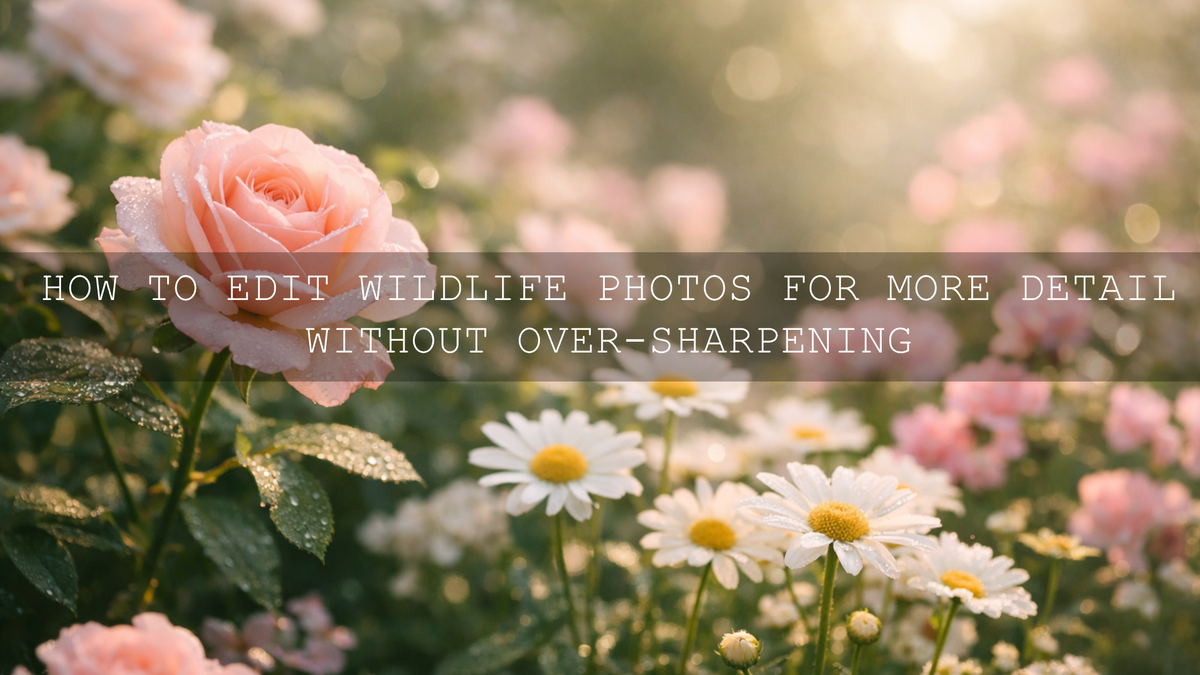
How to Edit Flower and Garden Photos for Soft Color Harmony
Flower and garden photo editing works best when you aim for soft color harmony instead of heavy effects. The goal is to make petals, greens, highlights, and background tones feel balanced, fresh, and believable. In garden photography, small color shifts can change the entire mood, so the strongest edits usually come from gentle control rather than dramatic slider moves. When I edit floral scenes, I usually start by fixing white balance and tonal balance first, then I shape color in smaller steps so the final image still feels natural.
If you want a faster starting point, try the AI-Optimized Morning Garden Bright Cinematic Lightroom Presets and browse the AI-Optimized Lightroom Presets collection. They give you a clean base for bright flowers, soft highlights, and polished greens while still leaving room for your own finishing touches. It also fits naturally with the brand offer: Buy 3, Get 9 FREE.
Soft color harmony matters because flower and garden images can go wrong very quickly. Greens can turn neon, petals can lose texture, and bright sunlight can wash out the soft mood you wanted. A better workflow keeps detail in the highlights, protects color separation in petals, and makes the whole frame feel calm and cohesive. That is what helps a photo feel polished instead of over-edited.
What Soft Color Harmony Really Means in Flower and Garden Photography
Soft color harmony is not just a pastel look. It is a controlled relationship between tones, contrast, and color so that the image feels peaceful and intentional. Instead of making every flower brighter and every leaf greener, you create a palette where the scene works together. Pink roses, soft cream highlights, muted soil tones, and believable greens should feel connected rather than competitive.
Here is why this matters: flower gardens often contain many colors in one frame. If you push vibrance too hard, those colors start fighting each other. If you overdo contrast, delicate petals lose their softness. If your white balance is off, the entire scene can feel too yellow, too blue, or too magenta. A harmonious edit solves all three problems at once.
Adobe’s own tools are especially useful here. Adobe’s Lightroom guide to white balance and tone is a good reference for balancing temperature, tint, and tonal detail, and Adobe Color harmony rules and the color wheel can help when you want to understand why certain flower colors feel balanced together.
A Simple Workflow for Editing Flower and Garden Photos in Lightroom
If you want repeatable results, use a sequence instead of jumping between sliders randomly. This is the workflow I come back to most often for floral edits, especially when I want the image to feel soft, bright, and elegant.
- Correct exposure first. Start by making the scene readable. Bring the exposure to a natural level, then recover highlights if the brightest petals or sky areas feel harsh.
- Fix white balance before touching color intensity. Flower photos often look wrong because of temperature and tint, not because they need more saturation. A cleaner white balance usually improves the colors immediately.
- Lower harsh contrast. For a soft garden look, reduce the feeling of hard midday light. That often means slightly lowering highlights and gently opening shadows.
- Refine greens and yellows carefully. In many outdoor photos, these are the channels that make the image feel either natural or fake. Use HSL controls to calm greens if they start looking electric.
- Use masking for the subject. Brighten or sharpen the main flower only where needed instead of affecting the whole image. Adobe’s guide to masking in Lightroom Classic is useful if you want a clean way to separate the subject from the background.
- Finish with small adjustments. Add a little vibrance, refine the tone curve if needed, and stop as soon as the scene feels polished. Soft color harmony usually breaks when you keep editing after the image already looks good.
I have tested this kind of workflow on bright morning flower beds, shaded botanical garden paths, and mixed-light park scenes, and the biggest difference almost always comes from the early steps. Once white balance and tonal control are right, the rest of the edit becomes much easier.
Using Lightroom Presets Without Making Garden Photos Look Fake
Presets are most useful when they give you a strong baseline instead of a finished result. That is why a bright, nature-friendly pack like the AI-Optimized Morning Garden Bright Cinematic Lightroom Presets works well for flower and garden photo editing. It can quickly set the mood with cleaner greens, softer highlight behavior, and a refined morning atmosphere, but the important part is what you do after the preset is applied.
After applying a preset, check three things right away:
- Petal texture: make sure delicate areas still have detail
- Green balance: make sure leaves do not shift too yellow or neon
- Skin and neutral areas: if people or pathways are in the frame, confirm they still look believable
A good preset saves time, but the final polish comes from adapting it to the actual photo. On one garden image, you may need to warm the frame slightly. On another, you may need to reduce green saturation and soften contrast. That is completely normal.
Presets vs Manual Editing for Floral Images
Both approaches work, but they serve different purposes.
- Presets are best for speed and consistency. They help you create a unified style across a gallery, especially for Instagram, blogs, or brand content.
- Manual editing is best for precision. It helps when one flower needs extra subject isolation, one color needs correction, or the light was unusually difficult.
- The best workflow is usually both. Start with a preset, then finish with manual adjustments based on the actual scene.
If you want flower and garden photos to look polished but still natural, the smartest approach is not presets versus manual editing. It is presets for direction and manual editing for accuracy.
How to Keep Petals Soft, Detailed, and Realistic
Flowers can lose realism fast in editing because petals have both fine texture and delicate color transitions. Too much clarity or sharpening can make them look dry and crunchy. Too much saturation can remove the softness that made the scene appealing in the first place.
For petals, I usually keep structure subtle and use local adjustments only when needed. If the flower is the main subject, brighten it slightly with a mask and add a very small texture increase instead of global sharpening. This keeps the bloom looking detailed without making the whole image feel harsh. Adobe’s white balance and color controls are also useful here because even a slight correction in tint can make whites, pinks, and peach tones feel far more natural.
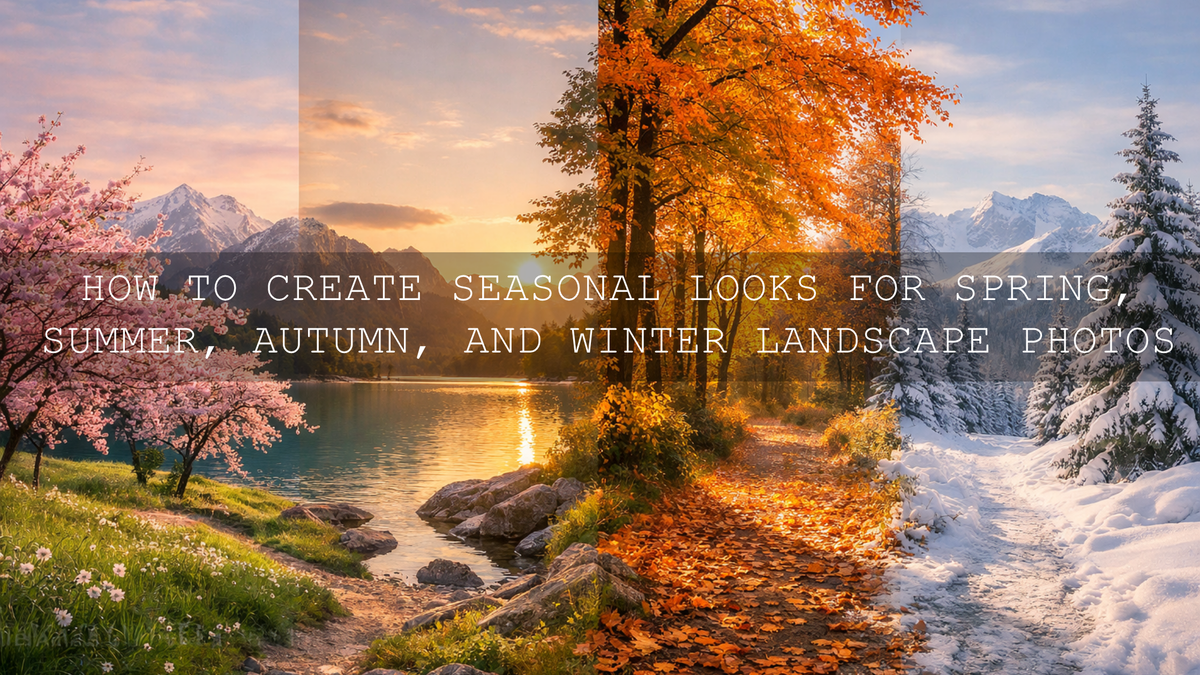
If you often edit broader outdoor scenes too, these related guides can help with similar color challenges: editing sunrise and sunset landscape photos and fixing unnatural green leaves in forest photos.
How to Control Greens Without Losing the Fresh Garden Feel
Garden photography often lives or dies in the green channel. Healthy greens should feel fresh, not fluorescent. A common mistake is increasing vibrance first and trying to fix the result later. A better method is to shape the greens before boosting overall color.
Here is a practical way to do it:
- Reduce green saturation slightly if the leaves feel artificial
- Shift green hue a little only if foliage feels too yellow or too cyan
- Use luminance carefully to separate leaves from darker backgrounds
- Keep yellows under control so sunlight on leaves does not become muddy
I have found that many flower photos improve more from calming the greens than from boosting the petals. Once the background stops shouting, the flowers naturally become the focus.
If your nature work includes wider scenes beyond gardens, the Lightroom Landscape Nature Presets can also be useful for cleaner outdoor color, and the broader AI-Optimized Lightroom Presets collection gives you more starting points for different lighting styles.
If You Also Shoot Garden Video, Use LUTs With the Same Restraint
Many creators now shoot both stills and short-form video in the same location, so keeping the mood consistent across both formats matters. For calm, bright outdoor footage, the Cinematic Morning Garden LUTs are a natural match for this kind of visual style. They are useful when you want morning light, fresh greens, and clean cinematic contrast without making the footage feel overly processed.
For broader outdoor footage, the Cinematic Nature LUTs Pack for Video Editing and Deep Green Nature LUTs for Cinematic Edits can help when your projects move from garden details to wider landscapes, forests, or travel nature scenes.
The same rule applies to video as to stills: apply the LUT, then refine exposure and white balance based on the actual shot. A LUT should create direction and mood, not replace good correction.
Common Mistakes That Ruin Soft Garden Edits
- Too much saturation: this makes petals and leaves compete instead of blend
- Over-sharpening: this removes softness from delicate subjects
- Ignoring white balance: color harmony falls apart when the base color is off
- Heavy contrast: this can make bright petals clip and shadows feel blocked
- Editing everything globally: local masks usually create a cleaner, more premium result
If you struggle with atmosphere in other outdoor scenes, you may also like editing foggy and misty travel scenes and editing mountain and hiking photos for crisp, clean tones, because the same balance of contrast, color restraint, and selective adjustment matters there too.
Related Reading
- How to edit sunrise and sunset landscape photos for richer color and better depth
- How to edit forest photos without unnatural green leaves
- How to edit beach and island photos for teal water and warm sand
- How to edit mountain and hiking photos for crisp, clean tones
Bring the Look Together With a Consistent Editing Style
The most beautiful flower and garden images usually do not look heavily edited. They look thoughtfully finished. That means natural white balance, restrained saturation, controlled greens, soft highlights, and just enough subject emphasis to guide the eye. If you want a clean shortcut into that style, start with the AI-Optimized Morning Garden Bright Cinematic Lightroom Presets, pair them with the Cinematic Morning Garden LUTs for matching video work, and keep exploring the AI-Optimized Lightroom Presets collection and Cinematic LUTs collection. If you need help choosing the right pack for your workflow, you can also reach out through our contact page.
FAQ
What is the best way to make flower photos look soft but still detailed?
Start with white balance and highlight control, then use selective masking for the main flower instead of increasing global clarity or sharpening across the whole frame.
Should I use vibrance or saturation for garden photography?
Vibrance is usually the safer choice because it tends to protect already-strong colors better. Saturation can quickly make petals and greens look artificial if pushed too far.
Are Lightroom presets enough for flower and garden photo editing?
Presets are an excellent starting point, but the best results usually come from applying a preset and then refining exposure, white balance, and color channels for the specific image.
Why do my garden photos look too green after editing?
This usually happens when vibrance or green saturation is pushed too hard. Reducing green saturation slightly and correcting white balance often fixes the problem.
Can I match my flower photos and garden videos with the same style?
Yes. Use a preset for your photos and a LUT with a similar mood for your video footage, then fine-tune both so exposure and white balance still fit each file.
Written by Asanka — creator of AAAPresets (10,000+ customers).


Leave a comment
This site is protected by hCaptcha and the hCaptcha Privacy Policy and Terms of Service apply.