

Editing Grandparent & Multi-Generation Family Portraits: A Practical Guide for Timeless Results
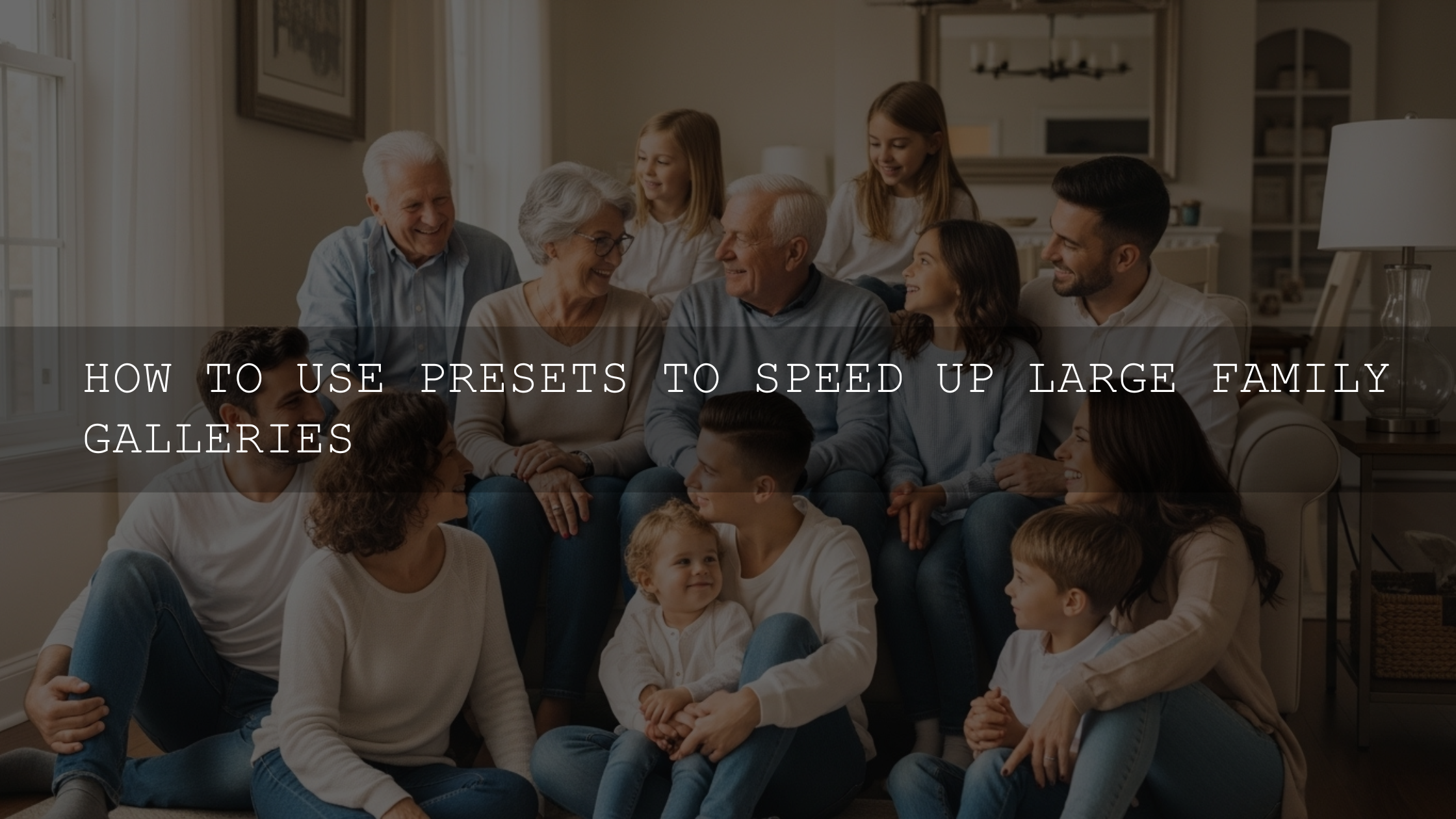
Editing grandparent and multi-generation family portraits is a unique challenge in family photography. These photos often include grandparents, parents, children, and sometimes even great-grandchildren in one frame. The goal isn’t heavy editing or dramatic effects — it’s creating a balanced, natural image that celebrates connection across generations.
If you photograph families regularly, you’ve probably seen the typical challenges: mixed skin tones, uneven lighting across a large group, or small distractions in the background. The good news is that modern tools like Lightroom and Photoshop make it much easier to solve these problems while keeping the image authentic.
If you want a fast starting point when editing large family groups, many photographers begin with professionally designed presets. You can download the 1000+ Master Lightroom Presets Bundle to speed up your workflow, or browse the full Lightroom Presets collection for portrait-focused styles. And if you’re building a complete toolkit, remember you can Buy 3, Get 9 FREE when you add 12 presets to your cart.
Why Multi-Generation Portraits Require a Different Editing Approach
Unlike single-subject portraits, multi-generation portraits contain a wide range of visual elements that must feel cohesive:
- Different skin tones and ages
- Uneven lighting across the group
- Multiple facial expressions to balance
- Background distractions in busy locations
The editing process needs to be subtle and consistent. Over-editing skin, adding excessive contrast, or applying heavy color grading can quickly make the image look artificial.
Adobe’s own documentation on local adjustment tools in Lightroom explains how selective adjustments can correct lighting and skin tones without affecting the entire photo.
Step 1: Start with a Strong Pre-Editing Workflow
1. Carefully Select the Best Frame
When photographing large families, it’s common to capture 10–20 frames of the same pose. Small differences matter:
- Eyes open for everyone
- Natural expressions
- Sharp focus on the grandparents
- No awkward gestures or movement
I usually zoom into the image and check the grandparents’ faces first. If their expressions feel genuine, the photo already has emotional strength.
2. Correct Exposure and White Balance
Before doing anything creative, fix the technical foundation:
- Adjust white balance so skin tones look natural.
- Correct exposure so highlights and shadows retain detail.
- Add slight contrast for depth.
Adobe’s overview of Lightroom photo editing tools explains how exposure and tone controls influence overall image quality.
3. Refine the Composition with Cropping
A slight crop can dramatically improve the final result.
- Center the grandparents when possible
- Avoid cutting hands or heads
- Use the rule of thirds to guide attention
Even a small shift in framing can make the family appear more connected and balanced.
Step 2: Balance Skin Tones Across Generations
One of the biggest challenges in multi-generation family editing is maintaining natural skin tones for everyone in the frame.
Use Subtle Color Adjustments
Instead of increasing global saturation, adjust individual color channels:
- Reduce red saturation slightly if faces appear too warm
- Adjust orange luminance to brighten skin
- Lower magenta tones for more neutral complexions
The goal is harmony, not uniformity. Every person’s skin tone should look natural and realistic.
Use Local Masks for Precision
Lightroom’s subject and face masking tools allow targeted corrections:
- Brighten a darker face slightly
- Reduce shine on skin
- Softly lift shadows under eyes
I tested this workflow during a sunset family shoot where the grandparents were sitting in deeper shade. A gentle face mask with +0.3 exposure instantly balanced them with the rest of the group.
Step 3: Fix Uneven Lighting in Large Groups
Lighting is rarely perfect across a large group, especially outdoors.
Use Gradient and Radial Masks
- Radial mask to brighten grandparents
- Linear gradient to reduce bright sky
- Shadow lift on darker areas of the group
This technique naturally guides the viewer’s eye toward the emotional center of the photo.
If you’re editing wedding or large family sessions regularly, the workflow described in this wedding photo editing guide also applies well to multi-generation portraits.
Step 4: Remove Distractions Without Over-Editing
Small distractions can pull attention away from the family.
Use Healing and Clone Tools
- Remove stray hairs
- Erase background clutter
- Fix temporary skin blemishes
Photoshop’s official guide to healing brush retouching explains how to remove distractions while preserving natural textures.
Simplify Busy Backgrounds
If the location is visually chaotic:
- Lower clarity slightly in the background
- Reduce saturation of distracting colors
- Add subtle blur if necessary
This helps keep attention where it belongs — on the family.
Presets vs Manual Editing for Family Portraits
Presets
- Fast and consistent results
- Great for batch editing large sessions
- Easy to maintain a signature style
Manual Editing
- More control over each image
- Better for difficult lighting situations
- Allows detailed skin corrections
The most efficient workflow combines both: start with a preset, then refine with manual adjustments.
Many photographers start with portrait presets like the ones in the Portrait Photography Lightroom Presets, then apply local masks for final polishing.
Step 5: Add Warmth and Emotion with Color Grading
Color grading is where your artistic vision comes into play.
Warm Family Album Look
- Slightly warm white balance
- Soft highlights
- Muted greens and blues
This style works beautifully for outdoor family sessions.
Timeless Neutral Style
- Balanced whites
- Subtle contrast
- Minimal saturation
This approach keeps the image timeless for albums and wall prints.
If you want inspiration for different editing styles, see this guide to editing family photos in natural light.
Step 6: Sharpen the Details That Matter
The final stage is detail enhancement.
Focus on Eyes
Eyes are the emotional center of portraits. Apply selective sharpening only here.
Add Texture Carefully
- Increase texture slightly for clothing
- Maintain soft skin
- Avoid global sharpening
I once tested this technique on a large three-generation portrait shot in soft window light. By sharpening only the eyes and lowering clarity slightly on skin, the image felt both sharp and natural.
If you edit family photography often, exploring the full Lightroom Presets collection can help maintain a consistent look across sessions.
Editing multi-generation family portraits isn’t just technical work. It’s about preserving stories — the connection between grandparents and grandchildren, the laughter of siblings, and the quiet moments families treasure.
If you want to speed up your editing workflow and maintain consistent color across family sessions, you can download the 1000+ Master Lightroom Presets Bundle or browse the full Lightroom Presets library. These tools help photographers achieve professional results while keeping the editing process efficient.
Frequently Asked Questions
What is the best editing style for multi-generation family portraits?
A natural editing style with balanced skin tones and soft contrast works best. The goal is timeless images rather than trendy effects.
Should I retouch wrinkles in grandparent portraits?
Light retouching is fine, but avoid removing natural texture completely. Wrinkles are part of the character and story of the portrait.
How do you fix uneven lighting in large family groups?
Use local masks or radial filters to brighten darker faces and reduce overly bright areas. This helps balance the group without affecting the entire image.
Are Lightroom presets good for family portraits?
Yes. Presets can provide a consistent starting point for color and contrast, especially when editing large family sessions with many images.
What is the most important detail to sharpen in portraits?
The eyes should always receive the most sharpening because they naturally draw the viewer’s attention.
Written by Asanka — creator of AAAPresets (10,000+ customers).

Leave a comment
This site is protected by hCaptcha and the hCaptcha Privacy Policy and Terms of Service apply.