

How to Use HSL After Applying Lightroom Presets
Learning how to use HSL after applying Lightroom presets is one of the easiest ways to make your edits look more polished, natural, and professional. A preset can create the mood quickly, but the HSL panel, also called the Color Mixer in Lightroom, helps you fine-tune skin tones, skies, greens, oranges, blues, and other important colors so the final photo feels custom, not over-edited.
Here’s why this matters. Every photo starts differently. A wedding portrait shot in warm indoor light, a travel street photo captured at sunset, a drone image with blue haze, and a forest portrait under green shade will not react to the same preset in the same way. The preset gives you the style. HSL gives you the control.
If you want a strong editing starting point, explore the 1000+ Master Lightroom Presets Bundle and browse more creative styles from the Lightroom Presets for Mobile and Desktop collection. Try these presets today — Buy 3, Get 9 FREE — then use the HSL workflow below to make each edit cleaner, more balanced, and more personal.
What Is the HSL Panel in Lightroom?
The HSL panel stands for Hue, Saturation, and Luminance. In Lightroom Classic, Adobe now presents these controls through the Mixer and Point Color tools, which allow you to fine-tune individual color ranges instead of changing the entire photo at once. You can learn more from Adobe’s Color Mixer tool guide for Lightroom Classic.
In simple words, HSL lets you adjust specific colors such as red, orange, yellow, green, aqua, blue, purple, and magenta. That means you can make a sky deeper without making the whole image darker. You can reduce orange skin tones without destroying the warm background. You can soften harsh greens without losing the cinematic look of your preset.
- Hue changes the color direction. For example, yellow-green leaves can be shifted toward deeper green.
- Saturation controls color intensity. A color can become stronger, softer, muted, or almost colorless.
- Luminance controls brightness. A blue sky can become brighter and airy, or darker and more dramatic.
I often treat HSL as the “finishing layer” after applying a preset. When I tested portrait presets on warm outdoor images, the preset created a beautiful cinematic base, but small Orange and Red HSL adjustments made the skin look more natural and less oversaturated.
Why Presets Need HSL Adjustments
Lightroom presets are powerful because they save time and help you keep a consistent editing style. But a preset is not a magic final edit for every image. It applies a saved group of settings to your photo, and your photo’s original exposure, white balance, camera profile, lighting, and colors decide how that preset will look.
For example, a warm cinematic preset might look perfect on a golden-hour portrait but too orange on an indoor wedding photo. A moody green preset might look premium on a forest scene but too heavy on a travel street image with lots of plants. A blue-toned preset might make ocean photos look clean but make shadows too cold in portraits.
That is why HSL matters after applying a preset. It helps you keep the preset’s style while correcting the colors that went too far.
For a deeper troubleshooting workflow, read why Lightroom presets look different on every photo and how to fix it. It explains why the same preset can change based on the image’s starting point.
Presets vs Manual Editing: Which Is Better?
The best answer is not presets or manual editing. The best workflow is presets plus smart manual adjustment.
- Presets are best for speed, consistency, style, and building a repeatable look across many photos.
- Manual editing is best for precision, problem-solving, skin correction, exposure repair, and final polish.
- HSL after presets gives you both: fast style first, then controlled color refinement.
Think of a preset like choosing a strong creative direction. It decides the mood: cinematic, bright, warm, moody, vintage, clean, or editorial. HSL is where you make the photo fit the real scene. You are not fighting the preset. You are customizing it.
If your preset feels too strong, this guide on how to tame overly powerful Lightroom presets for subtle edits is a helpful next read.
Step-by-Step HSL Workflow After Applying a Preset
1. Apply the Preset First
Start by applying your chosen preset. Do not touch HSL immediately. First, look at the full image and ask: does the overall mood work? Is the exposure close? Does the preset match the story of the photo?
If the answer is yes, continue. If the photo is too bright, too dark, too warm, or too cold, fix those global settings first. HSL should polish color, not rescue a badly exposed image.
2. Correct Exposure and White Balance Before HSL
Before touching Hue, Saturation, or Luminance, adjust Exposure, Highlights, Shadows, Temperature, and Tint. This matters because HSL behaves differently when the image is too warm, too cool, too dark, or too bright.
For example, if a portrait looks too orange, the problem may not be the Orange Saturation slider. It might be the Temperature slider being too warm. Fixing white balance first often makes HSL work cleaner.
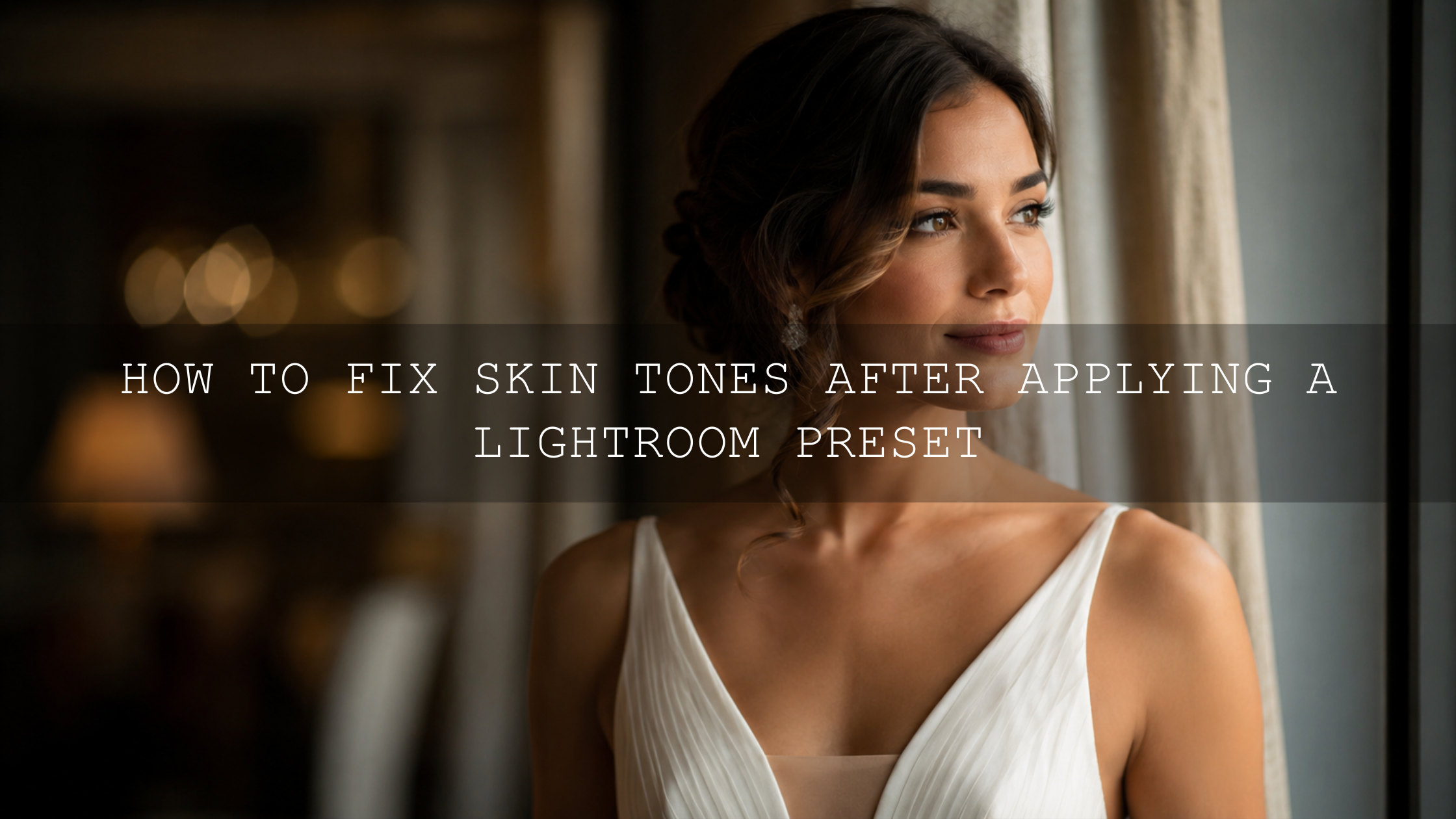
3. Start With Orange and Red for Skin Tones
In most portraits, wedding images, lifestyle photos, and travel portraits, skin tones live mainly in the Orange range, with some Red and Yellow influence. After applying a preset, check the face, neck, hands, and arms before adjusting the background.
- If skin looks too orange, reduce Orange Saturation slightly.
- If skin looks too red, reduce Red Saturation or shift Red Hue carefully.
- If skin looks muddy, lift Orange Luminance a little.
- If skin looks too pale, avoid adding too much saturation. Try a small warmth correction first.
Small moves are better than big changes. Start with 2 to 8 points, then compare before and after. If only the face needs correction, use masking instead of changing the entire image. Adobe’s guide to Lightroom masking for local adjustments explains how subject, sky, background, and people masks can help you edit selected areas more precisely.
For portrait-heavy work, the AI-Optimized Skin Tone Safe Pro Portrait Lightroom Presets are a strong starting point because they are designed for natural skin, clean warmth, and flexible fine-tuning.
4. Control Greens for Natural Outdoor Photos
Green is one of the easiest colors to over-edit. A preset can make trees, grass, and plants look too neon, too yellow, too dark, or too artificial. This is especially common in travel, landscape, wedding, and outdoor portrait edits.
Try this simple green correction:
- Move Green Hue slightly toward a deeper, cooler green if foliage looks too yellow.
- Reduce Green Saturation if the background is distracting.
- Lower Green Luminance slightly for a richer cinematic mood.
- Raise Green Luminance slightly if the photo feels too heavy or muddy.
For natural outdoor edits, do not remove all green life from the image. The goal is controlled color, not lifeless color.
5. Adjust Blue and Aqua for Skies, Water, and Shadows
Blue and Aqua sliders are useful for skies, oceans, pools, glass reflections, denim, and cool shadows. After applying a cinematic preset, blues can sometimes become too cyan, too purple, or too dark.
- Move Blue Hue toward aqua for a tropical, bright travel look.
- Move Blue Hue toward deeper blue for a dramatic cinematic sky.
- Reduce Blue Saturation if the sky looks fake or too digital.
- Lower Blue Luminance for a richer sky, but avoid making it look unnatural.
If your photo has a person wearing blue clothing, be careful. Blue HSL changes will affect the sky and the clothes together. In that case, use a mask or make smaller global changes.
6. Use Yellow for Warmth, Sunlight, and Autumn Tones
Yellow controls many warm areas in a photo: sunlight, dry grass, sand, warm walls, golden leaves, and sometimes parts of skin. After applying a warm preset, Yellow can become too strong and make the image feel heavy.
To fix this, reduce Yellow Saturation slightly and move Yellow Hue toward orange for a warmer autumn look, or toward green for a more natural outdoor look. For fall photos, small Yellow and Orange HSL moves can create a richer cinematic season feel without overcooking the image.
Real Editing Examples: How HSL Saves a Preset
Example 1: Wedding Portrait With Orange Skin
A warm wedding preset can make the dress, background lights, and overall mood look beautiful, but it may push the skin too orange. In this case, first reduce Temperature slightly. Then lower Orange Saturation a little and lift Orange Luminance to keep the skin bright and clean.
If the background warmth is perfect but the face is too warm, create a People or Subject mask and correct only the skin. This keeps the romantic wedding mood while making the portrait look professional.
Example 2: Travel Street Photo With Harsh Greens
In street photography, signs, plants, walls, vehicles, and clothing can all compete for attention. After applying a cinematic travel preset, greens may look too loud. Reduce Green Saturation, shift Green Hue slightly cooler, and lower Green Luminance if you want a moodier city look.
If you work across different cameras, read how to make one Lightroom preset work across different camera brands. Camera sensors can render color differently, and HSL is one of the best tools for balancing those differences.
Example 3: Blue Sky That Looks Too Fake
A sky can quickly become too saturated after applying a dramatic preset. Instead of lowering overall saturation, go to Blue and Aqua. Reduce Blue Saturation, adjust Blue Hue gently, and increase or decrease Blue Luminance depending on whether you want an airy or dramatic look.
For color inspiration and harmony ideas, you can also explore Adobe Color’s color wheel and harmony rules. It is useful when you want to understand why certain blues, oranges, greens, and yellows feel balanced together.
Pro Tips for Better HSL Color Correction
- Use small slider moves. HSL can become unnatural quickly. Small adjustments usually look more professional.
- Fix white balance first. Temperature and Tint problems can make HSL corrections harder than they need to be.
- Watch skin before background. A beautiful background is not worth unnatural skin tones.
- Use masks when global HSL affects the wrong area. If the sky and clothes share similar blues, mask the sky instead of changing all blues.
- Compare before and after often. Your eyes adjust quickly, so toggle your edit to check if the photo still feels natural.
For soft portrait and beauty edits, the AI-Optimized Soft Cinematic Contrast Beauty Lightroom Presets are useful when you want a polished look with smooth highlights and clean skin tone control.
Common HSL Mistakes to Avoid
The biggest mistake is using HSL too aggressively. If Greens are distracting, you do not need to remove all green color. If skin is too warm, you do not need to drag Orange Saturation far down. Over-adjusted HSL can make a photo look flat, gray, or fake.
Another common mistake is adjusting HSL before correcting exposure. A dark photo can make colors look muddy, while an overexposed photo can make colors look weak. Fix the foundation first, then refine the color.
Also remember that HSL affects every matching color in the image. If you reduce Orange Saturation, it may affect skin, sunset light, wood, clothing, and warm walls. If you darken Blue, it may affect skies, water, shadows, and clothing. When global adjustment creates a new problem, use masking.
Related Reading
- Master Lightroom presets for every skin tone
- Why Lightroom presets look different on every photo
- How to make strong presets look more subtle
- How to make presets work across different camera brands
Best Lightroom Preset Workflow With HSL
Here is a simple workflow you can use on almost any photo:
- Apply your preset.
- Adjust Exposure, Contrast, Highlights, Shadows, Whites, and Blacks.
- Fix White Balance with Temperature and Tint.
- Check skin tones and adjust Orange, Red, and Yellow carefully.
- Correct greens, blues, and aquas based on the scene.
- Use masking for local changes when global HSL affects too much.
- Compare before and after, then make the final export-ready polish.
This workflow keeps editing fast while still giving you control. It is especially useful for photographers editing wedding galleries, portrait sessions, travel sets, Instagram content, product photos, and lifestyle campaigns where consistency matters.
To build a faster, cleaner editing system, start with the 1000+ Master Lightroom Presets Bundle, refine each photo using HSL, and browse more styles in the Lightroom Mobile Presets collection. Buy 3, Get 9 FREE and create a workflow that gives you speed, consistency, and professional color control.
FAQ
Should I adjust HSL before or after applying a Lightroom preset?
Adjust HSL after applying the preset. First apply the look, then correct exposure and white balance, and finally use HSL to refine specific colors like skin tones, greens, skies, and warm highlights.
Which HSL color is most important for skin tones?
Orange is usually the most important HSL color for skin tones, with Red and Yellow also playing a role. Use small adjustments because heavy changes can make skin look unnatural.
Why do my greens look too bright after applying a preset?
Greens can become too bright because presets often adjust saturation, hue, tone curve, calibration, and contrast. Reduce Green Saturation, adjust Green Hue, or lower Green Luminance slightly for a more natural outdoor look.
Can HSL fix every preset problem?
No. HSL is excellent for color refinement, but exposure, white balance, masking, tone curve, and camera profile settings may also need adjustment. Use HSL as part of a complete editing workflow.
Is HSL useful for Lightroom Mobile?
Yes. Lightroom Mobile includes Color Mixer controls for Hue, Saturation, and Luminance, so you can fine-tune preset colors on mobile as well as desktop.
Written by Asanka — creator of AAAPresets (10,000+ customers).

Leave a comment
This site is protected by hCaptcha and the hCaptcha Privacy Policy and Terms of Service apply.