
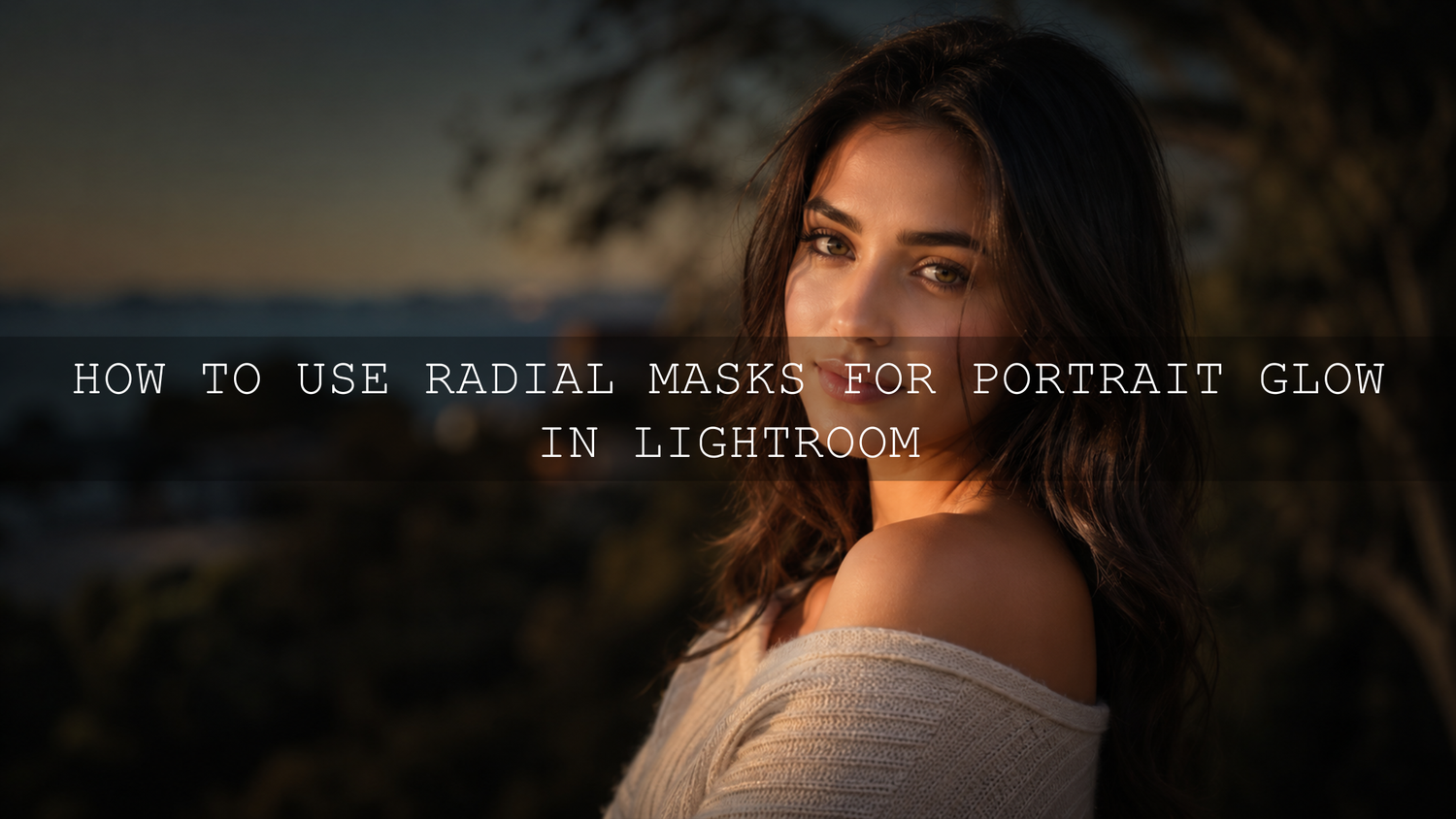
How to Use Radial Masks for Portrait Glow in Lightroom
Radial masks for portrait glow are one of the easiest ways to make portraits feel soft, polished, and professional without making the edit look fake. In Lightroom, a radial mask lets you brighten, warm, soften, or shape a specific area of the photo with a smooth circular or oval fade. That makes it perfect for creating gentle face light, glowing skin, brighter eyes, soft vignettes, and cinematic portrait depth.
Here’s why this matters: a good portrait is not only about sharpness or color. It is about where the viewer looks first. When you use a radial gradient carefully, you can guide attention toward the eyes, face, expression, and emotion while keeping the rest of the image balanced. Adobe’s own Lightroom radial gradient masking guide explains that the effect fades gradually from the center toward the edges, which is exactly why it works so naturally for portrait lighting.
For a faster starting point, apply a clean preset first, then refine the face, eyes, and background with radial masks. You can start with the 1000+ Master Lightroom Presets Bundle and browse the Lightroom Presets for Lightroom Mobile & Desktop collection. Try these presets today — Buy 3, Get 9 FREE.
What Is a Radial Mask in Lightroom?
A radial mask is a local editing mask shaped like a circle or ellipse. Instead of changing the whole image, it lets you adjust only one area with a soft transition. In portrait editing, that usually means adding light to the face, brightening the eyes, warming skin tones, or darkening the outer edges to create more focus.
Think of it like placing a soft spotlight over your subject. The center receives the strongest adjustment, and the effect gently fades outward. This is why radial masks are useful for natural portrait glow. They do not create a harsh cutout or obvious filter line when used correctly.
In Lightroom Classic, Adobe describes the Radial Gradient tool as a way to make local adjustments inside or outside an oval shape, with feathering controlling how soft the adjustment appears. You can learn more from Adobe’s Lightroom Classic masking guide.
Why Radial Masks Work So Well for Portrait Glow
Portraits usually need selective editing. If you increase exposure, warmth, highlights, or clarity across the entire photo, the background may become too bright, the skin may look flat, and the image can lose depth. Radial masks solve this by letting you control glow exactly where it is needed.
- They guide attention: A soft mask over the face naturally pulls the viewer toward the expression.
- They create depth: A brighter face with a slightly darker background helps the subject stand out.
- They protect the background: You can improve skin and eyes without over-editing clothing, trees, walls, or lights behind the subject.
- They feel natural: A high-feather radial mask mimics the way real light fades across a scene.
- They are adjustable: You can lower the strength, move the mask, invert it, or combine it with other masks anytime.
I tested this approach on outdoor portrait edits where the subject’s face looked slightly dull after applying a preset. A small radial mask over the face with a gentle exposure lift and warmer temperature made the portrait feel alive without changing the whole color style.
Presets vs Manual Editing: Which Is Better for Portrait Glow?
Presets and manual editing work best together. A preset gives your photo a strong starting look, while radial masks help you customize the important details. For example, a preset may create a cinematic tone, warm highlights, soft contrast, or moody color palette. But every portrait has different lighting, skin tone, background brightness, and face direction. That is where manual radial masking becomes important.
- Use presets for speed: Apply the main color grade, contrast, tone curve, and overall style quickly.
- Use radial masks for precision: Adjust the face, eyes, hair light, background, and vignette separately.
- Use both for consistency: This is especially helpful when editing wedding galleries, client portraits, fashion shoots, or Instagram content.
For warm, glowing portraits, the AI-Optimized Luxury Golden Tones Lightroom Presets are a strong match because the golden style pairs well with face-light radial masks. For deeper cinematic portraits, you can also explore Moody Brown Lightroom Presets and refine the subject with a subtle radial glow.
Step-by-Step: How to Add Portrait Glow with a Radial Mask
Step 1: Apply Your Base Edit First
Start with your normal global edit. Correct exposure, white balance, contrast, highlights, shadows, and color before adding detailed masks. If you use presets, apply the preset first and then adjust the basic sliders. This gives you a clean foundation before you start shaping light.
Pro tip: Do not make the image too bright at the global stage. Leave room for the radial mask to add controlled brightness to the face.
Step 2: Open the Masking Panel
In Lightroom, open the Masking panel and choose Radial Gradient. Draw an oval over the subject’s face or upper body. For most portraits, place the center around the eyes, nose bridge, or the brightest natural light area on the face.
Adobe’s Lightroom mobile masking guide also notes that radial gradients are useful for vignettes, spotlights, and drawing attention to a central subject, making the same concept useful on mobile edits.
Step 3: Resize and Feather the Mask
This is the most important part. A portrait glow should not look like a visible oval on the face. Increase the feather so the adjustment fades smoothly. For most portraits, a high feather value works better than a hard edge.
- Use a small oval for eyes or lips.
- Use a medium oval for the face.
- Use a larger oval for upper-body glow or window-light style portraits.
- Keep the feather soft enough that the viewer cannot see where the mask starts or ends.
Pro tip: Toggle the mask overlay on and off. If you can clearly see an obvious border after the edit, the mask is too strong or not feathered enough.
Step 4: Add Gentle Exposure and Warmth
Now add the glow. Start small. A beautiful portrait glow usually comes from subtle changes, not extreme settings.
- Exposure: Increase slightly to brighten the face.
- Highlights: Lift carefully to create a soft skin sheen.
- Shadows: Raise a little if the face is too dark.
- Temperature: Add slight warmth for golden-hour feeling.
- Clarity: Reduce slightly for softness, or increase very slightly only around the eyes.
- Texture: Keep skin natural; avoid heavy smoothing.
Here’s a simple starting point: Exposure +0.20, Highlights +5 to +10, Shadows +5, Temperature +2 to +5, Clarity -3. Adjust based on the photo. These are not fixed numbers, but they help you begin with a natural look.
Step 5: Add a Separate Eye Mask
For stronger portraits, create a second small radial mask over each eye or across both eyes. Increase exposure very slightly and add a small amount of clarity or sharpness. This helps the eyes catch attention without making the whole face look over-edited.
Pro tip: Keep eye edits believable. If the eyes look brighter than the actual light source in the scene, reduce the mask strength.
Step 6: Use an Inverted Radial Mask for Background Focus
An inverted radial mask affects the outside of the oval instead of the inside. This is perfect for creating a soft vignette around the subject. Place a large radial mask around the face or body, invert it, then slightly lower exposure or highlights around the edges.
This technique works especially well for outdoor portraits, wedding portraits, fashion photos, and moody lifestyle images. It keeps the subject bright while gently pushing the background back.
Best Radial Mask Settings for Natural Portrait Glow
There is no single perfect setting because every photo is different. A bright beach portrait, indoor window-light portrait, and dark cinematic portrait all need different adjustments. Still, these general ranges work well as a safe starting point.
- Face glow: Exposure +0.10 to +0.35, Shadows +5 to +20, Temperature +2 to +8
- Eye detail: Exposure +0.05 to +0.15, Clarity +3 to +8, Sharpness +5 to +15
- Soft skin glow: Clarity -3 to -8, Texture -2 to -6, Highlights +3 to +10
- Background vignette: Exposure -0.10 to -0.40, Highlights -5 to -20
- Golden hour effect: Temperature +5 to +15, Tint +1 to +4, Exposure +0.10 to +0.25
When I edit portrait photos for a warm cinematic look, I usually prefer two or three light masks instead of one strong mask. One broad face glow, one small eye detail mask, and one inverted background mask often look more professional than a single heavy adjustment.
Common Mistakes When Using Radial Masks for Portraits
Making the Glow Too Bright
The most common mistake is increasing exposure too much. A portrait glow should feel like beautiful light, not a white spotlight. If the skin loses detail, lower exposure and highlights.
Using Low Feather
A hard mask edge makes the edit look artificial. Always use enough feather so the transition feels smooth. Soft edges are the secret to realistic glow.
Ignoring the Direction of Light
If the real light comes from the left side, do not create a strong glow from the opposite side unless you are intentionally building a creative effect. Good radial mask editing respects the original light direction.
Over-Smoothing Skin
Reducing texture and clarity can help create softness, but too much makes skin look plastic. Keep natural skin texture visible, especially in professional portraits.
Editing Every Portrait the Same Way
A preset can give consistency, but the radial mask should be customized for each image. Move the mask based on the face angle, pose, background, and light source.
Advanced Radial Mask Techniques for 2026 Portrait Editing
Modern Lightroom masking gives photographers more control than ever. You can combine radial masks with Select Subject, Select Background, Brush, Linear Gradient, and color-based adjustments. This helps you create a cleaner, more professional edit without leaving Lightroom.
- Face glow plus subject mask: Use Select Subject first, then add a radial mask only where you want the glow.
- Warm face, cool background: Add warmth to the face with one radial mask, then cool the background slightly with an inverted mask.
- Hair light effect: Place a narrow radial mask near the edge of the hair and increase highlights slightly.
- Soft cinematic vignette: Use a large inverted radial mask and lower exposure around the edges.
- Golden window-light look: Create a wide oval from one side of the frame, warm it slightly, and brighten the subject’s face.
For portraits with deeper skin tones, avoid lifting exposure too aggressively. Instead, protect contrast, use controlled warmth, and brighten only the important facial planes. The AI-Optimized Dark Skin Cinematic Lightroom Presets can be a useful base style, then radial masks can refine the glow while keeping the skin tone rich and natural.
When Should You Use Radial Masks?
Use radial masks whenever the subject needs more focus, more softness, or more controlled light. They are especially useful for:
- wedding portraits with soft romantic light
- outdoor portraits taken in shade
- fashion portraits with dramatic backgrounds
- lifestyle portraits for Instagram and websites
- family portraits where faces need gentle brightening
- moody portraits where the background should stay dark
You can also browse the Lightroom Presets for Moody Photography collection if your goal is a darker cinematic base before adding controlled face glow with radial masks.
Related Reading
- How to Use Lightroom Presets
- Lightroom Masking for Beginners
- Portrait Editing in Lightroom
- How to Edit Skies Separately After Applying Presets
- Linear Gradient Lightroom Editing
Final Portrait Glow Workflow
- Apply your base preset or global edit.
- Fix overall exposure, white balance, and contrast.
- Add a soft radial mask over the face.
- Increase exposure and warmth gently.
- Add a small eye mask for extra attention.
- Use an inverted radial mask to darken distracting edges.
- Check the before and after view to make sure the glow still looks natural.
The goal is not to make the edit obvious. The goal is to make the portrait feel better. If someone looks at the image and says, “The light looks beautiful,” instead of “I can see the mask,” you did it correctly.
To speed up your workflow, use a strong preset as your foundation and finish the portrait with custom radial masks. Start with the 1000+ Master Lightroom Presets Bundle, try warm portrait looks like Luxury Golden Tones Lightroom Presets, or browse the full Lightroom Mobile and Desktop presets collection. Add your favorite styles to cart and enjoy Buy 3, Get 9 FREE.
FAQ
What is the best use of radial masks for portrait glow?
The best use is to add soft, controlled light to the face, eyes, or upper body without brightening the entire photo. A high-feather radial mask usually gives the most natural result.
Should I use a preset before or after radial masking?
Use the preset first, then apply radial masks. The preset creates the main style, while the radial masks help customize light, focus, and detail for each portrait.
How do I avoid a fake glow effect?
Keep the adjustment subtle, use a soft feather, respect the original light direction, and avoid pushing exposure or highlights too far. Natural glow should look like light, not an overlay.
Can I use radial masks in Lightroom Mobile?
Yes. Lightroom Mobile includes masking tools, including radial gradient options on supported versions, so you can create face glow, vignettes, and spotlight effects directly on mobile.
Are radial masks good for wedding portraits?
Yes. Radial masks are excellent for wedding portraits because they can brighten faces, soften harsh shadows, add romantic warmth, and guide attention to the couple without changing the full image.
Written by Asanka — creator of AAAPresets (10,000+ customers).

Leave a comment
This site is protected by hCaptcha and the hCaptcha Privacy Policy and Terms of Service apply.