
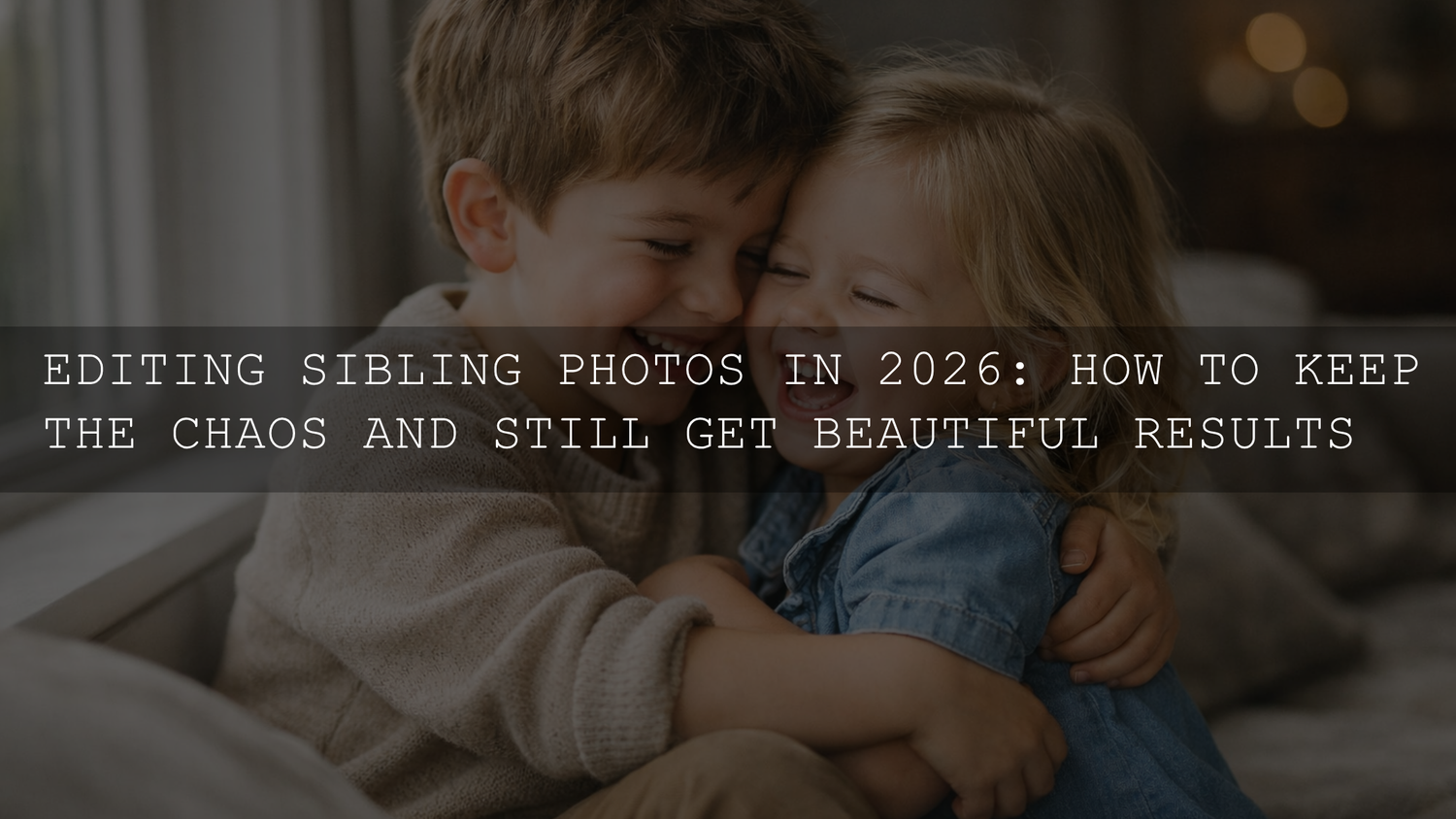
Editing Sibling Photos in 2026: How to Keep the Chaos and Still Get Beautiful Results
Editing sibling photos is rarely about fixing a perfectly posed frame. Most of the time, it is about shaping real energy into something polished without losing the laughter, movement, and connection that made the moment worth capturing in the first place. If you are working through family photo editing in Lightroom and trying to keep natural skin tones, balanced light, and a consistent look across a busy set of images, the right workflow matters just as much as the right preset.
I have tested this kind of workflow on fast-moving family sessions where one child is running toward the lens, another is half in shade, and the “best” image is not the most perfect one - it is the one that feels alive. That is why I usually start with a clean base edit, then use presets as a foundation instead of a shortcut that replaces judgment.
If you want a faster starting point for sibling sessions, baby portraits, and soft family edits, try the 150+ First Years Baby & Newborn Lightroom Presets and browse the full Lightroom Presets for Lightroom Mobile & Desktop collection. It is an easy way to build a consistent workflow across indoor, window-light, and outdoor family photos, and you can use the offer Buy 3, Get 9 FREE while building a full editing toolkit.
Why Editing Sibling Photos Feels Harder Than Other Portraits
Sibling portraits are full of small problems that stack up quickly. One child turns toward the light while the other looks down. One face is warmer, the other cooler. A bright shirt pulls attention away from expressions. Background clutter starts competing with the relationship in the frame.
Here is why this matters: sibling images are emotional before they are technical. If the edit becomes too heavy, too orange, too contrasty, or too smooth, the image stops feeling honest. The goal is not to make children look overly polished. The goal is to make the moment read clearly.
- Movement creates uneven exposure: fast shifts in body position can change how light hits each face.
- Mixed light is common: window light, lamps, cloudy daylight, and indoor color casts can all show up in one frame.
- Skin tones need individual attention: especially when one child is closer to the light source.
- Busy backgrounds add visual noise: toys, furniture, blankets, and bright clothing can overwhelm the connection.
- Large galleries need consistency: a single strong edit is not enough if the full set feels disconnected.
If your biggest struggle is indoor color, this guide on fixing presets for indoor lighting is a strong companion read, especially for home sessions and newborn sibling photos.
A Simple Lightroom Workflow for Editing Sibling Photos
The easiest way to handle sibling photo editing is to work in a repeatable order. That keeps you from over-editing and helps you move through a gallery faster.
1. Pick the keeper frame for emotion first
Before touching sliders, choose your strongest image based on expression and connection. Do not start by chasing technical perfection. A slightly imperfect frame with real emotion usually beats a cleaner image with no spark.
When I edit sibling sessions, I often flag a frame where the composition is not “perfect” but the body language is. Then I build the look around that image and sync the core settings across similar photos.
2. Correct white balance before applying style
White balance is one of the biggest reasons sibling photos fail in editing. Warm light can become orange. Cool indoor shadows can turn skin gray or blue. Adobe’s Camera Raw guide to white balance and tonal adjustments is useful if you want a deeper explanation of how temperature and tint affect neutral tones.
Start by asking:
- Do skin tones look believable?
- Do whites look clean without turning blue?
- Does the image feel like the light you remember?
Get this close before you apply a creative look. Presets perform better when the base color is already under control.
3. Apply a preset as a starting point, not the finish line
This is where editing gets faster. A well-built preset can give you a consistent tonal direction right away. For soft, clean family edits, the Lightroom Presets for Newborn Photography work well when you want gentle contrast, controlled highlights, and natural-looking skin. For a larger toolkit with more variety, the 1000+ Master Lightroom Presets Bundle is useful when you are editing across different locations and lighting conditions.
The key is to look at what the preset improved and what still needs adjustment. Usually, that means refining exposure, highlights, shadows, and color intensity after the preset is applied.
4. Balance light across faces
Sibling images often fall apart because the viewer sees one bright face and one dark face. That imbalance feels distracting even when people cannot explain why. Use selective adjustments to gently even things out.
Adobe’s guide to masking in Lightroom is especially helpful here. Face, subject, and brush masks can help you lift one child slightly, soften a hotspot, or calm a bright shirt without changing the whole image.
- Lower highlights on the brightest face.
- Open shadows on the darker face just enough.
- Reduce saturation in distracting clothing colors.
- Use local exposure adjustments instead of global fixes when only one area needs help.
5. Clean the frame without killing the story
Now refine the image. Straighten if needed. Crop tighter if the background is too loud. Remove distractions only if they pull attention away from the relationship.
Here is my rule: if a detail adds context, keep it. If it competes with the siblings, remove it or crop it out.
This is also the stage where you decide whether the image should feel airy, neutral, cozy, or gently cinematic. If you want a stronger sense of style across full sessions, this article on creating a consistent family photography style can help you build a more repeatable look.
6. Sync, then review image by image
Once one image is working, sync your main adjustments to similar frames. That is where presets save the most time. Then go back through and correct the problem images individually.
This approach is much faster than editing every frame from scratch, especially when the gallery includes both cuddly quiet frames and high-energy play shots. If you want to speed up mobile editing too, the article on AI-optimized presets in Lightroom Mobile is worth reviewing.
Presets vs Manual Editing for Sibling Photos
Presets vs manual editing is the wrong fight. For sibling photography, the best answer is usually both.
- Use presets when: you need speed, consistency, and a strong starting point across an entire session.
- Use manual adjustments when: lighting is uneven, skin tones drift, or one part of the frame needs individual attention.
A preset helps set the tone. Manual editing helps protect the people in the photo.
That is why I do not recommend one-click editing as the entire solution for sibling sessions. A preset can get you 70 to 80 percent of the way there. The last part comes from reading the faces, the light, and the story of the frame.
The best sibling edits do not erase the chaos. They organize it.
How to Keep Natural Skin Tones in Sibling and Family Photos
Natural skin tones are usually the difference between a photo that feels timeless and one that feels over-processed. This matters even more in sibling images because your eye compares faces instantly.
Here are the simplest ways to protect skin:
- Fix white balance first. Most skin problems start there.
- Do not over-warm highlights. Warm does not mean orange.
- Be careful with contrast. Too much can make skin look harsh and shadows look dirty.
- Reduce global saturation before targeting problem colors. Reds and oranges can overpower faces quickly.
- Use masks for separate faces. One child may need a slightly different exposure or warmth level than another.
If you like a soft, clean finish for younger children, the First Years Baby & Newborn Lightroom Presets are useful because they give you an easy base for calm tones without pushing the edit too far.
What to Do With Indoor Window-Light Sibling Photos
Indoor window-light sibling sessions can be beautiful, but they are also tricky. One side of the frame may feel soft and bright while the rest turns muddy. Add warm indoor lamps, and the color gets even harder to control.
My first-hand fix for this is simple: neutralize the image first, then add mood. On indoor sibling shoots, I usually lower highlights, lift shadows gently, correct tint, and only then apply a soft preset. That keeps skin believable while preserving the cozy feeling.
If that sounds familiar, read this mixed indoor and window-light preset guide. It pairs well with Adobe’s masking tools because selective corrections are often what save these images.
Color, Mood, and the Story of the Frame
Sibling photos usually work best when the edit supports emotion instead of showing off technique. A warm color palette can feel nostalgic. A softer contrast curve can make the frame feel calmer. Slightly muted background colors can help faces carry the image.
If you want to build color intentionally, Adobe’s Adobe Color harmony tools are helpful for understanding how warm neutrals, soft greens, dusty blues, and muted earth tones work together. You do not need a dramatic grade for sibling photography. Usually, subtle harmony wins.
For browseable portrait-focused options beyond the products above, the Portrait Photography Lightroom Presets collection is useful when you want something more people-centered and less effect-driven.
Practical Pro Tips for Faster, Better Sibling Photo Editing
- Edit for the set, not just the hero image. One beautiful frame is nice. A consistent gallery is better.
- Do not over-correct motion. A little blur can support energy if the faces still read clearly.
- Crop tighter than you think. Sibling connection often gets stronger when distractions leave the frame.
- Watch bright reds, oranges, and yellows. Children’s clothes and toys can dominate the edit fast.
- Protect the whites. Blankets, walls, and light clothing should feel clean, not gray or blue.
- Build one dependable base preset workflow. Then adjust per image instead of starting from zero every time.
Related Reading
- How to create a consistent family photography style across sessions
- How to fix tricky mixed indoor and window light with presets
- Simple fixes when presets look bad indoors
- How AI-optimized presets can speed up Lightroom Mobile editing
- How to install Lightroom presets quickly and correctly
Bring More Consistency to Your Sibling Galleries
If you want sibling sessions to feel softer, more polished, and much faster to edit, start with a preset system that matches the way family images actually behave. The 150+ First Years Baby & Newborn Lightroom Presets, Lightroom Presets for Newborn Photography, and 1000+ Master Lightroom Presets Bundle all give you strong foundations for natural skin tones, clean highlights, and a consistent gallery look. You can also explore more options in Lightroom Presets for Lightroom Mobile & Desktop. If you need help choosing the right pack for your workflow, visit the contact page and get support before you start your next edit.
What is the best way to start editing sibling photos?
Start with the image that has the best emotion, correct white balance, apply a preset as a base, then refine exposure and skin tones with local adjustments.
Are presets enough for sibling photo editing?
Presets are the fastest way to build consistency, but sibling photos usually still need manual refinements for faces, mixed light, and distracting colors.
How do I keep natural skin tones in family photos?
Fix white balance first, avoid over-warming the image, keep saturation under control, and use masks when different faces need different adjustments.
Which Lightroom presets work well for newborn sibling photos?
Soft, clean presets with controlled highlights and gentle contrast usually work best. Newborn and portrait-focused packs are especially useful for these sessions.
Why do sibling photos often look inconsistent in the same gallery?
Because children move quickly through different light, each frame can shift in exposure and color. A repeatable preset-based workflow helps unify the full set.
Written by Asanka — creator of AAAPresets (10,000+ customers).


Leave a comment
This site is protected by hCaptcha and the hCaptcha Privacy Policy and Terms of Service apply.