
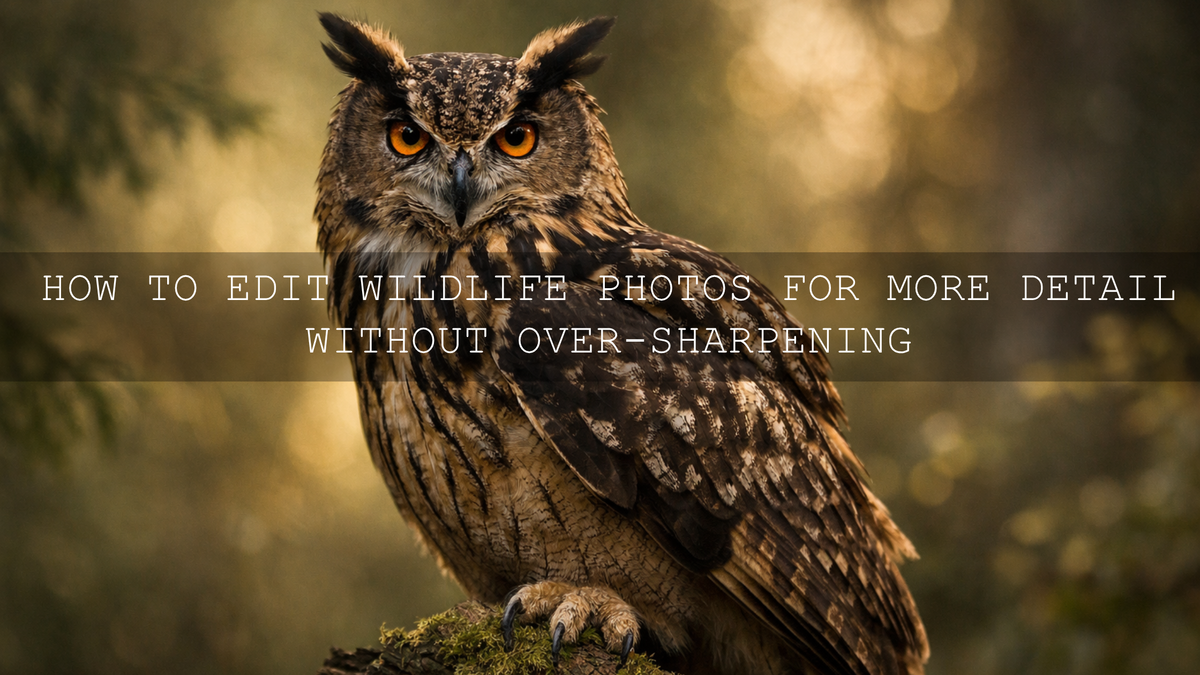
How to Edit Wildlife Photos for More Detail Without Over-Sharpening
If you want to edit wildlife photos so they look crisp, natural, and full of life, the real goal is not to make every feather or hair look harder. It is to improve wildlife photo editing in a way that keeps texture believable, protects soft backgrounds, and avoids the crunchy halos that come from pushing sharpening too far. In my own workflow, the best results usually come from building a clean base first, then sharpening only where the subject truly needs it.
A good starting point can save a lot of time here. Try the AI-Optimized Cinematic Bird Wildlife Lightroom Presets if you want richer natural color and cleaner subject separation, then browse wildlife Lightroom presets for more options that fit your style. That approach works especially well when you want a faster edit without losing control, and it fits naturally with the offer: Buy 3, Get 9 FREE.
Adobe’s own guidance is also useful here: evaluating sharpening at close zoom, balancing sharpening with noise reduction, using masking tools for targeted adjustments, and keeping the flexibility of RAW files all help you preserve detail without creating artifacts. :contentReference[oaicite:0]{index=0}
Why Wildlife Photos Get Over-Sharpened So Easily
Wildlife images naturally tempt you to over-edit. Birds, fur, scales, antlers, claws, and textured skin all look like they should be sharpened more, especially when the original frame was taken at distance, cropped heavily, or shot in low light. The problem is that sharpening does not create real detail. It increases edge contrast. That can make fine detail look clearer, but it can also create bright halos, jagged outlines, noisy backgrounds, and a brittle look that feels more processed than photographic.
This is why the best wildlife edits feel controlled rather than aggressive. You want the eye to notice the bird’s feathers, the fox’s whiskers, or the leopard’s fur pattern without noticing the editing itself.
I have tested this on bird images shot in bright daylight, shaded forest scenes, and high-ISO dawn wildlife frames where the original file looked soft at first glance. In most cases, the image did not need extreme sharpening. It needed better exposure balance, cleaner noise handling, and more selective detail work.
Build the Base Before You Touch the Detail Panel
Before sharpening, get the overall edit into a strong place. This matters because weak contrast, muddy shadows, or incorrect white balance often make photographers think a file is soft when the real problem is tonal structure.
Start with these steps:
- Correct exposure: Make sure the subject is bright enough to read clearly.
- Recover highlights carefully: This helps preserve bright feathers, snow, or reflective fur.
- Open shadows only as needed: Too much shadow lifting can make noise more obvious.
- Refine white balance: A natural color foundation often makes detail feel stronger without extra sharpening.
- Improve subject separation: Gentle contrast and local adjustments can make detail stand out more naturally.
This is where a preset can help. The Wildlife Cinematic Lightroom Presets Pack works well as a flexible foundation for general wildlife scenes, while the AI-Optimized Winter Snow Cinematic Bird Wildlife Lightroom Presets Pack is especially useful when snow, bright backgrounds, or cold color casts make wildlife subjects harder to control.
How to Sharpen Wildlife Photos Without Making Them Look Crunchy
Once your base edit looks balanced, move into sharpening. Here is the simplest rule: zoom in first. Adobe recommends judging sharpening at close zoom because that is where you can see whether detail is truly improving or whether artifacts are starting to appear. :contentReference[oaicite:1]{index=1}
1. Start with a moderate amount
Do not begin by dragging the sharpening amount high. Start low and increase slowly. For many wildlife files, moderate sharpening is enough when the exposure and color are already in a good place. Watch edges around beaks, eyes, whiskers, wing outlines, and high-contrast fur lines. If you start seeing a bright rim or dark outline, back off.
2. Keep the radius controlled
For fine wildlife texture, a lower radius often looks more natural because it sharpens smaller detail instead of producing thick, obvious edges. This helps feathers and fur stay realistic instead of turning harsh.
3. Use the detail slider carefully
The detail slider can bring out subtle texture, but it can also exaggerate noise. This is one of the most common reasons wildlife photos start to look gritty. If the file was shot at a higher ISO or cropped heavily, keep this adjustment restrained.
4. Use masking so the background stays smooth
This is one of the best ways to sharpen wildlife photos in Lightroom without over-sharpening the whole frame. Adobe’s masking tools are built for selective adjustments, so you can focus the effect on the subject instead of sharpening sky, blur, or soft foliage. That is especially useful when your animal is sharp but the background should stay gentle and clean. :contentReference[oaicite:2]{index=2}
A smart wildlife approach is to keep most of the sharpening on:
- Eyes
- Beaks
- Feather edges
- Fur texture
- Horn, claw, or scale detail
And keep it away from:
- Out-of-focus backgrounds
- Flat sky
- Smooth water
- Noise-heavy shadows
- Soft bokeh areas
Noise Reduction Matters More Than Most People Think
Sometimes what looks like softness is actually noise fighting with detail. And sometimes what looks like “too much sharpening” is sharpening making noise more visible. Adobe’s documentation on sharpening and noise reduction makes this relationship clear: noise reduction and sharpening should be balanced together, especially in files shot at higher ISO values. :contentReference[oaicite:3]{index=3}
That means wildlife editing usually works better in this order:
- Fix exposure and color.
- Apply moderate noise reduction if needed.
- Sharpen selectively after the file is cleaner.
This is especially important for birds photographed early in the morning, mammals shot near sunset, or wildlife captured under tree cover. Those files often need a cleaner tonal base more than a stronger sharpening push.
If you want a cleaner, brighter finish after detail work, the Bright Natural Lightroom Presets can help keep the final look fresh and controlled instead of heavy.
Presets vs Manual Editing for Wildlife Photos
When presets help most
Presets are best when they create a solid starting point quickly. A good wildlife preset can improve color balance, contrast, mood, and overall subject separation before you start local corrections. That usually means you spend less time fighting the file and more time refining the image.
When manual editing matters most
Manual editing matters when the scene has unusual lighting, heavy crop pressure, snow, deep forest shadows, or mixed color temperatures. This is where you fine-tune sharpening, masking, noise reduction, and local contrast based on the actual frame in front of you.
The best workflow
The strongest workflow is not presets or manual editing. It is presets plus manual refinement. Use a preset for the base look, then adjust detail intelligently. For bird-focused edits, the Bird Photography Landscape Cinematic Lightroom Presets can be a strong starting point when you want vibrant feather detail and cinematic color without building every edit from scratch.
Why RAW Files Give You More Control
If you want maximum freedom when editing wildlife photos, shoot RAW whenever possible. Adobe explains that RAW files keep more tonal and color information than JPEG, which gives you more room to recover exposure, refine white balance, and make detailed adjustments without degrading the file as quickly. That extra flexibility is a big advantage when you are balancing detail, noise reduction, and highlight recovery in wildlife scenes. :contentReference[oaicite:4]{index=4}
In practical terms, RAW helps most when:
- The bird’s white feathers are close to clipping
- The animal is partly hidden in deep shadow
- You need to correct a cool or muddy color cast
- You want to sharpen detail without breaking the file
- You need to reduce noise while keeping texture intact
A Practical Wildlife Editing Workflow You Can Repeat
Here’s a repeatable workflow that keeps wildlife detail strong and natural:
- Import the RAW file and choose your best frame before editing.
- Apply a base preset such as the AI-Optimized Cinematic Bird Wildlife Lightroom Presets or Wildlife Cinematic Lightroom Presets Pack.
- Correct exposure and white balance until the subject feels naturally separated.
- Reduce noise gently if the file was shot at high ISO.
- Sharpen at close zoom and keep the adjustment moderate.
- Mask the subject so sharpening stays on the animal, not the background.
- Check the eyes because they often determine whether the image feels sharp.
- Zoom back out and judge the full frame. If the image looks crispy or brittle, reduce sharpening.
Here’s why this matters: viewers respond to believable detail much more than aggressive texture. A clean, natural wildlife image usually feels more professional than one where every edge screams for attention.
Common Mistakes That Make Wildlife Photos Look Over-Edited
- Sharpening before fixing exposure: this often makes the wrong problem look worse.
- Ignoring noise: sharpening a noisy file can create a rough, dirty look.
- Sharpening the whole frame: backgrounds rarely need the same treatment as the subject.
- Judging at the wrong zoom: edits can look fine at screen-fit view and fall apart at 1:1.
- Using the same settings on every image: a snowy owl, jungle bird, and safari elephant file do not need identical detail settings.
Related Reading
- How to improve wildlife photo editing with Lightroom presets
- How to edit bird photography for clean feather detail
- How to reduce noise in wildlife photos without losing detail
- How to edit winter wildlife photos in Lightroom
Helpful Adobe Resources
- Adobe’s guide to sharpening and noise reduction in Camera Raw
- Adobe Lightroom Classic masking guide for targeted adjustments
- Adobe’s explanation of RAW vs JPEG for editing flexibility
Bring Out Detail Without Losing the Wild Look
The best wildlife photo editing does not make the animal look harder. It makes the image feel clearer, more alive, and more intentional. Start with a clean base, sharpen with restraint, protect the background, and let the subject carry the detail. If you want a faster starting point for birds and nature scenes, try the AI-Optimized Cinematic Bird Wildlife Lightroom Presets, explore the Wildlife Cinematic Lightroom Presets Pack, and browse wildlife Lightroom presets to build a workflow that saves time while keeping your edits natural. Buy 3, Get 9 FREE.
FAQ
How much sharpening is too much for wildlife photos?
If you can clearly see halos, rough edges, or a crunchy background, you have gone too far. Wildlife sharpening should make detail feel clearer, not harsher.
Should I apply noise reduction before sharpening?
Usually yes, especially for high-ISO wildlife images. A cleaner file responds better to sharpening and is less likely to look gritty.
Are presets enough for wildlife photo editing?
Presets are a strong starting point, but the best results usually come from combining a preset with manual adjustments for masking, sharpening, and exposure.
Why do RAW files work better for wildlife editing?
RAW files hold more tonal and color information, which gives you more flexibility for recovering detail and balancing sharpening with noise reduction.
What part of a wildlife photo should look sharpest?
In most cases, the eye area should feel the sharpest. After that, focus on feather, fur, or skin texture that supports the subject without making the whole frame look over-processed.
Written by Asanka — creator of AAAPresets (10,000+ customers).

Leave a comment
This site is protected by hCaptcha and the hCaptcha Privacy Policy and Terms of Service apply.