
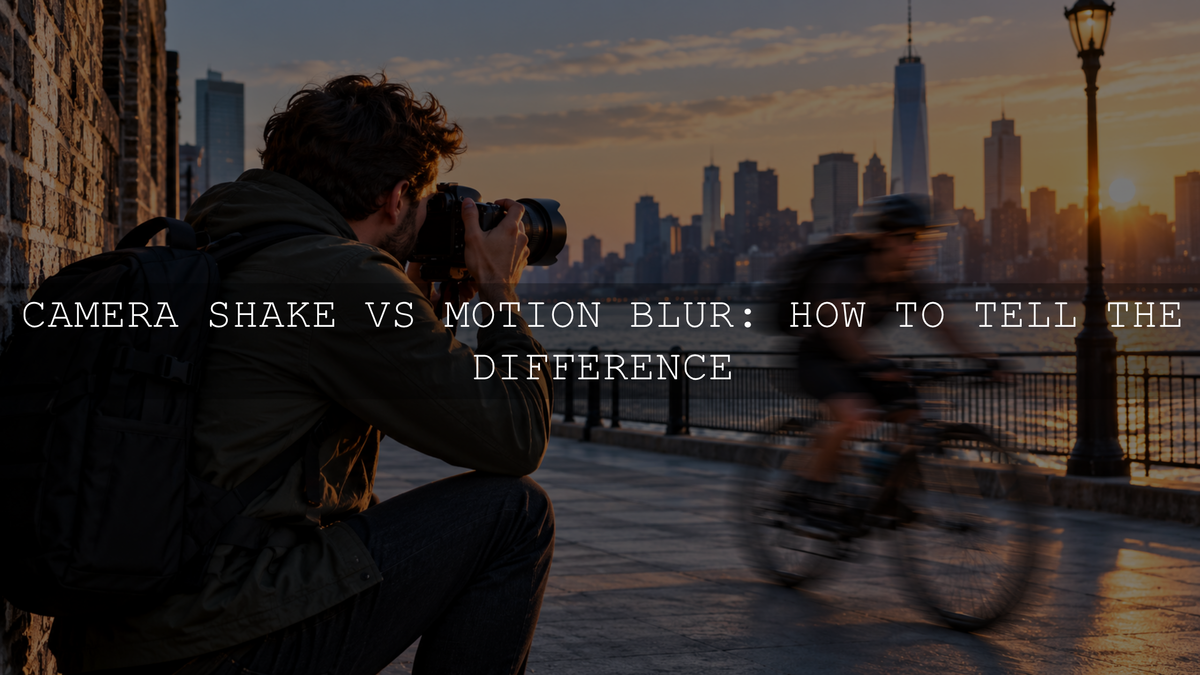
Camera shake happens when the camera moves during an exposure; subject-motion blur happens when a person, animal, vehicle, or another subject moves while the image is being recorded. If stationary objects throughout your photo have smeared edges, suspect camera shake. If the background is sharp but the moving subject is streaked, suspect subject motion. These are useful clues, not foolproof tests: missed focus and shallow depth of field can also make a subject look soft.
Technically, camera shake is a form of motion blur. Photographers often use “camera shake vs motion blur” as shorthand for comparing unwanted camera movement with subject movement. Knowing what moved tells you which camera setting or shooting technique to change.
Camera Shake vs Motion Blur: What Changes in the Photo?
Camera shake: stationary details can blur together
When you handhold a camera at a slow shutter speed, small movements from your hands, breathing, or the camera support can shift the image during the exposure. A wall, sign, building, or other stationary detail may show doubled edges or small directional streaks. The effect can extend across much of the frame, although it does not necessarily look identical everywhere.
Camera shake becomes more noticeable with longer focal lengths, unstable supports, and slower exposures. Image stabilization can compensate for certain movements, but its effectiveness varies by equipment and conditions. Nikon's Vibration Reduction guidance explains how lens stabilization is designed to reduce blur from camera movement.
Subject-motion blur: moving details smear while the scene can stay sharp
Imagine photographing someone running past a brick wall from a steady camera position. The wall may be crisp while their feet, hands, or whole body show directional streaks. A tripod cannot prevent this: it holds the camera steady, not the runner.
The appearance depends on how far and how quickly the subject travels across the frame during the exposure. A close cyclist passing sideways may show more blur than a distant cyclist moving at a similar real-world speed. A deliberately slow shutter can also make flowing water or a moving crowd look smooth and expressive.
How to Identify the Cause of Blur
- Zoom to approximately 100%. Inspect the original photo on a reasonably large screen. The camera's small preview can hide blur.
- Check stationary edges. Look at a building, road sign, doorframe, or other object that was not moving. If several stationary edges show similar streaks, camera movement is a likely cause.
- Compare the moving subject. If stationary details are crisp but a runner's arms, a dog's paws, or a car's body is streaked, the exposure was probably too long to freeze that motion.
- Look for a different sharp plane. If the background is sharp but the intended subject is softly defined without obvious streaks, autofocus may have selected the wrong distance. If one eye is sharp but the other is soft, shallow depth of field may be contributing.
- Check the shutter speed and shooting conditions. Review the exposure information, focal length, stabilization setting, and whether you were panning or using a tripod. They help confirm the diagnosis but do not prove it by themselves.
Important exception: During panning, you intentionally move the camera to follow a car or cyclist. The subject can remain relatively sharp while the background streaks. Both camera shake and subject movement can also occur in one photograph, so a single blurred area is not always enough to identify one cause.
How to Fix Camera Shake
If stationary parts of the scene are smeared, start by reducing movement during the exposure.
- Use a sensible handheld shutter speed. The traditional reciprocal rule suggests starting near 1 divided by the focal length on a full-frame camera: roughly 1/50 second for 50mm or 1/200 second for 200mm. For a camera with a 1.5x crop factor, a conservative 200mm starting point is around 1/320 second. These are guides, not guarantees; higher resolution, shaky footing, or a heavy lens may call for faster speeds.
- Stabilize your stance. Support the lens from below, keep your elbows closer to your body, and gently press the shutter. Brace against a solid object when useful.
- Use lens or in-body stabilization when appropriate. It can help with relatively stationary subjects at slower handheld shutter speeds, but it will not freeze a moving person. Follow your equipment manual for tripod and panning settings.
- Support the camera for long exposures. Use a sturdy tripod or stable surface. In suitable situations, a remote release or short self-timer can avoid disturbing the camera when taking the photo. Check for wind or vibration around the support.
If you often shoot without a tripod, the AAAPresets guide to choosing a handheld shutter speed goes deeper into focal length and stabilization.
How to Fix Subject-Motion Blur
When the background is sharp but a moving subject is streaked, raise the shutter speed enough to record less movement. Nikon's guide to capturing or freezing motion likewise recommends matching the shutter speed to the action.
Try these values as initial tests, then inspect your results:
- Walking people: around 1/250 to 1/500 second.
- Running children or active pets: around 1/500 to 1/1000 second.
- Fast sports, racing action, or birds in flight: around 1/1000 to 1/2000 second or faster when needed.
A subject passing close to the camera, moving quickly across the frame, or making rapid movements with hands or wings may need an even shorter exposure. Faster shutter speeds admit less light, so you may need to open the aperture, raise ISO, or add light. Do not choose an aperture so wide that important parts of your subject fall outside the depth of field you need.
Use continuous autofocus and suitable subject tracking when available, particularly when the subject changes distance. Shutter Priority mode (often S or Tv) is a convenient way to choose a shutter speed while the camera adjusts other exposure settings within its limits. For more action-specific guidance, see how to photograph moving subjects without blur. To understand the exposure trade-offs, see how aperture, shutter speed, and ISO work together.
Why Are Photos Still Blurry on a Tripod?
A tripod removes much of your hand movement, but it does not guarantee that every part of a picture will be sharp. Before blaming the shutter, check these common possibilities:
- The subject moved: leaves blew in the wind, someone changed expression, or water flowed during the exposure.
- The camera or support vibrated: wind, a flexible tripod, a loose head, or contact with the setup can still introduce movement.
- Focus missed: the camera focused behind the subject, or the subject moved out of the focused plane.
- Depth of field was too shallow: a wide aperture left only a narrow range of distances acceptably sharp.
- The lens or surroundings reduced clarity: heat shimmer, shooting through glass, or other optical conditions can soften fine detail without conventional camera shake.
For a controlled test, photograph a stationary, detailed object with the camera supported and focus checked carefully. Then photograph the same object handheld at several shutter speeds. If the supported frames are crisp but your slower handheld frames show streaked edges, camera movement was likely responsible. To test subject motion separately, keep the camera supported and photograph a moving subject at several shutter speeds.
Can Lightroom Fix Camera Shake or Motion Blur?
Ordinary sharpening can make edges look more defined, but it does not reliably restore fine detail missing from a significantly blurred exposure. In Lightroom Classic, inspect the photo at 100% and use the Detail panel's sharpening controls conservatively. Too much sharpening can emphasize noise and create unwanted halos.
Adobe also offers AI Sharpen in Lightroom desktop, powered by Topaz, which may improve some blurry images using generative processing. In Lightroom desktop, open a photo and choose Photo > Enhance with AI > AI Sharpen. Adobe states that AI Sharpen uses generative credits, and results vary by image. Reconstructed detail is not guaranteed to match what the lens would have recorded in a sharp exposure. When a moment can be photographed again, correcting the cause during capture is more dependable.
After choosing a sharp photo, AAAPresets Lightroom presets can provide creative starting points for color and tone. Presets are not a replacement for accurate focus, a stable camera, or a shutter speed suited to the subject.
The Best Fix Starts With the Right Diagnosis
Check what stayed sharp before changing settings. Blurred stationary details suggest camera movement; blurred moving subjects against a sharp scene suggest subject motion; misplaced sharpness suggests a focus or depth-of-field issue. Once you identify the likely cause, make one targeted adjustment and shoot a comparison frame. That is far more useful than increasing every setting at once.
Written by Asanka — creator of AAAPresets.


Leave a comment
This site is protected by hCaptcha and the hCaptcha Privacy Policy and Terms of Service apply.