
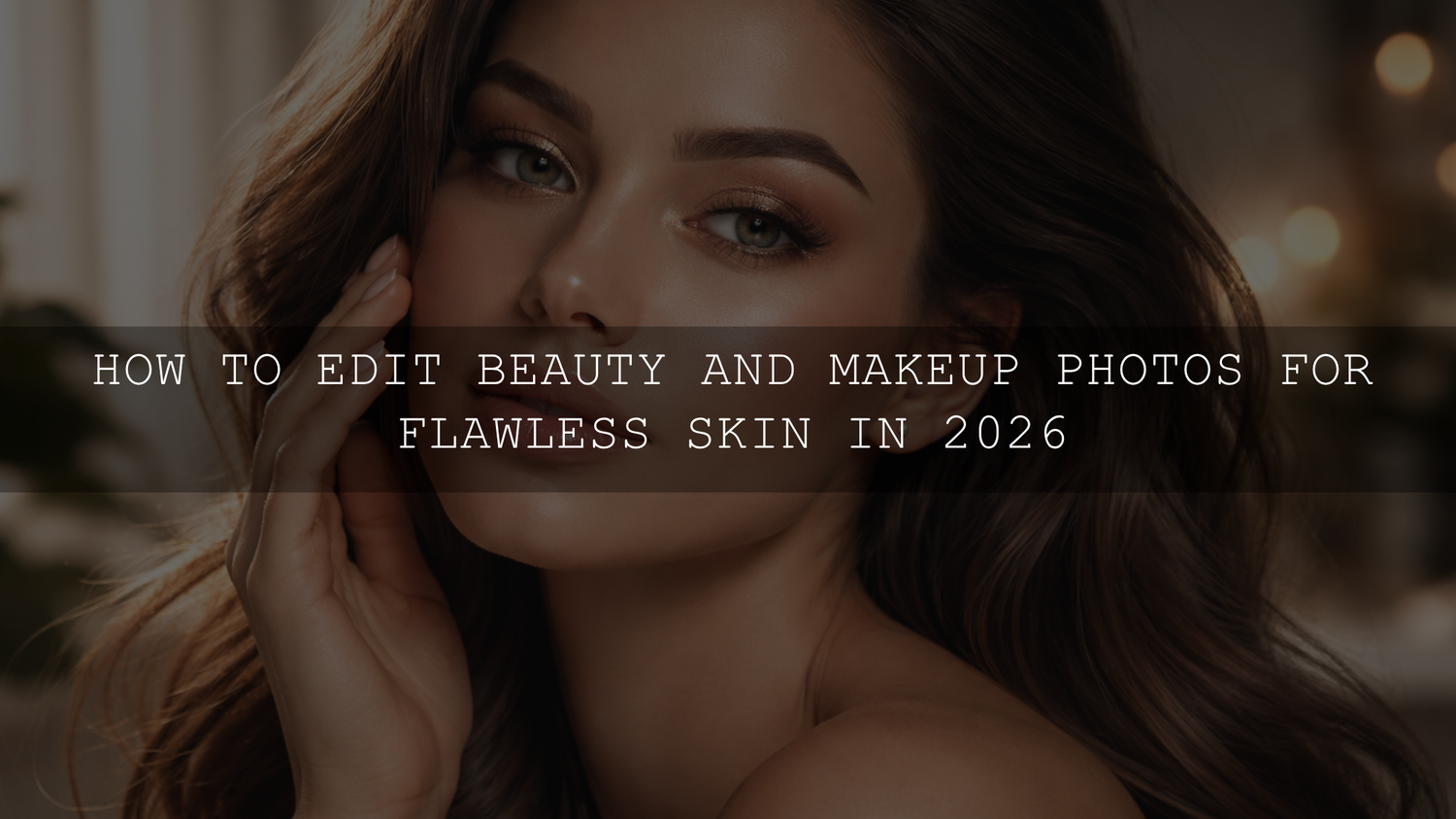
How to Edit Beauty and Makeup Photos for Flawless Skin in 2026
If you want to edit beauty and makeup photos in 2026, the real goal is not fake perfection. It is clean, flattering, professional beauty photo retouching that keeps natural skin tones, preserves texture, and makes makeup colors look intentional on screen. The strongest flawless skin editing does not erase pores or flatten the face. It refines temporary distractions, balances tone, softens harsh transitions, and keeps the final image polished enough for portfolios, campaigns, social media, and client delivery.
For a faster starting point, I would begin with AI-Optimized Soft Cinematic Contrast Beauty Lightroom Presets and browse the Portrait Photography Lightroom Presets collection. If you want a faster workflow without losing a premium finish, this is one of the easiest ways to get clean skin, balanced contrast, and a beauty-focused edit. You can also build a full set around your workflow with Buy 3, Get 9 FREE.
What “Perfect Skin” Actually Means in Beauty Editing
Perfect skin in makeup photo editing should still look like skin. That means tone is even, redness is controlled, highlights are softer, and temporary blemishes are reduced, but texture still exists. A strong beauty edit feels luminous, not waxy. The viewer should notice the makeup, the eyes, the glow, and the overall finish before they ever notice the retouching.
I have tested this kind of workflow on close-up portraits shot in window light, LED light, and mixed indoor light, and the files that held up best were never the ones with the heaviest smoothing. They were the ones where texture stayed intact and color correction was handled first.
Why Beauty and Makeup Photos Need Careful Editing
Beauty photography is unforgiving. A small color cast can shift foundation tones. A harsh highlight can make skin look oily instead of radiant. Too much contrast can make makeup look patchy, while too little contrast can flatten the face. Editing helps you correct those problems without losing the artistry of the makeup.
- Correct white balance so foundation, blush, lips, and eyeshadow read closer to real life.
- Even out skin tone without stripping away depth.
- Reduce temporary distractions like breakouts, stray hairs, and minor redness.
- Control highlights and shadows so the skin looks healthy instead of shiny or dull.
- Keep a consistent look across an entire beauty series, campaign, or feed.
Presets vs Manual Editing
Both approaches work. The best results usually come from combining them.
- Presets are faster. They give you a consistent base, save time, and help unify a beauty portfolio.
- Manual editing gives you precision. It helps you fix color shifts, refine texture, and tailor each image to the subject and lighting.
- The smart workflow is to apply a strong preset first, then make local corrections for skin, makeup detail, and exposure.
That is why beauty-focused presets are useful. Instead of starting from zero, you start close to the finish line, then make careful adjustments where the face needs extra attention.
Best Preset Starting Points for Beauty Work
If your target look is soft, editorial, and premium, AI-Optimized Soft Cinematic Contrast Beauty Lightroom Presets are a strong base. They work especially well when you want clean skin tones, smoother highlight roll-off, and beauty images that feel polished without turning flat.
For medium to deep complexions, AI-Optimized Dark Skin Cinematic Lightroom Presets give you a richer, moodier base while helping skin stay dimensional. If you want an option that stays balanced, clean, and versatile across portrait and fashion work, AI-Optimized Dark Skin Tones Lightroom Presets are another strong choice.
If you also create reels, tutorials, or campaign videos, Soft Contrast Beauty LUTs help keep your beauty footage aligned with your still-photo look. That matters when you want your brand visuals to feel consistent across photo and video.
The Workflow I Recommend for Clean, Natural Skin
On beauty shoots, I usually correct color first, then reduce distractions, and only then touch texture. That order keeps me from overediting. It also helps me protect the makeup look instead of accidentally washing it out.
- Start with the best file possible. RAW files give you more room to fix exposure, skin tone, and color balance without damaging the image.
- Apply your base preset. Start with a beauty preset that matches the look you want. Soft editorial, rich cinematic, or clean warm contrast all require different starting points.
- Fix white balance before anything else. If skin is too pink, too yellow, or too green, every other adjustment will fight that problem instead of solving it.
- Set exposure and contrast. Beauty work usually looks stronger when highlights are controlled and shadows are open enough to keep detail in the face.
- Clean temporary distractions. Use healing carefully for pimples, stray hairs, makeup flakes, or small distractions. Do not erase permanent character unless the client specifically wants that.
- Refine skin color with targeted adjustments. This is where orange and red channels often matter most. Small HSL changes are safer than global saturation changes.
- Use masks for local work. A face or subject mask lets you soften a forehead highlight, reduce redness on cheeks, or lift the under-eye area without damaging the whole frame.
- Finish with subtle polish. Add a little glow, shape with light dodging and burning, and make sure lips, lashes, brows, and eyes still hold definition.
Why Masking and Local Color Control Matter
The difference between average and professional beauty editing is usually not the preset. It is the local refinement after the preset. Adobe’s Masking guide for Lightroom Classic is useful here because targeted masks let you adjust the face separately from the background. Adobe’s Color Mixer guide for Lightroom Classic is also worth reviewing because skin problems often come from red and orange channels being slightly off, not from the whole image being wrong.
If you want a deeper internal walkthrough on this, read how to use masking tools for stunning photo edits in Lightroom and how to make Lightroom presets work across every skin tone. Those two skills alone can dramatically improve beauty and portrait results.
How to Retouch Without Creating Plastic Skin
This is the mistake that ruins many beauty edits. Over-smoothing removes the natural transitions that make skin feel alive. Instead of pushing texture or clarity sliders too far negative, work in smaller steps.
- Heal individual blemishes instead of blurring the whole face.
- Reduce harsh shine by lowering highlights slightly before touching texture.
- Use masks to soften only the areas that need it.
- Keep pores and natural transitions visible at 100% zoom.
- Check lips, lashes, brows, and hairline after every retouch pass so the face does not start looking soft everywhere.
Adobe’s Healing tool guide for Lightroom Classic is helpful for this part of the workflow, especially when you want to remove small distractions while keeping the skin believable.
Pro Tips for Better Beauty Edits
- Do not judge skin only at full zoom. Switch between fit view and 100% view. A retouch can look good close up and still feel overdone at normal size.
- Protect the makeup work. If lipstick, blush, or eyeshadow loses separation, you have probably gone too far with smoothing or global color edits.
- Watch the nose, chin, and under-eyes. These areas often shift first in mixed lighting and need small local fixes.
- Keep one anchor color in mind. Sometimes skin looks better once you decide whether the final image should feel neutral, warm, or slightly cinematic instead of trying to do all three.
- Use consistency across a set. Beauty clients care about repeatable results, not one random hero image that looks different from the rest.
Related Reading
- Lightroom retouching tips for realistic portraits in 2026
- How to fix yellow skin casts and keep photos radiant
- How to install Lightroom presets quickly and correctly
Final Thoughts
The best beauty and makeup photo editing is subtle, intentional, and respectful of real skin. You do not need extreme retouching to create a high-end finish. You need accurate color, smart local adjustments, careful healing, and a preset base that supports the look you want instead of fighting it.
If you want to speed up your workflow, start with AI-Optimized Soft Cinematic Contrast Beauty Lightroom Presets, add AI-Optimized Dark Skin Cinematic Lightroom Presets or AI-Optimized Dark Skin Tones Lightroom Presets for broader skin-tone coverage, and browse the AI-Optimized Lightroom Presets collection for more beauty and portrait looks. If you also deliver motion content, Soft Contrast Beauty LUTs help keep your video finish consistent with your stills. Try these presets in your next edit and build your set with Buy 3, Get 9 FREE.
FAQ
How do I smooth skin without making it look fake?
Reduce temporary distractions individually, lower harsh highlights, and use local masks instead of blurring the whole face. Always keep some natural texture visible.
What is the best preset style for beauty photography?
A soft beauty preset with balanced contrast usually works best because it keeps skin clean and flattering while protecting makeup detail.
Should I edit skin color before or after retouching blemishes?
Edit color first. Once white balance and overall tone are closer to correct, it is much easier to judge what actually needs retouching.
Why do makeup colors look different after editing?
White balance, tint, and strong global saturation changes can shift foundation, blush, and lipstick colors. Targeted color adjustments are usually safer.
Can Lightroom handle beauty retouching on its own?
Yes for many workflows. Lightroom can cover exposure, color correction, masking, and light cleanup very well. Heavier retouching may still benefit from Photoshop.
Written by Asanka — creator of AAAPresets (10,000+ customers).


Leave a comment
This site is protected by hCaptcha and the hCaptcha Privacy Policy and Terms of Service apply.