
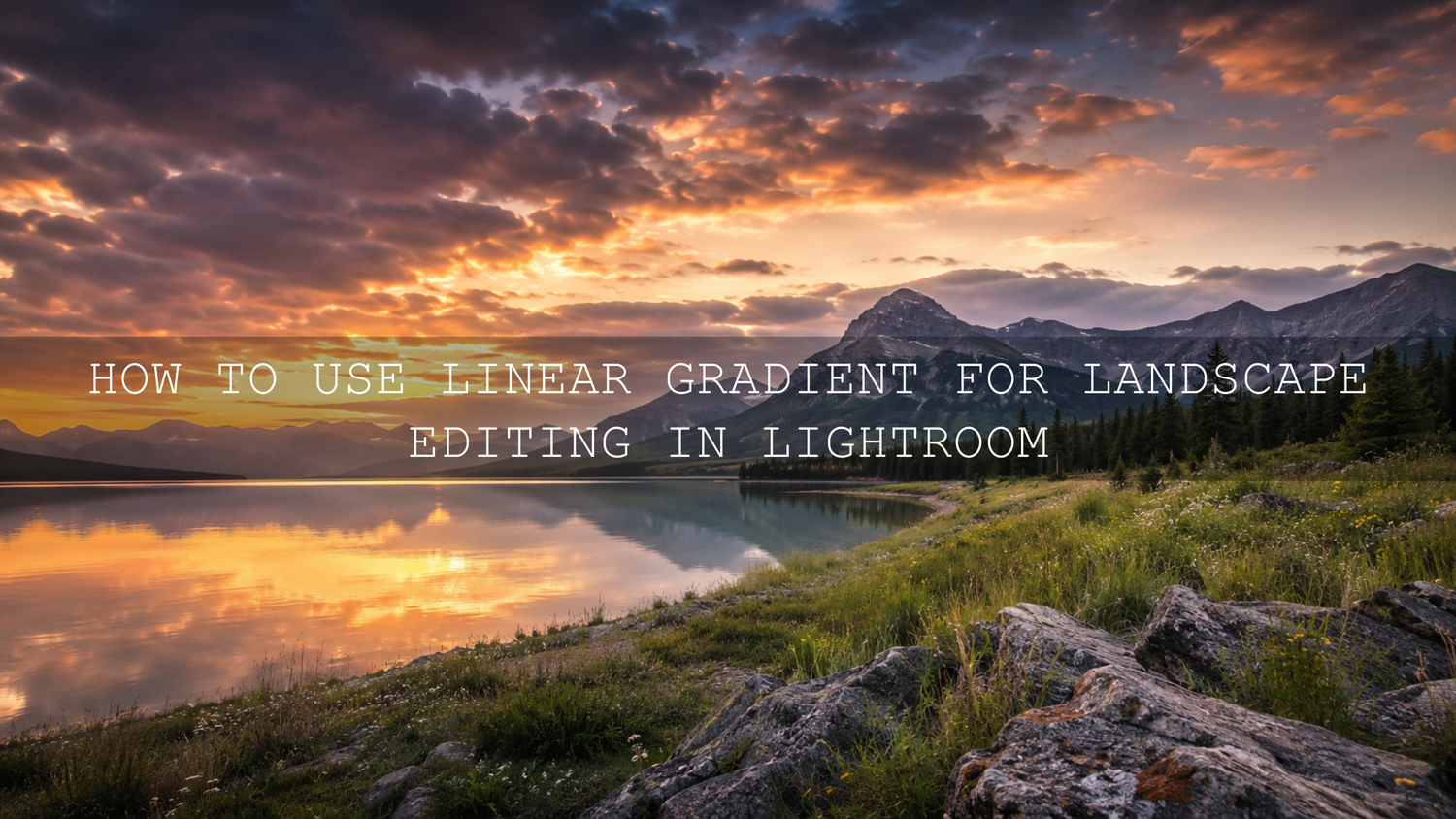
How to Use Linear Gradient for Landscape Editing in Lightroom
Learning how to use a linear gradient for landscape editing is one of the fastest ways to make skies, mountains, beaches, forests, and travel photos look balanced in Lightroom. A linear gradient works like a digital graduated filter: it lets you apply exposure, color, contrast, dehaze, or texture adjustments smoothly across part of the image instead of changing the whole photo.
Here’s why this matters: landscape photos often have one big problem. The sky is bright, but the foreground is dark. Or the land looks beautiful, but the clouds feel flat. A linear gradient helps you fix that without making the edit look fake.
For a faster starting point, apply a clean preset first, then refine the sky and foreground with gradients. You can start with the 1000+ Master Lightroom Presets Bundle and browse the Professional Lightroom Presets for Landscape Photography collection. Try these presets today — Buy 3, Get 9 FREE.
What Is a Linear Gradient in Lightroom?
A linear gradient is a masking tool that applies an adjustment from one side of the image and gradually fades it out. In landscape photography, it is commonly used to darken a bright sky, lift detail from a shadowy foreground, add warmth to a sunset, reduce haze, or guide the viewer’s eye toward the strongest part of the photo.
Think of it like placing a soft, invisible filter over the image. The effect is strongest where the gradient begins, then it slowly blends into the rest of the photo. This smooth transition is what makes it so powerful for natural landscape photo editing.
Adobe has a helpful official tutorial on editing a landscape photo with linear gradient adjustments, which shows how the tool can separate foreground and background adjustments inside Lightroom.
Why Linear Gradients Are So Useful for Landscape Photography
Landscape photography is all about light. Sunrise, sunset, fog, clouds, water reflections, mountains, and open skies can all create beautiful scenes, but the camera does not always capture the full balance you saw with your eyes.
A linear gradient helps solve that by giving you local control. Instead of pushing global sliders and affecting everything, you can improve only the area that needs help.
- Bright sky problem: Pull down highlights and exposure in the sky without making the land darker.
- Dark foreground problem: Lift shadows in the lower part of the frame without overexposing the clouds.
- Flat sunset problem: Add warmth and color only near the horizon.
- Hazy mountain problem: Add dehaze and contrast to distant areas without damaging the whole image.
- Weak composition problem: Darken edges slightly so the viewer’s eye stays inside the frame.
I tested this workflow on sunset landscape edits where the preset created a beautiful overall tone, but the sky still needed more control. A small linear gradient with reduced highlights and a touch of warmth made the final image feel more natural and cinematic without over-editing it.
Linear Gradient vs Manual Editing
Manual editing and linear gradients are not enemies. They work best together. Manual editing gives your whole image a strong foundation, while the linear gradient helps you fix specific areas.
Manual Editing
Manual editing changes the full image using sliders like exposure, contrast, highlights, shadows, white balance, vibrance, and tone curve. This is useful for building the base look. For example, you may raise shadows, reduce highlights, add contrast, and warm up the overall photo.
Linear Gradient Editing
Linear gradient editing changes only a selected fading area. This is better when one part of the image needs separate treatment. For example, you can reduce exposure only in the sky or add texture only to the foreground rocks.
Here’s a simple way to think about it: use manual editing to make the photo good, then use linear gradients to make the photo polished. If you use presets, apply the preset first, then use gradients to correct the areas that still need attention. For more help with keeping presets stable, read Safe Lightroom Base Presets for Hard-Light Photos.
Step-by-Step Linear Gradient Workflow for Landscape Photos
1. Start With a Clean Base Edit
Before adding a linear gradient, fix the basic image first. Adjust exposure, white balance, highlights, shadows, contrast, and lens correction. This gives you a clean foundation so the gradient does not have to do all the work.
Adobe’s guide on adjusting photo brightness in Lightroom explains how exposure, highlights, shadows, whites, and blacks affect different tonal areas of an image.
Pro tip: Do not make the global edit too heavy. If the full image is already too dark or too contrasty, your gradient will look forced. Keep the base edit natural, then refine locally.
2. Apply a Landscape Preset for Style
A Lightroom preset can give your photo a strong color direction quickly. For landscapes, this may mean warmer golden tones, deeper greens, cinematic contrast, soft matte shadows, or a clean natural look.
Good preset choices for this workflow include Professional Lightroom Presets for Landscape Photography, AI-Optimized Cinematic Landscape Lightroom Presets, and Landscape and Nature Dark Green Lightroom Presets.
Pro tip: After applying a preset, always check the sky and foreground separately. A preset may make the land look perfect but push the sky too bright, too saturated, or too dramatic.
3. Add a Linear Gradient to the Sky
For most landscape photos, start with the sky. Select the linear gradient tool, drag from the top of the image downward, and create a soft fade through the horizon area. A longer drag usually looks more natural because the adjustment blends slowly.
Useful sky adjustments include:
- Reduce Exposure slightly if the sky is too bright.
- Lower Highlights to recover cloud detail.
- Add a small amount of Dehaze if the sky looks washed out.
- Increase Temperature for golden hour warmth.
- Reduce Saturation if blues or oranges look too strong.
A good starting point is usually subtle: reduce exposure by a small amount, pull highlights down, and add just enough dehaze to bring back cloud shape. If the sky suddenly looks dramatic but the land looks disconnected, the adjustment is too strong.
4. Add a Second Linear Gradient to the Foreground
Next, look at the lower part of the image. If the foreground is too dark, drag a linear gradient from the bottom upward. This lets you brighten land, rocks, grass, roads, or water without changing the sky.
Useful foreground adjustments include:
- Lift Shadows for hidden detail.
- Add a small amount of Exposure if the area feels too dark.
- Increase Texture for rocks, leaves, sand, or mountain detail.
- Add slight Contrast if the foreground looks flat.
- Warm or cool the foreground to match the sky color.
Pro tip: Avoid lifting shadows too much. If the foreground becomes brighter than the sky in a natural outdoor scene, the photo may start to look unrealistic.
5. Match the Horizon Carefully
The horizon is where many gradient edits fail. If the transition is too hard, viewers can see a dark band across the image. If the gradient is placed too low, mountains, trees, or buildings may become unnaturally dark.
Use a soft falloff and zoom in around the horizon. If the gradient affects mountains or trees too much, reduce the adjustment strength or use masking refinement to subtract parts of the mask.
For landscape-specific editing ideas, Adobe’s tutorial on creating better landscape photos with Lightroom covers practical steps like using landscape profiles, dehaze, horizon correction, and the Linear Gradient tool.
Real Editing Examples: Before and After Ideas
Sunset Beach Photo
Before editing, the sky may be bright orange while the sand looks too dark. Apply a warm cinematic preset, then use a top linear gradient to reduce sky highlights. Add a bottom gradient to raise shadows in the sand. The final result feels balanced, warm, and believable.
Mountain Landscape Photo
Before editing, the mountains may look hazy and the sky may lack depth. Apply a landscape preset, then use a linear gradient from the top to add slight dehaze and contrast to the clouds. Use another soft gradient across the mountains to increase texture gently.
Drone Landscape Photo
Drone photos often have bright skies and flat ground detail. Use the Cinematic Drone Aerial Lightroom Presets as a base, then apply a sky gradient to recover highlight detail and a foreground gradient to improve roads, water, fields, or city texture.
For more advanced sky and low-light editing ideas, explore how to edit night sky and Milky Way photos in Lightroom.
Advanced Linear Gradient Tips for Cleaner Edits
Use Multiple Small Gradients Instead of One Strong Gradient
One heavy gradient can look obvious. Two or three soft gradients usually look more natural. For example, use one subtle gradient for the top sky, one for the horizon glow, and one for the foreground detail.
Combine Gradients With Lightroom Masks
Linear gradients are powerful, but they become even better when combined with masks. If the gradient darkens a mountain peak too much, subtract that area from the mask. If the sky needs more control than the land, use a sky mask first, then a gradient for the mood.
This is especially useful after presets. If a preset looks too intense in one area, do not delete the preset immediately. Fix the area with masking. This same idea is explained in how to tame overly powerful presets for subtle edits.
Watch Color Temperature
Landscape edits can look unnatural when the sky is warm but the land is too cool, or when the foreground is green but the sunset is orange. Use gradients to gently match color temperature between areas.
Pro tip: If you add warmth to the sky, add a smaller amount of warmth to the foreground shadows. This helps the whole image feel like it was captured in the same light.
Do Not Overuse Dehaze
Dehaze can make skies and mountains pop, but too much can create dark halos, muddy colors, and unrealistic contrast. Use it carefully, especially around clouds, tree lines, and mountain edges.
Common Linear Gradient Mistakes to Avoid
- Dragging the gradient too short: This creates a hard transition that looks fake.
- Darkening the sky too much: The sky should still match the natural light direction.
- Ignoring the horizon: Mountains, trees, and buildings can reveal bad masking quickly.
- Adding too much saturation: Strong sky colors can easily become unrealistic.
- Using gradients before fixing the base exposure: Always build the overall edit first.
If your presets look different from image to image, the issue is often lighting, exposure, white balance, or file type. This guide on why Lightroom presets look different on every photo explains how to fix those problems with a smarter workflow.
Best Lightroom Presets to Use With Linear Gradients
The best presets for linear gradient editing are not the ones that do everything aggressively. The best presets give you a beautiful base while leaving enough room to refine skies, shadows, highlights, and color locally.
For landscape photos, start with:
- Professional Lightroom Presets for Landscape Photography for clean outdoor edits.
- AI-Optimized Cinematic Landscape Lightroom Presets for dramatic tones and cinematic depth.
- Landscape and Nature Dark Green Lightroom Presets for forests, nature scenes, and deep green edits.
- 1000+ Master Lightroom Presets Bundle if you want many styles for travel, landscape, drone, wedding, portrait, and cinematic edits.
You can also browse the Lightroom Presets for Lightroom Mobile & Desktop collection if you want presets that work across different photo styles.
Related Reading
- Mastering the Autumn Aesthetic: Top Editing Trends
- 10 Essential Lightroom Mobile Features You Must Use
- Revive Old Presets for New Camera Files
Final Editing Workflow You Can Use Today
- Correct lens profile and crop the photo.
- Set white balance and basic exposure.
- Apply a landscape or cinematic Lightroom preset.
- Add a linear gradient to the sky and reduce highlights.
- Add a second linear gradient to the foreground and lift shadows slightly.
- Check the horizon for unnatural transitions.
- Refine color temperature so the sky and land feel connected.
- Export after checking sharpness and noise.
Linear gradients are not just a correction tool. They are a creative tool for building mood, depth, and direction in landscape photography. Start with a strong preset, then use gradients to control the sky, foreground, and atmosphere with precision. For a complete editing toolkit, explore the 1000+ Master Lightroom Presets Bundle and the Landscape Lightroom Presets collection. Buy 3, Get 9 FREE and build a faster workflow for outdoor, travel, drone, and cinematic landscape edits.
FAQ
What does a linear gradient do in Lightroom?
A linear gradient applies an adjustment across part of your photo and fades it smoothly into the rest of the image. It is useful for editing skies, foregrounds, horizons, and large areas of light or color.
Should I use a linear gradient before or after applying presets?
In most cases, apply the preset first, then use linear gradients to refine the sky, foreground, shadows, highlights, and color. This gives you a faster base edit with better local control.
Can linear gradients fix blown-out skies?
They can help recover detail if the highlights are not fully clipped. Reduce highlights and exposure inside the sky gradient. If the sky is completely white with no detail, recovery may be limited.
What is the best gradient setting for landscape photos?
There is no single perfect setting, but a soft gradient with small exposure, highlights, dehaze, and temperature adjustments usually works best. Natural-looking edits often come from subtle changes.
Can I use linear gradients in Lightroom Mobile?
Yes, Lightroom Mobile includes masking tools that can be used for local adjustments. You can apply presets on mobile, then refine the sky or foreground with gradient-style masking tools.
Written by Asanka — creator of AAAPresets (10,000+ customers).

Leave a comment
This site is protected by hCaptcha and the hCaptcha Privacy Policy and Terms of Service apply.