
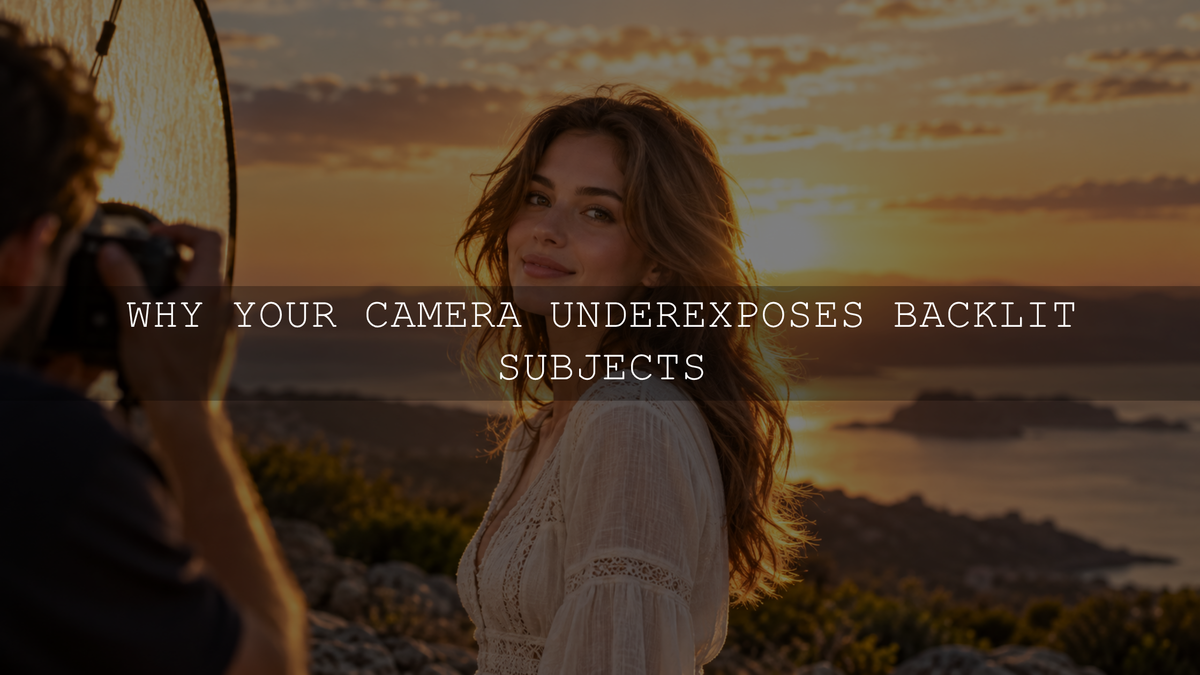
When your subject looks dark against a bright background, the scene is usually backlit: the sky, sunset, or window behind the subject is much brighter than the light falling on their face. Your camera may choose an exposure that protects the background and leaves the subject in shadow. The quickest fix is to expose for the face using positive exposure compensation or a carefully placed spot-meter reading. If you need detail in both the face and the background, add light to the subject or reduce the brightness difference between them.
Why Does a Bright Background Make Your Subject Look Dark?
A camera measures reflected light and uses its metering system to recommend or set exposure. In a backlit portrait, the bright sky can influence that reading more than the shaded face. The result may be a well-defined sunset behind a person whose features are difficult to see.
Modern multi-zone meters are more sophisticated than simply averaging the frame or forcing everything to one shade of gray. They can analyze different regions, and some cameras recognize faces. Even so, their automatic choice may not match your intention. The issue is partly metering and partly the actual lighting: a face turned away from the sun receives less direct light than the background.
There is also a dynamic range limit. If the difference between the brightest sky and darkest facial shadows exceeds what the sensor can record usefully in one shot, brightening the subject may wash out the sky. No metering mode can remove that physical difference by itself.
Decide Whether the Face or the Background Matters Most
Before changing settings, choose what the photograph needs to preserve:
- Clear face and natural skin detail: Give the person enough exposure, even if some of the sky becomes very bright.
- Detailed sky and visible face: Set exposure to retain important background highlights, then use a reflector or fill flash to illuminate the subject.
- Intentional silhouette: Expose for the bright background and allow the subject to become dark, using a recognizable outline and pose.
This choice is more useful than trying to force the meter to zero. The best exposure is the one that records the parts of the scene you want viewers to notice.
How to Fix a Dark Backlit Subject in Camera
- Start with exposure compensation. In Aperture Priority (A or Av), take a test photo and add positive compensation if the face is too dark. Around +2/3 to +1 EV is a possible starting experiment, not a rule. Adjust further only after checking the actual result and important highlights. The setting tells the camera to produce a brighter exposure than its normal meter recommendation.
- Try spot metering on the subject. Select spot metering and take a reading from a suitable area of the face rather than the bright sky. Check the preview and fine-tune, because faces and clothing have different tones. On some cameras the spot stays near the center; on others it can follow a selected focus point. Confirm your camera's behavior rather than assuming the focus point and meter are linked.
- Lock exposure before recomposing if needed. With AE-L (Auto-Exposure Lock), meter an appropriate area of the subject, lock that reading, and recompose. Check how the AE-L button is configured on your model. Exposure lock preserves the chosen camera setting; it does not magically preserve both sky and shadow detail.
- Check the histogram and highlight warnings. Inspect the face and any important clouds, wedding dresses, or light-colored clothing. Some small highlights, including the sun itself, may be pure white. The priority is retaining meaningful detail, not keeping every pixel away from the right edge of the histogram.
- Use Manual mode when the lighting stays consistent. Set aperture and shutter speed for your creative needs and adjust ISO for the brightness you want. With aperture, shutter speed, and ISO all fixed, the camera keeps the same exposure settings between shots, even when the light changes. If Auto ISO is enabled, the camera may still vary ISO in Manual mode.
Quick comparison test: Take one shot at the camera's metered exposure and another at +1 EV compensation. Compare facial detail and meaningful sky highlights. If the brighter exposure helps the face but clips the sky, return to a darker exposure and add fill light. The +1 EV example is a test, not a universal setting.
For a closer explanation of how a one-stop change relates to the meter reading, see the AAAPresets guide to exposure value and exposure compensation.
How to Keep Both the Face and the Bright Sky Visible
Use a reflector or nearby bright surface
A white reflector can bounce daylight into the shadowed side of a face without changing the background exposure. Position it so the reflected light reaches the eyes and cheeks. A pale wall, bright pavement, or other nearby reflective surface can sometimes provide a gentler version of the same effect. Watch for an unnatural color cast from gold or strongly colored surfaces.
Add gentle fill flash
Fill flash supplies light to the foreground independently of the sunset or window behind it. First choose an exposure that retains the background detail you want. Then add enough flash to make the subject readable without making the face look obviously flashed. A compatible external flash gives more control than relying on a built-in flash, which many cameras do not have. When using fast shutter speeds in bright light, check the camera's flash-sync limit and whether your flash supports high-speed sync.
Adjust your position or framing
Move a few steps so the brightest part of the sky is behind a tree, building, or the subject's head. Turn the person slightly toward a bright open area, or choose a spot where the face receives soft reflected light. Small changes in position can improve both exposure balance and lens flare without changing your camera settings.
For static scenes, exposure bracketing can record separate bright and dark frames for later blending. It is less reliable for moving people, hair, or leaves because different frames may not line up perfectly. For portraits, adding light is usually the more practical solution.
Can You Fix an Already-Dark Subject in Lightroom?
Often, yes, if the original file contains usable shadow information. A RAW image generally leaves more room for tonal adjustments than a processed JPEG, but neither format can recover detail that was never recorded. Lifting very dark shadows can reveal noise, weak color, or banding.
- Check the overall exposure. Raise Exposure only if the whole image needs brightening. If the sky is already correct, avoid making a large global change.
- Open the shadows carefully. Increase Shadows to reveal facial detail. Lower Highlights if bright areas still have recorded detail that can be recovered.
- Mask the subject. In supported versions of Lightroom desktop, choose Masking > Select Subject, refine the selection if necessary, then adjust the subject's Exposure or Shadows without brightening the entire background. Adobe explains the tools in its official Lightroom masking guide.
- Refine the color and texture. Check white balance and skin tone, then apply restrained noise reduction if the lifted shadows look rough. Compare the face at normal viewing size instead of judging only a magnified crop.
If the bright background and dark subject need more extensive editing before a creative look is applied, follow the AAAPresets guide to preparing backlit photos before editing. Lightroom mobile also provides basic Light adjustments, including Exposure, Highlights, and Shadows; Adobe documents them in its Lightroom mobile Light controls guide. On mobile, the Masking tools require a premium subscription, as explained in Adobe's mobile subscription guide.
Common Backlit Photo Problems and What to Do
- The face looks good, but the sky is white: Reduce exposure enough to protect meaningful sky detail, then add light to the face. An extreme contrast difference may still be impossible to capture fully in a single exposure.
- Spot metering still gives the wrong brightness: Check where your camera's metering spot actually falls and use exposure compensation or manual exposure to refine the reading.
- The recovered face looks noisy or gray: Reduce aggressive shadow lifting, apply modest noise reduction, or reshoot with more light on the subject. Editing cannot create clean detail in a severely underexposed area.
- The picture looks hazy when shooting toward the sun: Reframe to keep direct sunlight off the front element, use a lens hood where practical, and check the lens for smudges. Flare reduces contrast and is a different problem from underexposure.
Use Presets for the Look, Not to Replace Good Exposure
Once the subject is visible and important highlights are under control, a preset can help establish consistent color and contrast. For outdoor portraits, Lightroom Presets for Portraits HDR includes eight portrait looks supplied in XMP and DNG formats for supported Lightroom desktop and mobile workflows. Its HDR-inspired styling is intended for balanced-looking tones; it is not a multi-exposure HDR merge and cannot rebuild clipped skies or missing shadow detail. Adjust exposure, white balance, and skin tones to suit each image, or browse the portrait Lightroom presets collection for other styles.
Final Takeaway
A dark subject against a bright background is usually a combination of uneven light, the meter's exposure choice, and sometimes limited dynamic range. Start by choosing whether the face or sky matters most. Use positive exposure compensation or deliberate spot metering when you want a brighter face; bring in a reflector or fill flash when you need both areas to retain detail. If a silhouette tells the stronger story, keep it intentionally.
Written by Asanka Dilshan, founder of AAAPresets.


Leave a comment
This site is protected by hCaptcha and the hCaptcha Privacy Policy and Terms of Service apply.