
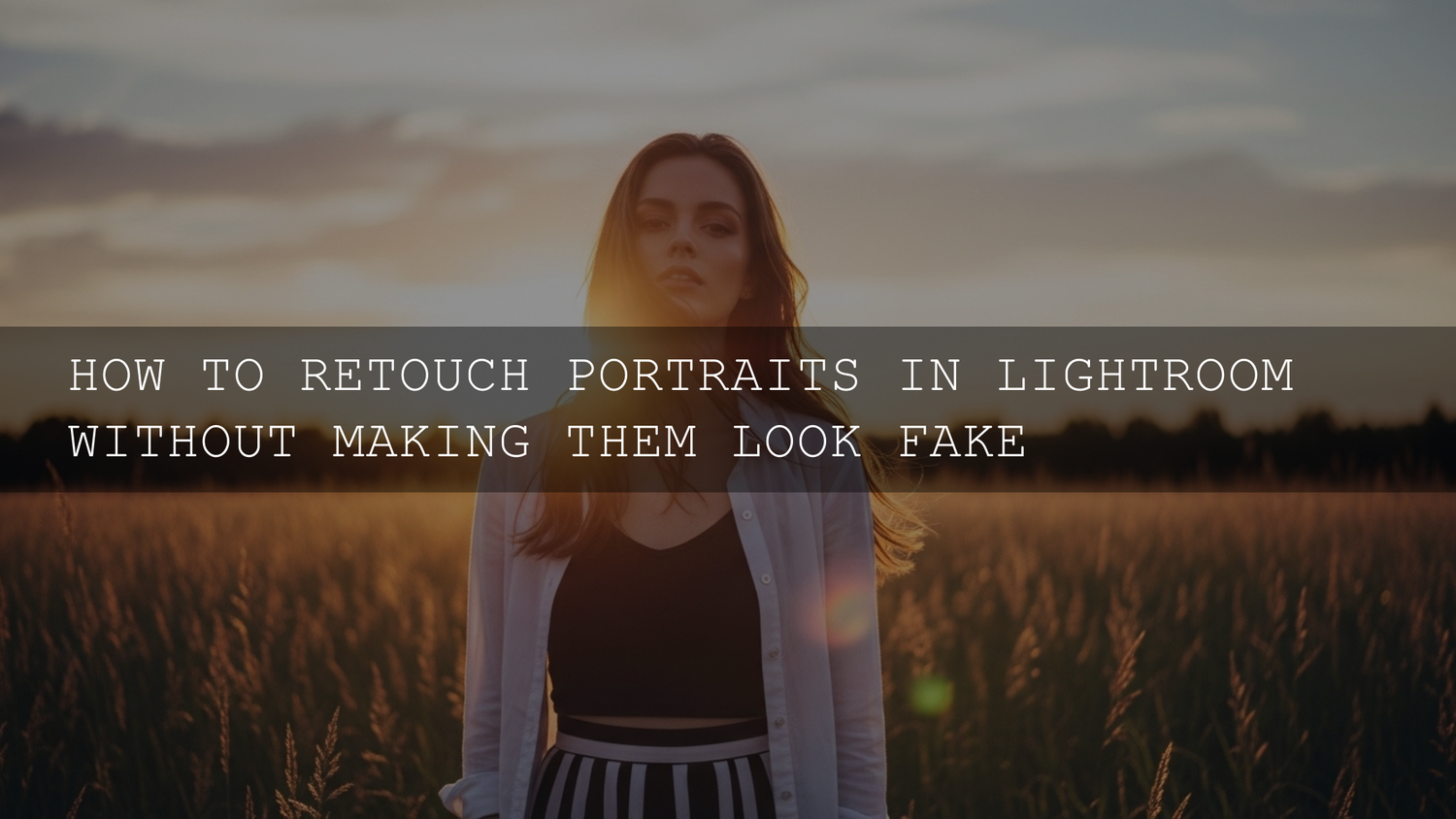
Realistic Lightroom Portrait Retouching in 2026: Natural Skin, True Color, Zero “Plastic” Look
If you’re aiming for realistic Lightroom portrait retouching in 2026, the goal isn’t to erase every pore—it’s natural portrait editing that keeps texture, preserves identity, and still feels polished. This is where Lightroom’s Masking, the Heal/Spot Removal workflow, and clean skin tone control (HSL/Color Mixer) shine. In this guide, I’ll walk you through a practical, repeatable way to retouch portraits so the person still looks like themselves—just refreshed, dimensional, and premium.
If you want a faster starting point for this exact “subtle enhancement” style, take a look at AI-Optimized Skin Retouch Portrait Lightroom Presets and browse the Portrait Photography Lightroom Presets collection—and if you’re building a full toolkit, you can Buy 3, Get 9 FREE when you add 12 items to your cart.
What “Natural Retouching” Actually Means (and What It Doesn’t)
Natural retouching is not “no editing.” It’s editing with restraint and intention. Here’s the standard I use:
- Remove temporary distractions (blemishes, lint, sensor dust) while keeping permanent features (moles, freckles, smile lines).
- Improve light and dimension (dodging and burning) instead of flattening the face with global sliders.
- Refine skin texture (reduce harshness) without deleting detail (pores, fine texture).
- Correct color casts (green indoor tint, too-warm tungsten, too-magenta edits) so skin stays believable.
- Preserve individuality so the final photo still feels like the person your client recognizes.
Think of it like a “rested and confident” version of the subject—not a different face.
Step 1: Nail the Base Edit First (This Makes Retouching 10× Easier)
Before you touch a single blemish, do a clean global pass. If the base is wrong, you’ll fight the edit all the way down.
A fast baseline recipe for portraits
- White balance: aim for skin that feels neutral (not green, not orange). Adjust Temp/Tint until cheeks and forehead look natural.
- Exposure: set overall brightness so the face reads well at “fit to screen” (not only when zoomed in).
- Highlights/Shadows: pull highlights slightly down if forehead/cheeks are shiny; lift shadows carefully to reveal detail without turning skin grey.
- Blacks/Whites: set a gentle contrast foundation; avoid crushed blacks on hair and eyebrows.
- Profile choice: choose a profile that matches your vibe (clean, soft, or cinematic) and doesn’t wreck skin saturation.
Here’s why this matters: a correct base reduces the “need” for heavy skin smoothing—most over-retouching is really compensation for poor exposure or color.
Your Lightroom Retouch Toolkit (The Only Tools You Need for 90% of Portraits)
1) Heal/Spot Removal: remove distractions without leaving “stamp” patterns
For small imperfections, Lightroom’s healing workflow is the cleanest way to stay realistic. Keep it subtle:
- Prefer Heal for skin: it blends texture + tone more naturally than cloning.
- Brush size rule: keep it only slightly bigger than the blemish—oversized healing is what creates smears.
- Always check the sample: if the skin starts repeating, move the sample point to a nearby clean area.
- Lower opacity for larger areas: for bigger distractions, reduce opacity so the fix doesn’t look “painted.”
Adobe’s official guide is worth a skim if you want to master the modern heal options: Adobe’s Lightroom Classic Healing tool guide.
2) Masking: the secret to premium edits (because you’re not editing “everything”)
Masking is where portraits go from “edited” to “professional.” Instead of pushing global sliders, you can target just what matters: skin, eyes, lips, background, and even specific facial regions.
- Skin refinement mask: reduce harsh texture with small moves (Texture/Clarity slightly negative), then stop.
- Eye clarity mask: tiny boost to exposure and micro-contrast on the iris (avoid glowing whites).
- Teeth cleanup mask: slightly reduce saturation and lift exposure a touch—never bleach to blue-white.
- Background softening mask: gently reduce clarity/contrast behind the subject to pull attention to the face.
If you want the official breakdown (including how the Masking panel works), use: Adobe’s Lightroom Classic Masking tool guide.
3) Texture vs Clarity vs Sharpening: the “natural skin” rule
These three controls are where most “melted face” problems start. Use them like seasoning, not a main ingredient.
- Texture: best for reducing harsh skin detail while keeping pores. Start tiny (think “just enough”).
- Clarity: increases midtone contrast—great for drama, dangerous for faces. If you use it, keep it minimal and often avoid it on skin entirely.
- Sharpening: should support detail, not create crunchy edges. If your subject has makeup or dry skin, heavy sharpening can look brutal.
4) HSL/Color Mixer: the cleanest way to fix skin tone weirdness
When skin looks too red, too orange, or slightly muddy, the HSL/Color Mixer is your best friend—especially Reds/Oranges.
- Hue: tiny shifts help correct “too magenta” vs “too yellow” skin.
- Saturation: reduces blotchy redness (often in cheeks and nose) without flattening the whole photo.
- Luminance: subtly lifts skin brightness for a healthy glow—use carefully to avoid “flat face.”
Pro tip: if you’re ever unsure whether your color choices are drifting, use a neutral color reference mindset (and keep your palette consistent). Adobe’s color tool is great for visual harmony thinking: Adobe Color palette and harmony tools.
Dodging and Burning in Lightroom: The “Realistic” Shortcut to Dimension
Want portraits that feel premium without heavy smoothing? Add shape. This is what dodging and burning does: it guides light and shadow like a subtle makeup pass.
Where to dodge (lighten) for a natural look
- Top of cheekbones
- Center of forehead (very gently)
- Bridge of nose (avoid making it look “striped”)
- Chin highlight (tiny)
Where to burn (darken) for natural sculpting
- Under cheekbones (soft gradient)
- Jawline (subtle—don’t “carve”)
- Sides of nose (light touch)
- Outer forehead edges (soft vignette feel)
My real-world note: I tested this workflow on a wedding reception portrait shot in mixed LED + warm indoor light, and the biggest improvement wasn’t “more smoothing”—it was correcting the color cast first, then doing micro dodge-and-burn to bring back cheekbone shape without making skin look fake.
Presets vs Manual Editing: Which One Creates the Most Natural Portraits?
This is where a lot of photographers get stuck. The truth is: the best workflow is usually a hybrid.
When presets win
- Consistency: matching a full gallery (weddings, events, brand shoots).
- Speed: getting 80% of the look fast so you can spend time on the face.
- Color direction: a preset can lock in a cinematic or clean style instantly.
For example, starting with the 1000+ Master Lightroom Presets Bundle gives you a wide range of base looks—then you refine with local masks for the face.
When manual editing wins
- Tricky lighting: green cast indoors, harsh midday sun, mixed color temperatures.
- Skin tone accuracy: especially when you need to preserve rich, natural tones.
- Precision: small fixes like under-eye texture, teeth saturation, or reducing shiny hotspots.
A clean approach is: apply a gentle portrait base preset (or a dedicated retouch preset) and then do local corrections. If you want a portrait-specific start that’s built for subtle realism, use AI-Optimized Skin Retouch Portrait Lightroom Presets, then fine-tune masks for eyes/skin and adjust HSL for perfect tone.
A Practical Lightroom Workflow for Realistic Portrait Retouching
Here’s a step-by-step process you can repeat on almost any portrait—without sliding into “overdone.”
- Set your base: white balance, exposure, highlight control, and a gentle contrast foundation.
- Choose your direction: clean editorial, warm lifestyle, or cinematic—then commit to it.
- Heal temporary distractions: acne, lint, small flyaways, sensor dust. Keep permanent features unless requested.
- Create a skin mask: reduce harsh texture slightly (don’t blur). Keep edges feathered.
- Fix color issues: HSL Reds/Oranges for blotchiness; minor Tint correction if skin goes green/magenta.
- Dodge and burn lightly: add dimension instead of flattening with global sliders.
- Eyes (subtle): brighten iris gently; avoid neon whites. Add micro-contrast, not glow.
- Teeth (natural): tiny exposure lift + slight saturation reduction if needed.
- Final polish: small global tweaks, then check at fit-to-screen and 1:1 zoom.
Quick “reality check” tip: toggle before/after every 30–60 seconds. If the first thing you notice is “the retouch,” it’s too far.
Common “Over-Retouched” Problems (and Fast Fixes)
Melted skin
Fix: back off Texture/Clarity reductions. If you need softness, apply it only to specific areas (under-eyes, forehead) with low flow and feathered edges.
Flat face (no dimension)
Fix: reduce global shadow lifting and add subtle burn under cheekbones/jawline. Dimension should come from controlled local work, not global flattening.
Over-bright eyes
Fix: lower exposure in the eye mask and reduce saturation. The iris should look alive, not radioactive.
Chalk-white teeth
Fix: undo heavy desaturation and keep a hint of warmth. Teeth are rarely pure white, especially under warm lighting.
Patchy or inconsistent skin tone
Fix: use HSL Reds/Oranges and small localized color correction masks. Often a tiny Tint correction solves 80% of the issue.
Choosing a Portrait Look That Still Feels Real
“Natural” doesn’t mean “boring.” You can still create a clear style—just keep skin and identity protected.
- Editorial clean: neutral skin, gentle contrast, controlled highlights.
- Warm lifestyle: warm midtones, soft highlights, flattering oranges without over-saturation.
- Cinematic portrait: deeper shadows, controlled highlights, slight color separation—while keeping skin believable.
If you work with deeper skin tones and want cinematic mood without losing richness, start with something built specifically for that: AI-Optimized Dark Skin Cinematic Lightroom Presets.
Another real-world note: when I pushed a cinematic portrait look onto a golden-hour outdoor shoot, the “pro” result came from keeping skin saturation under control and using masking to protect highlights on the forehead and cheeks—everything else was style.
Related Reading (Internal Guides That Pair Perfectly with This Workflow)
- How to use masking tools for stunning photo edits in Lightroom
- Warm vs cool tones: which presets tell your story best?
- Lightroom presets vs Photoshop actions: which is better for editing?
- Moody presets: how to create dark cinematic photos
- The ultimate Lightroom presets bundle: why every photographer needs one
- Lightroom vs Photoshop: choosing the right editing workflow
If you need help with downloads, installation, or usage, check our support page here: AAAPresets FAQ & help.
Bring This Look Into Your Own Workflow (Without Overthinking It)
If you want the fastest way to get natural, premium portrait results, start with a portrait-focused base and then finish with small local masks. I’d recommend beginning with AI-Optimized Skin Retouch Portrait Lightroom Presets, then explore more styles inside the Portrait Photography Lightroom Presets collection. If you want a complete library for every scenario (portraits, weddings, travel, moody edits), grab the 1000+ Master Lightroom Presets Bundle—and remember, you can Buy 3, Get 9 FREE when you add 12 products to your cart.
How do I smooth skin in Lightroom without making it look fake?
Use a targeted skin mask and reduce Texture slightly instead of blurring. Keep the adjustment subtle, feather the edges, and preserve pores—remove temporary blemishes with the Heal tool rather than “smearing” texture.
Should I remove freckles and smile lines in portrait retouching?
Usually, no. Freckles and smile lines are part of identity. A realistic approach focuses on temporary distractions and harsh lighting issues, not permanent character features—unless the client requests otherwise.
What’s the best way to fix blotchy red cheeks?
Start with HSL/Color Mixer: slightly reduce Reds/Oranges saturation and adjust hue gently if skin leans magenta. If it’s localized, use a small mask and reduce saturation only where needed.
Are presets good for portrait retouching, or should I edit manually?
Presets are great as a consistent starting point, but natural results usually come from a hybrid workflow: preset for the base look, then masking + heal + subtle dodge/burn for the face.
Why do my portraits look “flat” after editing?
Over-lifting shadows and over-smoothing removes natural contrast. Bring back gentle dimension with localized dodging and burning, and avoid heavy global edits that flatten highlights and shadows.
Written by Asanka — creator of AAAPresets (10,000+ customers).

Leave a comment
This site is protected by hCaptcha and the hCaptcha Privacy Policy and Terms of Service apply.