
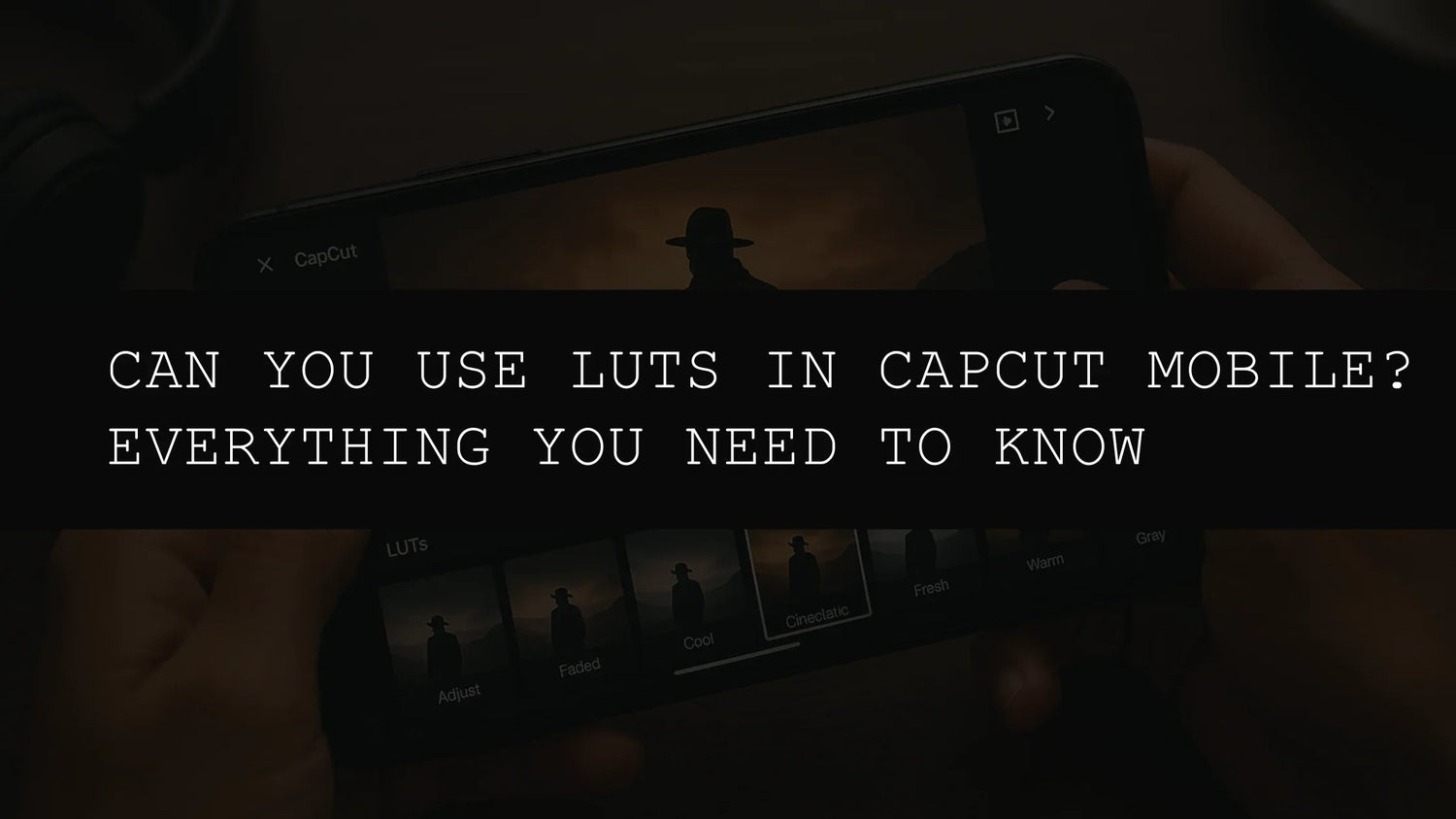
Unlocking Cinematic Potential: A Deep Dive into Using LUTs with CapCut Mobile in 2026
In the dynamic world of mobile video editing, CapCut has emerged as a leading choice for creators of all levels, thanks to its intuitive interface and impressive array of features. However, one question frequently arises: how can you effectively utilize LUTs (Lookup Tables) within CapCut's mobile environment? The answer isn't straightforward, as CapCut doesn't natively support direct LUT import like professional desktop software (such as Adobe Premiere Pro or DaVinci Resolve). But don't despair! This comprehensive guide explores effective strategies and workarounds to seamlessly integrate the power of LUTs into your CapCut mobile workflow, unlocking a new level of cinematic color grading for your projects in 2026.
Understanding LUTs: Your Key to Cinematic Color
Before diving into the practical applications, let's solidify our understanding of LUTs and their transformative capabilities. LUTs, or Lookup Tables, are essentially pre-designed color grading presets. Think of them as sophisticated filters that don't just adjust brightness and contrast; they manipulate the entire color space of your video footage, subtly altering hues, saturation, and luminance to create a unified and artistically consistent aesthetic.
The benefits of incorporating LUTs into your workflow are numerous:
- Unmatched Efficiency: LUTs dramatically reduce editing time. Instead of painstakingly adjusting color curves and individual channels, you apply a LUT, instantly transforming your footage with a polished professional look.
- Maintaining Brand Consistency: Creating a strong brand identity hinges on maintaining a consistent visual aesthetic. LUTs streamline this process, ensuring that all your videos share a unified color palette and style.
- Creative Exploration Unleashed: LUTs offer a world of creative possibilities. Experiment with different styles and looks to find the perfect match for your content and intended audience. Discover unique color palettes and cinematic moods with ease.
- Achieving Professional-Grade Results: Many LUTs are expertly crafted by experienced colorists, delivering cinematic looks that are difficult to achieve manually, particularly on mobile devices.
Strategic Workarounds for CapCut Mobile: Mastering LUT Integration
CapCut's lack of native LUT support doesn't preclude you from harnessing their power. The key is in employing strategic workarounds. Here are some effective methods:
1. Pre-Grading with LUT-Compatible Apps: A Powerful Workflow
This is arguably the most effective approach. Utilize a mobile video editor explicitly supporting LUT import (such as LumaFusion or VN, among others). Apply your chosen LUT to your video clips within this app. Once you're happy with the results, export the color-graded footage and import it into CapCut for further edits, including fine-tuning, adding text, transitions, or other special effects.
This method ensures you retain the LUT's color enhancements while retaining CapCut's user-friendly features for other editing tasks. It allows for a seamless workflow that combines the best of both worlds: powerful LUT color grading and CapCut's ease of use.
2. Fine-Tuning with CapCut's Native Adjustments: A Manual Approach
CapCut offers a suite of built-in color adjustment tools. Although these aren't as sophisticated as dedicated LUTs, skillful manipulation can yield surprisingly good results, especially when striving for specific effects such as a vintage or moody aesthetic. Experiment with the brightness, contrast, saturation, shadows, highlights, and other controls to achieve the desired look. This approach is more time-consuming, requiring a keen eye for color and a willingness to fine-tune manually, but it's a viable option if you prefer to keep your workflow exclusively within CapCut.
3. Exploring Third-Party Integrations: Proceed with Caution
Several third-party apps and plugins claim to offer LUT functionality for CapCut. However, it's crucial to proceed with caution. Always thoroughly research the app or plugin's reputation, user reviews, and security before installation. Prioritize well-established and reputable developers to avoid potential compatibility issues, security risks, or frustrating software malfunctions. It's always advisable to back up your project before testing any third-party tools.
Elevating Your CapCut Videos: Showcasing Premium LUT Packs
Choosing the right LUT pack is crucial for achieving the desired visual style. Here's a closer look at some high-quality packs that work remarkably well with the pre-grading method:
The Bike Influencer Cinematic Look LUTs Pack provides eight professionally designed .CUBE LUTs, perfectly suited for adding a bold, cinematic feel to your biking adventures. The LUTs enhance colors and contrast, making your footage more dynamic and engaging for viewers.
For food bloggers and content creators, the Cinematic Bright Food LUTs For Food Blogger pack adds vibrancy and visual appeal to your culinary creations. The eight LUTs in this pack are designed to enhance the colors and textures of food, making your videos more enticing and professional.
Tech enthusiasts and desk setup influencers will appreciate the Cinematic Desk Setup Studio LUTs Pack. These eight LUTs enhance the visual appeal of your tech setups, adding a clean, modern, and professional look to your videos.
For fitness enthusiasts, the Cinematic HDR Look Workout Video LUT pack provides dynamic and high-energy color grading suitable for workout videos. The LUTs emphasize the intensity and dynamism of your fitness content.
For a touch of cinematic elegance, the Cinematic Luxury Black Cinematic Video LUTs Pack offers 18 LUTs that create a moody and sophisticated atmosphere, ideal for a variety of video projects. These LUTs add a professional and polished touch to any video.
Troubleshooting and Expert Tips for Seamless Integration
Successfully integrating LUTs into your CapCut workflow requires careful attention to detail. Here's a compilation of troubleshooting tips and best practices:
- Addressing Color Mismatches: If a LUT doesn't render perfectly after importing pre-graded footage, minor adjustments to brightness, contrast, and saturation directly within CapCut can help fine-tune the final look.
- Ensuring File Compatibility: Always confirm that the LUTs you're using are in a compatible format (usually .cube files) with your chosen pre-grading app. Incompatible formats will lead to errors.
- Embracing Experimentation: Don't hesitate to experiment with different LUTs and combinations to discover your unique style. The beauty of LUTs lies in their ability to unlock a vast array of creative color palettes.
- Optimizing Resolution: For the best results, use LUTs optimized for your video's resolution (e.g., 1080p or 4K). Using incorrectly sized LUTs will reduce image quality.
- Understanding Color Spaces: Be aware of color spaces (e.g., Rec.709, DCI-P3) used in your footage and chosen LUTs. Mismatched color spaces can cause unexpected color shifts.
- Managing File Sizes: LUT packs can vary in size. Ensure your device has sufficient storage space to prevent errors or slowdowns during the editing process.
- Batch Processing: For efficiency, consider using features like batch processing (available in some editing apps) to apply LUTs to multiple clips simultaneously.
Conclusion: Embracing Cinematic Color on Your Mobile Device
While CapCut may not offer direct LUT import, clever workarounds allow you to tap into the power of LUTs. Whether you choose the pre-grading method for precise control or utilize CapCut's built-in adjustments for a more hands-on approach, the results can dramatically elevate your mobile video projects. Experiment, refine your workflow, and transform your videos into cinematic masterpieces.

Leave a comment
This site is protected by hCaptcha and the hCaptcha Privacy Policy and Terms of Service apply.