
GoPro Color Grading in 2026: Turn Flat Action Cam Clips Into Cinematic Footage
GoPro color grading is the difference between “cool moment” and “cinematic story.” If you shoot with GoPro Protune and the Flat color profile, your footage will look washed out at first—but that “boring” look is exactly what gives you room to build contrast, cleaner skin tones, deeper skies, and a consistent film vibe in DaVinci Resolve or Premiere Pro. Let’s break it down with a practical workflow you can repeat on every edit, whether you’re cutting surf clips, travel vlogs, motorbike POV, or family moments.
If you want a fast, reliable starting point after you build a clean base grade, try 700+ Cinematic Video LUTs For Your Next Project and browse the full Cinematic LUTs Pack collection for Premiere Pro, DaVinci & Final Cut—and if you’re building your library, you can Buy 3, Get 9 FREE when you add 12 items to your cart.
Color Correction vs Color Grading: The One Rule That Saves Every GoPro Edit
Most “bad grades” happen for one simple reason: people jump to style before the clip is clean.
- Color correction = making the clip look natural and technically solid (white balance, exposure, contrast, fixing weird color casts).
- Color grading = shaping the mood and the story (warm sunset glow, teal-and-orange contrast, moody blues, vintage fade, etc.).
Here’s the mindset: correct first, then create. If the correction is strong, your LUTs and creative moves instantly look more “expensive.”
Why GoPro Footage Looks Flat (and Why That’s Actually Good)
GoPro footage can look “meh” out of camera because action cams are designed to survive harsh lighting—bright skies, reflective water, deep shadows under helmets, fast movement, and lots of contrast. When you record with Protune and choose a flatter profile, your clip holds more highlight and shadow detail so you can rebuild the image in post instead of baking a harsh look in-camera.
GoPro’s own breakdown of Flat and other advanced settings is worth bookmarking: GoPro’s official explanation of Advanced Protune controls (including Flat color).
Quick capture settings that make grading easier
- Color: Flat (when you plan to grade) or Natural (if you want minimal work).
- White Balance: Set it manually when possible (avoids ugly shifts mid-clip).
- Sharpness: Lower/Low (reduces the “crispy digital” look and protects detail).
- ISO: Keep it as low as your scene allows to avoid noisy shadows.
- Exposure: Protect highlights (blown skies look cheap fast). If in doubt, slightly underexpose and recover carefully.
A Simple GoPro Color Grading Workflow That Works in DaVinci Resolve or Premiere Pro
I’ll keep this software-agnostic, but I’ll call out where Resolve and Premiere differ. The goal is a repeatable structure you can apply to every GoPro timeline.
Step 1: Start with a clean “technical” base (normalize first)
Flat footage needs a “normal” baseline before you stylize. You can do that with a technical LUT (Flat-to-Rec.709 style conversion) or with color management tools (like a transform). The exact method depends on your app, but the idea is the same: get contrast and saturation back to a natural baseline before you chase a look.
- DaVinci Resolve: Many creators prefer node-based control for separating correction and look. If you’re learning Resolve, the official training hub is genuinely useful: Blackmagic’s official DaVinci Resolve training (including color workflows).
- Premiere Pro: A clean approach is Basic Correction first, then Creative second. Adobe’s official overview is helpful for understanding how Lumetri and color management behave: Adobe’s guide to color management and Lumetri Color in Premiere Pro.
Step 2: Fix white balance (kill the “GoPro green/blue” problem)
Action cam footage often leans green (forests), cyan (water), or blue (shade/underwater). Your job is to make neutrals neutral again.
- Find a neutral reference (white shirt, grey road, surfboard, concrete wall) and correct Temperature/Tint.
- If there’s no neutral object, prioritize skin tones if people are in frame. A “correct” skin tone makes the whole scene feel believable.
- Make one clip your “hero” grade, then match others to it.
Quick test: toggle your correction on/off. If the clip looks more natural without feeling “colored,” you’re on the right path.
Step 3: Set exposure and contrast with a soft hand
GoPro highlights clip fast (sky, water reflections), and shadows can get noisy. Aim for a balanced image that still looks natural.
- Highlights: Pull them down until you see texture in clouds or water (don’t make it grey and dead).
- Shadows: Lift carefully—if shadow noise appears, stop and consider denoise instead of lifting more.
- Contrast: Build it in stages. A gentle S-curve often looks more cinematic than one aggressive contrast slider.
Step 4: Add the “look” (this is where cinematic happens)
Once your clip is clean, the creative grade becomes easy. Choose one mood and commit to it across the project.
- Golden hour warmth: warm highlights + slightly cooler shadows for contrast.
- Teal & orange separation: cooler shadows (teal/cyan) + warmer skin/highlights.
- Moody travel film: softer saturation, deeper blacks, gentle highlight roll-off.
If you want a fast cinematic base that still stays natural on outdoor footage, try Nature Cinematic Teal & Amber LUTs Pack and then fine-tune exposure/white balance so it matches your scene.
Step 5: Use targeted color control (HSL/curves) to fix the “problem colors”
This is where GoPro footage goes from “nice” to “pro.” GoPro scenes usually have one dominant color that needs discipline: greens, blues, or reds.
- Greens (jungles, hiking, rice fields): slightly lower saturation, shift away from neon green toward a more natural tone.
- Blues (ocean/sky): deepen blues without crushing them into black; watch banding and noise.
- Reds (sunset, brake lights, skin): protect skin tones from turning orange or sunburnt.
Step 6: Match every clip to the same “reference” shot
Consistency is what makes a video feel cinematic—even more than the LUT you chose. Pick one clip as your reference (best exposure + best skin tone), then match every other clip to it.
When I tested this workflow on a fast-cut motorbike POV sequence, the biggest upgrade wasn’t the LUT—it was matching exposure and white balance so the road, sky, and shadows didn’t “pulse” from shot to shot.
Step 7: Finish like a filmmaker (small moves, big payoff)
- Reduce digital sharpness: if your footage feels crunchy, back off sharpening and consider slight softening.
- Add subtle grain (optional): tiny grain can hide banding and make highlights feel smoother.
- Use gentle vignettes (optional): guide the eye, don’t darken corners aggressively.
Real Examples You Can Copy Today (Before/After in Words)
Example 1: Beach/surf clip (harsh noon sun)
- Before: bright white sky, flat water, skin looks pale.
- Fix: pull highlights down, add a soft S-curve, warm highlights slightly, and keep blues rich but not neon.
- Result: sky texture returns, skin tone feels alive, water looks deeper and more cinematic.
Example 2: Forest hike clip (green overload)
- Before: everything looks green and “video-ish.”
- Fix: reduce green saturation a bit, shift greens slightly toward a calmer tone, add contrast gradually.
- Result: the scene feels like a travel film, not a phone recording.
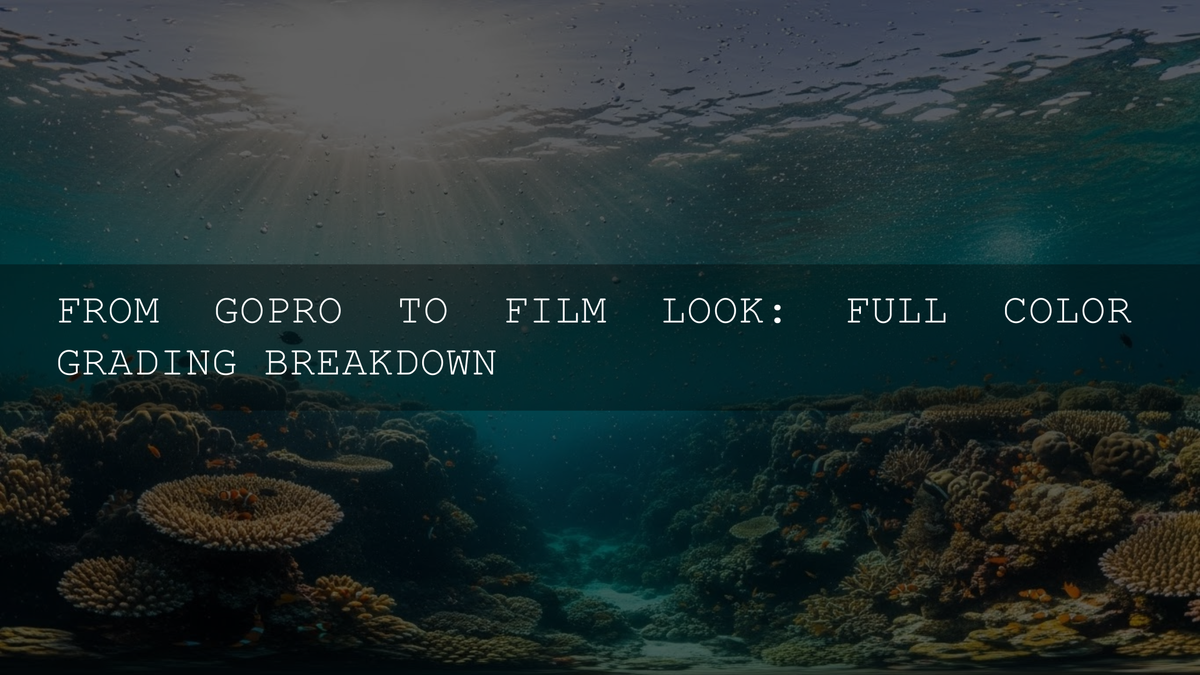
Example 3: Underwater/snorkeling clip (cyan + low contrast)
- Before: heavy blue/cyan cast, muted colors, low contrast.
- Fix: correct white balance first (reduce cyan/blue), lift midtones carefully, then add controlled saturation.
- Result: skin tones and reefs look more natural instead of “cold aquarium.”
Comparison: LUTs vs Manual Grading for GoPro Footage
This is the truth most people learn the hard way:
- LUTs are great for speed and consistency, but they assume your footage is already close to the exposure/white balance the LUT expects.
- Manual grading is slower, but it’s how you fix the scene-specific issues (mixed lighting, weird greens, underwater casts, blown skies).
The best workflow for most creators is a hybrid:
- Normalize (bring Flat footage back to a clean baseline).
- Apply a creative LUT at a lower intensity.
- Finish manually (white balance, contrast, targeted HSL fixes, shot matching).
If you want a versatile LUT library that covers a lot of GoPro and action-cam scenarios (travel, outdoor, moody, warm, teal/orange), start with 700+ Cinematic Video LUTs For Your Next Project and then tweak it to fit your lighting.
Comparison: DaVinci Resolve vs Premiere Pro for GoPro Color Grading
- DaVinci Resolve: node-based control makes it easy to keep correction separate from the creative look, and shot matching workflows feel very “colorist.” Great if color is the hero of your work.
- Premiere Pro: fast for editors who want to stay in one timeline. Lumetri is powerful, especially when you keep your steps organized (Basic Correction → Curves → Creative → HSL).
My simple recommendation: if you’re grading heavy and you love control, lean Resolve. If you’re editing fast social content and want speed, Premiere Pro is totally capable—just be disciplined about your order of operations.
How to Match GoPro to Other Cameras (Sony/Canon/Drone) Without Losing Your Mind
GoPro footage often needs a little extra care to sit next to a drone or mirrorless camera. Match in this order:
- Exposure (so brightness feels consistent shot-to-shot).
- White balance (so one camera doesn’t look green while another looks magenta).
- Contrast curve (so the “depth” of the image feels similar).
- Color separation (greens and blues are usually the giveaway).
If you want a deeper breakdown of LUT-based matching, this guide is a helpful companion: How to use LUTs for color matching between cameras.
Common GoPro Color Grading Mistakes (and the Fix)
- Over-saturation: reduce saturation globally, then add it back only where it matters (skin, sunsets, key colors).
- Crushed blacks: lift shadows slightly and use a curve instead of a heavy contrast slider.
- Teal everywhere: keep teal in shadows/background, protect skin tones with targeted controls.
- One LUT on everything: use one “family” look, but still correct each clip first.
- Ignoring consistency: one great clip doesn’t save a timeline—matching does.
Related Reading (Keep Building Your Workflow)
- Best LUTs for cinematic color grading in DaVinci Resolve
- Step-by-step guide to using LUTs in Premiere Pro
- Grading Log footage in Premiere Pro (S-Log, C-Log, V-Log workflows)
- Importing & applying LUTs in DaVinci Resolve (2026 edition)
One Last Pro Tip: Build a “GoPro Base Grade” You Reuse
Create a simple base grade preset (or node tree) that includes: gentle contrast curve, mild saturation, highlight protection, and a small green/cyan correction. Start every GoPro project from that base, then layer your creative look on top. This one habit saves hours.
If you ever get stuck on installation or compatibility, check the help section here: AAAPresets FAQ & setup help.
If you’re ready to apply a cinematic look quickly (without turning your skies neon or your shadows crunchy), start with 700+ Cinematic Video LUTs For Your Next Project, then refine with a more specific vibe like Fogbound Cinematic Travel LUTs Pack. For browsing by software, explore Cinematic LUTs for DaVinci Resolve and build your set with the Buy 3, Get 9 FREE offer when you add 12 items to your cart.
FAQ
Should I shoot GoPro Flat if I don’t want to spend hours grading?
Flat is best if you want maximum control, but you’ll need at least basic correction. If you want speed, use a more “ready” profile and do light tweaks, or use a gentle LUT at low intensity.
Why does my GoPro footage look noisy after I lift shadows?
Action-cam shadows can get noisy fast, especially with higher ISO. Lift shadows carefully, and consider denoise instead of pushing exposure too far in post.
Do I need LUTs for GoPro color grading?
No—but LUTs can be a great shortcut once your clip is corrected. The cleanest approach is: correct first, then apply a creative LUT lightly, then fine-tune.
How do I keep my sky from turning cyan or neon?
Lower highlight saturation, reduce blue/cyan saturation slightly, and avoid stacking heavy LUTs. Use targeted HSL controls so you’re adjusting the sky without affecting everything else.
What’s the easiest way to match GoPro clips in the same project?
Pick one “reference” clip, match exposure and white balance first, then apply the same look. Consistent correction is more important than any single LUT.
Written by Asanka — creator of AAAPresets (10,000+ customers).


Leave a comment
This site is protected by hCaptcha and the hCaptcha Privacy Policy and Terms of Service apply.