
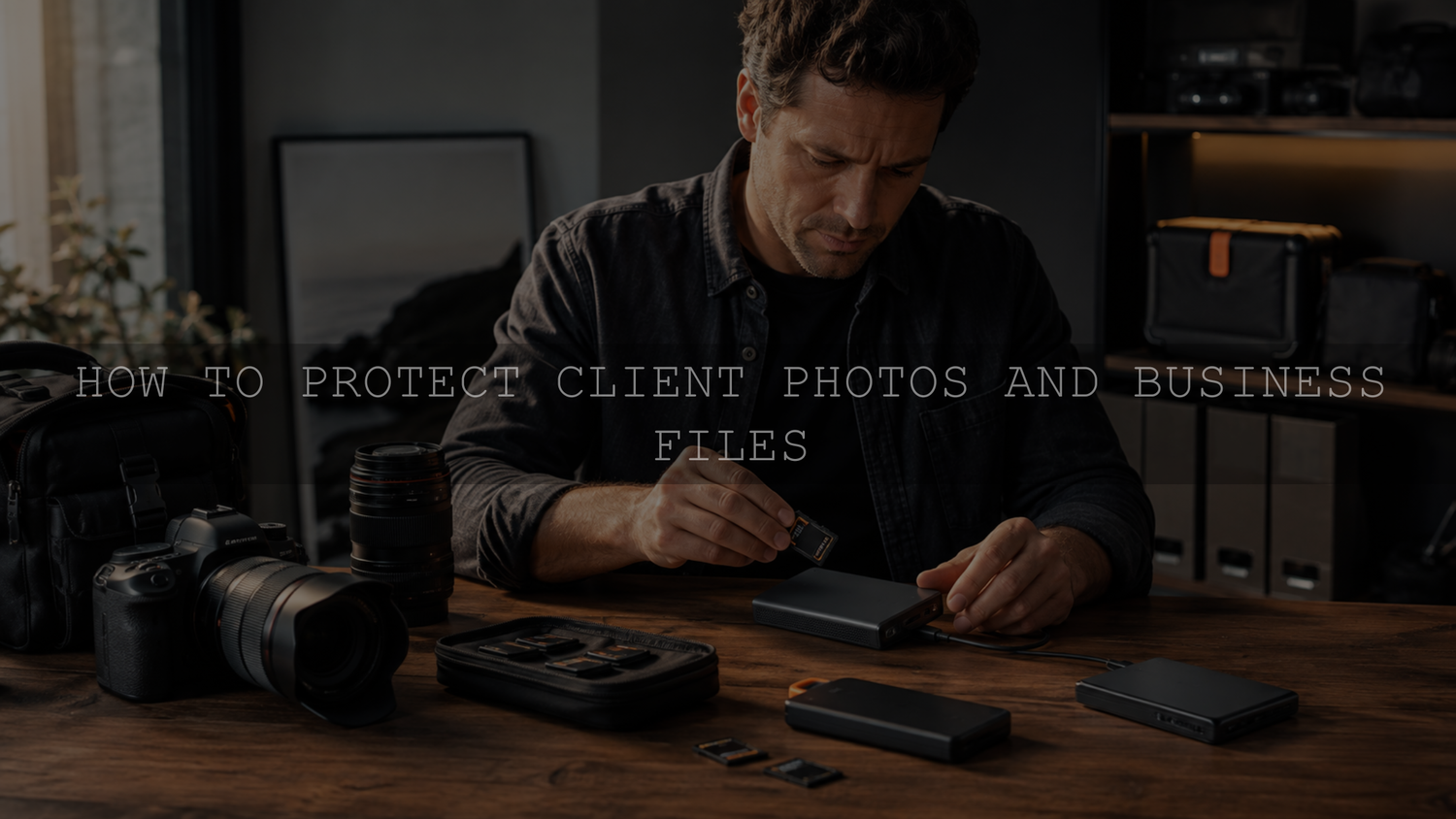
A reliable photography backup system should protect you from more than a failed hard drive. It should also give you a recovery path if a laptop is stolen, files are accidentally deleted, an account is compromised, or your studio equipment is damaged.
A useful starting point is the 3-2-1 backup rule: keep three copies of important data, use two types of storage media, and keep one copy off-site. For a photographer, that can mean your working files, a separate local backup, and an off-site or cloud backup.
The important part is not simply owning several drives. Your copies need to be separate enough that one failure cannot destroy all of them, and you need to know that you can actually restore the files when something goes wrong.
What photographers should back up
RAW photographs are an obvious priority, but they are only part of a professional photography project. Depending on your workflow, important data may include:
- Original RAW, JPEG, HEIF, video, and audio files
- Lightroom catalogs and related editing data
- Photoshop or other working project files
- Final high-resolution exports
- Web and social-media exports when they would be difficult to recreate
- Client contracts and questionnaires
- Invoices and other important business records
- Licensing documents and releases
- Preset, LUT, template, and other creative-tool files that cannot easily be replaced
Prioritize anything that would be impossible, expensive, or time-consuming to recreate. An original wedding RAW file, for example, deserves more protection than a temporary preview that can be regenerated from the original.
Use the 3-2-1 backup rule for photography
The U.S. Cybersecurity and Infrastructure Security Agency guidance on data backups describes the 3-2-1 approach as keeping three copies of important files, using two different media types, and storing one copy off-site. A photographer can adapt that model to a working project without making the system unnecessarily complicated.
- Copy 1: Working storage. The drive you actively edit from, such as an internal SSD or fast external SSD.
- Copy 2: Separate local backup. Another physical storage device that contains a backup of the project.
- Copy 3: Off-site backup. A cloud backup or another appropriately protected copy stored away from the main workspace.
The off-site copy matters because two drives sitting beside the same computer can both be affected by theft, fire, flooding, electrical damage, or another incident at the same location.
The exact storage technology can change as your business grows. The principle is more important: avoid making one device, location, or account the only place from which important work can be recovered.
Back up a shoot before you start serious editing
A practical backup workflow begins as soon as the photographs leave the camera. Do not treat organization, editing, and backup as unrelated tasks.
- Copy the photographs from the memory card to your working storage.
- Confirm that the expected files and folders transferred successfully.
- Create a second independent copy of the original photographs.
- Start or confirm your off-site backup.
- Only erase or reuse the memory card after you are satisfied that your required copies exist.
- Import, cull, organize, and edit from your planned working location.
If you need a more detailed naming and folder workflow, the AAAPresets guide to organizing RAW photos before editing covers shoot folders, file naming, culling, ratings, and Lightroom organization.
Do not confuse Lightroom catalog backups with photo backups
Lightroom Classic users need to protect both the catalog and the photographs referenced by it. Adobe explains in its Lightroom Classic catalog backup documentation that Lightroom Classic catalog backups do not independently back up the photographs referenced by the catalog.
That means a catalog backup should not be treated as proof that the original RAW photographs are protected. Include the originals in your wider file-backup strategy. Adobe also notes that the .lrcat-data file can contain important information about photos and edits, so it should be included in an appropriate backup strategy.
This distinction becomes especially important when you move old projects to archive drives. A working Lightroom environment is far less useful if the catalog survives but the original photographs it references do not.
Understand cloud backup versus file synchronization
Cloud services can be useful, but understand what your chosen service actually does. A folder that synchronizes between devices is not automatically equivalent to an independent backup system.
Synchronization is designed to keep locations in step with one another. Depending on the service and configuration, a deletion or unwanted change may also synchronize. Backup services can provide recoverable copies or versions of data, but their retention, deletion, version-history, and restore policies vary.
Before trusting any cloud service with client work, check:
- Whether deleted files can be recovered and for how long
- Whether previous versions are retained
- How large restores are performed
- Whether your external drives are included
- Whether backup stops when a drive is disconnected
- What happens if your subscription or account status changes
- What security and authentication options are available
Do not assume that seeing a cloud icon beside a folder means you have a complete recovery plan.
Automate repetitive backup work
A backup routine that depends entirely on remembering to drag folders onto another drive is easy to neglect during busy periods. Automation reduces that dependency.
Where practical, configure your backup software to run automatically and monitor it for failures. An automated process can protect new or changed files on a schedule without requiring you to manually copy every project.
Automation still needs supervision. Check the backup application periodically for failed jobs, disconnected drives, storage limits, expired credentials, or folders that are no longer included.
Test whether you can actually restore your files
NIST cybersecurity guidance for small businesses recommends regularly backing up data and establishing measures to protect and test those backups.
You do not need to wait for a failed drive to discover whether recovery works. Periodically choose a small set of representative files and restore them to a temporary location. For a photographer, a useful test might include a RAW file, a final JPEG, an important document, and an editing-related file.
Open the restored files and verify that they are usable. This simple test can reveal problems such as missing folders, incomplete backup selections, damaged files, inaccessible accounts, or an unfamiliar recovery process.
Protect the accounts that can access your client files
NIST recommends enabling multi-factor authentication on accounts that offer it, particularly phishing-resistant MFA where available. Its small-business guidance also recommends strong passwords and considering a password manager.
Start with accounts that could expose important business or client information:
- Your primary email account
- Cloud storage and backup accounts
- Password manager
- Client gallery or delivery service
- Accounting and payment services
- Website administration
- Adobe or other important creative-software accounts
Use unique passwords rather than reusing the same password across services. A password manager can generate and store unique credentials, reducing the need to remember separate passwords for every account.
Also review old third-party connections and remove access that is no longer needed. If assistants, contractors, or former employees have had access to business systems, review those permissions when their role changes.
Create a predictable client project structure
Good organization does not replace backups, but it makes them easier to manage and restore. A predictable folder structure also reduces the chance of accidentally leaving an important part of a project outside your backup system.
For example, a photography project could use:
- 01 RAW
- 02 Catalog
- 03 Working Files
- 04 Final High Resolution
- 05 Web and Social
- 06 Client Documents
A shoot folder can then use a consistent name such as 2026-08-18_ClientName_ProjectName. The exact structure is less important than using a system consistently.
Avoid vague folders such as “New Photos,” “Final Final,” or “Client Stuff.” Clear names make it easier to identify what should be backed up, archived, restored, or eventually deleted.
Separate active projects from archives
Your fastest storage does not need to contain every photograph you have ever made. Once a client project is complete, you can move it from active working storage into an archive system while maintaining the level of backup protection required by your business.
Before removing an active project, confirm that:
- The required deliverables have been completed.
- The archived project contains the files you intend to retain.
- Your required backup copies exist.
- You can locate the project again using your naming system.
- Your retention commitments to the client are understood.
This lets fast working storage remain focused on current projects without turning old work into unorganized piles spread across random drives.
Decide how long you will keep client photographs
There is no single retention period that is appropriate for every photographer, project, contract, business record, or jurisdiction. Do not adopt an arbitrary rule such as keeping every file forever or deleting every project after 30 days simply because another photographer does so.
Instead, create a retention policy based on the type of data, your client agreements, business needs, applicable legal or tax requirements, storage costs, privacy considerations, and your ability to maintain secure archives.
Your client contract and delivery communication should accurately explain any commitments you make about how long delivered photographs remain available. Avoid promising indefinite storage unless your business is genuinely prepared to provide it.
A simple backup checklist for each photography project
- Transfer the original camera files to planned working storage.
- Verify that the transfer contains the expected files.
- Create a separate local backup.
- Confirm the off-site backup is running or create the required off-site copy.
- Protect your backup and cloud accounts with strong authentication.
- Keep RAW files and Lightroom-related data appropriately protected.
- Monitor automated backup jobs for errors.
- Test a restore periodically.
- Archive completed projects using a consistent folder structure.
- Follow your documented client-file retention policy.
Build recovery into your photography workflow
The strongest backup workflow is not necessarily the one with the most drives or cloud subscriptions. It is the one you can follow consistently and recover from when something fails.
Start with three copies of important work, separate the copies across appropriate storage, keep one off-site, automate what you can, secure the accounts controlling the data, and test recovery before you need it. Then make those steps part of every shoot rather than something you remember only after a problem occurs.
Once your files are protected and organized, you can focus on the creative stage. Explore the AAAPresets Lightroom preset bundle collection when you need different editing styles for portraits, landscapes, weddings, travel, and other photography projects. The current collection also promotes AAAPresets' Buy 3, Get 9 FREE offer.
Written by Asanka — creator of AAAPresets, serving more than 10,000 customers.


Leave a comment
This site is protected by hCaptcha and the hCaptcha Privacy Policy and Terms of Service apply.